Ask AI Connectors let you connect third-party applications directly to Ask AI from the HighLevel mobile app. You can manage connected accounts, control which tools Ask AI can use, and add custom MCP servers without accessing a computer. Connections stay synchronized between mobile and web.
TABLE OF CONTENTS
- What Are Ask AI Connectors on Mobile?
- Key Benefits of Ask AI Connectors
- Connected and Browse Tabs
- Connector Accounts and Tool Permissions
- Custom MCP Servers
- How to Set Up Ask AI Connectors on Mobile
- Frequently Asked Questions
- Related Articles
What Are Ask AI Connectors on Mobile?
Ask AI Connectors allow Ask AI to interact with supported external applications using Model Context Protocol (MCP). You can connect apps, manage accounts, and select the tools Ask AI can use directly from your mobile device.
Connectors are available in HighLevel, LeadConnector, and white-label mobile apps running version 4.27.0 or later, for users with Ask AI access.
Key Benefits of Ask AI Connectors
Mobile Connectors make it easier to manage integrations while working away from your desk, without sacrificing control over connected accounts and permissions.
Connect Anywhere: Add and manage third-party applications directly from your phone.
Control Permissions: Choose which tools Ask AI can access for each application.
Reconnect Easily: Restore expired connections without using a computer.
Stay Synchronized: Access the same connections across mobile and web.
Maintain Privacy: Connected accounts remain private to the user who connected them.
Use Custom Integrations: Add compatible MCP servers to extend Ask AI's capabilities.
Connected and Browse Tabs
The Connectors screen provides two tabs to help you manage existing integrations and discover new applications.
Connected: Displays connected applications, the number of linked accounts, and enabled tools.
Browse: Allows you to search for available applications and connect them to Ask AI.
Connector Accounts and Tool Permissions
Each connector provides tools that determine which actions Ask AI can perform in the connected application. Selecting only the tools you need helps maintain control over the integration.
Connect one or more supported accounts to an application.
Select individual tools or use Select all.
Keep the Connector enabled toggle turned on.
Tap Save to apply your changes.
Important:
A connector requires at least one connected account and one selected tool to be enabled.
Tool selections apply to the application, regardless of which connected account is used.
Connected accounts are private and cannot be viewed by other users in the same sub-account.
Custom MCP Servers
Custom MCP servers allow you to connect compatible external services that may not appear in the connector catalog. They extend the tools and integrations available to Ask AI. To configure a custom server, provide:
Server Name: A recognizable name for the connection.
Server URL: A URL beginning with
https://orhttp://.Authentication Details: Client ID and Client Secret, when required.
Redirect URL: A copyable URL for services that require it.
Important: Deleting a custom MCP server also permanently removes all accounts connected through it.How to Set Up Ask AI Connectors on Mobile
Setting up a connector involves selecting an application, authenticating your account, and enabling the tools Ask AI can use.
Open the HighLevel mobile app and navigate to Ask AI.
Tap the Chat history icon in the upper-right corner.
Tap Customize → Connectors.
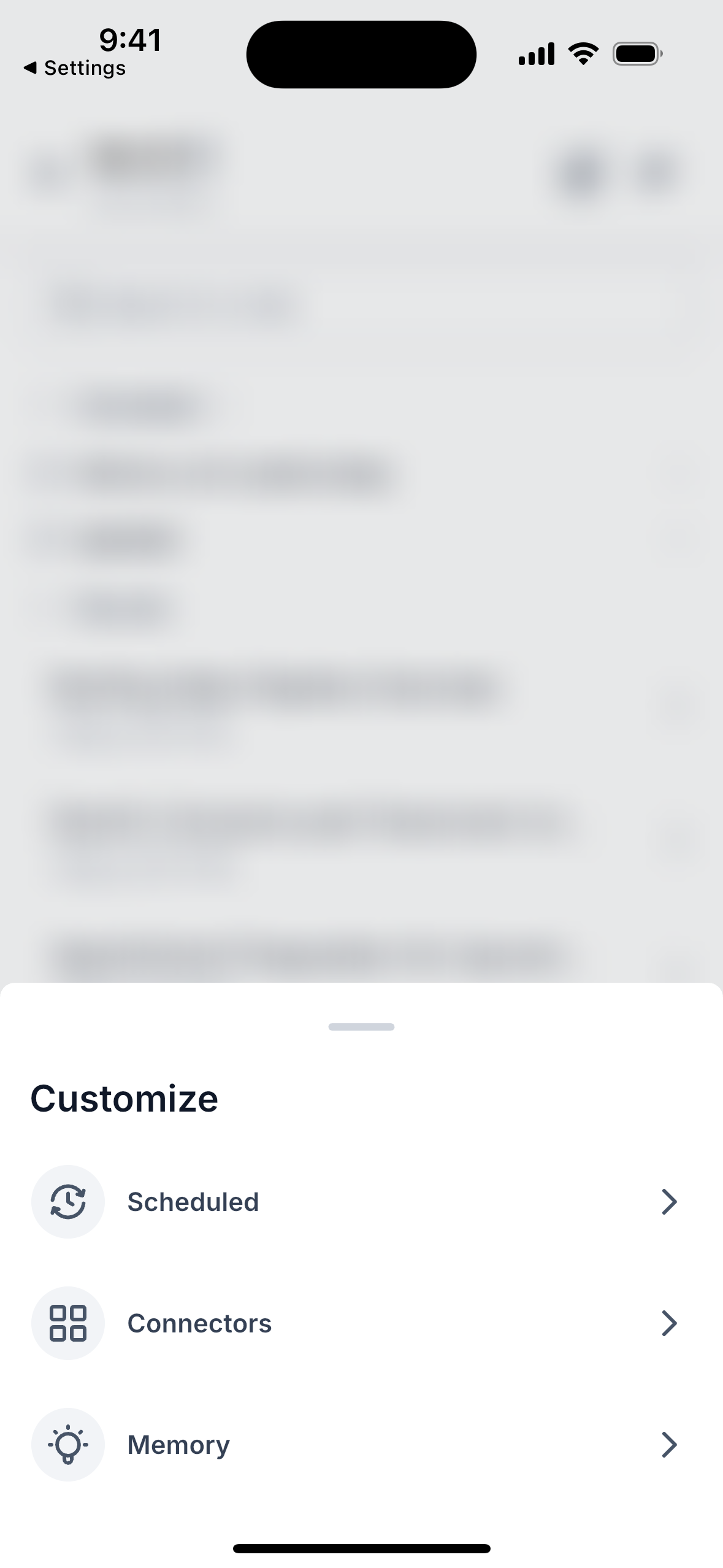
Open the Browse tab and select an application.
Tap Connect and complete authentication.
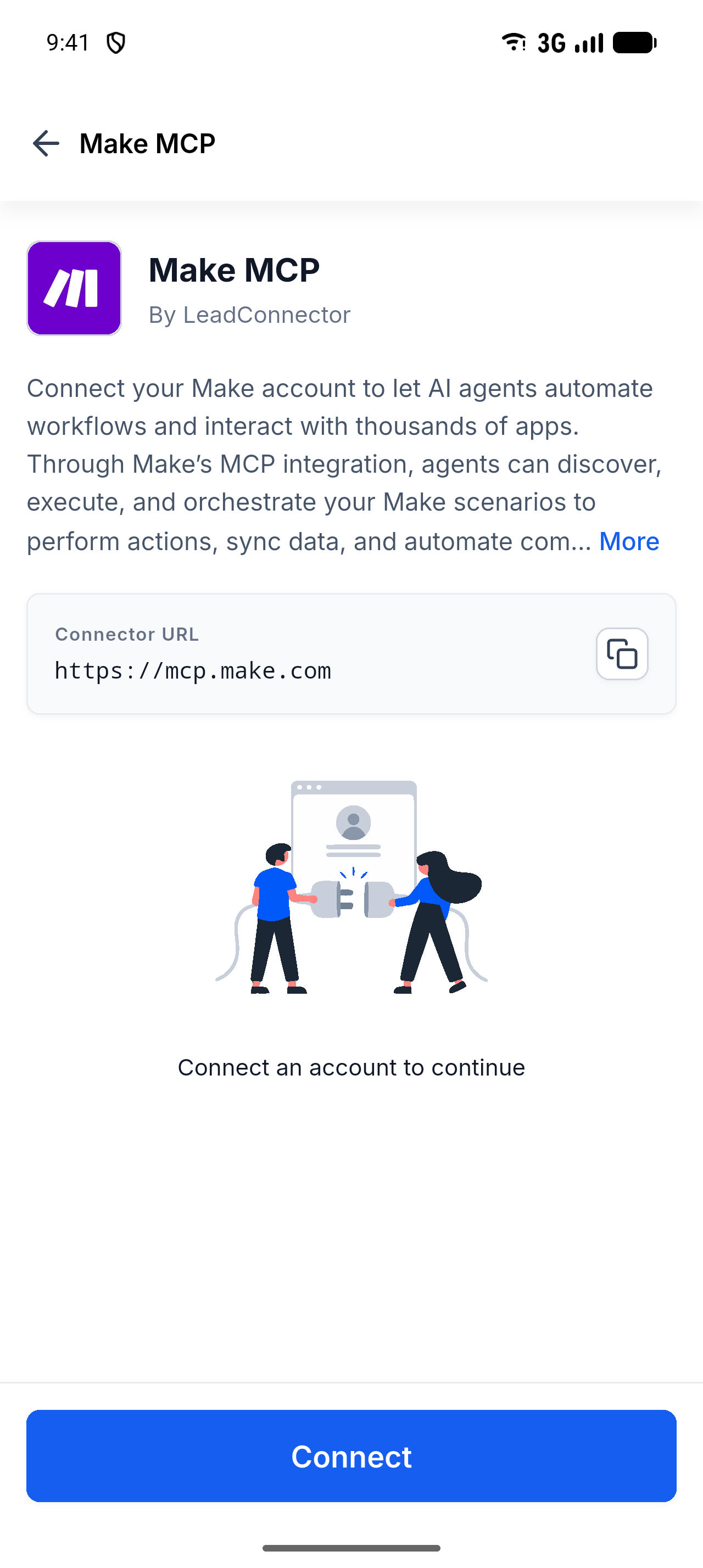
Select your connected account and choose the tools Ask AI can use.
Ensure Connector enabled is turned on.
Tap Save to complete the setup.
Once connected, return to Ask AI and submit a request using the application's supported tools.
Important Notes:

• Connectors are configured at the sub-account level.

• Tapping Back without saving discards changes without a warning.

• Some applications require authentication through a secure in-app browser.

• Connector changes synchronize between mobile and web.

• Ask AI Skills are available on web but are not included in mobile Customize in version 4.27.0.
Frequently Asked Questions
Q: Why can't I see Connectors on mobile?
A: Ensure your app is updated to version 4.27.0 or later, you have Ask AI access, and you are working within a sub-account.
Q: Can I connect multiple accounts to one application?
A: Yes, where supported. However, the selected tools apply to the application rather than individual accounts.
Q: Can other users see my connected accounts?
A: No. Connected accounts are private to the user who configured them.
Q: What happens if my connection expires?
A: Open the connector and complete the available reconnection or authentication process.
Q: Can I manage Connectors while offline?
A: You can view the last loaded list, but it cannot refresh. Once online, tap Try again.
Q: Are Connectors synchronized between mobile and web?
A: Yes. Applications connected on either platform are available on the other.
Q: What happens when I delete a custom MCP server?
A: All accounts connected through that server are permanently removed.
Related Articles
Was this article helpful?
That’s Great!
Thank you for your feedback
Sorry! We couldn't be helpful
Thank you for your feedback
Feedback sent
We appreciate your effort and will try to fix the article