HighLevel’s CRM associations between Companies, Opportunities, and Custom Objects let you map real-world relationships like companies, deals, and assets directly in your CRM. This guide walks through what the feature does, why it matters, and exactly how to set it up for a unified 360° view of your data.
TABLE OF CONTENTS
- What is Associations Between Companies, Opportunities & Custom Objects?
- Key Benefits of Associations Between Companies, Opportunities & Custom Objects
- Enabling Company Associations from Labs
- Association Relationship Types
- Association Labels
- Association Limits
- Managing Associations from Records
- Viewing Associations Across the CRM
- Using Association Data in Views & Reporting
- How To Setup Associations Between Companies, Opportunities & Custom Objects
- Frequently Asked Questions
- Related Articles
What is Associations Between Companies, Opportunities & Custom Objects?
Associations between Companies, Opportunities, and Custom Objects define how records are linked so your CRM can mirror real-world relationships. Instead of jumping between separate records, your team can see all related companies, deals, and assets from a single view and manage those links without leaving the workflow they’re working in.
At launch, you can:
- Associate Companies with Opportunities
- Associate Companies with Custom Objects
Use all common relationship patterns, including one-to-one, one-to-many, and many-to-many, with configurable limits and labels.
Key Benefits of Associations Between Companies, Opportunities & Custom Objects
A clear understanding of the value makes it easier to design your data model and decide where to invest effort first. These benefits apply whether you’re modeling simple “company ↔ deal” relationships or more advanced “company ↔ asset ↔ deal” scenarios.
- True 360° company view: See every related opportunity and custom object, such as properties, events, or policies, directly from the company record.
- Accurate real-world modeling: Represent relationships like Companies ↔ Opportunities or Companies ↔ Custom Objects using one-to-one, one-to-many, or many-to-many structures so your CRM matches how your business actually works.
- Faster navigation for users: Open related records from the Associated Objects panel instead of searching separately, reducing clicks and context switching.
- Smarter boards and lists: Surface association labels directly on Opportunity Kanban cards and in List Views, making it easier to prioritize work and filter by what matters.
- Cleaner, governed relationships: Configure per-label limits to keep associations meaningful and prevent over-linking.
- Ready for reporting and exports: Include association fields in reports and exports so decision-makers can see which companies, deals, and assets are connected.
Enabling Company Associations from Labs
Understanding where to turn this feature on ensures you don’t spend time configuring associations that users can’t yet access. Company–Opportunity–Custom Object associations are launched through Labs, allowing you to enable them per sub-account as you roll them out.
Where to enable
In your Agency view, open Labs.
Go to Sub-account Labs.
Locate Company association.
Enable the toggle for the sub-account(s) where you want to use company associations.
Once enabled, users in that sub-account can configure and use company associations from Object Settings and record views.
Association Relationship Types
Choosing the right relationship type helps your CRM reflect reality whether that’s a single policy per company, many properties per company, or multiple companies per opportunity. HighLevel supports flexible association patterns with clear limits so your team doesn’t accidentally create confusing data structures.
Supported relationship types
For multi-label associations, such as Companies ↔ Opportunities or Companies ↔ Custom Objects, you can configure:
- One-to-One (1:1): Exactly one record on each side, such as a unique “Master Agreement” object attached to a single company.
- One-to-Many (1:N) / Many-to-One: One record links to many on the other side, such as one Company with multiple Opportunities, or one Opportunity linked to multiple Companies in a partner deal.
- Many-to-Many: Many records on both sides, such as multiple Companies tied to multiple multi-party Opportunities.
Each association configuration includes a “Configure Relationship” area where you define relationship type and optional numeric limits so the UI actively enforces your rules.
Association Labels
Association labels describe what the relationship represents, making complex data far easier to interpret at a glance. Instead of generic “Company” links, you can tell users who’s the Vendor, Buyer, or Partner in the relationship.
How labels work
- Single label: Use when both sides share the same role, such as “Related Company” or “Deal.”
- Paired labels: Use when each side plays a distinct role, such as “Buyer ↔ Seller” or “Vendor ↔ Partner.”
- Up to 10 labels per object pair: Define multiple labels between the same two object types, such as “Billing Company,” “Servicing Company,” and “Referral Partner” between Companies and Opportunities.
- Per-label limits: Each label can support up to 1,000 associated records on each side, with the limit configured in the association settings.
These labels appear in:
The Associated Objects or Associations / Related Objects panels on records
Opportunity Kanban cards when you add the relevant “Association Label (Object Type)” field
List Views as columns and filters, and in exports
Association Limits
Association limits keep your CRM performant and understandable by preventing a single label from linking thousands of records without control. Instead of silently allowing unlimited relationships, HighLevel enforces configured caps and clearly alerts users when they reach them.
Key points about limits
- Limits are defined per label in the association configuration, for example, “Buyer” can allow up to 1,000 Opportunities per Company.
- Relationship options like 1:1, 1:N, and many-to-many are configured in the same area.
- When a user tries to associate beyond the allowed count, HighLevel immediately shows an error message and blocks the new association, keeping existing data intact.
This gives admins precise control over how dense relationships can become, while giving users clear, in-context feedback when a limit has been reached.
Managing Associations from Records
Associations are most powerful when they’re easy to work with. HighLevel lets your team add, edit, and remove associations directly from record views, so users never have to leave the page they’re working on to keep relationships in sync.
From Opportunities
Use this when you’re working a deal and want to attach companies and related assets:
- Open an Opportunity.
- Go to the Associated Objects section or panel.
- Click + Associate.
- Choose Company or Custom Object.
- Search for and select the record(s) to link.
- Save to create the association.
From Companies
Use this for a company-centric workflow where you’re reviewing all deals and assets tied to that organization:
- Open a Company record.
- Go to Associations / Related Objects.
- Add Opportunities and/or Custom Objects using the search-and-select options.
- Save your changes.
From Custom Objects
When you’re managing entities like Properties, Events, or Policies, you can connect both Companies and Opportunities for complete context:
- Open a Custom Object record.
- Find the Associations / Associated Objects section.
- Add related Companies and/or Opportunities.
- Save to confirm.
If a record, such as a Company or Opportunity, is deleted, HighLevel automatically removes its associations so you don’t end up with broken links in other records.
Viewing Associations Across the CRM
Configuring associations is just the first step making them visible in everyday workflows is what unlocks real productivity. HighLevel lets you surface association data in record detail panels, Opportunity Kanban boards, and CRM List Views.
Record Details (side panel)
The Associated Objects or Associations panel on record details gives users a quick overview of every linked Company, Opportunity, or Custom Object:
- View all linked records grouped by object type.
- Open any associated record in a side panel without losing your place.
Opportunity Kanban (Board) View
Bringing association labels onto Kanban cards helps sales teams quickly see which companies or assets are tied to each deal.
To show associations on Opportunity cards:
- Go to Opportunities and switch to Board / Kanban View.
- Click Manage Fields.
- Add the Association Label (Object Type) fields you want to display, such as Company or Property.
- Save your changes.
List Views (Contacts, Companies, Opportunities, Custom Objects)
Admins and analysts often want a tabular view for filtering, sorting, and bulk actions. In List View, association data is available as configurable columns:
- Open a List View, such as Companies, Opportunities, or a Custom Object.
- Click the column configuration icon, often Manage Columns or similar.
- Add relevant Association or Association Label (Object Type) fields as columns.
Use filters and sorting to focus on specific relationships, such as all Opportunities associated with a given Company.
These configurations also flow into exports, so CSVs and reports can include association data for further analysis.
Using Association Data in Views & Reporting
Once association fields are configured, they become powerful building blocks for analysis. You can slice and segment data by which companies, deals, or assets are connected, and push that visibility into exports or downstream tools.
Practical examples
- Revenue by company portfolio: Export Opportunities with associated Company and Custom Object fields to understand which companies own specific assets or lines of business.
- Pipeline by asset or policy type: Use association labels, such as “Primary Property” or “Policy Holder,” in List View filters and exports to see which assets or policies drive deal volume.
- Operational audits: Confirm that every Opportunity is tied to at least one Company and any required Custom Objects, using filters that surface records missing associations.
Today, association fields can be used in list-based analysis, exports, and supported reporting areas.

Dedicated API, deeper automation/workflow integration, and bulk import for associations are planned for future releases, so you can expect these relationships to become even more central to advanced reporting and automation.
How To Setup Associations Between Companies, Opportunities & Custom Objects
A structured setup process ensures your associations are both technically correct and intuitive for end users. The following steps walk from enabling the feature to creating associations and making them visible in day-to-day work.
Step 1: Enable Company Association in Labs
In Agency view, open Labs.
Select Sub-account Labs.
Turn on Company association for each sub-account that should use this feature.
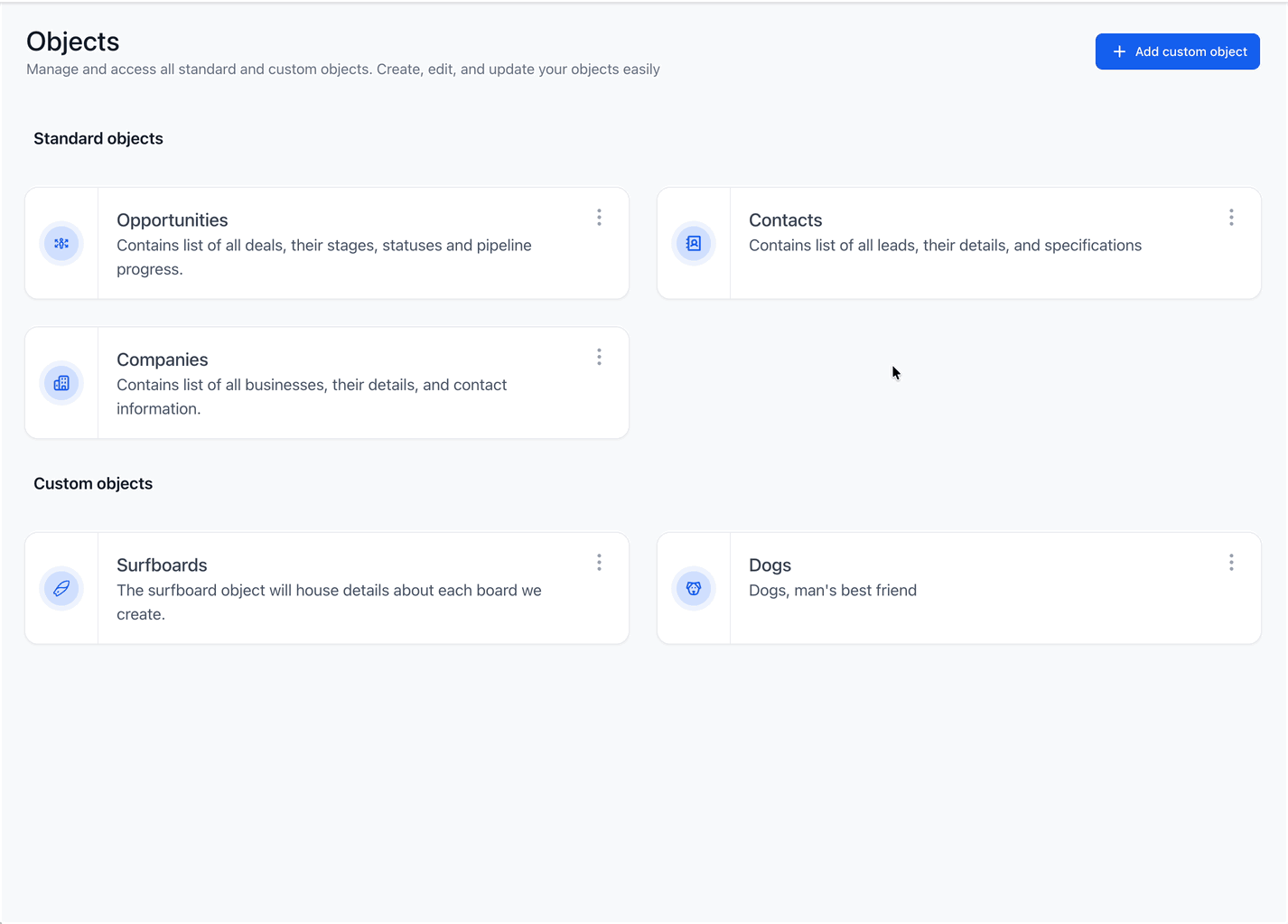
Step 2: Create an Association in Object Settings
You can start from Companies, Opportunities, or a Custom Object.
In the target sub-account, go to Settings → Objects → [Object] → Associations.
Click Create Association.
Choose the object type to associate with, such as Companies, Opportunities, or a Custom Object.
Define labels:
Single label, such as “Deal” or “Related Company.”
Paired labels, such as “Buyer ↔ Seller” or “Vendor ↔ Partner.”
Configure the relationship type and any record limits, for example, 1:Many with a cap of 1,000 per side.
Review the preview and click Save.
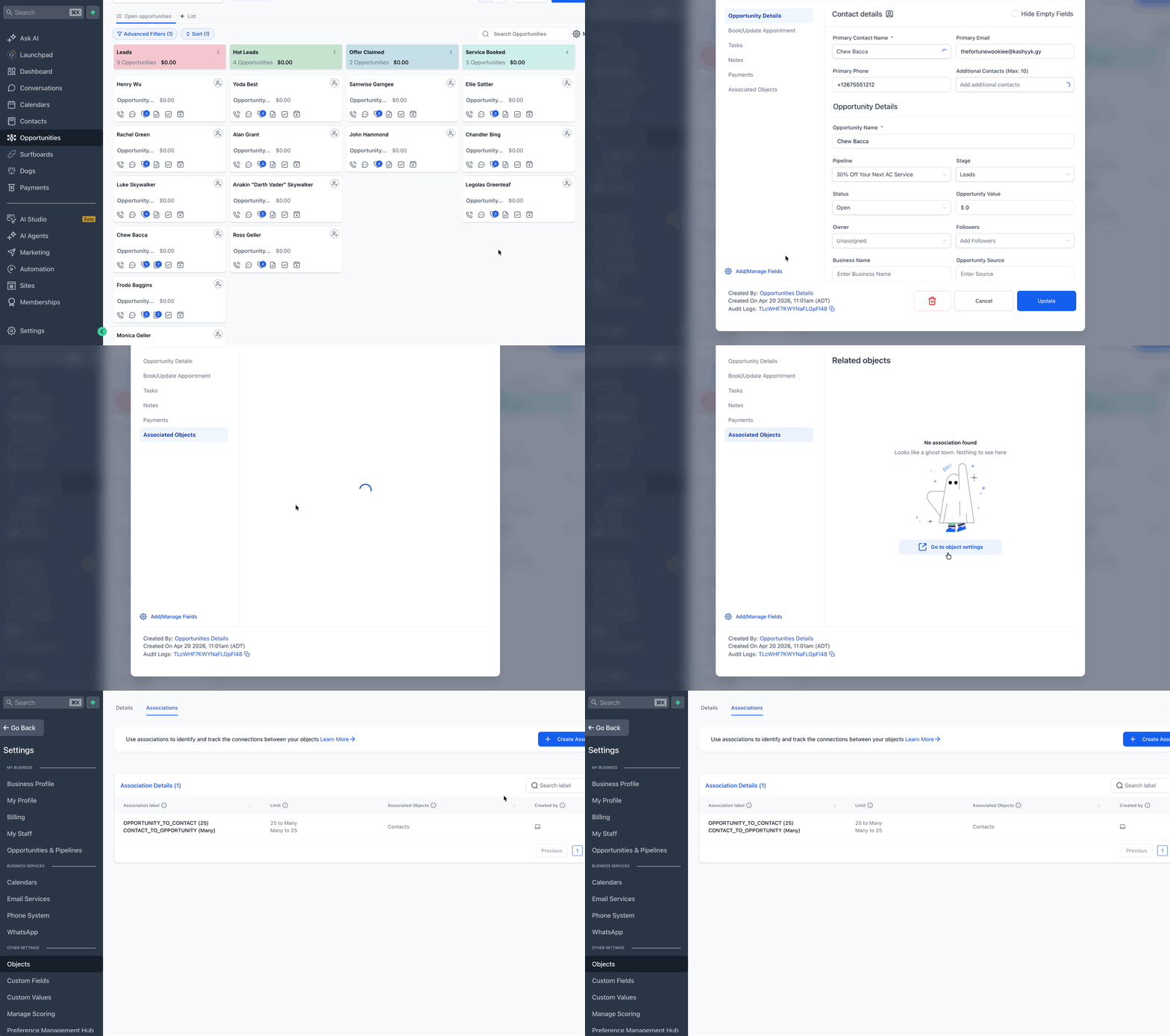
Step 3: Link Records from Opportunities
Open an Opportunity.
In the Associated Objects panel, click + Associate.
Select Company or Custom Object.
Search for the record(s) you want to link.
Confirm to save the associations.
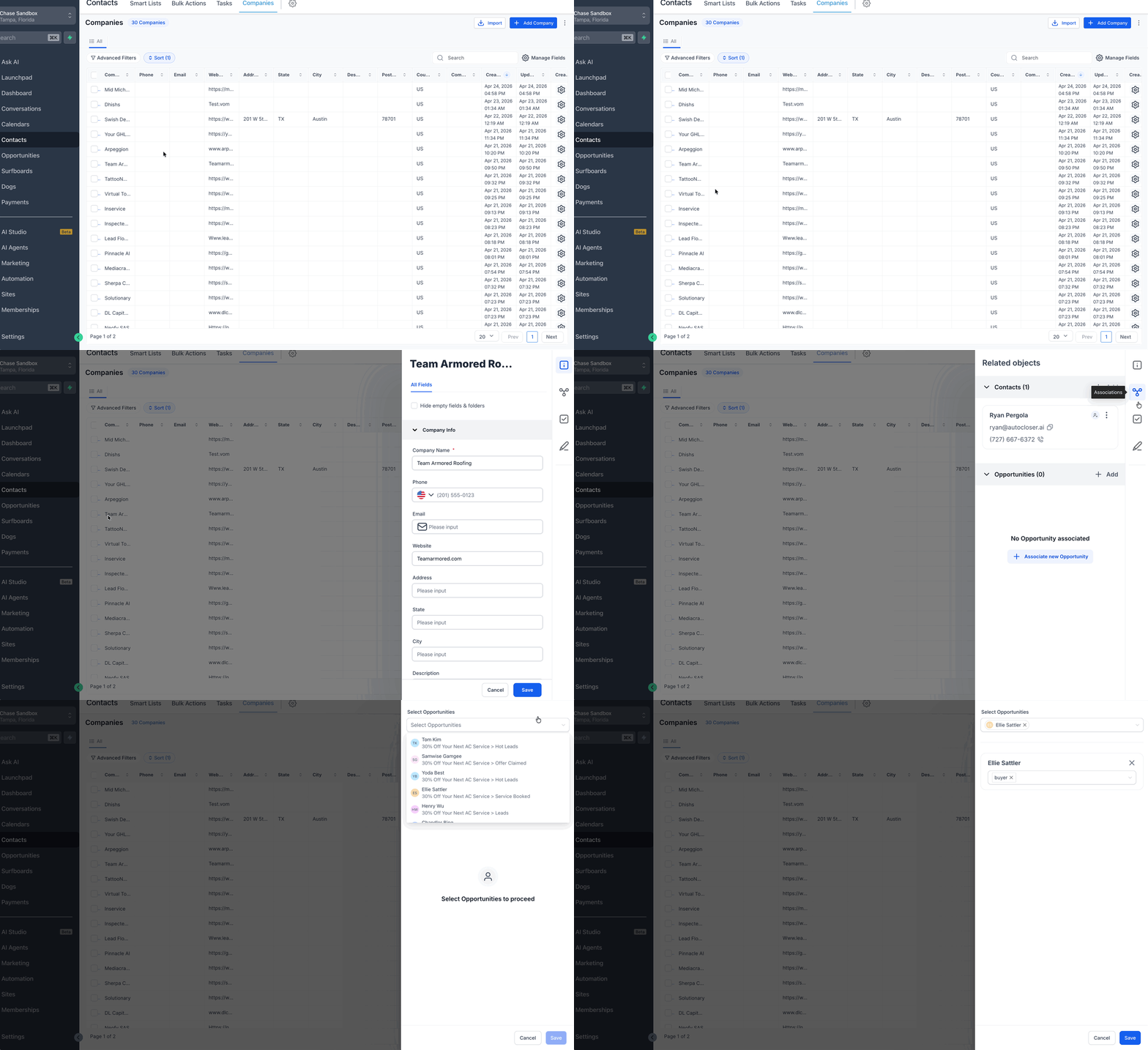
Step 4: Link Records from Companies
Open a Company record.
Go to Associations / Related Objects.
Add Opportunities or Custom Objects using the add/search controls.
Save your changes.
Step 5: Link Records from Custom Objects
Open a Custom Object record.
Locate the Associations / Associated Objects section.
Add related Companies and/or Opportunities based on your configured labels.
Save.
Step 6: Make Associations Visible in Views
To ensure your team actually uses these relationships:
Opportunity Kanban:
Open Opportunities → Board View.
Click Manage Fields and add relevant Association Label (Object Type) fields to cards.
List Views (Companies, Opportunities, Custom Objects):
Open the object’s List View.
Customize columns to include association-related fields.
Optionally, save filtered views by association for quick access.
With these steps complete, your team can navigate between Companies, Opportunities, and Custom Objects from a unified, association-driven CRM experience.
Frequently Asked Questions
Q: Who can create or edit associations?
Users with permission to access Settings → Objects, typically admins or equivalent roles, can create and manage associations. This follows the same permission pattern as renaming standard objects and managing Custom Object configurations.
Q: Can the same Company be associated with multiple Opportunities and Custom Objects?
Yes. Associations support one-to-many and many-to-many relationships, and each label can link up to 1,000 records on each side, as long as you stay within the configured limits.
Q: What happens if I delete a Company, Opportunity, or Custom Object that has associations?
When a record is deleted, HighLevel automatically removes its associations so other records are not left pointing to a non-existent object. Other records remain intact.
Q: Do these associations replace the existing Contact ↔ Company relationship?
No. Contact-to-company associations, including automatic company creation from Contact Business Name, continue to work as before. Company ↔ Opportunity ↔ Custom Object associations extend your data model beyond contacts, letting you connect companies, deals, and assets in additional ways.
Q: Can I use these associations inside workflows or via the API?
Dedicated API, workflow automation, and bulk import support for associations are on the roadmap but not fully available yet. Today, associations are primarily configured in Object Settings and managed from record views, with data accessible in views and exports.
Q: What happens when I hit an association limit?
When you attempt to add an association beyond the configured limit, HighLevel immediately shows an error and blocks the new link. Existing associations stay as they are; the limit only prevents further additions.
Q: Can I rename labels or adjust limits later?
Yes. You can edit an existing association in the Associations tab to change labels, relationship type, or limits. Changes are enforced going forward and do not retroactively remove existing links.
Q: Are associations visible in all CRM views?
Associations show in record detail panels, Opportunity Kanban cards when you add association fields via Manage Fields, and List Views when you add association columns. They can also be included in exports.
Related Articles
- Associations Between Opportunities, Companies & Custom Objects
- Association Limits
- Getting Started with Custom Objects
- Tasks Across Multiple Objects
- Viewing Your CRM Records: List Views, Sorting, and Filters
- How to Rename Standard Objects in Your CRM
Was this article helpful?
That’s Great!
Thank you for your feedback
Sorry! We couldn't be helpful
Thank you for your feedback
Feedback sent
We appreciate your effort and will try to fix the article