Import Companies (Custom Objects) Using a CSV File
This article explains how to import Company records in bulk using CSV files. The bulk import tool provides a guided workflow for uploading, mapping, verifying, and processing Company records while helping reduce errors through field validation and duplicate detection.
Whether you're moving data from another CRM or updating existing records, this feature streamlines Company management at scale.
What is Company Bulk Import?
Company Bulk Import allows you to create new Company records, update existing ones, or perform both actions simultaneously by uploading a CSV file. The guided import wizard walks you through preparing your file, mapping columns to Company fields, reviewing the import, and monitoring progress through Bulk Actions.
Using the correct import mode and properly mapped fields helps maintain accurate Company data while reducing manual work and improving data consistency across your CRM.
Key Benefits of Company Bulk Import
Company Bulk Import simplifies large-scale data management while giving you control over how records are created and updated.
Prerequisites
Preparing your CSV correctly before importing significantly reduces validation errors and ensures your Company data imports successfully.
Before starting, verify you have permission to access the Companies module, Company Management is enabled for your account, and your CSV file meets all formatting requirements.
Before starting, verify the following:
- You have permission to access the Companies module.
- Company Management is enabled for your account.
- Your CSV file is saved in .csv format.
- The first row contains column headers.
- Required Company fields are included.
- Data is clean and consistently formatted.
- Custom Company fields already exist if you intend to import values into them.
Before importing thousands of Companies, perform a test import using a small CSV containing 5–10 records to confirm mappings and formatting.
Common CSV Preparation Mistakes
Many import errors occur because of formatting issues within the CSV file. Reviewing your data beforehand helps prevent failed imports and unnecessary cleanup.
Avoid the following common mistakes that cause import failures and data quality issues.
Avoid the following:
- Missing required fields
- Blank header rows
- Duplicate column names
- Invalid date formats
- Extra spaces within important values
- Incorrect email or phone number formatting (if applicable)
- Unsupported special characters
- Empty columns that are not needed
Import Modes Explained
Choosing the correct import mode ensures HighLevel handles each record exactly as intended.
Select the import mode carefully based on whether you're adding new Companies, updating existing ones, or performing both operations.
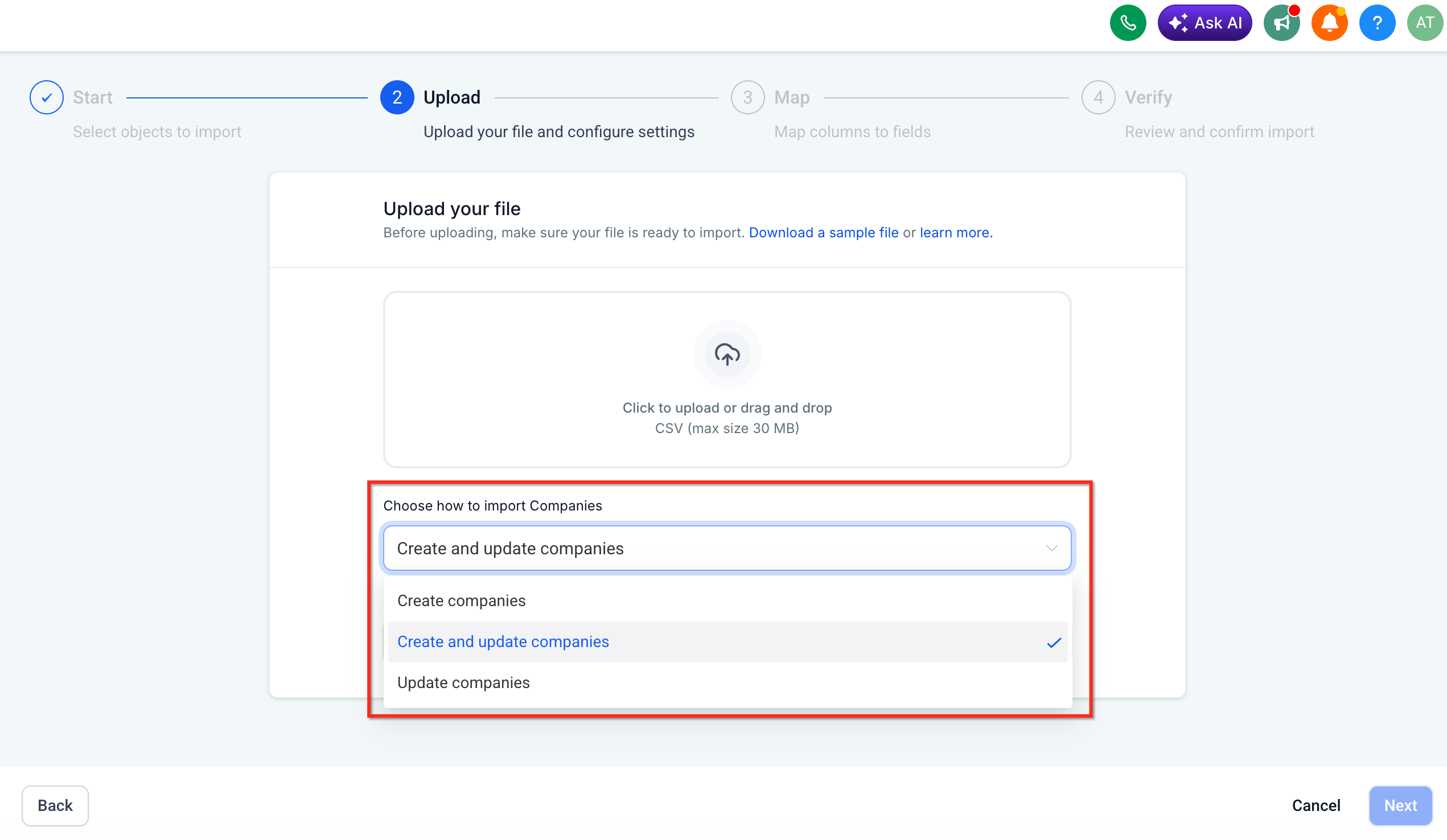
Use Create when importing Companies that do not already exist in HighLevel. This mode only creates new Company records.
Example: You are migrating Companies from another CRM into HighLevel for the first time.
Use Update when modifying existing Company records. This mode requires a reliable identifier, such as the Company Record ID, to locate the correct Company before updating it.
Example: You need to update Company phone numbers or addresses without creating new Companies.
Use Create & Update when your CSV contains a combination of existing and new Companies. Existing Companies are updated while Companies that do not exist are created automatically.
Example: You receive a monthly Company export from another system containing both new customers and updates to existing ones.
How to Import Companies
Following the guided import wizard helps validate your data before processing and minimizes import errors.
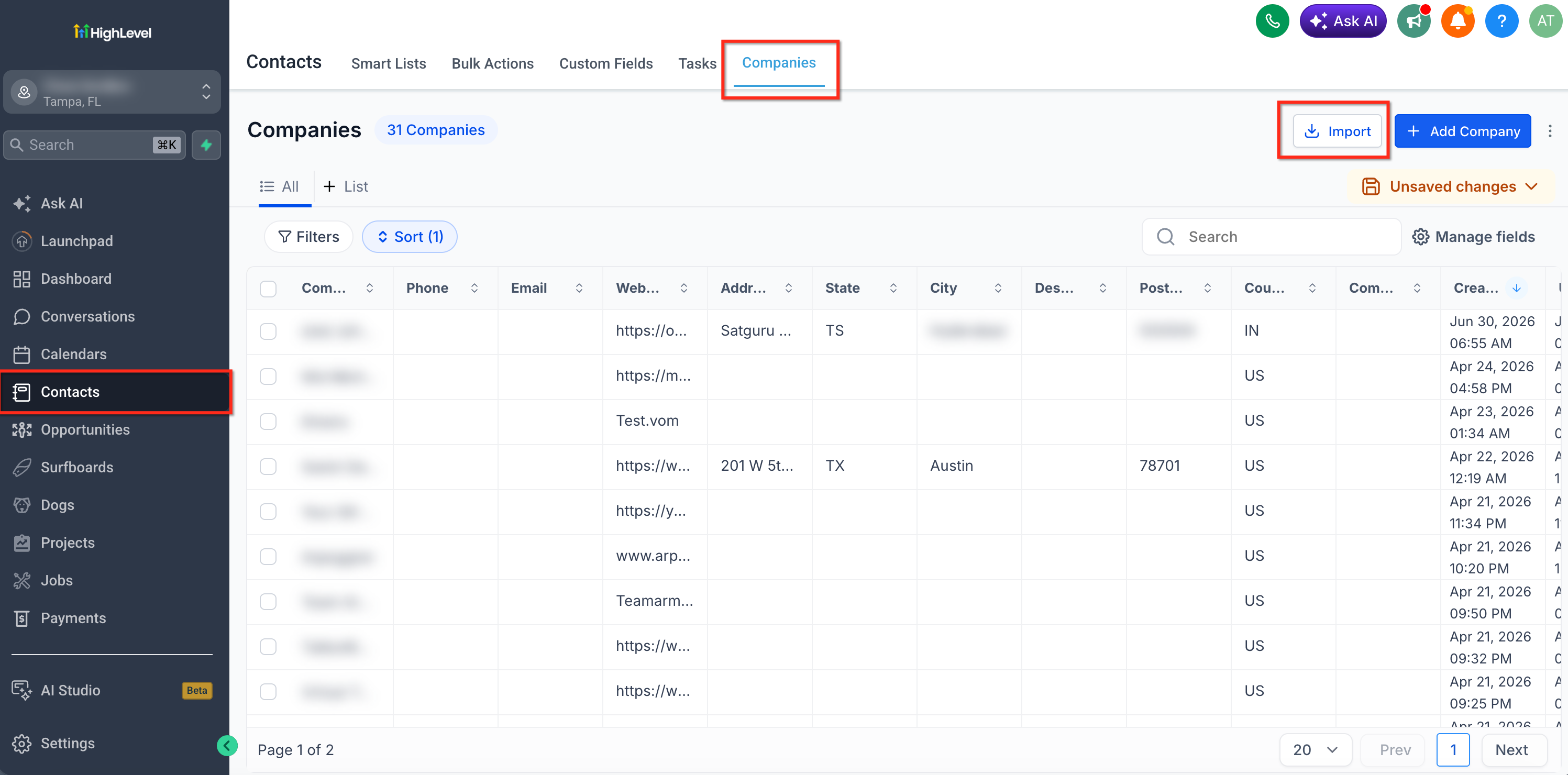
- Navigate to Contacts.
- Select Companies.
- Click Import.
Choose the appropriate import mode (Create, Update, or Create & Update) and click Next.
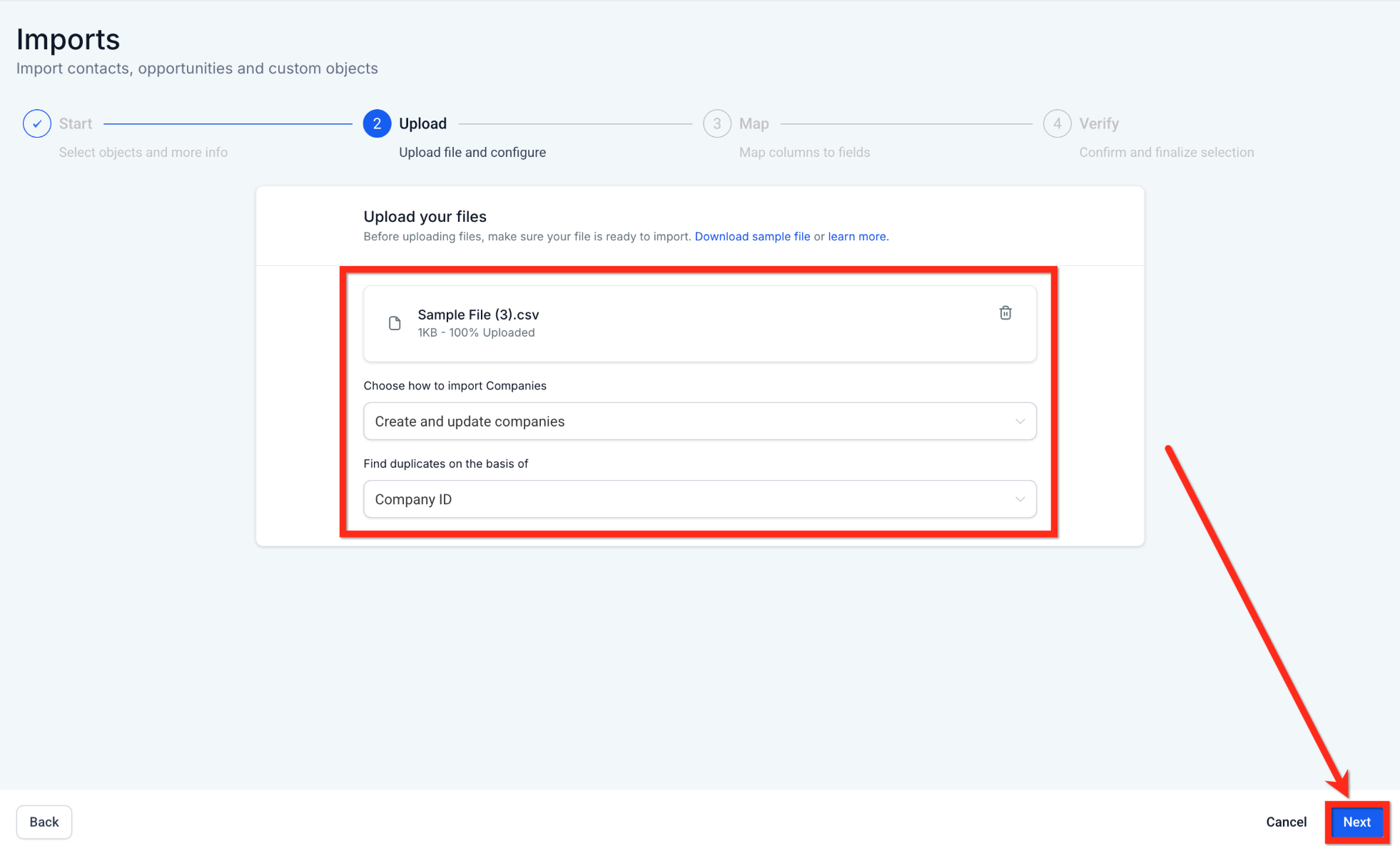
Upload the CSV containing your Company records. HighLevel validates the uploaded file before moving to the mapping stage.
Ensure:
- Headers are included.
- Required fields exist.
- File formatting is correct.
Click Next.
Field mapping determines where each CSV column will be imported inside HighLevel. Review every mapped field carefully.
For each column:
- Verify the detected Company field.
- Adjust mappings if necessary.
- Ignore unnecessary columns.
- Confirm custom fields map correctly.
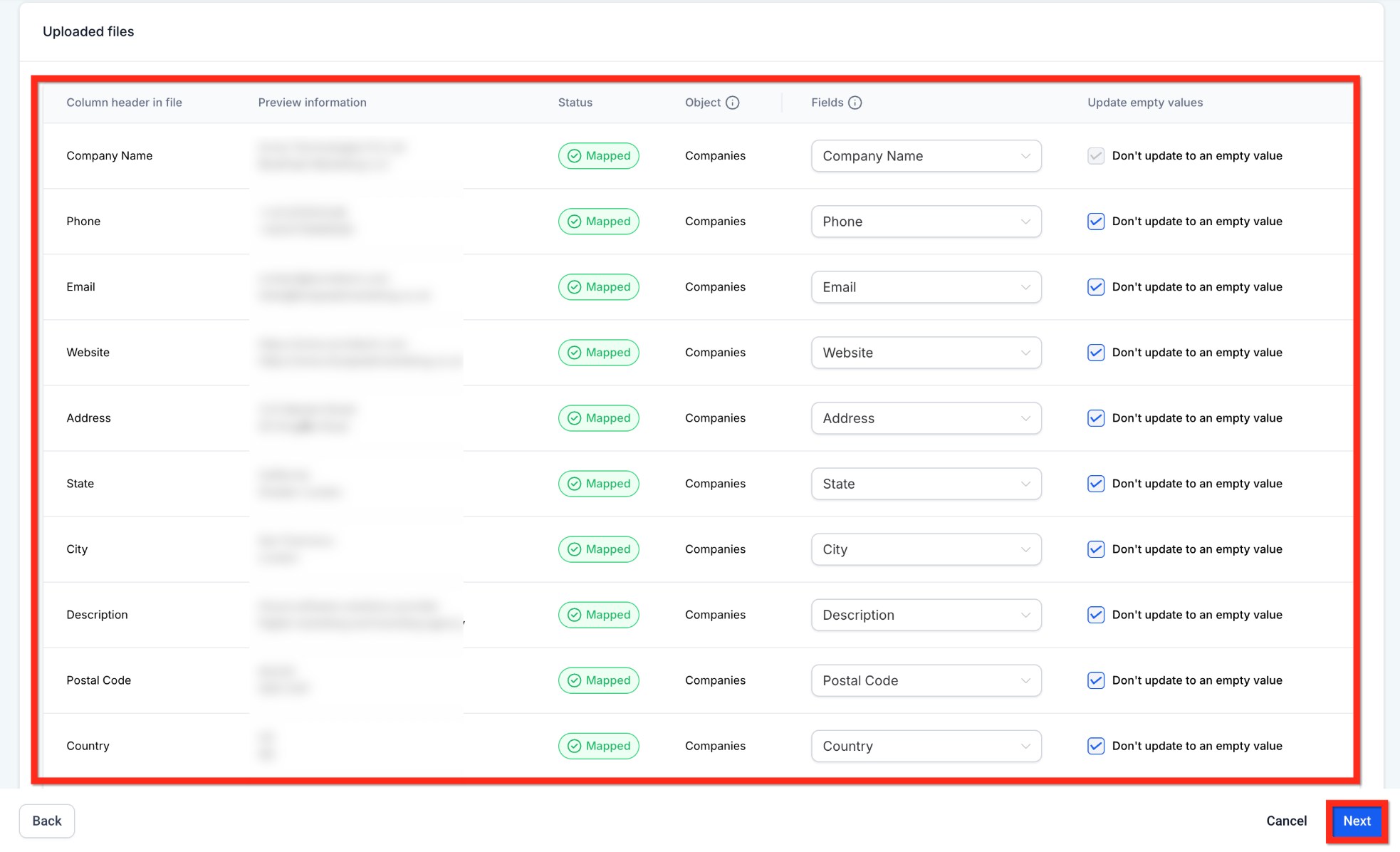
HighLevel attempts to map columns automatically whenever possible. Click Next.
Review field mappings carefully before proceeding. Incorrect mappings can result in data appearing in wrong fields or import failures.
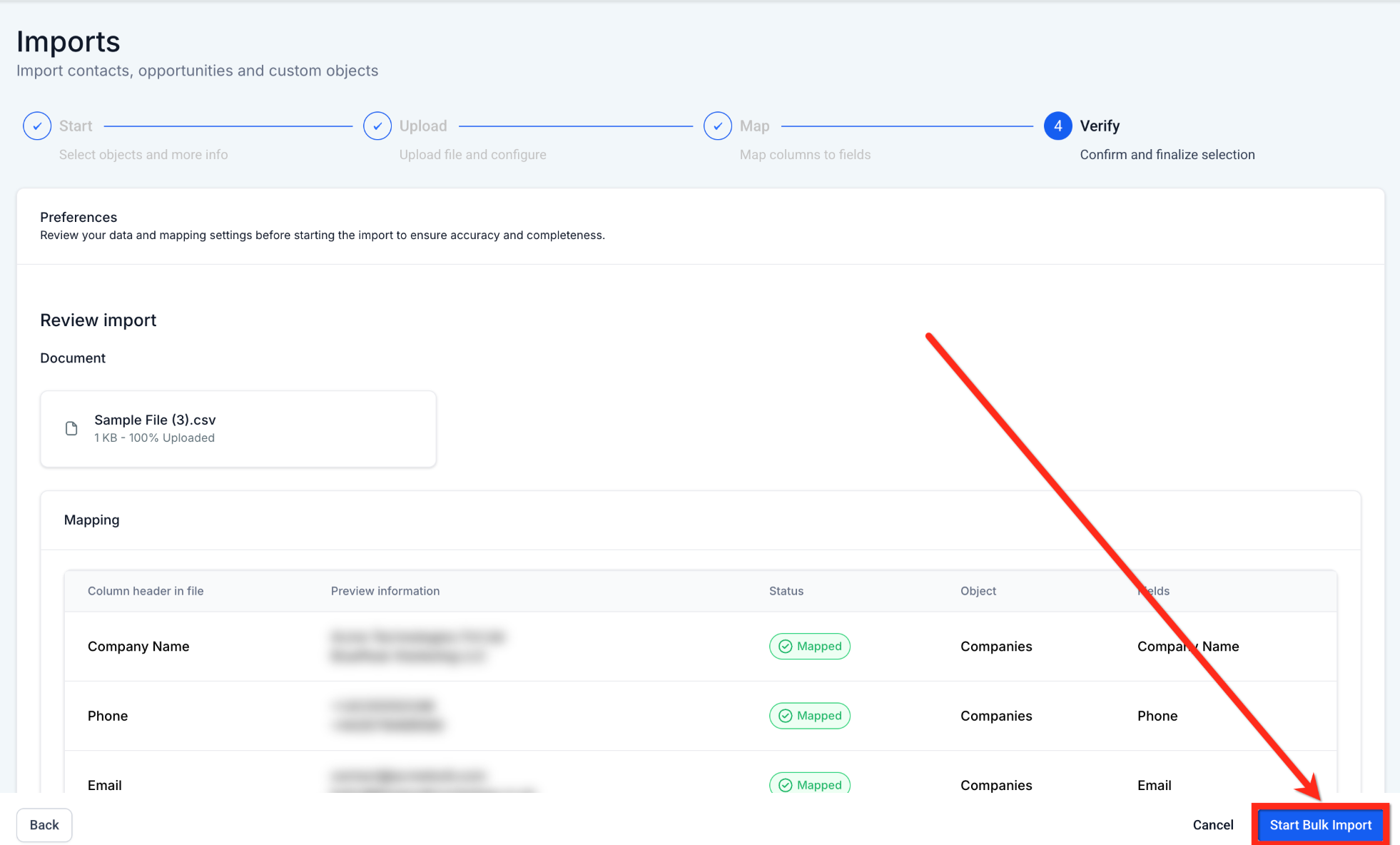
Before processing begins, review the import summary.
Confirm:
- Import mode
- Number of records
- Field mappings
- Duplicate handling settings
- Update Empty Values option
If everything looks correct, click Start Bulk Import.
Understanding Record IDs
Record IDs uniquely identify each Company within HighLevel. Using Record IDs during update imports ensures the correct Company is modified, even if multiple Companies share similar names.
If Record IDs are unavailable, configure an appropriate unique Company field for duplicate matching whenever possible.
Example:
| Company | Record ID |
|---|---|
| ABC Manufacturing | 672918 |
| XYZ Logistics | 918234 |
Updating by Record ID eliminates ambiguity during bulk updates.
Duplicate Detection and Unique Fields
Duplicate detection helps prevent accidental creation of multiple Company records representing the same business.
Depending on your import mode, HighLevel compares incoming records using Company Record ID, configured unique Company fields, or existing Company records.
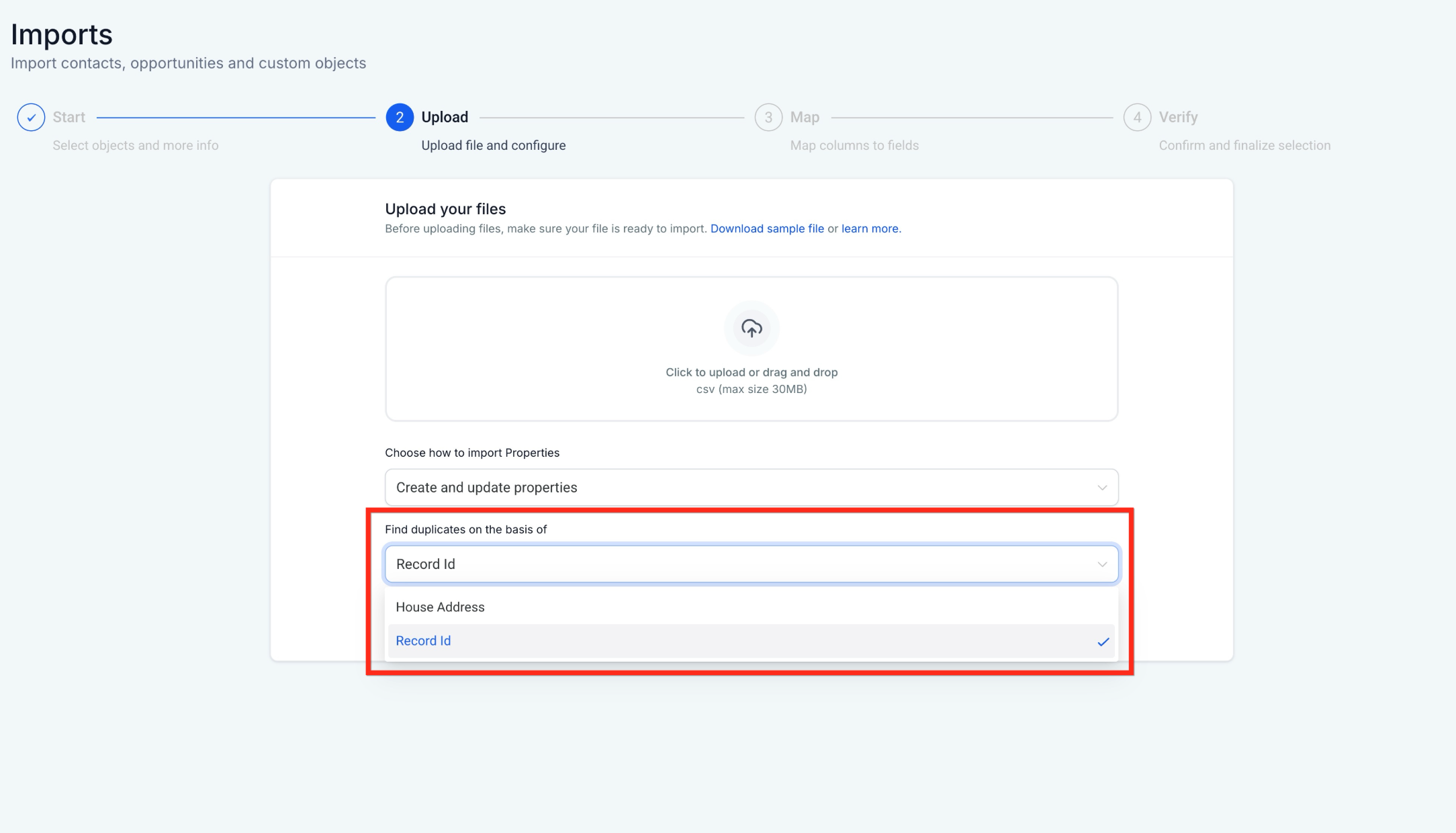
If duplicate conflicts occur, review the import report after processing to identify affected records.
Possible outcomes include:
- New Company created
- Existing Company updated
- Duplicate detected
- Validation error generated
Update Empty Values
The Update Empty Values option determines how blank cells in your CSV affect existing Company information.
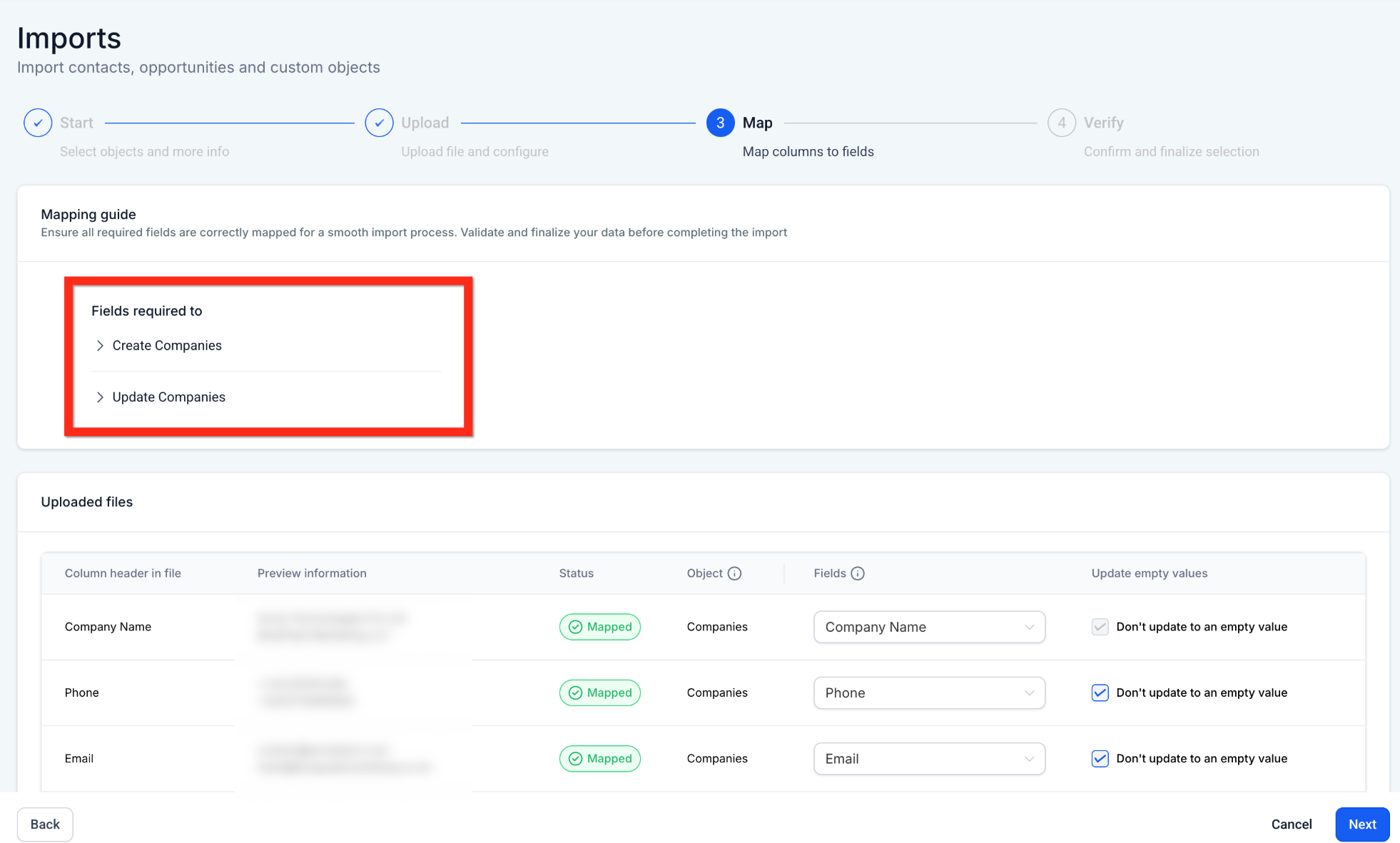
When Update Empty Values is enabled, blank CSV cells will overwrite existing Company data. Use this option carefully to avoid accidental data loss.
Example:
Current Phone Number: (555) 123-4567
CSV Phone Number: (blank)
Result: The Phone Number is cleared.
Existing Company values remain unchanged. This is the recommended option when performing routine updates and your CSV does not intentionally clear information.
Monitor Import Status
Bulk Actions allows administrators to monitor every Company import from start to finish.
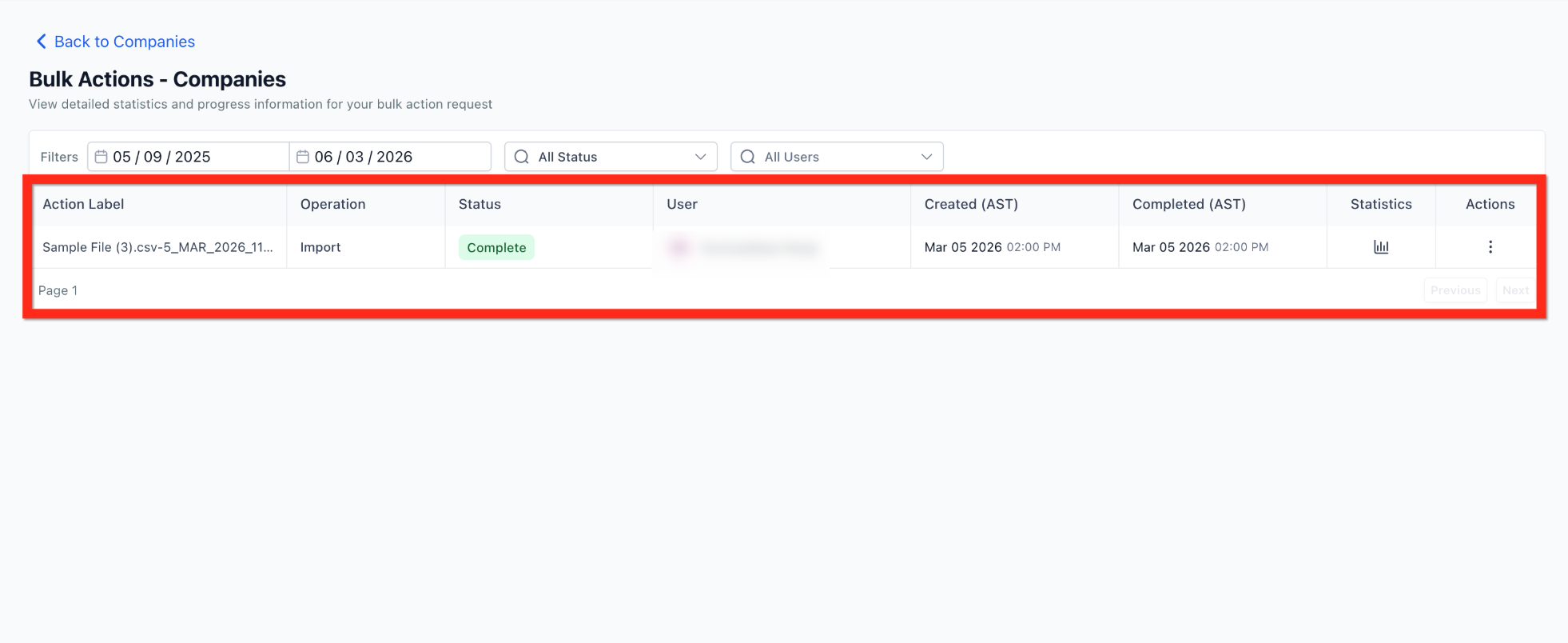
Download error reports immediately if validation issues occur. This makes it easier to correct failed records and re-import only the affected Companies.
Each import displays:
- Status
- Records processed
- Successful imports
- Warnings
- Failed records
- Completion time
Available actions may include:
- View Details
- Pause
- Resume
- Cancel (when available)
- Download Error Report
- Download Success Report
Best Practices
Following recommended import practices helps improve accuracy and reduces cleanup after importing.
Frequently Asked Questions
Was this article helpful?
That’s Great!
Thank you for your feedback
Sorry! We couldn't be helpful
Thank you for your feedback
Feedback sent
We appreciate your effort and will try to fix the article