Boost your revenue recovery with HighLevel’s new Abandoned Checkout workflow trigger a single, unified trigger that detects carts abandoned in your HighLevel store or an external platform like Shopify and lets you automate perfectly-timed follow-ups.
TABLE OF CONTENTS
- What is the Abandoned Checkout Trigger?
- Key Benefits of the Abandoned Checkout Trigger
- Shopify Abandoned Cart Trigger (Deprecating Soon)
- How To Set Up the Abandoned Checkout Trigger
- Frequently Asked Questions
What is the Abandoned Checkout Trigger?
Key Benefits of the Abandoned Checkout Trigger
- Unified across platforms: No need to juggle separate Shopify-only or HighLevel-only triggers.
- Smarter segmentation: Filter by cart value, country, products, and order source for laser-focused messaging.
- Flexible timing: Decide exactly how many minutes must pass before a cart is considered abandoned, preventing premature or late reminders.
- Scalable: Future-proofed to support additional external platforms as they’re added.
- Higher conversions: Timely, personalized nudges routinely reclaim 10-30 % of would-be lost orders.
Shopify Abandoned Cart Trigger (Deprecating Soon)
How To Set Up the Abandoned Checkout Trigger
Create Workflow
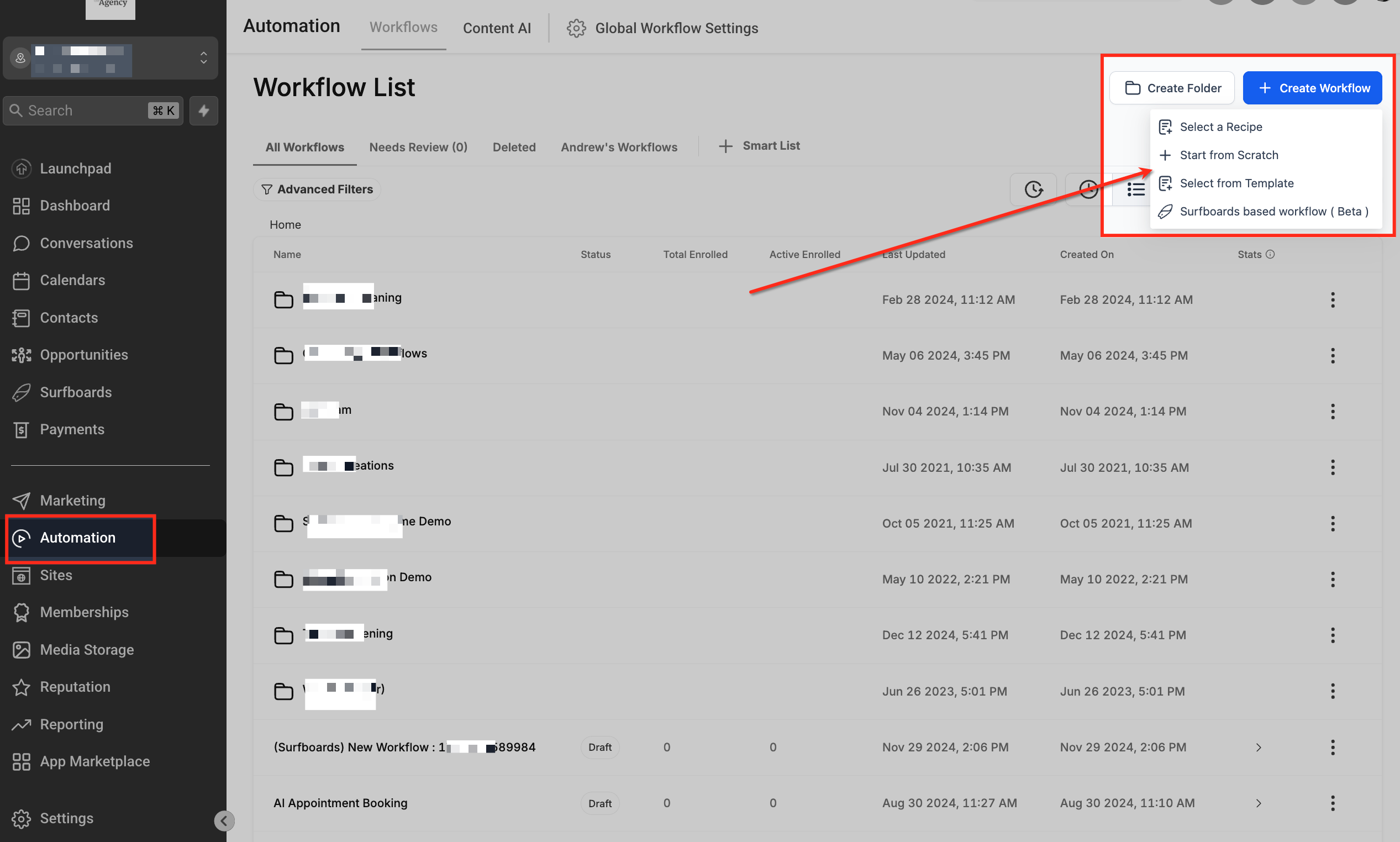
Navigate to Automation → Workflows from the left sidebar to open the Workflow List page. Click the + Create Workflow button in the top-right corner and select Start from Scratch to begin building a new automation.
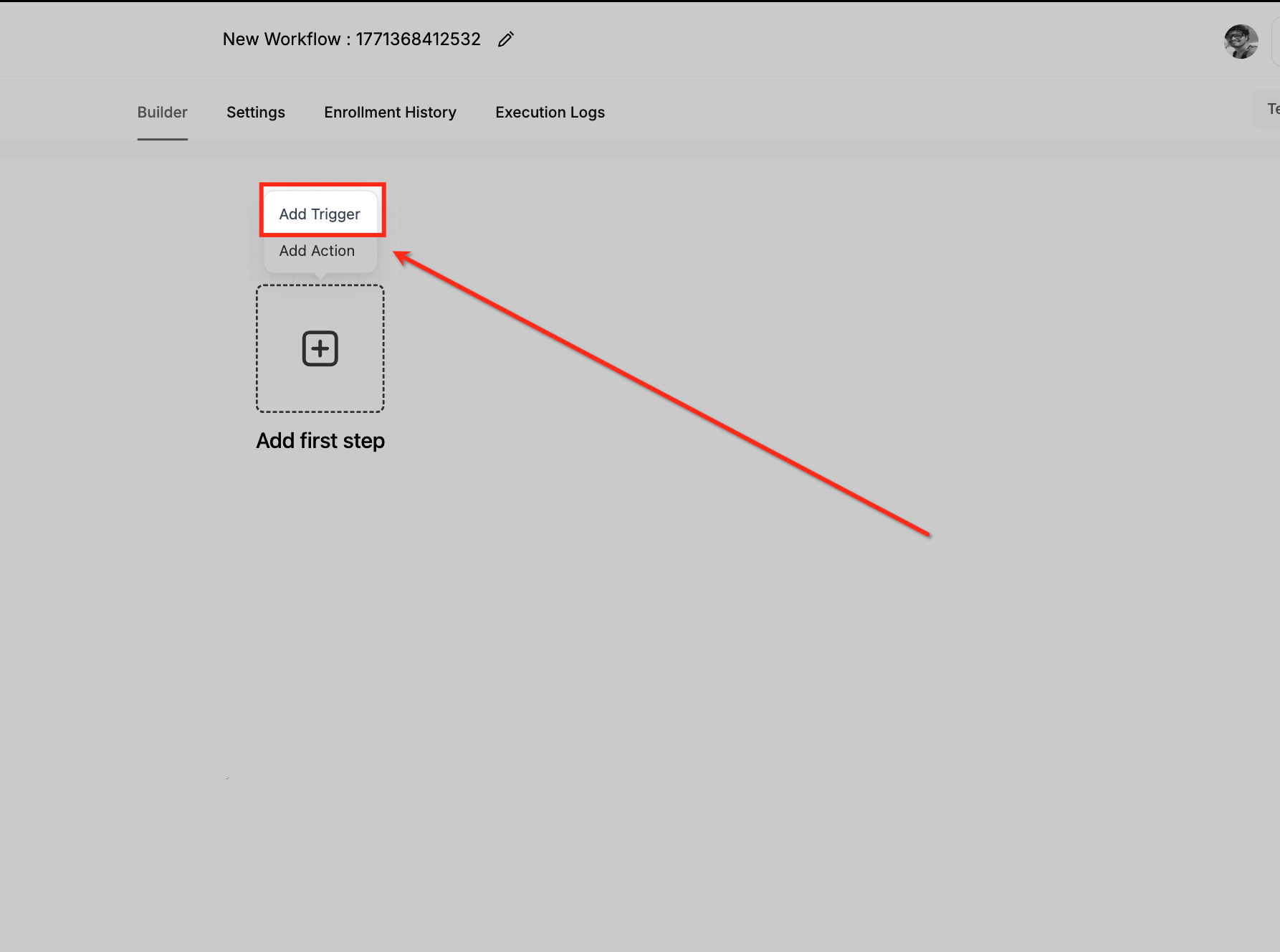
Add Trigger
Inside the workflow builder, click Add Trigger to define the event that will start the automation. This opens the trigger selection panel where you can choose the workflow entry condition.
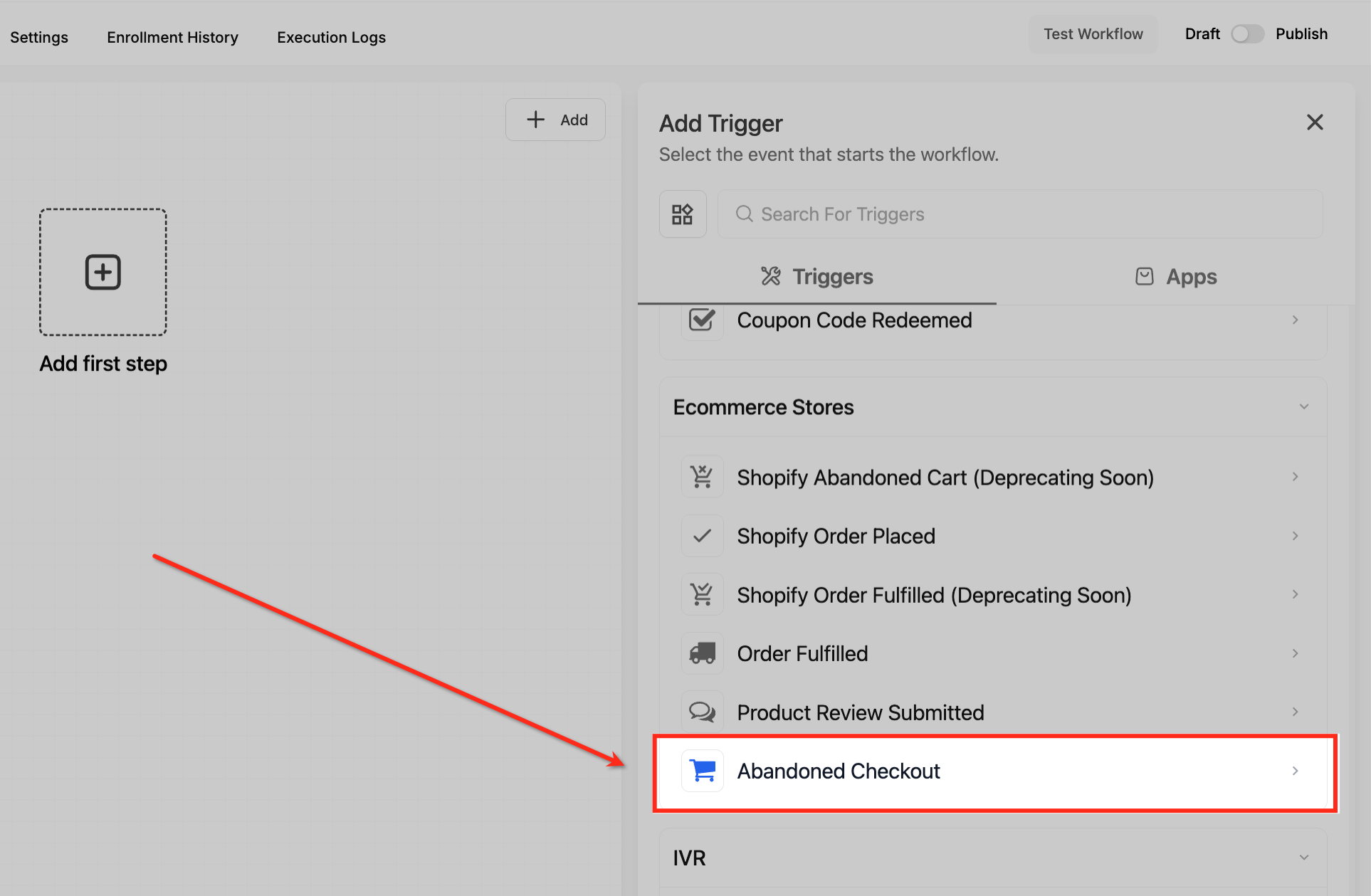
Select Abandoned Checkout
In the trigger list, scroll to the Ecommerce Stores section and select Abandoned Checkout. This ensures the workflow activates when a customer leaves the checkout process without completing their purchase.
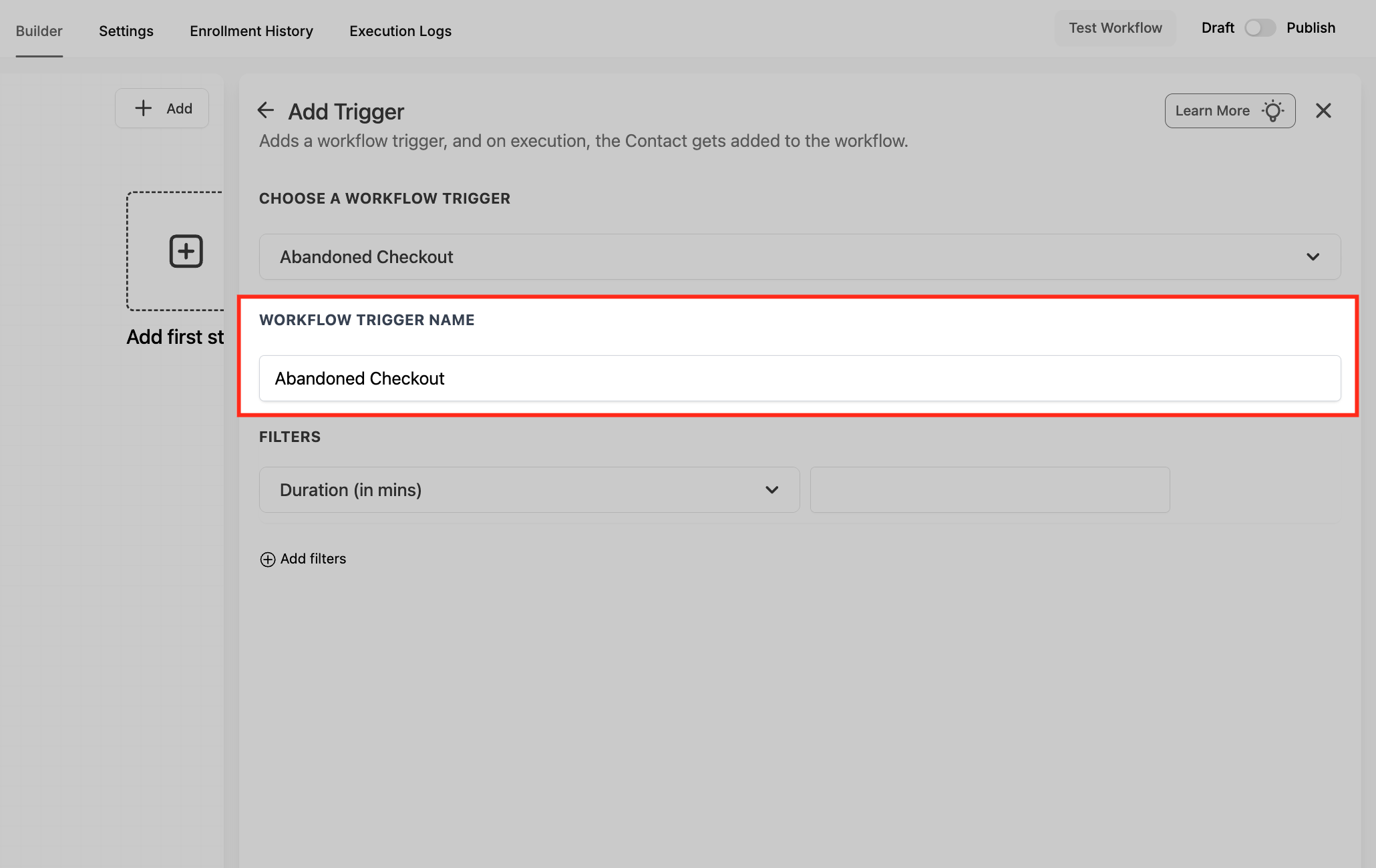
Name Trigger
Confirm that Abandoned Checkout is selected under Choose a Workflow Trigger and review the Workflow Trigger Name field. You can keep the default name or customize it for easier identification if managing multiple triggers.
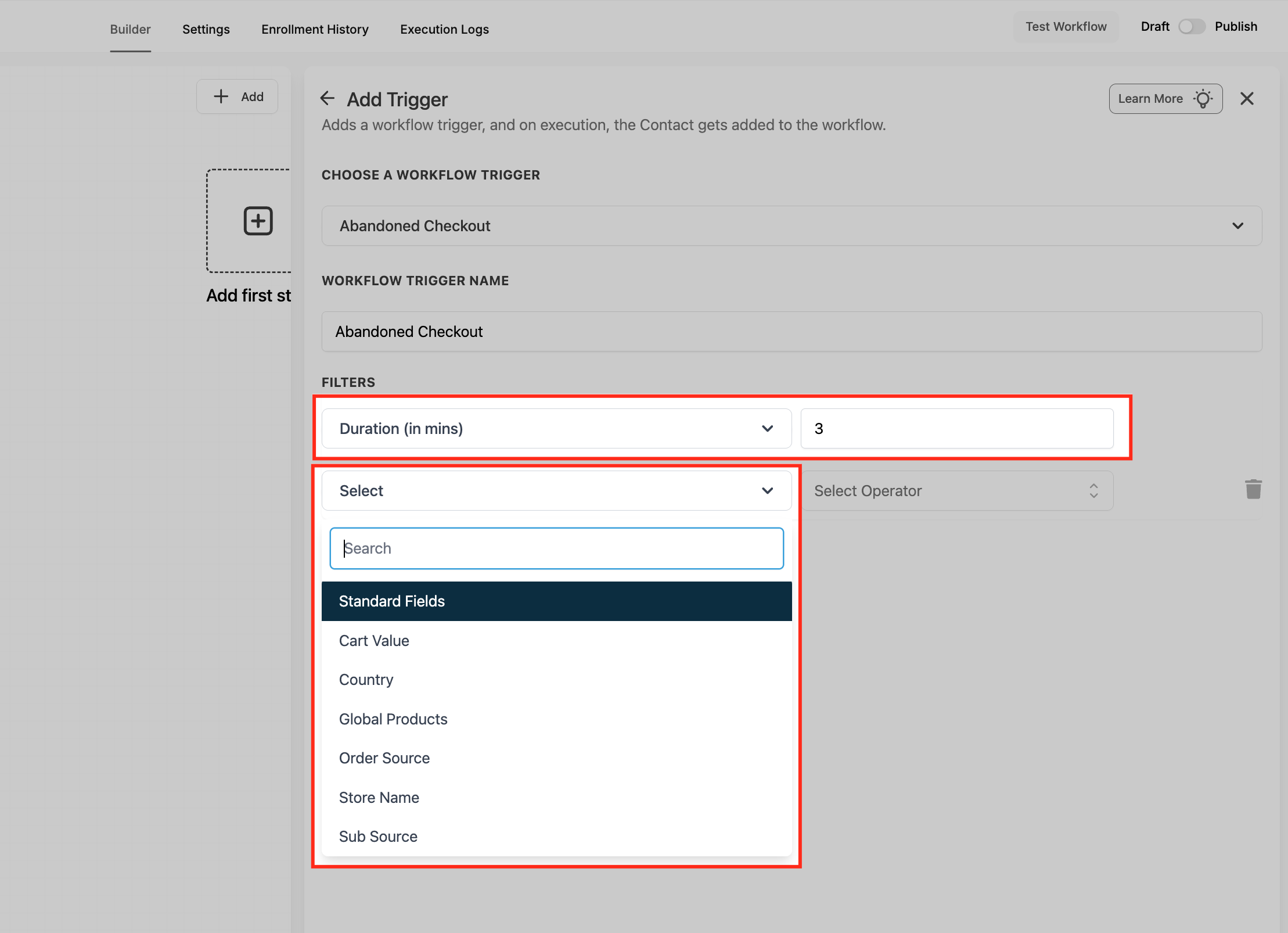
Configure Filters
Set the Duration (in mins) to define how long the system should wait before marking the checkout as abandoned. Use the Select dropdown under Filters to refine the trigger further with conditions such as Cart Value, Country, Global Products, Order Source, Store Name, or Sub Source.
- Duration (minutes): Choose the exact wait time before a cart counts as abandoned.
- Cart Value: Set minimum, maximum, or range-based amounts to trigger only high-value (or low-value) carts.
- Country: Limit automation to shoppers in specific locations, ideal for localized shipping or tax rules.
Global Products: Select the product you want to use for the trigger. To filter by inventory, select a single Price, then select Available Quantity and configure the required condition and numeric value.
- Order Source: Pick Store (HighLevel) or External.
- Sub-Source: Appears when Order Source = External; choose Shopify today, with more platforms coming soon.
Price and Available Quantity as custom values: When the trigger provides the required product context, you can use Price and Available Quantity as custom values in supported workflow actions.
Note: Price and Available Quantity are not currently supported in If/Else conditions.
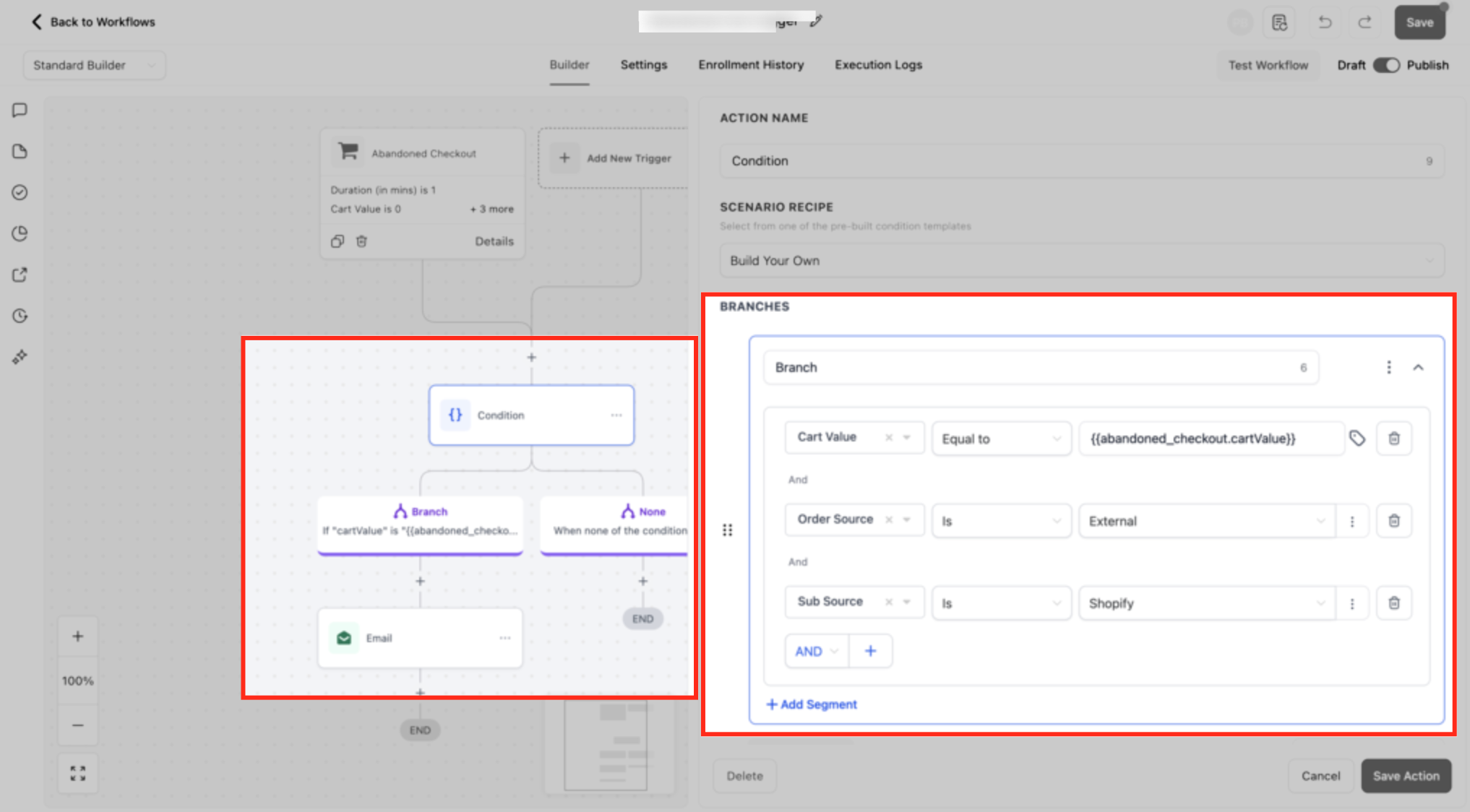
Using Conditional Branch (Optiona
This example demonstrates how a Condition action can be added after the Abandoned Checkout trigger to further segment contacts before sending recovery messages. In this sample setup, filters such as Cart Value, Order Source, and Sub Source are used to control which abandoned checkouts move down a specific branch, helping you tailor follow-ups based on cart details or store origin rather than sending the same message to every contact.
Frequently Asked Questions
Related Articles
Was this article helpful?
That’s Great!
Thank you for your feedback
Sorry! We couldn't be helpful
Thank you for your feedback
Feedback sent
We appreciate your effort and will try to fix the article