TABLE OF CONTENTS
- What is Listings Performance Recap Reports?
- Key Benefits of Listings Performance Recap Reports
- Automated Reports
- Listings Score Calculation
- Report Preferences
- Dashboard Enhancements
- How To Setup Listings Performance Recap Reports
- Frequently Asked Questions
What is Listings Performance Recap Reports?
Key Benefits of Listings Performance Recap Reports
- Hands-free proof of value scheduled summaries keep your agency top-of-mind
- Data-driven retention clients receive concrete visibility and engagement stats
- Action-oriented each report recommends the three quickest wins to boost scores
- Flexible cadence send monthly, quarterly, or half-yearly to match client needs
- Unified branding logo, colors, and sender domain carry your agency’s identity
- At-a-glance dashboard card shows last score + recent improvement for quick check-ins
Automated Reports
- Listings Performance Score (0–100)
- Profile Completion %
- Views, clicks, CTR trends pulled from Listings Analytics
- Top 3 recommended actions e.g., “Add appointment URL” or “Sync to Apple Maps”
- White-labeled header and footer that match your agency branding
Listings Score Calculation
- Visibility: directory sync status, profile completeness, Google Business Profile link
- Engagement: listing views, clicks, calls, and CTR trajectory
- Actionability: freshness of data, onboarding tasks completed, prior recap interactions
Report Preferences
- Frequency selector: Monthly | Quarterly | Half-Yearly
- Recipient management: mix internal users, clients, and custom emails
- Delivery channels: Email (with custom “from” domain) and/or in-app bell notifications
- Preview mode to test branding before activating the schedule
- Unified recipient UI also powers other Listings notifications for streamlined control
Dashboard Enhancements
- Current Listings Performance Score
- Change (+/-) versus last period
- Quick-link to open the full recap report
How To Setup Listings Performance Recap Reports
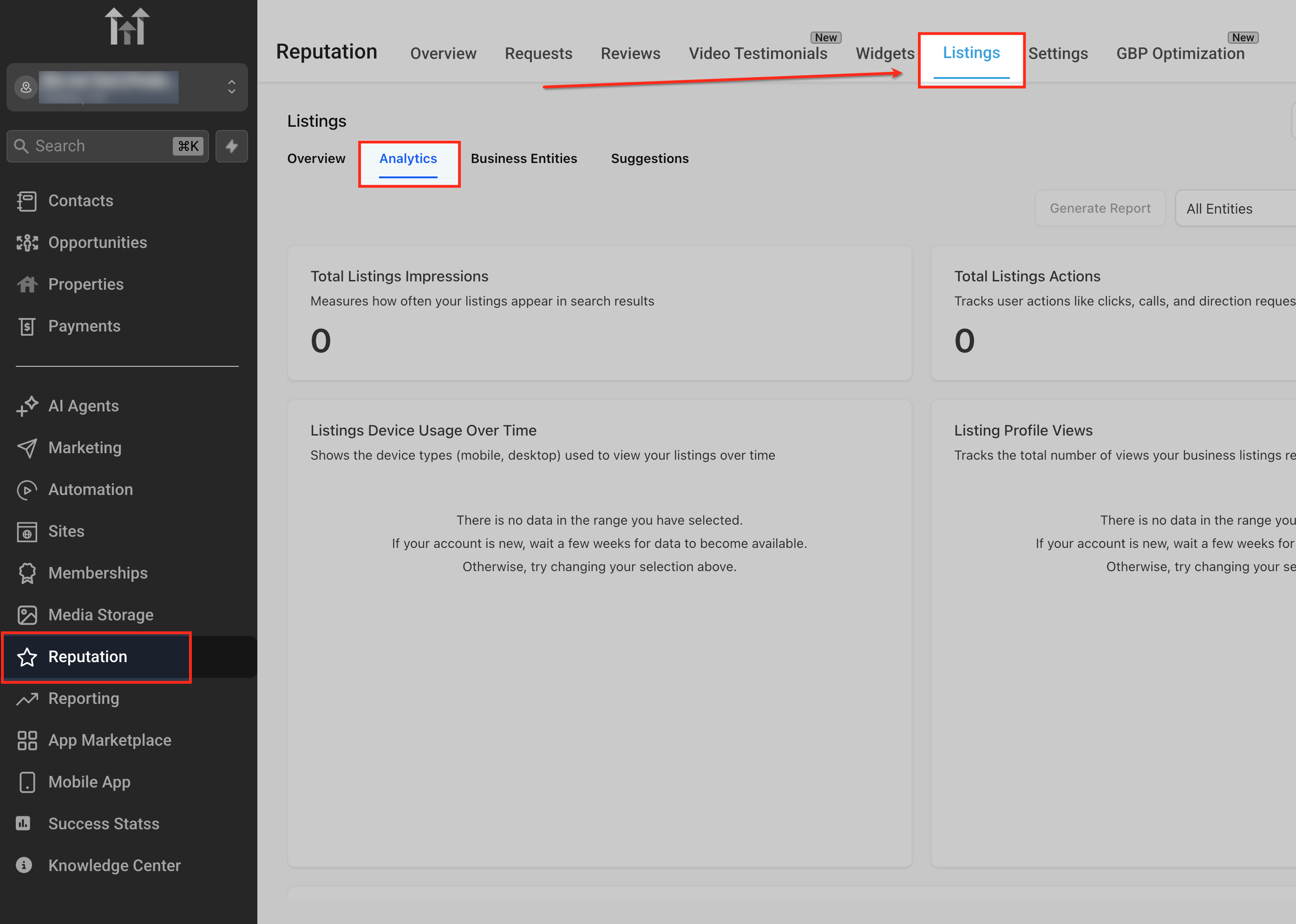
Open Listings Analytics
From the left navigation menu, click Reputation, then select Listings and open the Analytics tab. This is where you can view listings performance data and access reporting options for scheduling automated recap reports.
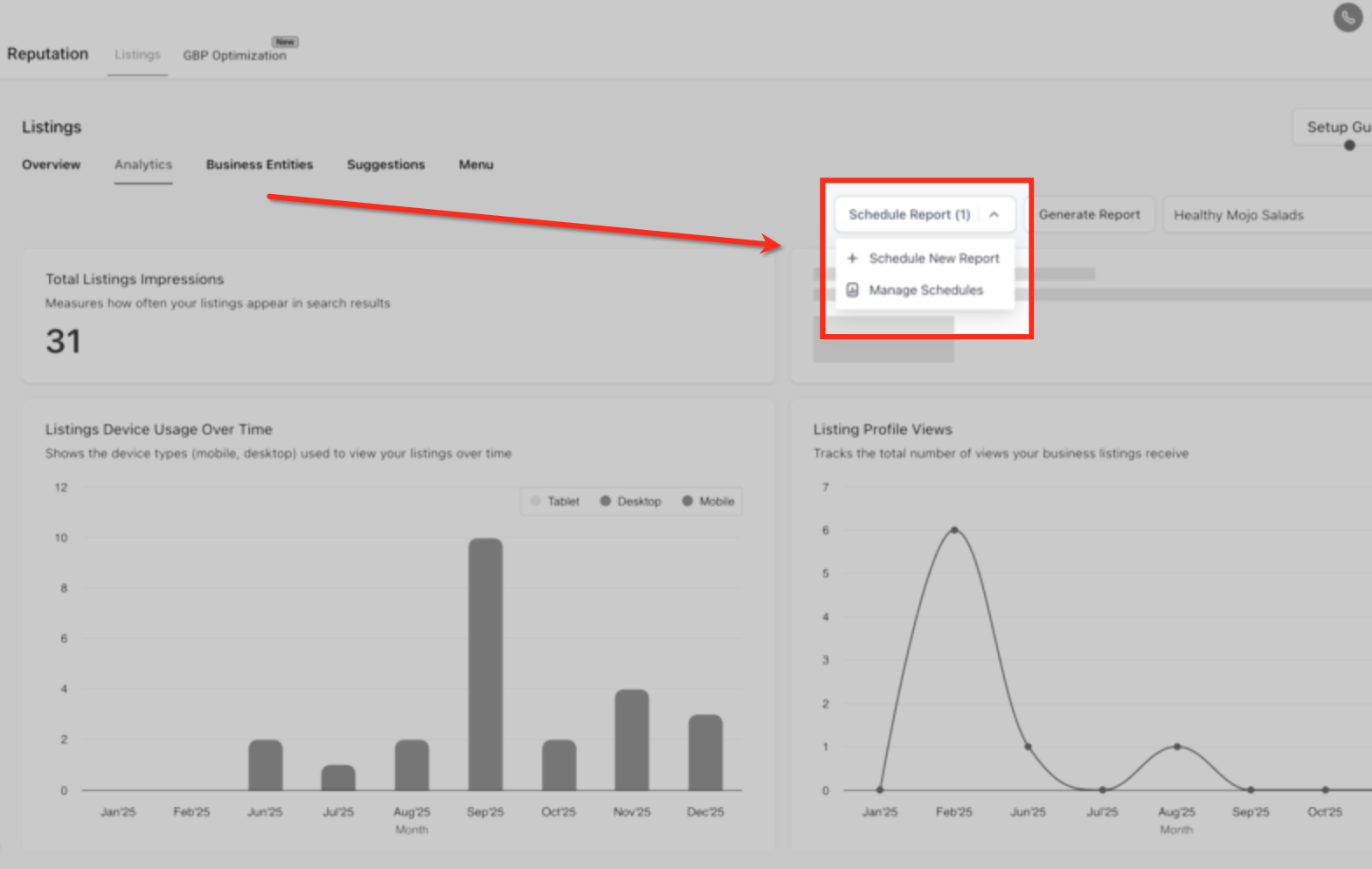
Schedule Report
In the Analytics view, click Schedule Report in the top-right corner to open the reporting options. From the dropdown, choose Schedule New Report to begin creating an automated listings performance recap.
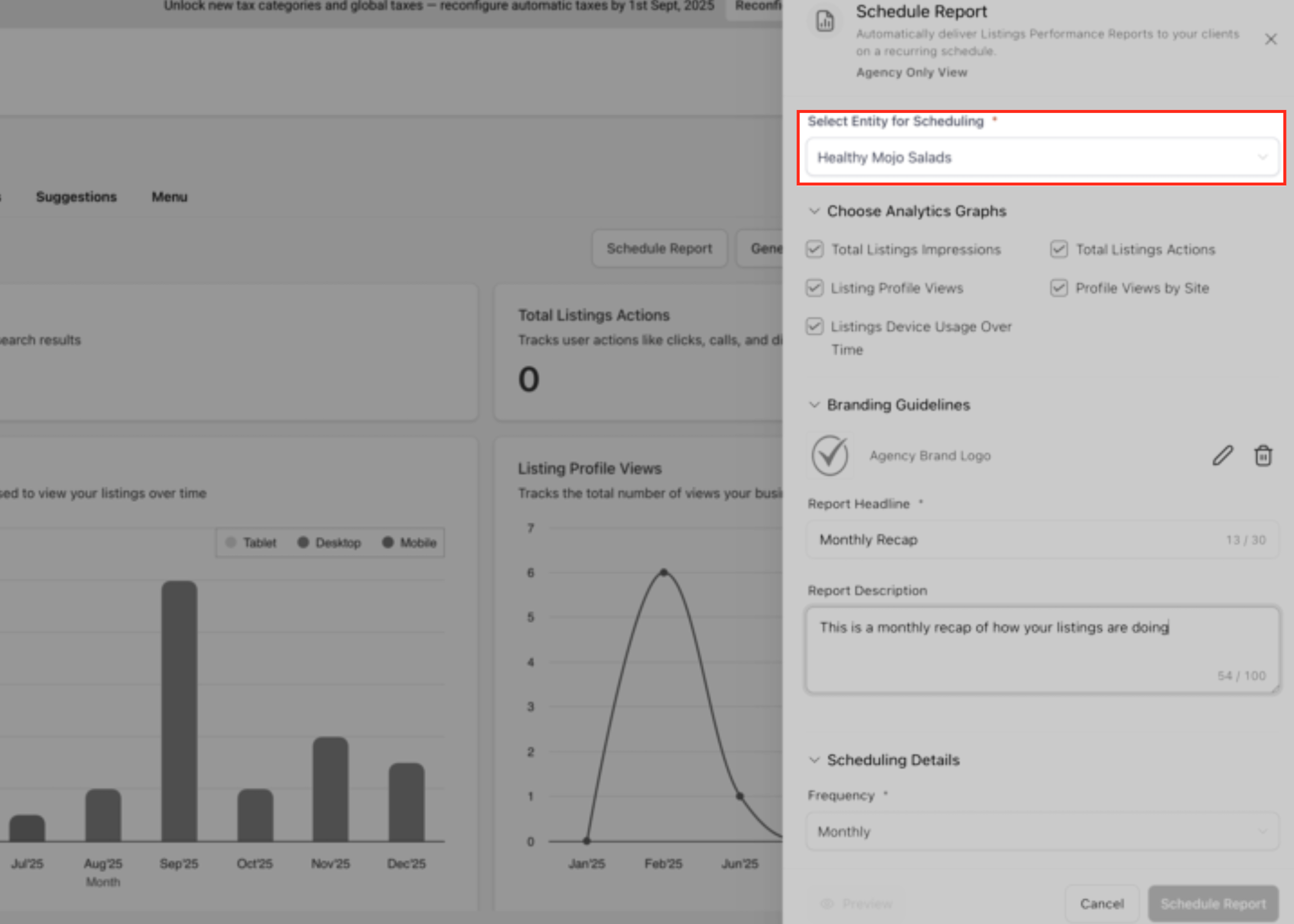
Select Entity
In the Schedule Report panel, use the Select Entity for Scheduling dropdown to choose the business location or entity for which the report will be generated. This ensures the performance recap pulls analytics and listings data for the correct business.
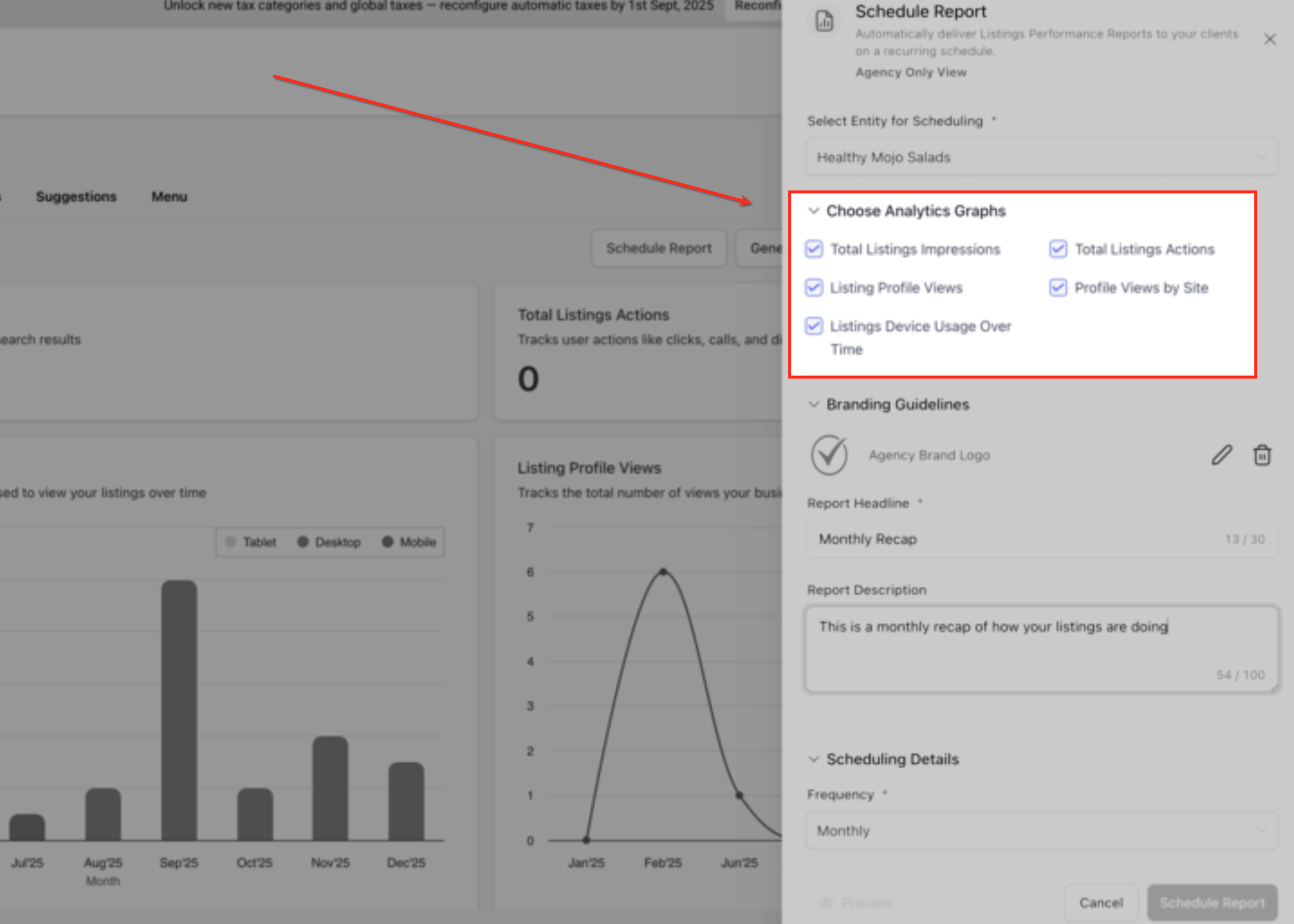
Choose Analytics
Under Choose Analytics Graphs, select the metrics you want to include in the performance recap report, such as impressions, actions, profile views, and device usage. These selections determine which charts and data points appear in the automated report sent to recipients.
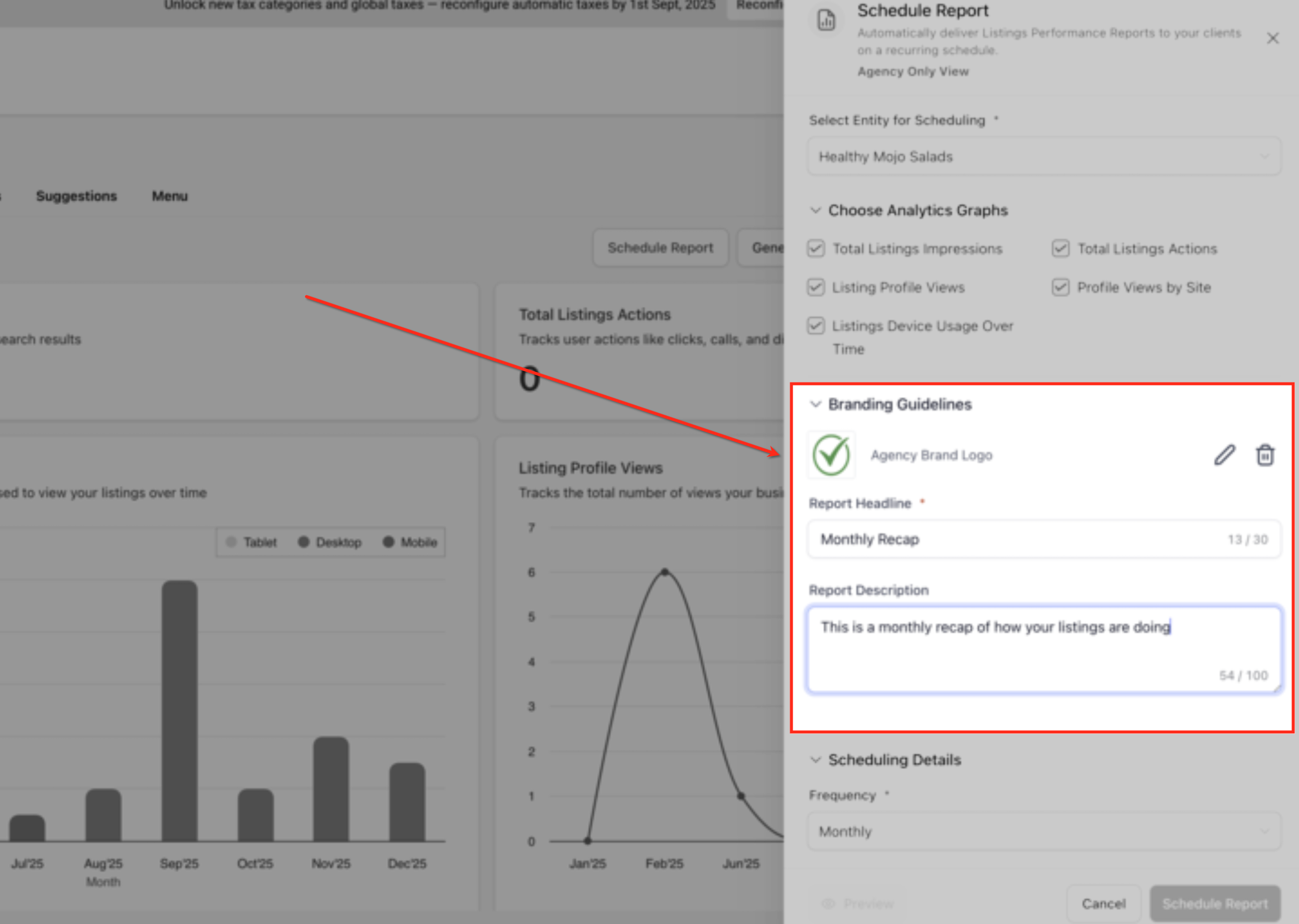
Customize Branding
In the Branding Guidelines section, confirm or update the agency logo and enter a Report Headline and Report Description. These details control how the recap report appears to recipients and help ensure it aligns with your agency’s branding and messaging.
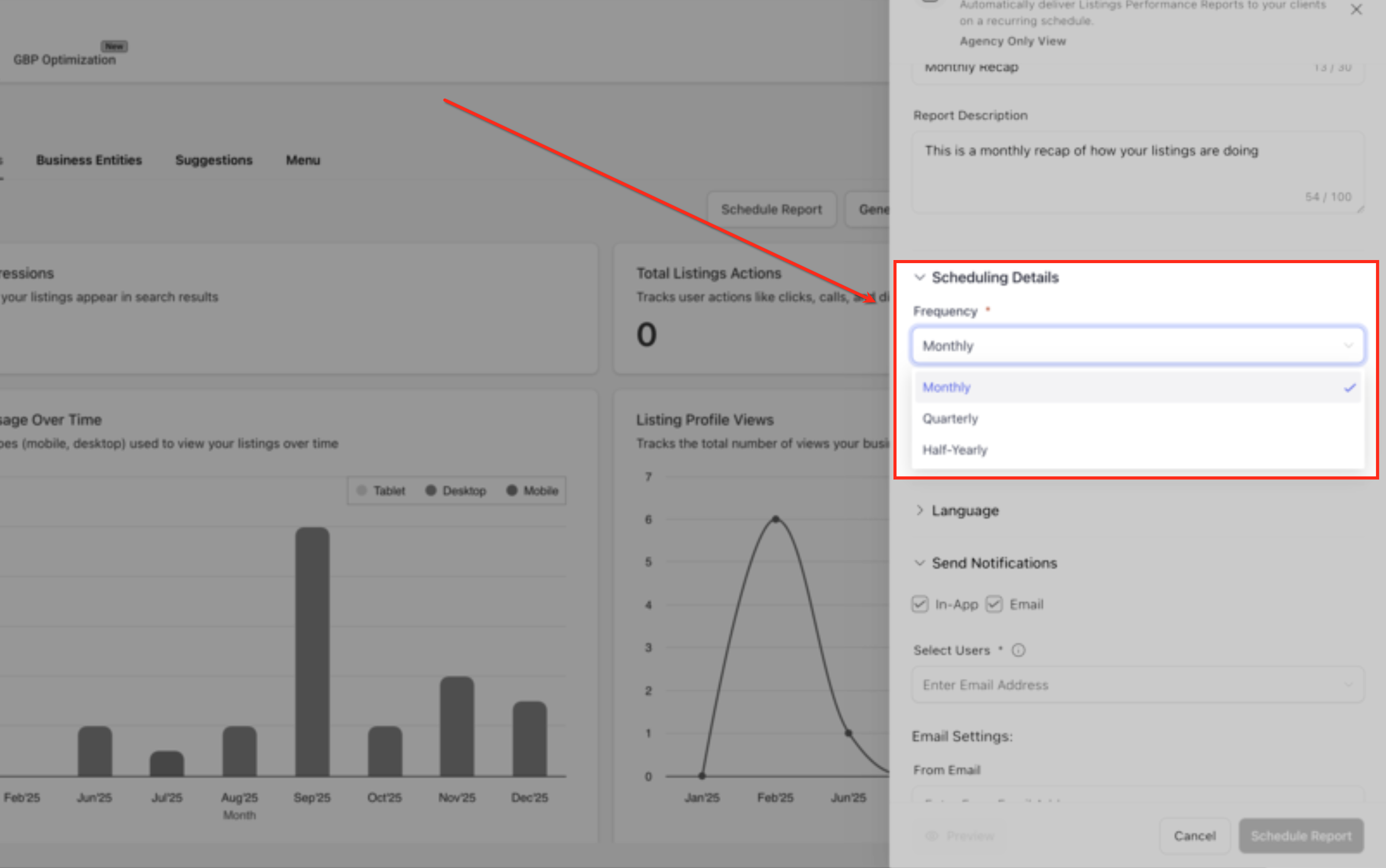
Set Frequency
In the Scheduling Details section, choose how often the performance recap should be sent—Monthly, Quarterly, or Half-Yearly. The selected frequency controls the reporting period and determines when recipients receive updated listings performance summaries.
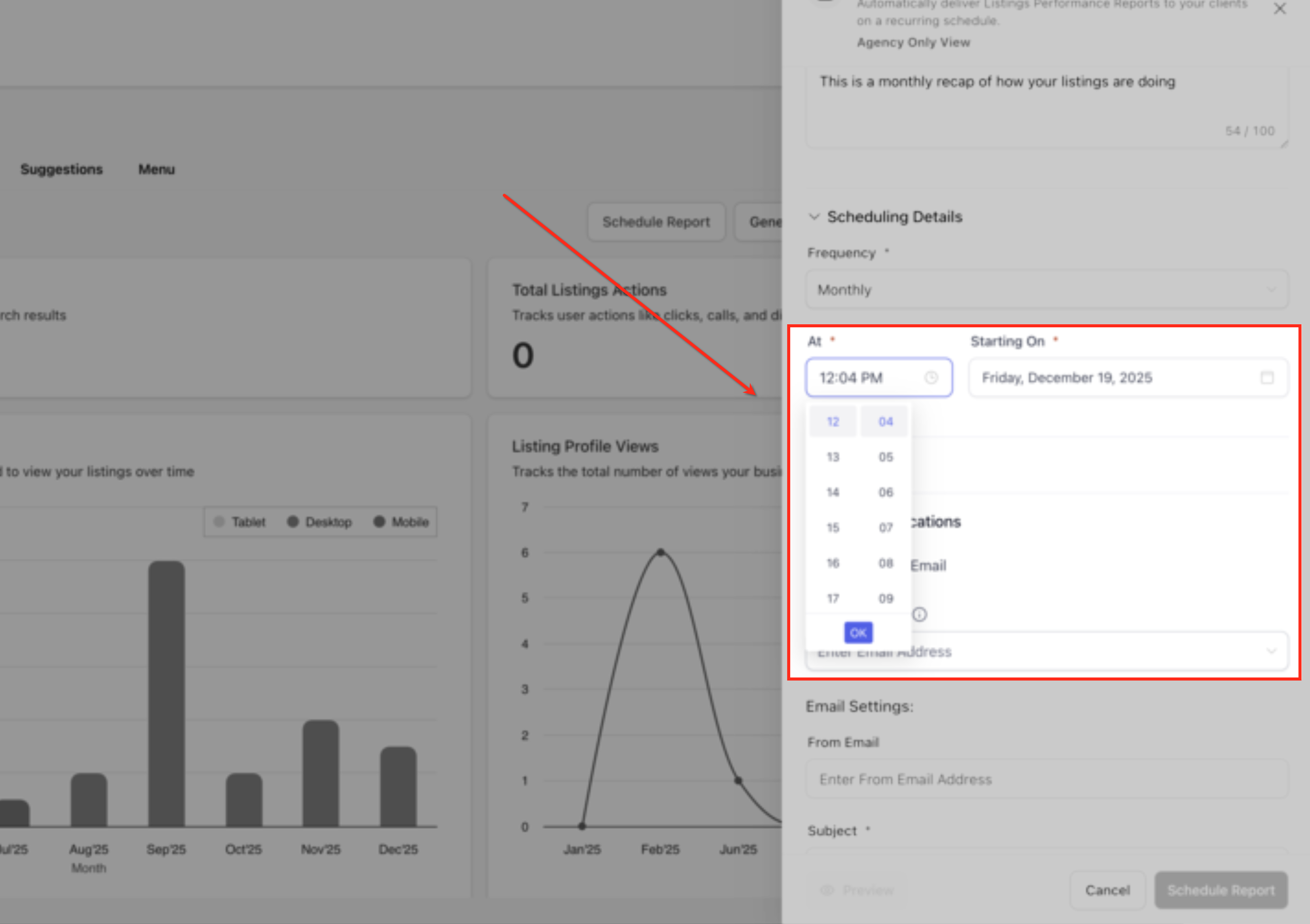
Set Schedule
Use the At and Starting On fields to define the exact time and start date for the automated report delivery. This determines when the first recap is sent and establishes the timing for all future scheduled reports.
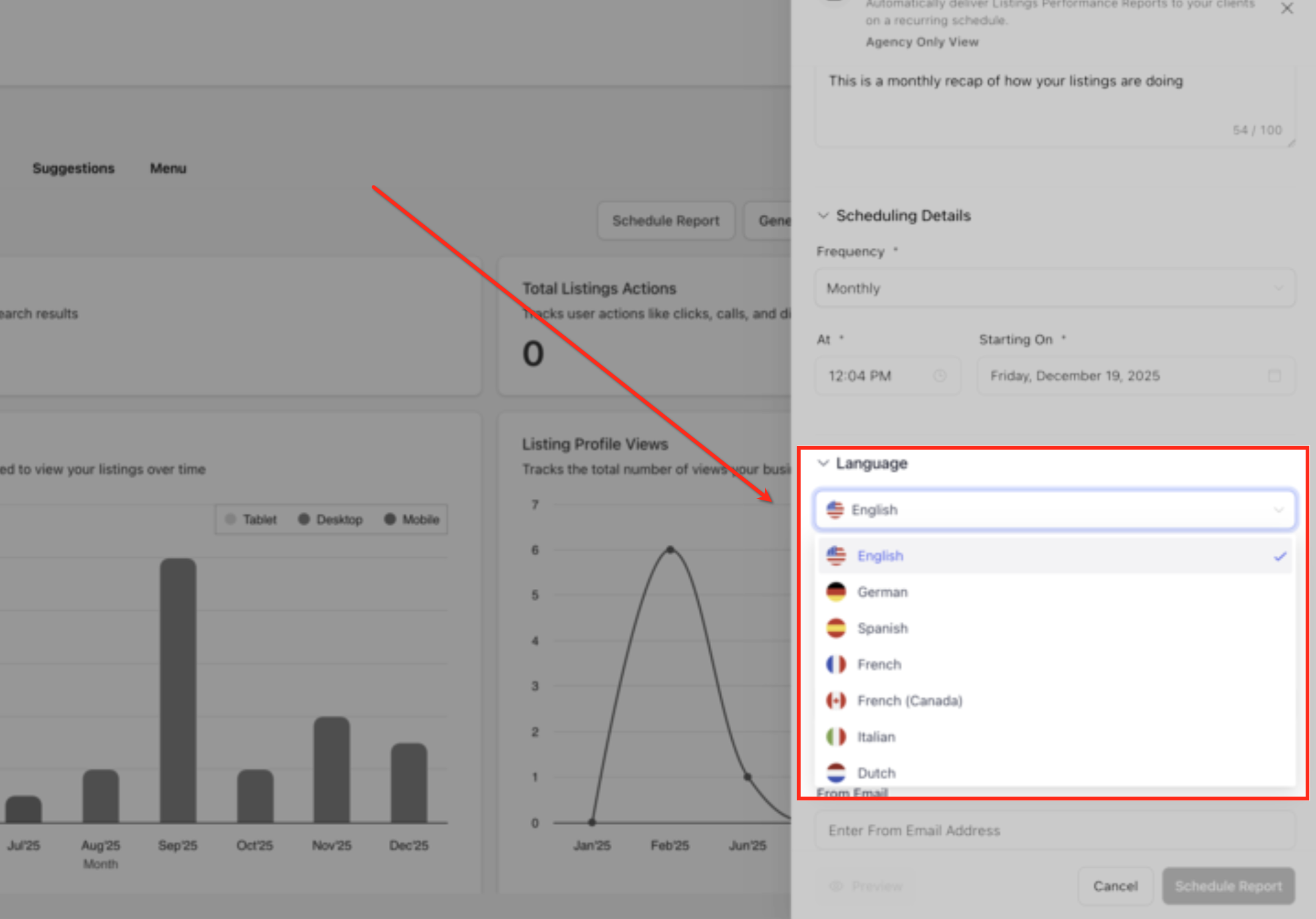
Select Language
In the Language section, choose the language in which the performance recap report will be generated. This ensures the report content is localized appropriately for the recipients receiving the automated update.
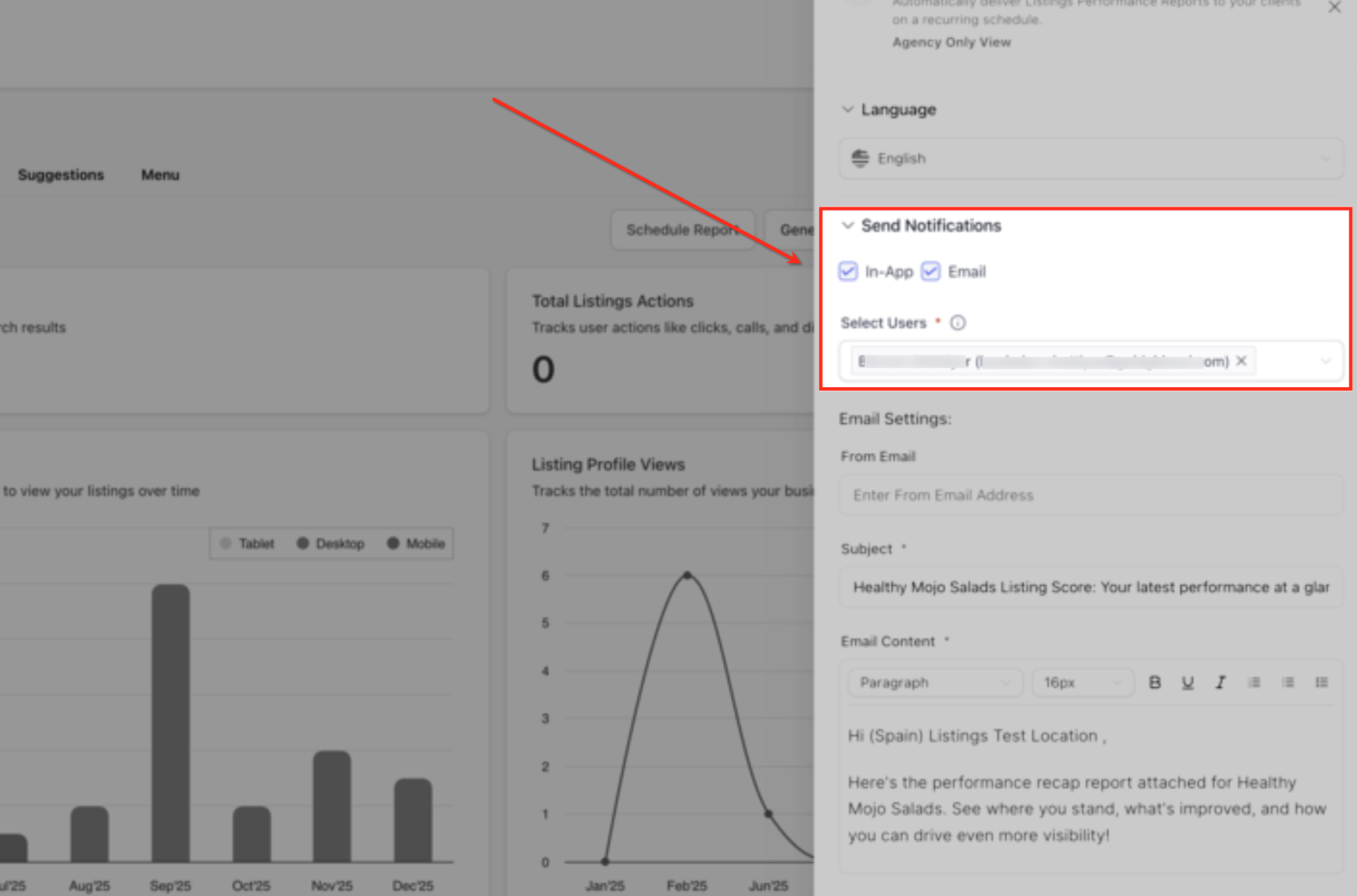
Send Notifications
In the Send Notifications section, choose whether the report should be delivered via In-App, Email, or both. Then select the users or email addresses that should receive the automated listings performance recap.
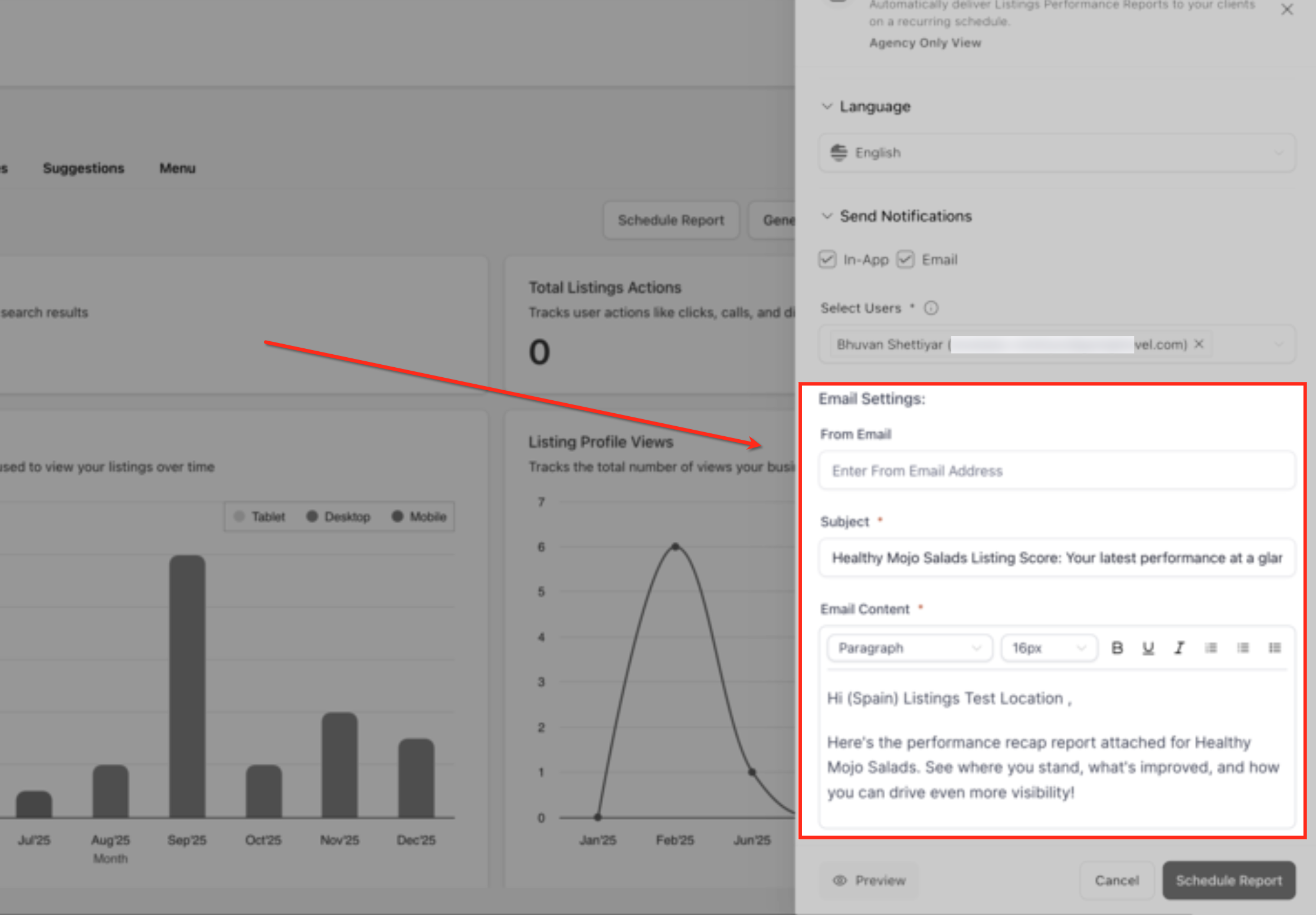
Configure Email
In the Email Settings section, enter the From Email, customize the Subject, and review or edit the Email Content that recipients will see. These settings control how the listings performance recap email is branded and communicated when delivered via email.
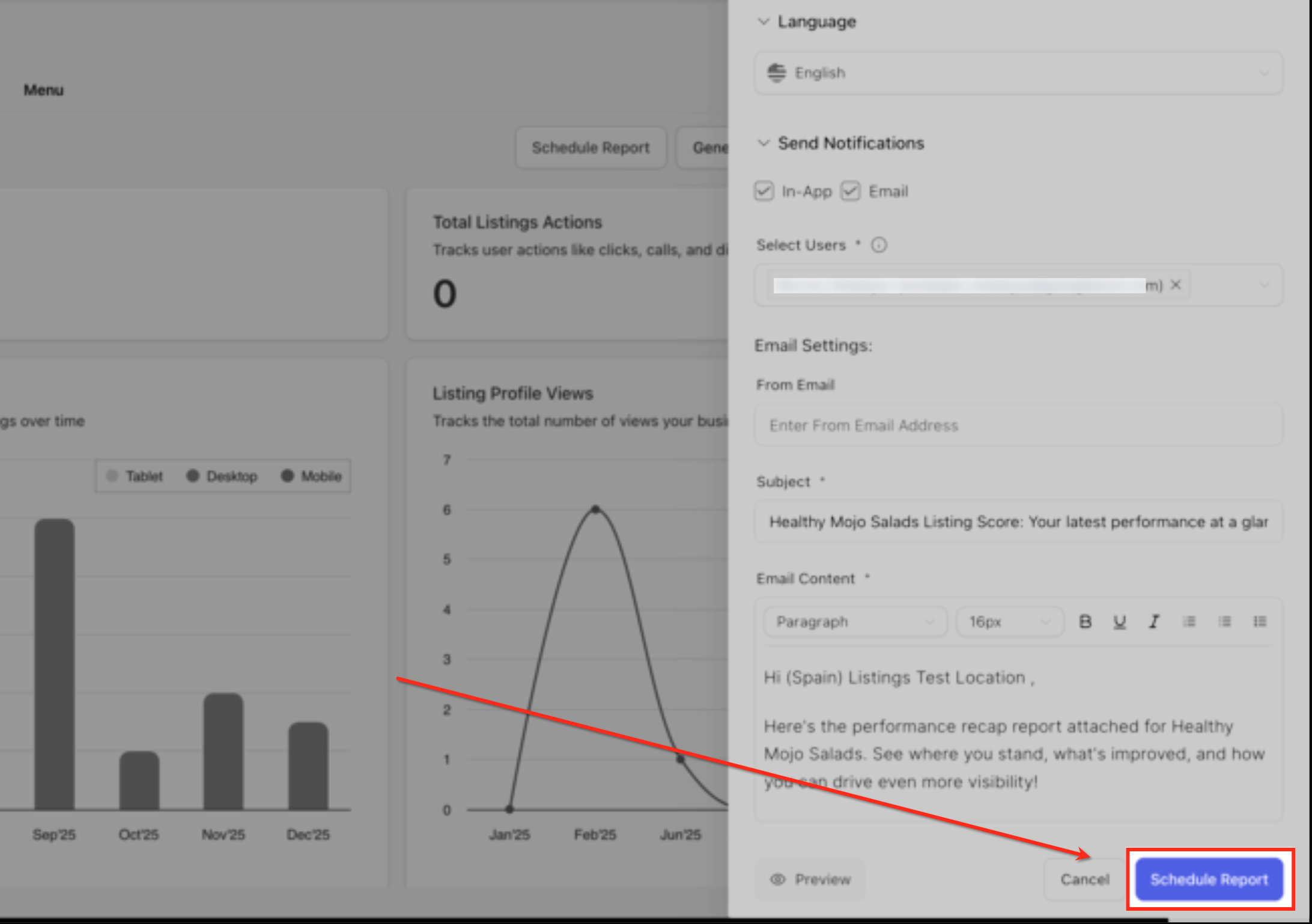
Save Schedule
Review all report settings, then click Schedule Report to activate the automated listings performance recap. Once saved, the schedule runs automatically based on the selected frequency, timing, and delivery preferences.
Frequently Asked Questions
Was this article helpful?
That’s Great!
Thank you for your feedback
Sorry! We couldn't be helpful
Thank you for your feedback
Feedback sent
We appreciate your effort and will try to fix the article