Provide visitor-facing alerts for new chat messages! The Notification Sound setting in HighLevel’s All‑in‑One and Live Chat widgets plays a sound and shows visual cues to reduce missed replies. This article explains what the Notification Sound setting does, where to find the Notification Sound control, and how to configure this setting.
TABLE OF CONTENTS
- What is the Notification Sound Setting in Chat Widgets?
- Key Benefits of Notification Sounds in Chat Widgets
- How To Adjust The Notification Sound Setting
- Frequently Asked Questions
- Related Articles
What is the Notification Sound Setting in Chat Widgets?
Notification Sound is a setting in the Chat Widget builder that controls visitor‑facing alerts for new messages on your website. It applies to All‑in‑One and Live Chat widgets and is ON by default. When Notification Sound is ON, the widget will:
- Play a sound whenever a supported message is shown to the visitor, including chat messages and other widget messages (for example, welcome messages, form-related prompts, and redirects).
- Show visual cues (such as popups, notification badges, and browser tab title updates) to help visitors notice updates.
When turned OFF, the chat widget will continue to receive messages silently without sound or visual interruptions.
Key Benefits of Notification Sounds in Chat Widgets
- Visitor Awareness: Visitors are immediately alerted to new messages, reducing missed replies and drop-offs.
- Higher Engagement: Timely audio + visual cues keep the conversation moving.
- Brand Alignment: Choose whether audible cues fit your brand’s tone.
- Zero Code: No changes to your embed code are required to make changes to this setting.
Supported messages that trigger sound notifications
When Notification Sound is ON, sound notifications can play for these additional system and lifecycle message types:
- Live Chat & session flow
Live chat intro message (chat start and after successful contact form submission)
Acknowledgement message (when a chat is acknowledged or ended) - Business hours handling
Outside office hours welcome message (when business hours are disabled, when the contact form is shown, and when received during an active session) - System & greeting messages
Subheading message (initial greeting for new visitors, when no previous chats are available, and during inline mode initialization) - Forms & redirects
Contact details requested message (when the contact form is displayed)
Redirect message (after form submission when redirect is enabled)
How To Adjust The Notification Sound Setting
Configure Notification Sound for supported chat types, All‑in‑One and Live Chat, directly in the Chat Widget builder. The setting is ON by default for supported widgets and can be turned OFF per widget to create a quieter experience. The steps below show where to find the control and save changes.
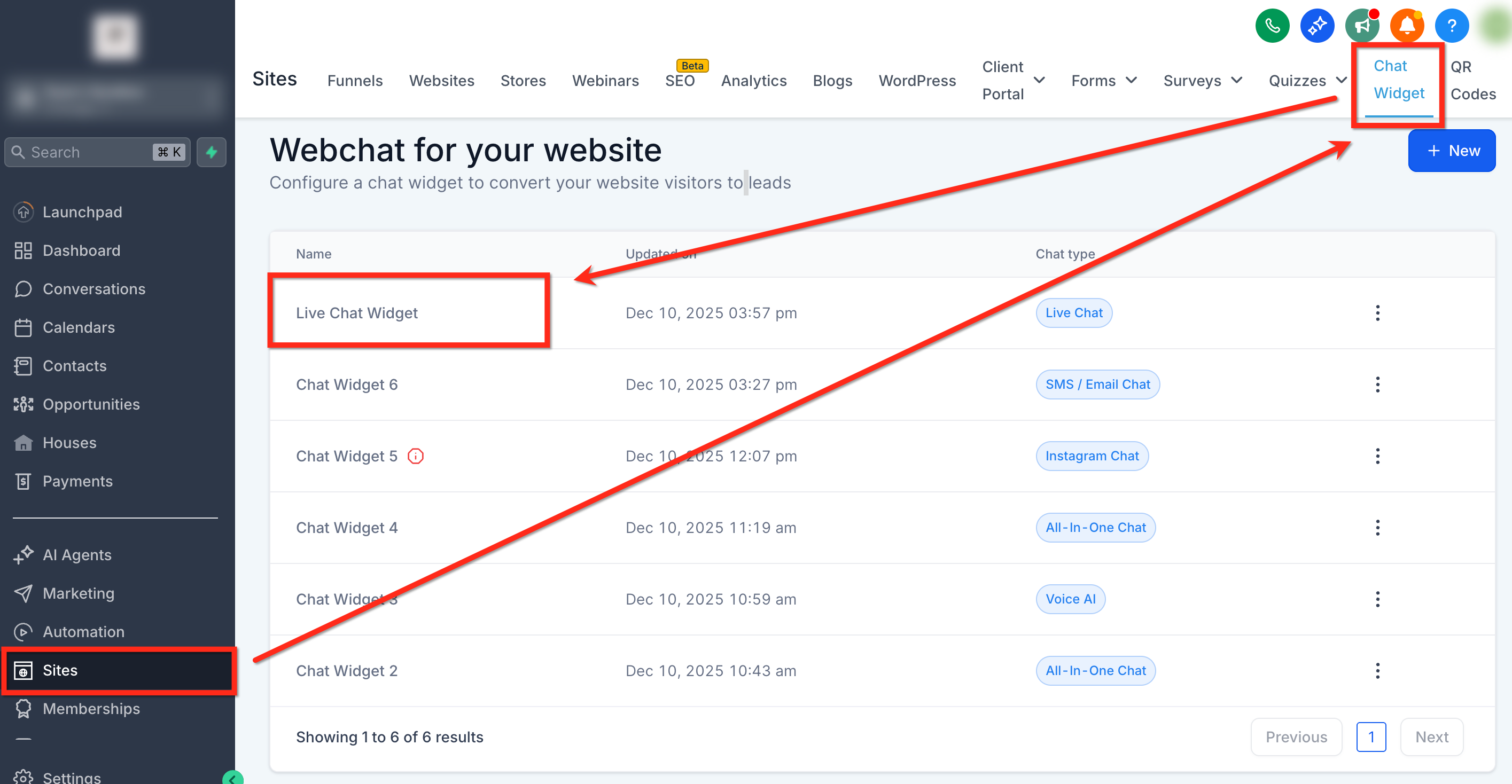
- Go to Sites ➝ Chat Widgets and open the widget you’d like to edit.
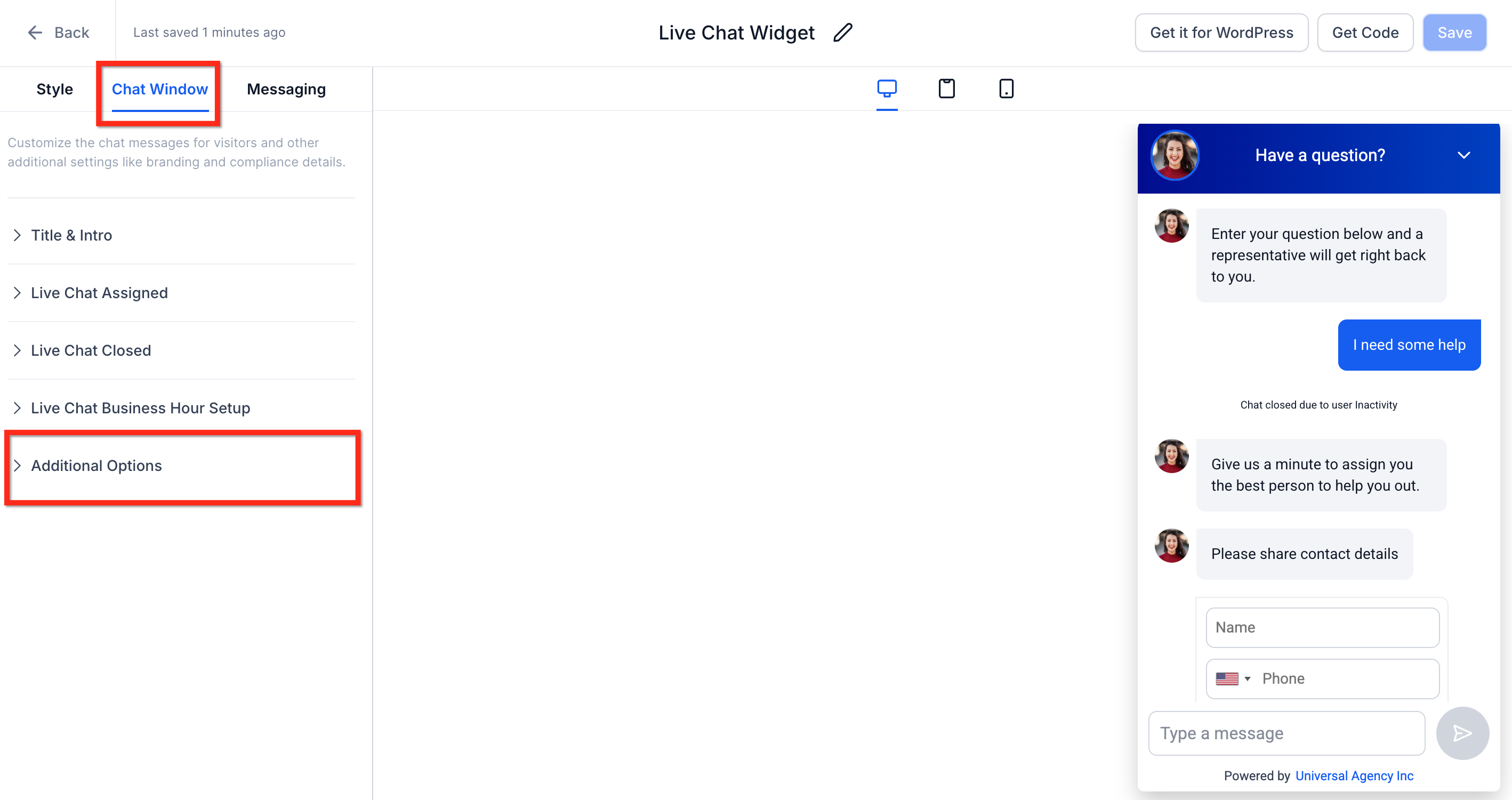
- In the left side menu, select the Chat Window tab then open the Additional Options dropdown.
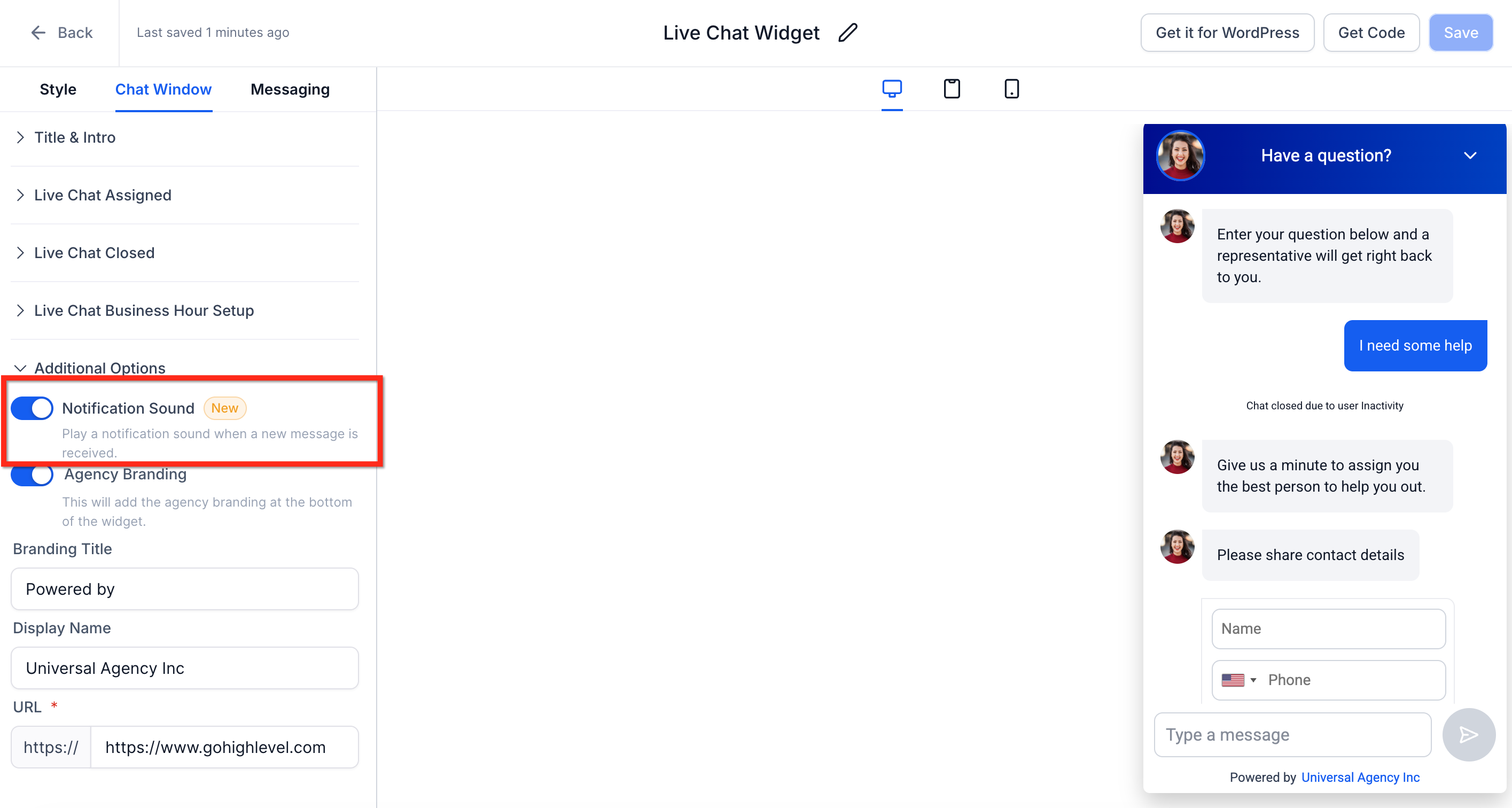
- Toggle the Notification Sound to ON (recommended) or OFF based on your page strategy.
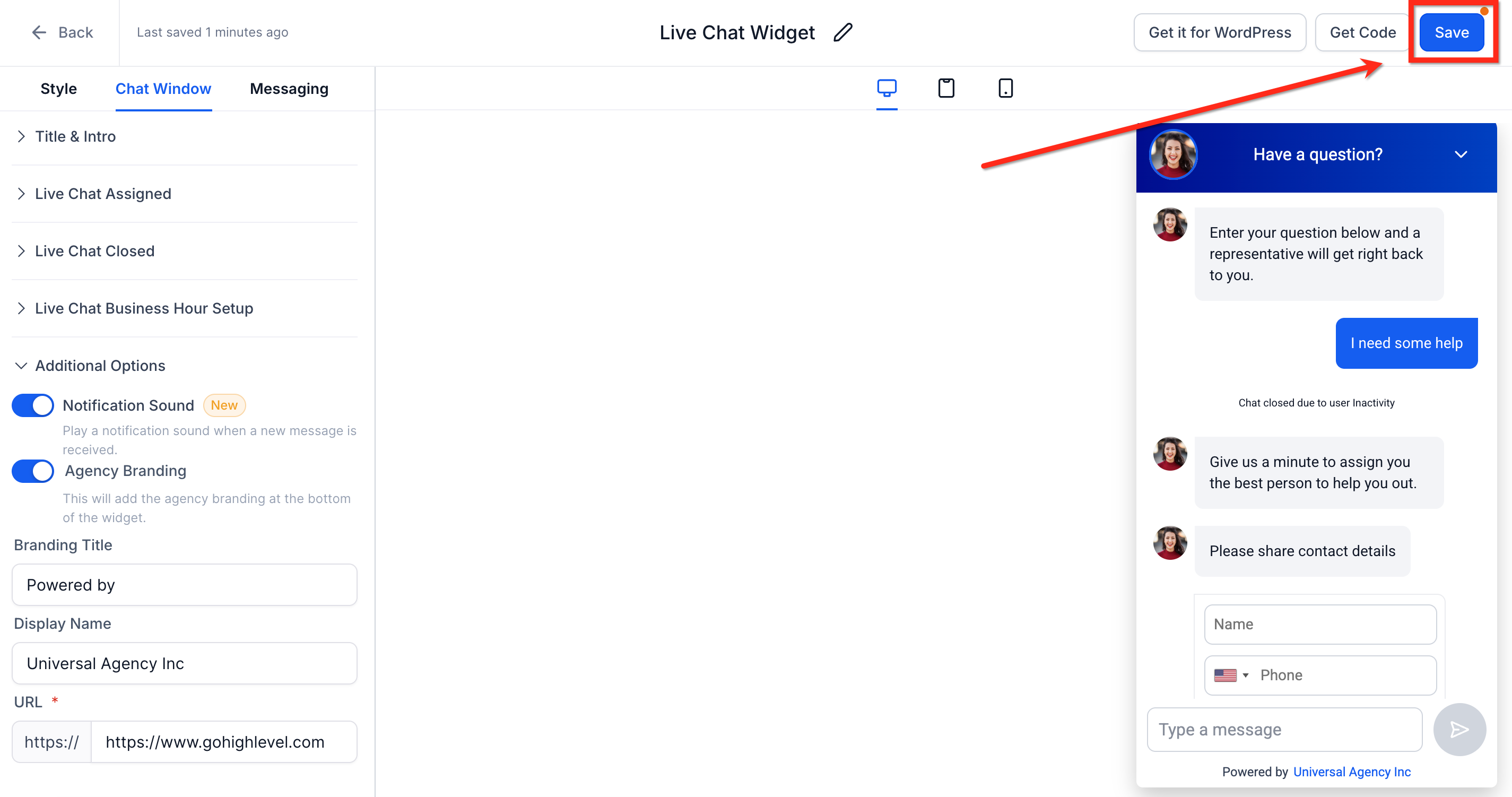
- Click Save in the top right. If the embed code is already on your site, refresh the page to see the applied changes.
Frequently Asked Questions
Q: Does this change staff/operator notifications in HighLevel?
No. This setting only controls visitor-side alerts in the website widget. Team notifications are managed separately in user notification settings.
Q: Can I upload a custom sound or change the volume?
Not at this time. The feature is a simple ON/OFF toggle.
Q: What happens if multiple widgets are on my site?
The setting is per widget. Each widget follows its own toggle (ON/OFF).
Q: Will turning it OFF still show badges or popups?
No. OFF is a silent mode meaning there is no sound or visual interuptions.
Q: Which widgets support Notification Sound?
All-in-One and Live Chat widgets only.
Related Articles
Was this article helpful?
That’s Great!
Thank you for your feedback
Sorry! We couldn't be helpful
Thank you for your feedback
Feedback sent
We appreciate your effort and will try to fix the article