The Webhook Logs Dashboard in HighLevel gives developers complete visibility into every outbound webhook sent from their integrations. With real-time access to payloads, timestamps, attempts, and response codes, this dashboard eliminates the need for support tickets when debugging webhook issues. Developers can quickly validate delivery, review detailed event histories, and troubleshoot failures using powerful search and filtering tools.
This article explains how the dashboard works, what you can expect to see, and how to use it effectively.
What is the Webhook Logs Dashboard?
The Webhook Logs Dashboard is a real-time monitoring tool located under Developer Portal → Insights → Logs. It records every outbound webhook event along with its payload, response, and retry history so developers can independently verify what HighLevel delivered. This tool is essential for confirming event activity, diagnosing integration issues, and ensuring downstream systems receive the expected data.
Key Benefits of the Webhook Logs Dashboard
Understanding the benefits of the dashboard helps you see how it enhances visibility, reduces friction, and speeds up integrations. Each capability is designed to help developers work more efficiently, especially when diagnosing complex event flows.
- Instant Delivery Verification: Immediately confirm whether HighLevel delivered or retried a webhook.
- Full Payload Visibility: Review complete JSON payloads and headers for accurate debugging.
- 30-Day Log Retention: Maintain access to historical logs for extended investigations.
- Substring Search Across Payloads: Locate any value—emails, contact IDs, or event names instantly.
- Timezone-Aware Timestamps: View logs in your preferred timezone for consistent auditing.
- Reduced Dependency on Support: Handle troubleshooting internally without opening support tickets.
Search & Filtering
Efficient search tools help developers quickly narrow down the specific webhook event they need to investigate. Whether you are looking for a single contact ID, a particular email, or a webhook tied to a certain event type, the search capabilities make tracking down issues straightforward.
The global search bar supports substring matching across payloads, allowing you to locate events using partial values. Additional filters refine results by:
- Webhook ID
- Event type
- Time range
- Status code
Longer Retry Windows for Some Failed Webhooks
Webhook logs help developers understand how delivery attempts progress over time. Because retry behavior now differs by failure type, some failed webhook events may remain visible across a longer retry timeline than before.
When reviewing failed webhook attempts in the logs:
- HTTP 429 failures continue to follow the existing retry behavior
- other failed webhook attempts may now retry over a longer period because they use exponential backoff
- non-429 failures can continue retrying for up to 3 days
This makes the logs more useful for investigating temporary endpoint instability and verifying whether a failed webhook was later recovered.
Detail Panel
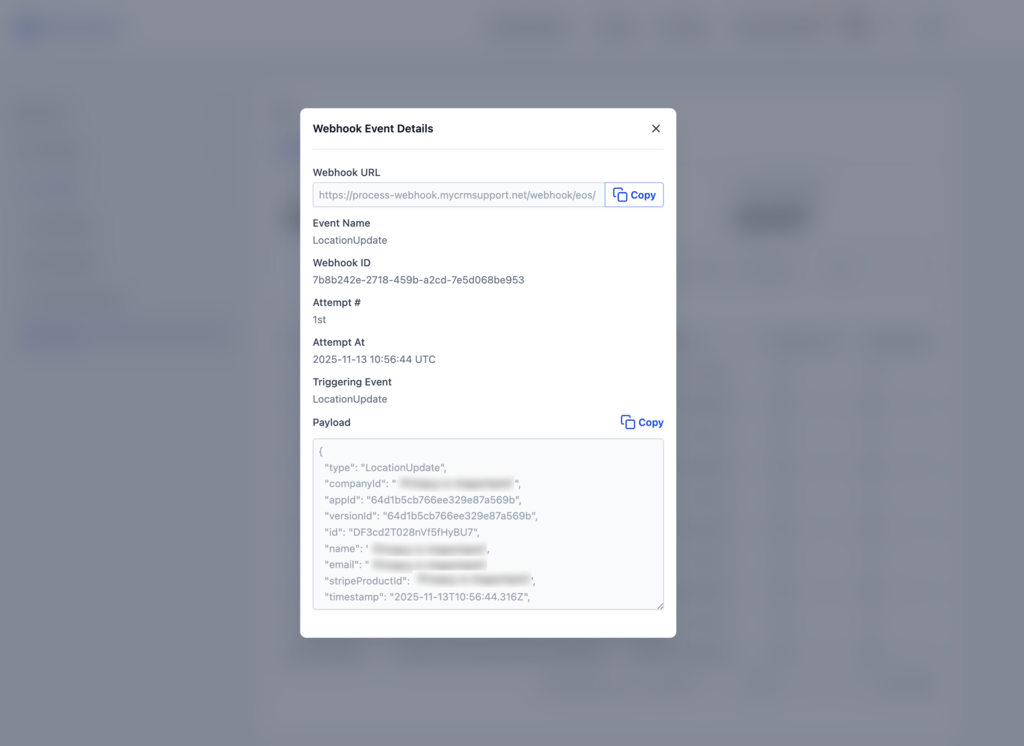
The detail panel provides a deeper view into a specific webhook event, giving developers the information needed to validate processing and resolve issues. This expanded view makes it easy to inspect data line-by-line.
Selecting any log entry opens a panel that includes:
- Webhook ID
- Attempt number
- Event name
- Timestamp history (created, delivered, retried)
- HTTP response code and delivery status
- Full JSON payload with a one-click Copy option
Developers can paste the payload into tools like Postman or Webhook.site for replay or simulation.
Timezone Controls
Viewing timestamps in a familiar timezone helps reduce confusion when diagnosing events or collaborating across teams. The dashboard allows every user to choose their own timezone preference.
The Webhook Logs Dashboard defaults to Central Time, but you can adjust to any preferred timezone using the selector at the top of the page. HighLevel remembers your selection for all future sessions, keeping your log review consistent and intuitive.
Retention Window
Webhook logs are automatically stored for 30 days, giving developers ample time to review deliveries and troubleshoot issues. This retention period ensures visibility into both recent activity and extended debugging processes.
After 30 days, logs are permanently removed. Developers should save or copy any payloads they want to keep for longer-term audits or compliance.
How to Set Up the Webhook Logs Dashboard
Accessing and using the Webhook Logs Dashboard ensures that you can immediately verify webhook activity and begin troubleshooting. Follow the steps below to start reviewing events generated by your applications.
Sign in at marketplace.gohighlevel.com and navigate to Developer Portal → Insights → Logs.
Select the Webhook Logs tab.
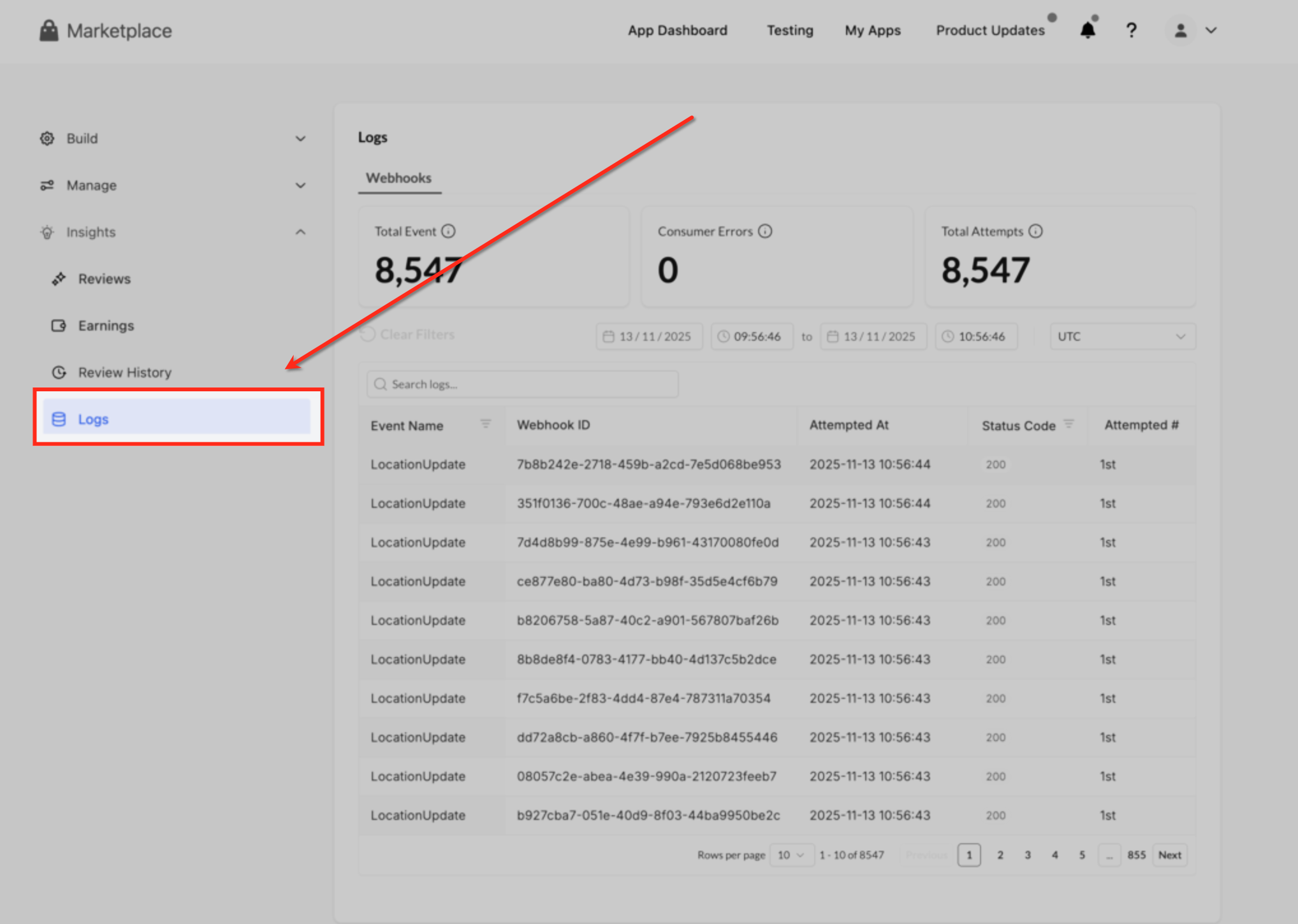
(Optional) Adjust your timezone in the top-right corner to match your local time.
Trigger an event in your app to generate a test webhook.
Enter a unique identifier (such as an email) into the search bar to locate the event.
Click the event row to open the detail panel and review the payload and response.
Use the Copy button for further analysis or to share with your team.
Provide the Webhook ID or payload as needed when collaborating on debugging.
Frequently Asked Questions
Q: Does the dashboard show failed delivery attempts?
Yes. Each attempt including failures and retries appears with its response code and timestamp.
Q: Can I export logs?
Direct export is not available, but you can copy individual payloads or retrieve webhook data via the API.
Q: What happens after the 30-day retention period?
Logs older than 30 days are permanently deleted.
Q: Will changing my timezone affect other users?
No. Timezone selection is saved per individual user.
Q: Do sub-accounts get separate dashboards?
The dashboard displays webhook events associated with your developer account and applications.
Q: Is payload data masked or truncated?
No. Payloads appear exactly as delivered, including all fields.
Q: Can agency admins without developer access view these logs?
Only users with Developer Portal permissions can access the Webhook Logs Dashboard.
Q: Does viewing logs count toward API rate limits?
No. Accessing logs does not consume API calls.
Related Articles
Was this article helpful?
That’s Great!
Thank you for your feedback
Sorry! We couldn't be helpful
Thank you for your feedback
Feedback sent
We appreciate your effort and will try to fix the article