We’re excited to introduce the HighLevel Desktop App for macOS, Windows and Linux. It provides a faster, distraction‑free experience and native OS notifications ideal for teams that keep HighLevel open all day. This quick guide walks you through getting the mac/Windows/Linux app onto your computer and logging in for the first time.
TABLE OF CONTENTS
Download Links
Always install from the official links to ensure you’re running an authentic, up‑to‑date build.
HighLevel
| OS | Variant | Download |
|---|---|---|
| macOS | — | Download Link |
| Windows | — | Download Link |
| Linux | Debian-based (x64) | Download Link |
| Linux | Debian-based (arm64) | Download Link |
| Linux | Red Hat–based (x64) | Download Link |
| Linux | Red Hat–based (arm64) | Download Link |
LeadConnector
| OS | Variant | Download |
|---|---|---|
| macOS | — | Download Link |
| Windows | — | Download Link |
| Linux | Debian-based (x64) | Download Link |
| Linux | Debian-based (arm64) | Download Link |
| Linux | Red Hat–based (x64) | Download Link |
| Linux | Red Hat–based (arm64) | Download Link |
Install the Desktop App (macOS, Windows & Linux)
Choose your operating system below. Each path is short and direct; follow the four steps in order.
macOS
Download the installer - Use the macOS (.dmg) link above.
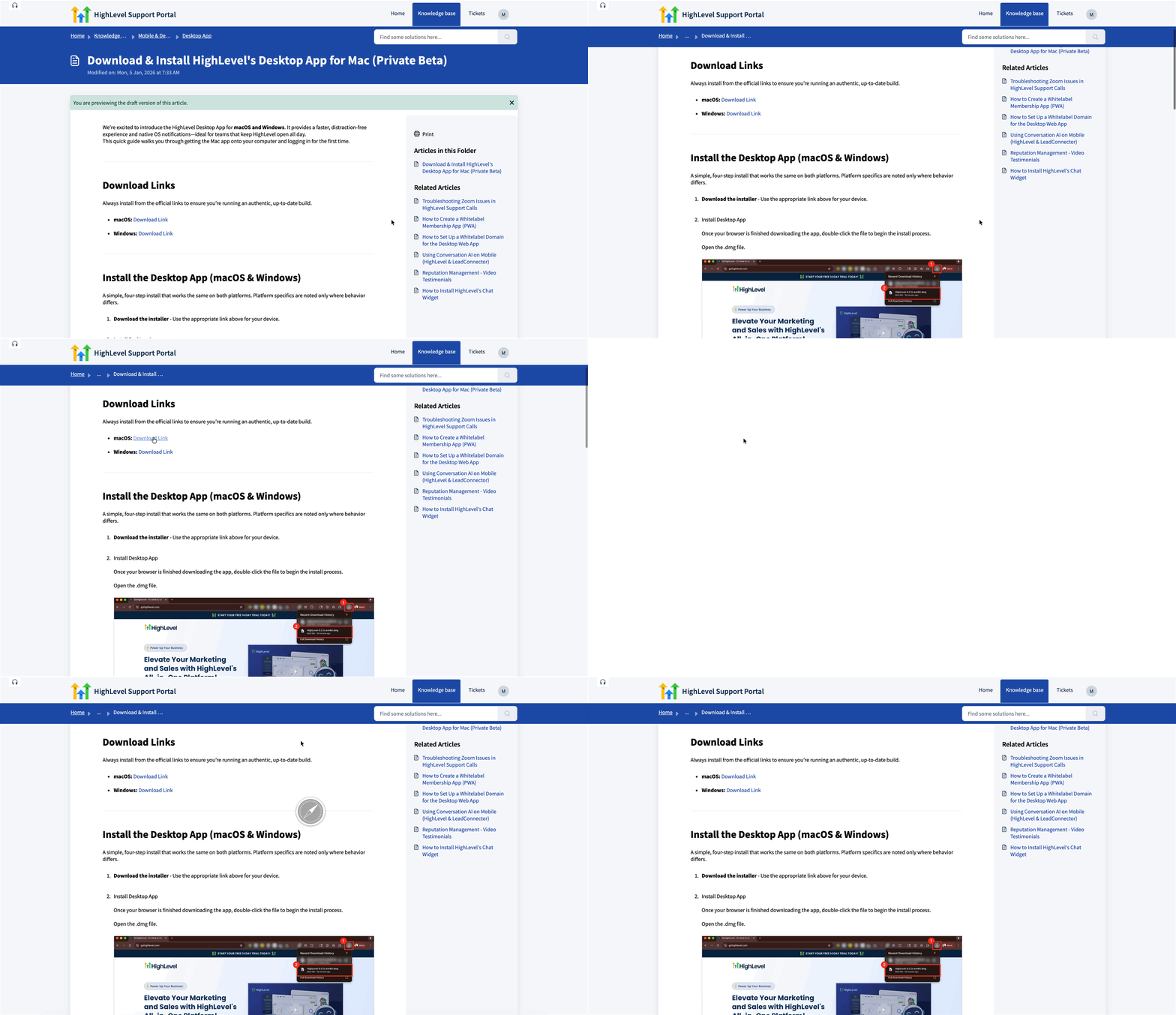
Install - Open the .dmg and drag HighLevel into Applications.
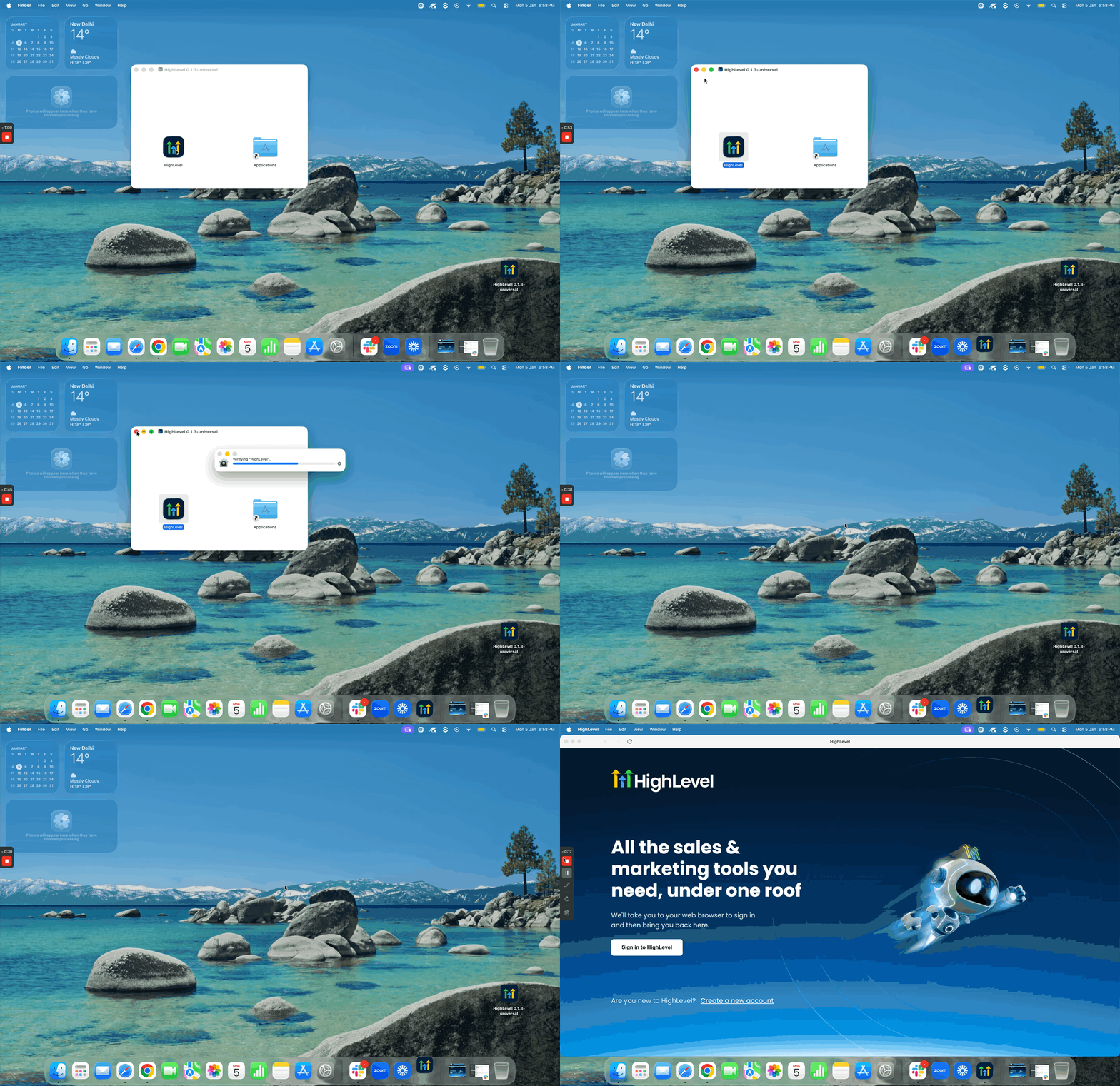
Open HighLevel - Launch from Applications, Launchpad, or Spotlight.
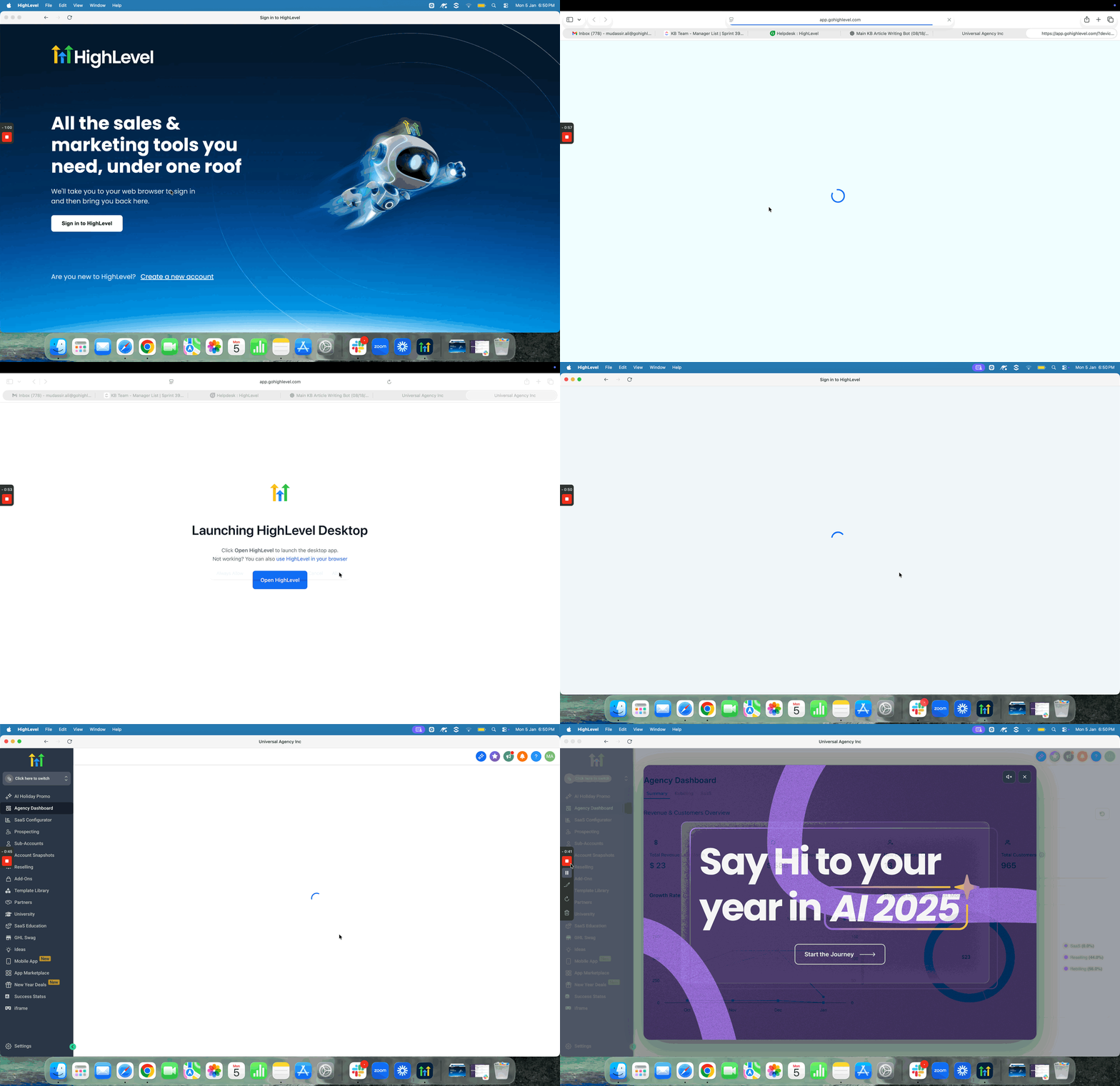
Sign in - Click Sign In in the desktop app. Your default browser opens. If you’re already signed in to the HighLevel web app in that browser, you’ll be routed back to the desktop app automatically. If not, complete the browser login (whitelabeled domain if enabled), then you’ll return to the app.
Windows
Download the installer — Use the Windows (.exe) link above.
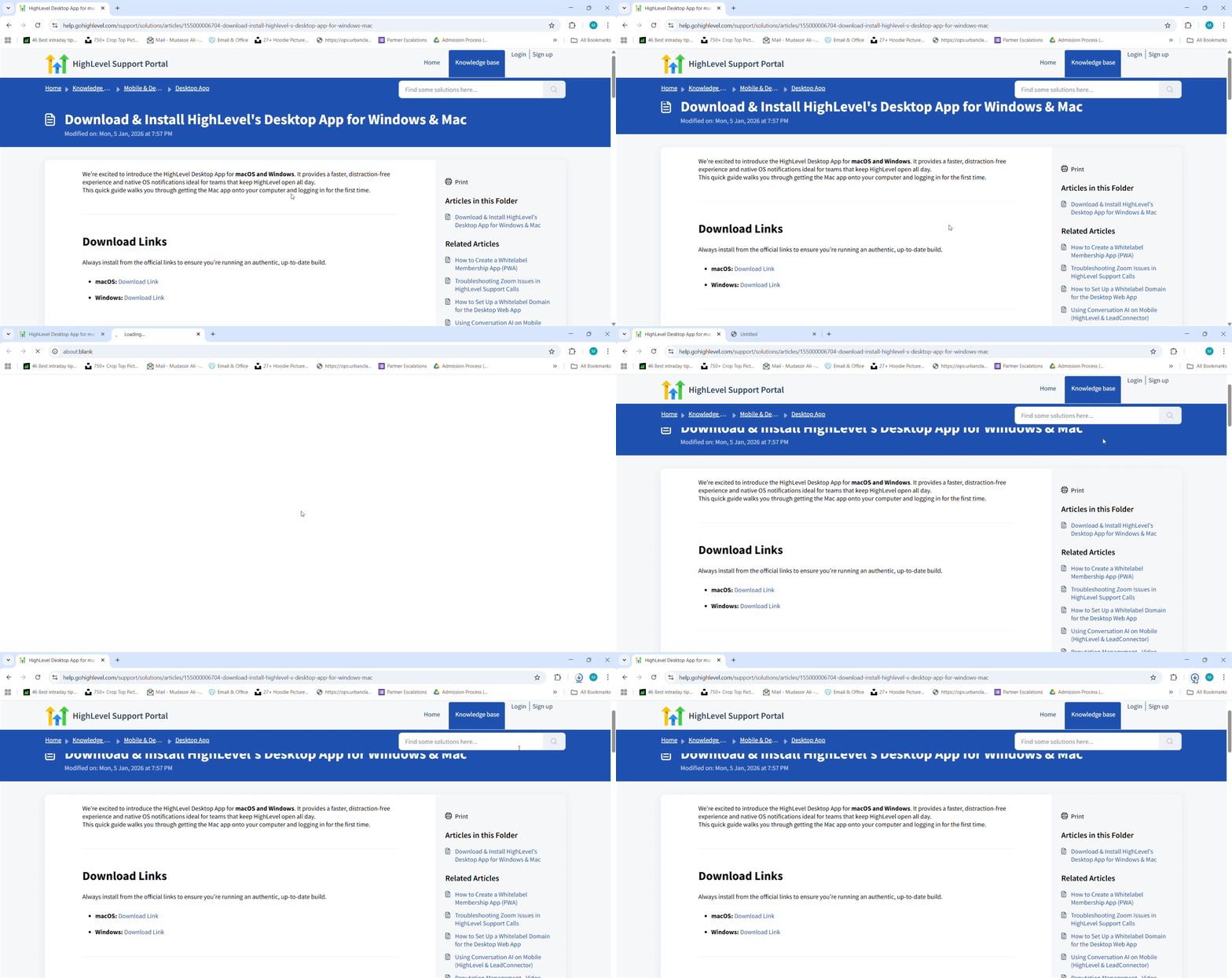
Install - Open the .exe and finish the setup wizard.
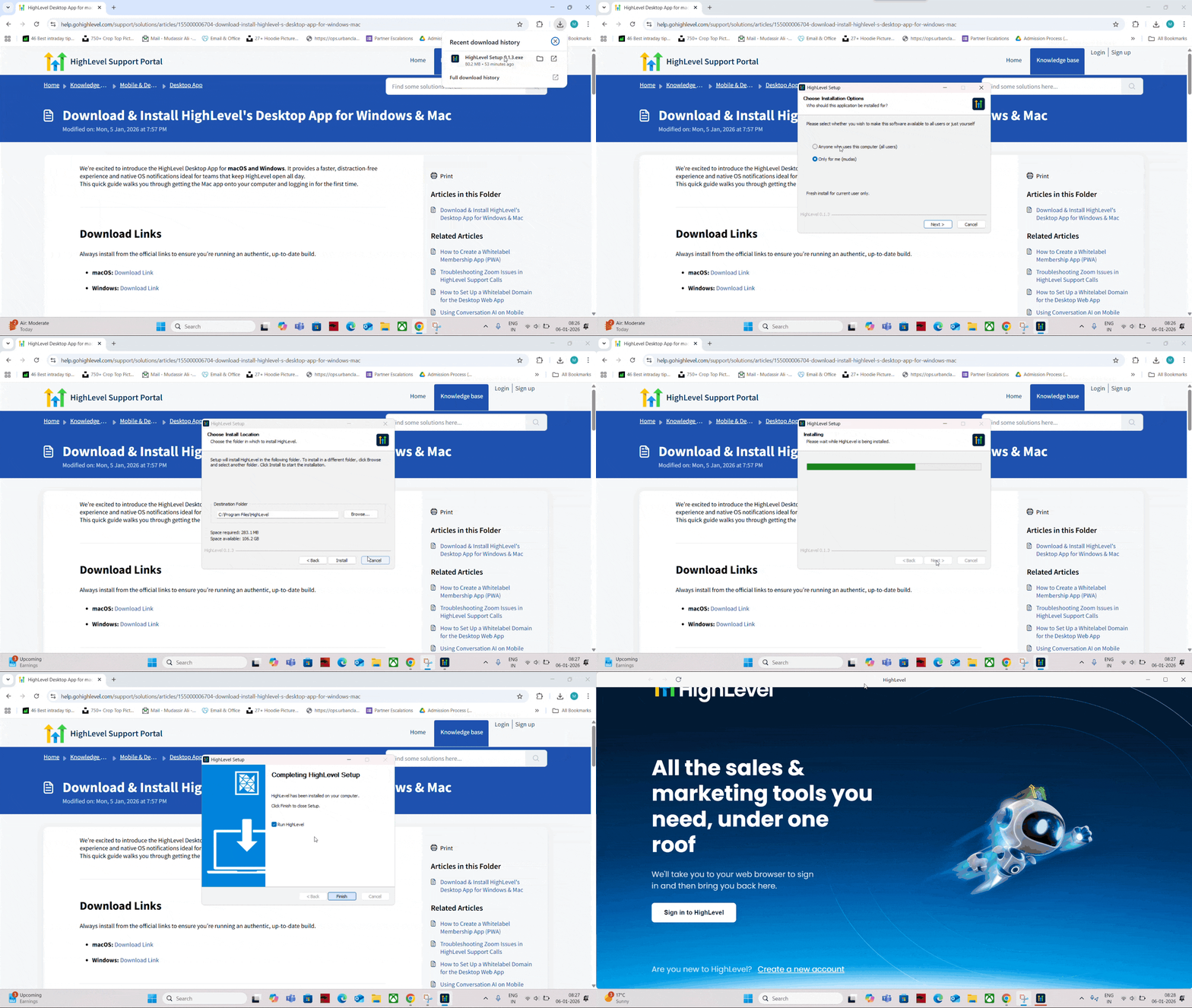
Open HighLevel — Launch from the Start menu.
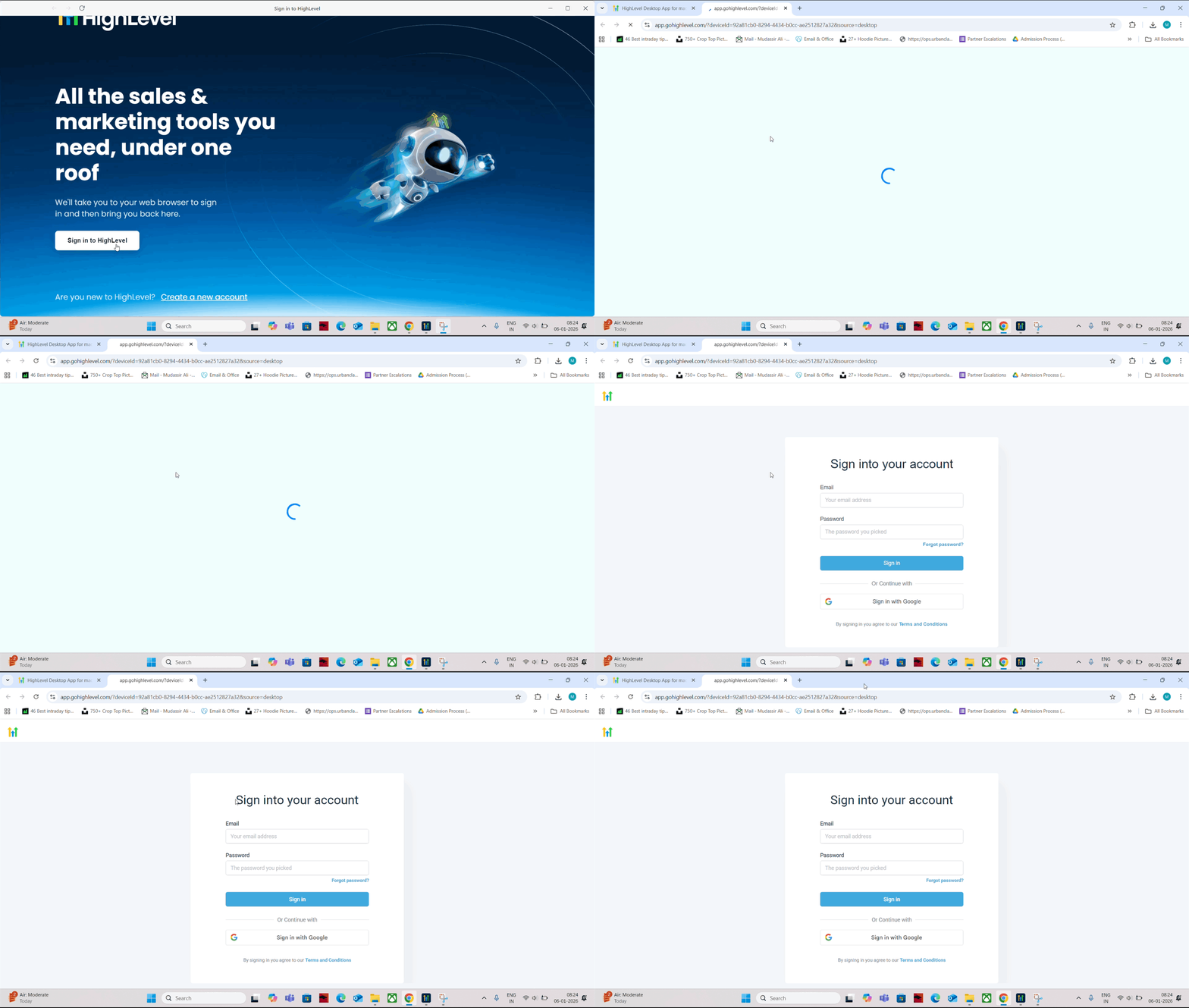
Sign in - Click Sign In in the desktop app. Your default browser opens. If you’re already signed in to the HighLevel web app in that browser, you’ll be routed back to the desktop app automatically. If not, enter your credentials in the browser (whitelabeled domain if enabled), then you’ll return to the app.
Linux
- Download the Linux installer for your distribution and architecture from the links above.
- Install using your system’s standard installer flow.
- Open the Desktop App from your applications menu.
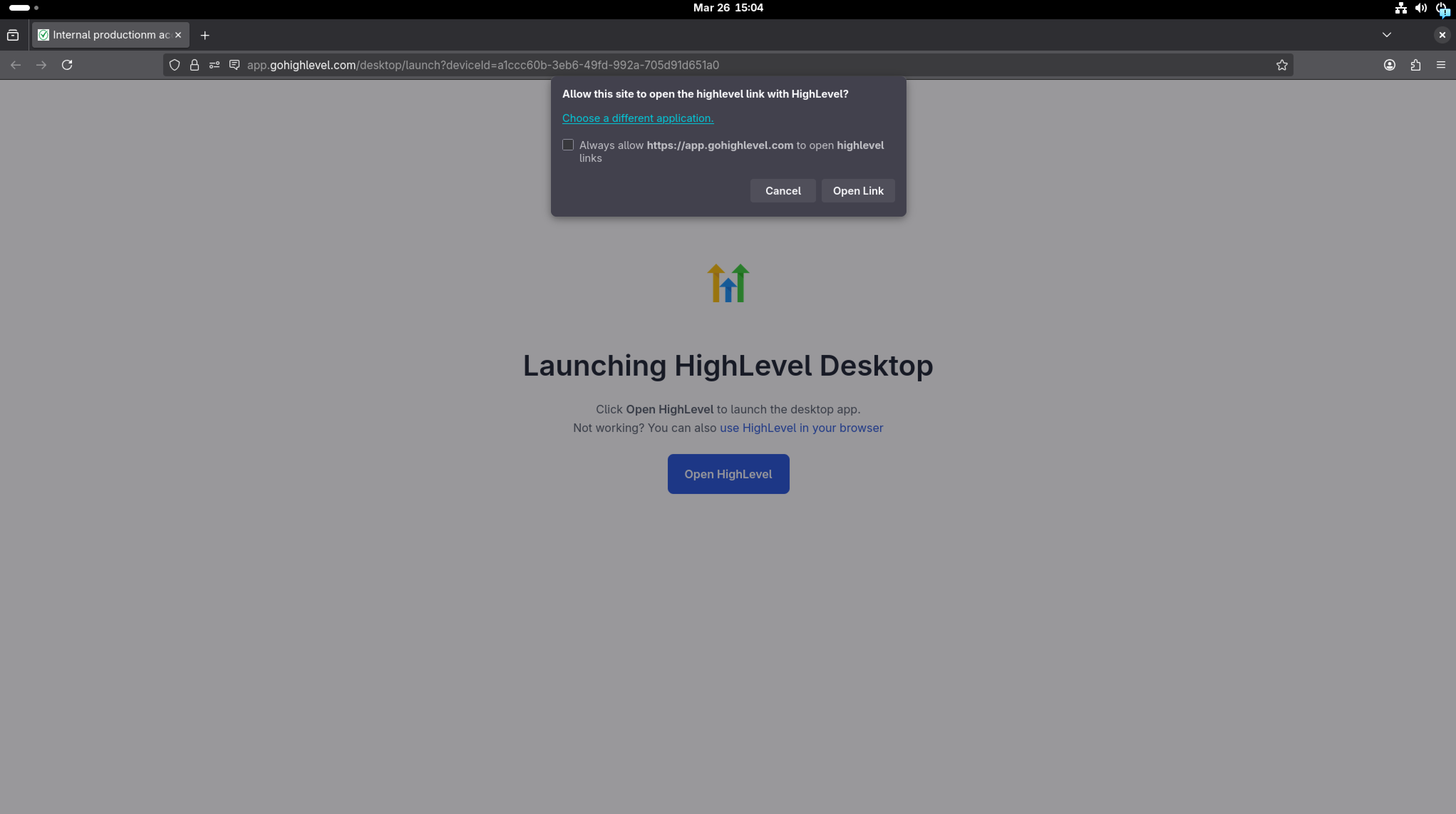
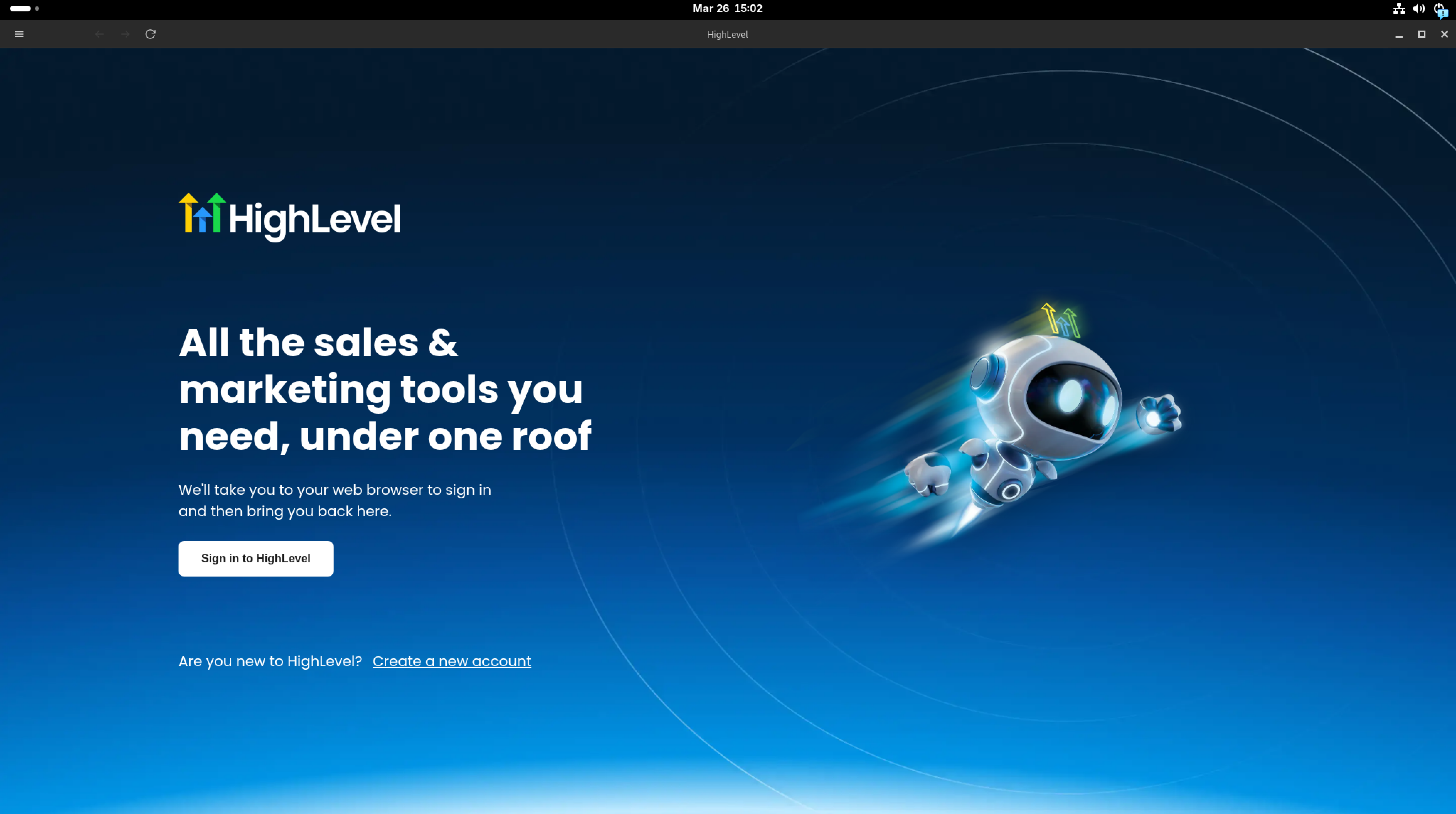
- Click Sign In. Your default browser opens to complete sign-in, then routes you back to the desktop app.
Frequently Asked Questions
Q: Is the desktop app different from the HighLevel web app?
The experience and data are the same; the desktop app packages HighLevel in a dedicated, optimized window with native notifications.
Q: Can I use multiple accounts or sub‑accounts?
Yes - sign in normally, then switch using the account menu if you have access to multiple sub‑accounts.
Q: Will my whitelabeled domain affect login?
Yes - if enabled, you’ll be routed through your branded login during sign‑in before returning to the app.
Q: What if I don’t see notifications?
Enable OS‑level notifications for HighLevel and then review in‑app preferences.
Was this article helpful?
That’s Great!
Thank you for your feedback
Sorry! We couldn't be helpful
Thank you for your feedback
Feedback sent
We appreciate your effort and will try to fix the article