Configure Business Logos, Image Assets, Call Extensions, and Sitelinks at the campaign level in HighLevel Ad Manager. This guide covers setup steps, asset limits, and how campaign-level assets work with account-level assets to support consistent Google Ads campaigns.
TABLE OF CONTENTS
- What is Campaign‑Level Google Ads Additional Assets?
- Additional Asset Limits
- Key Benefits of Campaign‑Level Additional Assets
- How to Configure Google Ads Additional Assets at Campaign Level
- Fallback Logic
- Validation & Errors
- Best Practices
- Frequently Asked Questions
- Related Articles
What is Campaign‑Level Google Ads Additional Assets?
Campaign‑level assets are additions to your Google Ads, such as sitelinks, call buttons, logos, and images. In HighLevel, you can configure them once at the campaign level instead of repeating the setup for each ad group. Eligible assets may appear with ads in that campaign, but availability and display depend on the campaign type, placement, and Google Ads eligibility requirements.
In HighLevel Ad Manager, you can add the following campaign‑level assets for Google Ads:
- Business Logo
- Image Assets
- Call Extensions
- Sitelinks
Additional Asset Limits
| Asset Type | Supported Formats | Aspect Ratios | Limits per Campaign | Notes |
|---|---|---|---|---|
| Business Logo | JPG, PNG | 1:1 (square) | 1 logo | May appear with eligible Search ads; display is not guaranteed |
| Image Assets | JPG, PNG | 1:1 (square), 1.91:1 (landscape) | Up to 20 images | Max file size: 5 MB per image. For Search campaigns, Google recommends at least 4 unique images across both ratios |
| Call Extensions | Phone numbers | N/A | Multiple | Must be Google-approved |
| Sitelinks | Text + URL | N/A | 2–20 (recommended 4) | Supports descriptions (optional) |
Key Benefits of Campaign‑Level Additional Assets
Consistency: ensures all ads in a campaign share the same branding and CTAs.
Relevance: tailors sitelinks/images to a campaign’s offer or funnel stage.
Speed: centralizes setup so you avoid repeating steps per ad group.
Control: lets you configure assets for each campaign while Google determines eligible combinations and asset priority.
Visibility: can improve ad prominence and CTR across eligible placements.
How to Configure Google Ads Additional Assets at Campaign Level
Before you begin: Make sure Ad Manager is enabled for the sub-account and an eligible Google Ads account is connected. Go to Marketing > Ad Manager > Create Campaign, select Google, and locate Additional Assets in the campaign-level configuration.
For setup details, see How to Connect Google Ads to Ad Manager and Create a Google Search Ad Campaign. Google also applies account eligibility requirements to Search image assets and business logos.
Step 1: Add Image Assets
Notes: Avoid low-quality visuals, gifs, overlays, or misleading content.
Uploading unsupported ratios (e.g., 4:5) will trigger a warning message prompting you to crop/resize.
If some images fail, your campaign will still publish with valid text ads and other assets.
- In the Additional Assets section, click Upload Images.
- Choose one or more images from the media library or upload new files.
- You can add up to 20 images per campaign.
- Supported Guidelines:
- Formats: JPG, PNG
- Aspect Ratios: 1:1 (square) and 1.91:1 (landscape)
- File Size: Up to 5 MB per image
- Recommended: For Search campaigns, add at least 4 unique images, including square (1:1) and landscape (1.91:1) formats.

Step 2: Add Business Logo
Note: Only 1:1 or square images are eligible.- Click + Upload Logo.
- Choose an existing image or upload a new one from the media library.
- Once uploaded, click the logo to open editing options like cropping.
Note: Once approved, the business logo may appear with eligible ads, depending on Google Ads asset-serving decisions. Display is not guaranteed.

Step 3: Configure Call Extensions
Note: Call extensions (called call assets in Google Ads) can display a phone number or a call option on eligible ads. They do not appear with every impression.
Learn more on how to create a 'Call from ads' conversion action here.- Click on the Call Extensions dropdown.
- Choose one or more previously added phone numbers.
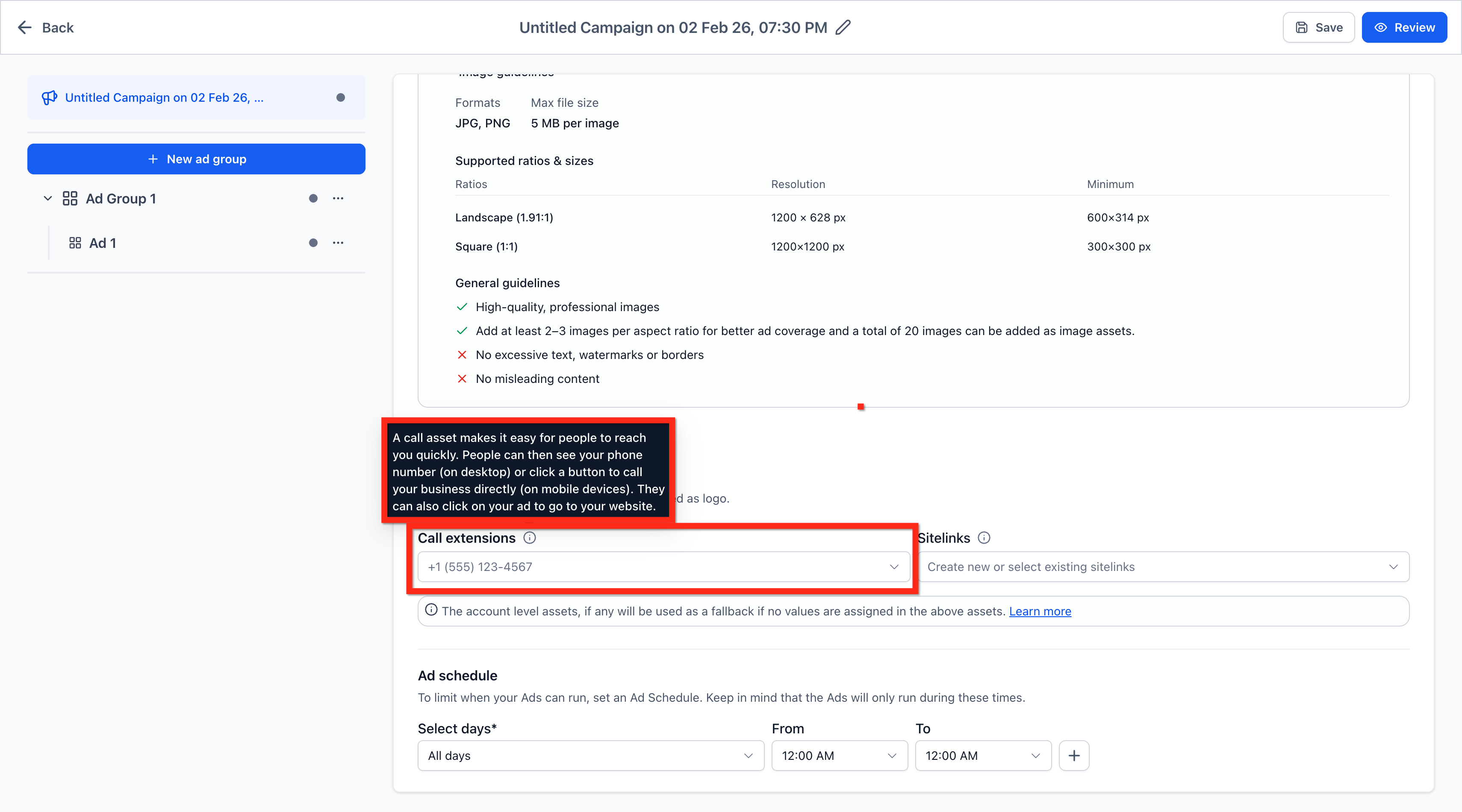
- Alternatively, click + Create a New Call in the dropdown to add a new number.

Select country and add a valid number and click Create.

Step 4: Configure Sitelinks
Note: Minimum 2, maximum 20 and recommended 4 sitelink assets should be added for optimal delivery.
- Click the Sitelinks dropdown.
- Select one or more existing sitelinks.

- To add a new sitelink, click + Create a new sitelink and fill in:
- Sitelink Text (max 25 characters)
- Optional Description Line 1 & 2
- Final URL
- Click Create.

Fallback Logic
Google Ads determines which eligible assets can serve based on their type and where they are added:
- Business Logos: For Search campaigns, campaign-level logos generally take priority over account-level logos. If a campaign-level logo is disapproved, an approved account-level logo may serve.
- Call Extensions: Google prioritizes the most specific eligible level: ad group, then campaign, then account.
- Sitelinks: Eligible account-level sitelinks may appear alongside campaign-level sitelinks.
- If campaign-level assets are not added, eligible account-level assets may still serve. Google may also run ads without these enhancements; adding an asset does not guarantee its display.
Note: Learn more about account-level assets: Google Ads Support
Validation & Errors
The builder displays validation messages for policy, aspect-ratio, or file-size issues.
Failed assets are skipped, while valid assets remain eligible.
Best Practices
Add 2–3 images per ratio to maximize coverage.
Avoid heavy text overlays, watermarks, GIFs, or misleading content.
Use crisp, uncluttered imagery that complements your headlines and descriptions.
Frequently Asked Questions
Q: What happens if I upload a non-square logo?
Only 1:1 (square) business logos are eligible. Use the cropping tool to adjust a non-square image to the required ratio before submitting it.
Q: Can I add multiple phone numbers as call extensions?
Yes. You can add multiple approved phone numbers in HighLevel. Google determines which eligible call asset, if any, appears with an ad.
Q: Why is my call extension marked "Disapproved"?
Call extensions must meet Google Ads policies. Disapproval reasons include invalid/unverified numbers, country code mismatches, or formatting issues.
Q: How many site links can I add?
The documented HighLevel campaign builder supports 2–20 sitelinks, with 4 recommended. This is a HighLevel configuration guideline, not a universal Google Ads limit.
Q: Can I edit an existing site link or phone number?
Yes. Use the pencil/edit icon next to the entry to update it.
Q: Will these settings override account-level assets?
It depends on the asset type. For Search campaigns, campaign-level business logos and call extensions take priority over their account-level equivalents, while eligible account-level sitelinks may appear alongside campaign-level sitelinks. If campaign-level assets are absent, eligible account-level assets may still serve.
Q: What happens if I upload images in an unsupported ratio (e.g., 4:5)?
Unsupported ratios will trigger a warning message. The system will prompt you to crop or resize the image to either 1:1 or 1.91:1. The rejected image will not be published.
Q: Do failed image uploads stop my campaign from publishing?
No. Even if individual images fail, your campaign will still publish with valid text ads and other approved assets.
Related Articles
Was this article helpful?
That’s Great!
Thank you for your feedback
Sorry! We couldn't be helpful
Thank you for your feedback
Feedback sent
We appreciate your effort and will try to fix the article