Keeping your HighLevel wallet funded helps prevent interruptions to wallet-funded services such as SMS, email, phone, and other usage-based features. Auto Recharge automatically adds funds when your wallet balance falls below a configured threshold, while Smart Adjustment can increase the recharge amount when recharges occur frequently. This guide explains how both features work, how to configure them, and which settings can be changed or disabled.
TABLE OF CONTENTS
- What Are Wallet Auto Recharge and Smart Adjustment?
- Key Benefits of Auto Recharge and Smart Adjustment
- Auto Recharge
- Smart Adjustment
- How to Configure Auto Recharge
- How to Disable Smart Adjustment (Auto-update)
- Frequently Asked Questions
- Related Articles
What Are Wallet Auto Recharge and Smart Adjustment?
Auto Recharge and Smart Adjustment work together to help maintain sufficient funds in your Agency Wallet. Auto Recharge controls when funds are added, while Smart Adjustment helps reduce frequent recharge transactions by increasing the recharge amount when needed.
Auto Recharge adds funds to your Agency Wallet when the balance falls below your configured threshold.
Smart Adjustment, shown as Auto-update in the settings menu, monitors how frequently the same recharge amount is triggered. If it triggers more than three times within seven days, HighLevel automatically increases the amount to the next recharge level for future top-ups.
Key Benefits of Auto Recharge and Smart Adjustment
Maintaining sufficient wallet funds helps reduce interruptions to the usage-based HighLevel services your agency and sub-accounts rely on.
- Reduced Service Interruptions: Helps maintain sufficient funds for SMS, email, phone, and other wallet-funded services.
- Automatic Wallet Funding: Reduces the need to manually monitor and replenish your Agency Wallet.
- Fewer Recharge Transactions: Smart Adjustment can increase the recharge amount when Auto Recharge occurs frequently.
- Configurable Recharge Settings: Choose the available recharge amount and balance threshold that best match your agency’s usage.
- Smart Adjustment Control: Disable Auto-update if you do not want HighLevel to automatically increase your recharge amount.
Auto Recharge
Auto Recharge uses two settings to determine how much is added to your Agency Wallet and when a recharge occurs.
- Recharge Amount: The amount charged to your Agency payment method and added to your wallet each time Auto Recharge triggers.
- Threshold Balance: The wallet balance below which Auto Recharge is triggered.
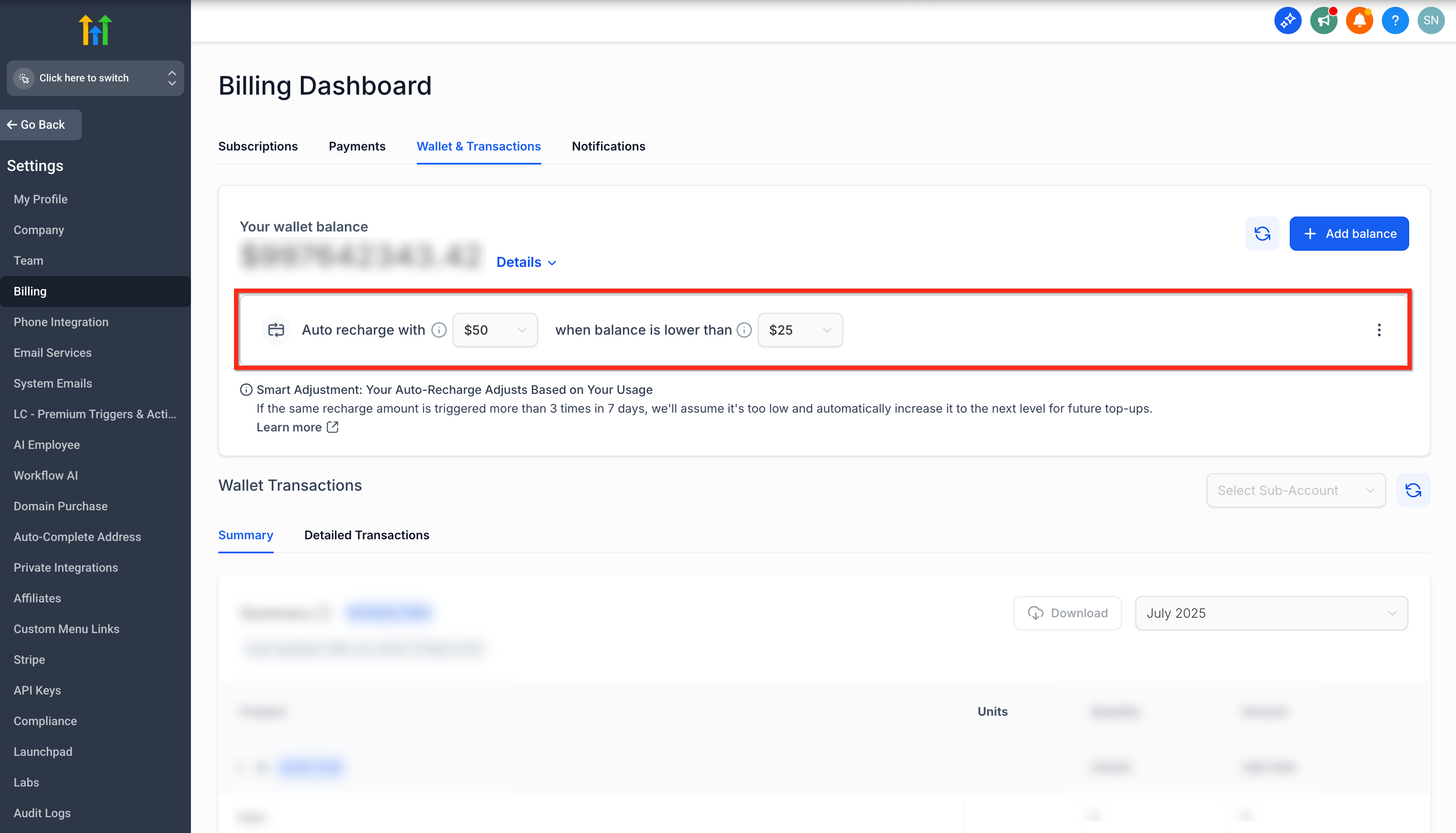
Example: If your Recharge Amount is $50 and your Threshold Balance is $25, Auto Recharge triggers when the wallet balance falls below $25. HighLevel then charges the saved Agency payment method $50 and adds those funds to the wallet.
A higher threshold causes Auto Recharge to trigger earlier. Agencies with higher wallet usage may want to use a higher threshold to reduce the risk of the available balance becoming too low before additional funds are added.
Smart Adjustment
Smart Adjustment helps reduce frequent wallet top-ups by automatically increasing your Auto Recharge amount when the current amount is being triggered frequently.
If the same recharge amount is triggered more than three times within seven days, HighLevel considers the amount too low for your current usage and automatically increases it to the next recharge level for future top-ups.
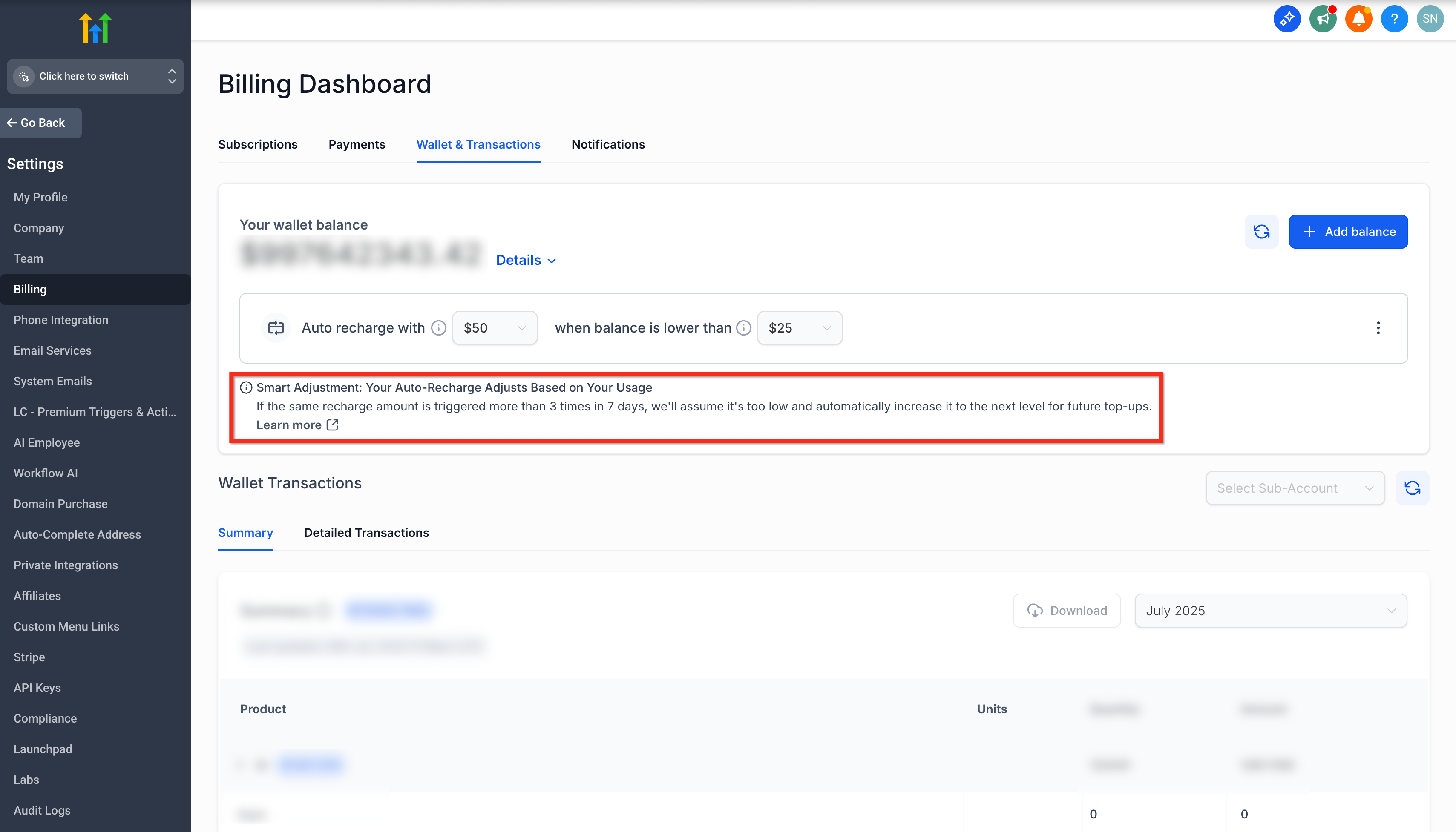
Example: If your current recharge amount is $200 and it is triggered more than three times within seven days, Smart Adjustment can move the recharge amount to the next available level, such as $500. Future Auto Recharges then use the updated amount.
Disabling Smart Adjustment prevents these automatic increases, but it does not disable Wallet Auto Recharge.
How to Configure Auto Recharge
Configuring the recharge amount and threshold lets you control how much is added to your Agency Wallet and how low the balance can fall before Auto Recharge is triggered.
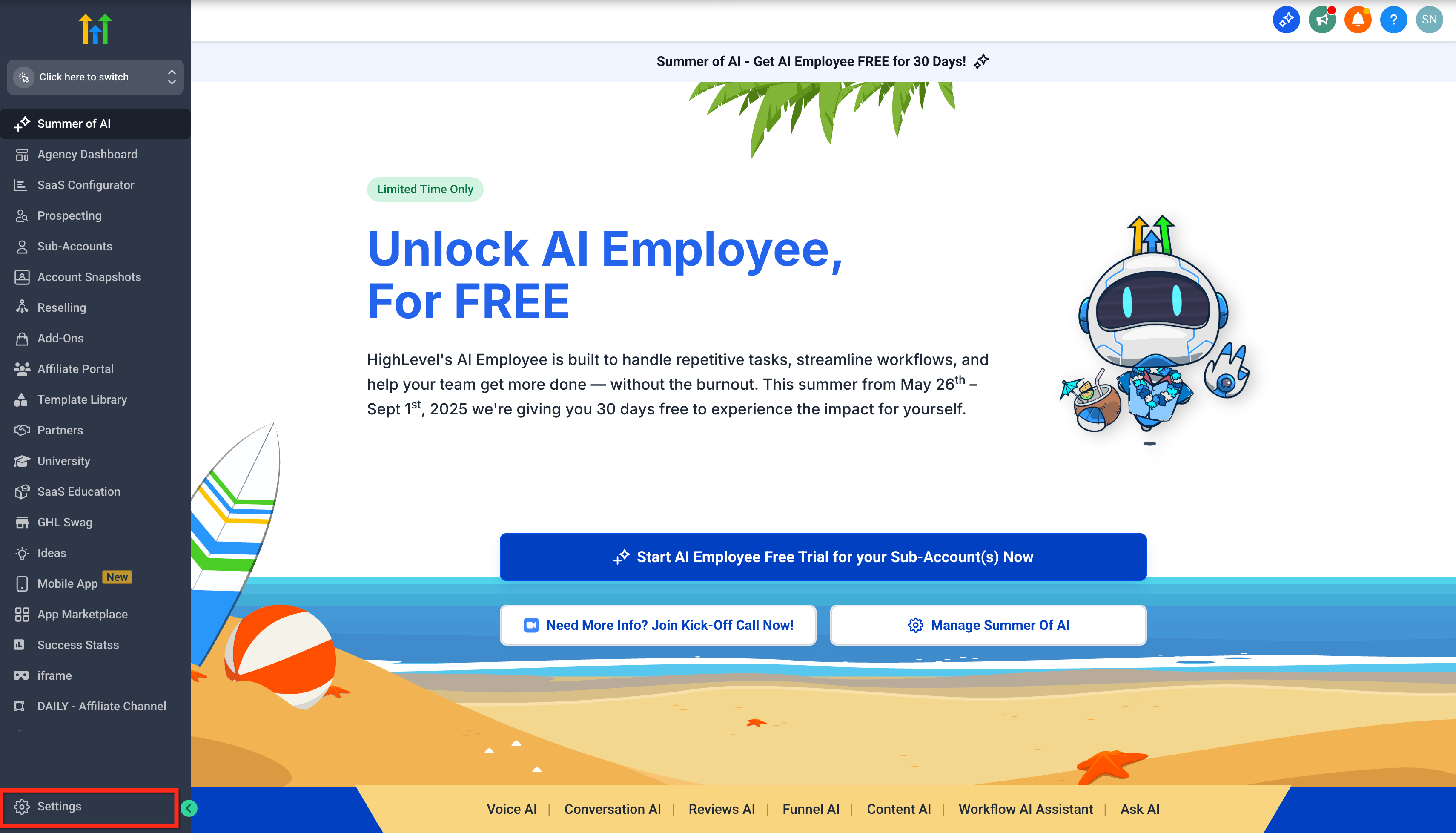
- Log in to your Agency account and click Settings.
- Click Billing, then select the Wallet & Transactionstab.
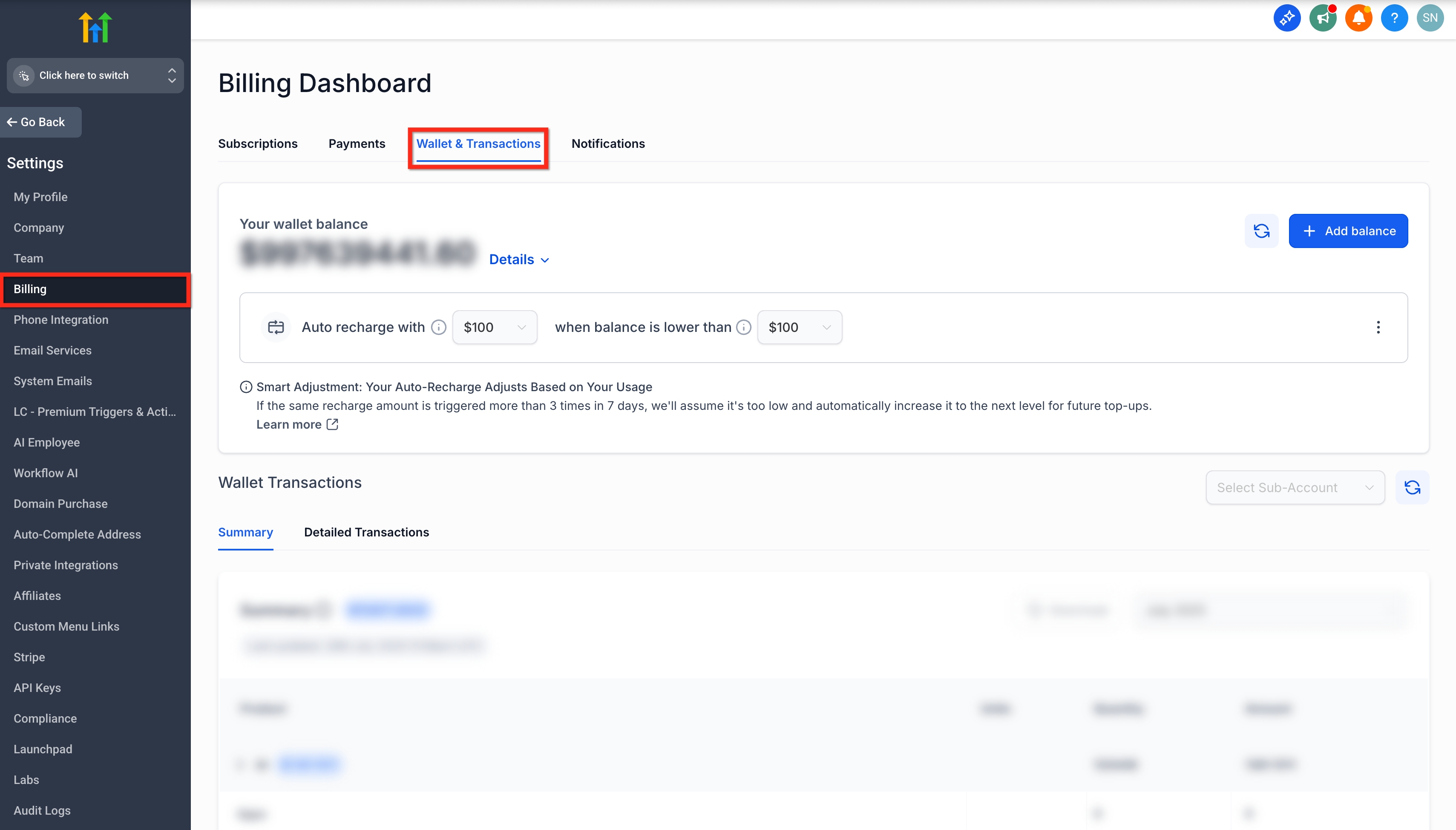
- Locate the Auto Recharge controls under your wallet balance.
- In the Auto recharge with dropdown, select the amount you want HighLevel to add each time Auto Recharge triggers.
- In the when balance is lower thandropdown, select the balance that should trigger Auto Recharge.
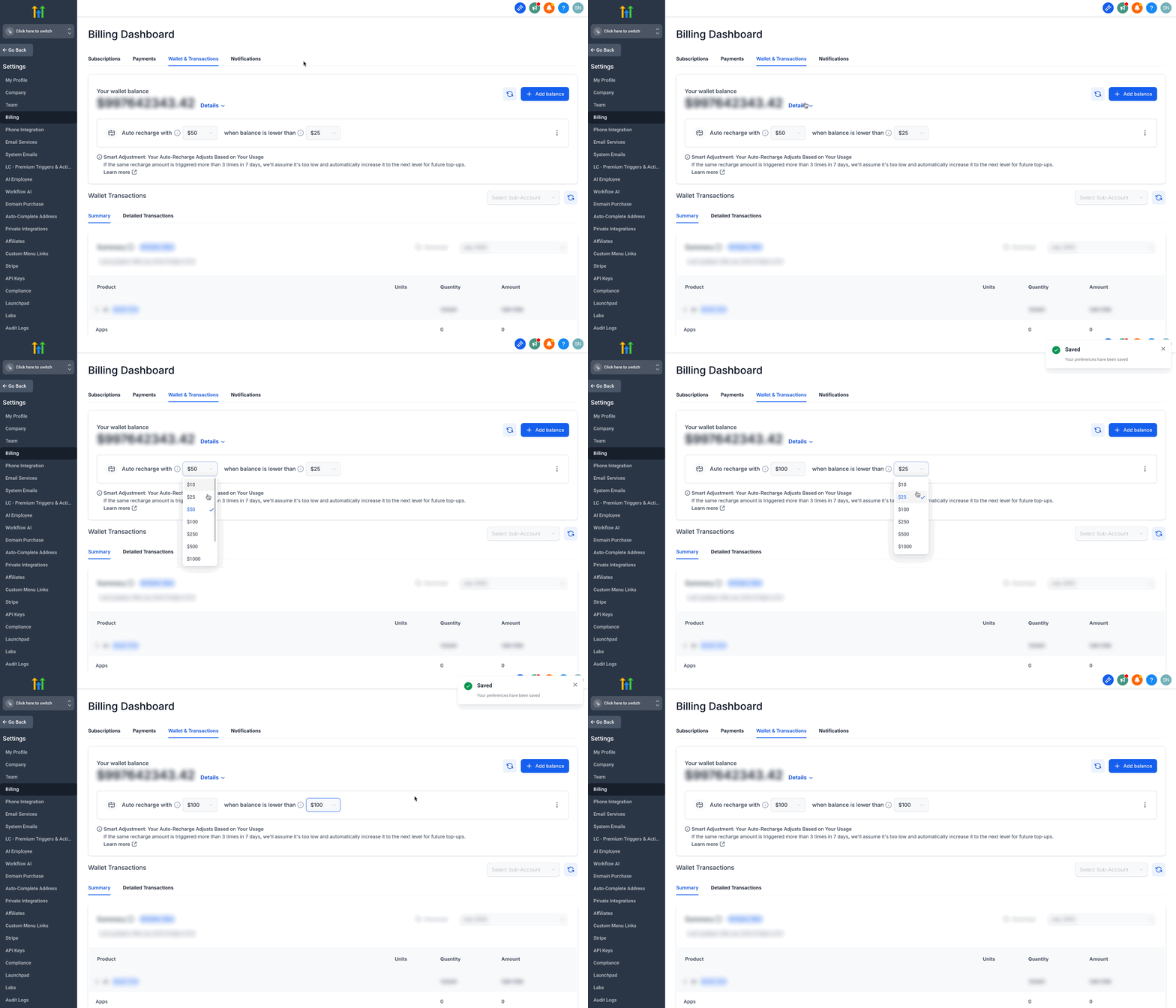
Changes to these settings determine the amount added during future Auto Recharges and when those recharges are triggered.
How to Disable Smart Adjustment (Auto-update)
Smart Adjustment can be disabled if you want to prevent HighLevel from automatically increasing your recharge amount based on recharge frequency.
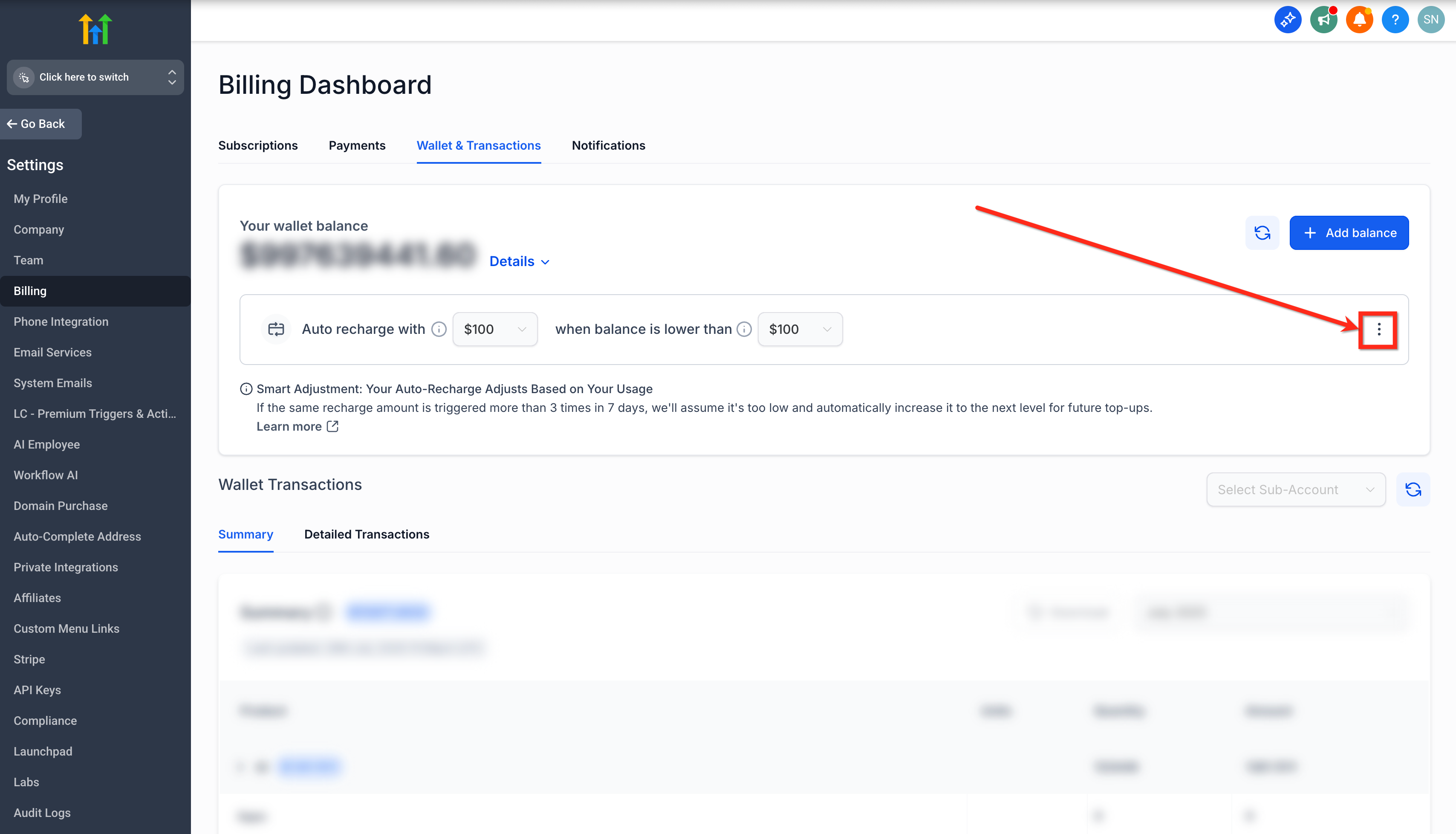
- From Settings → Billing → Wallet & Transactions, locate the Auto Recharge controls and click the three-dot menu on the right.
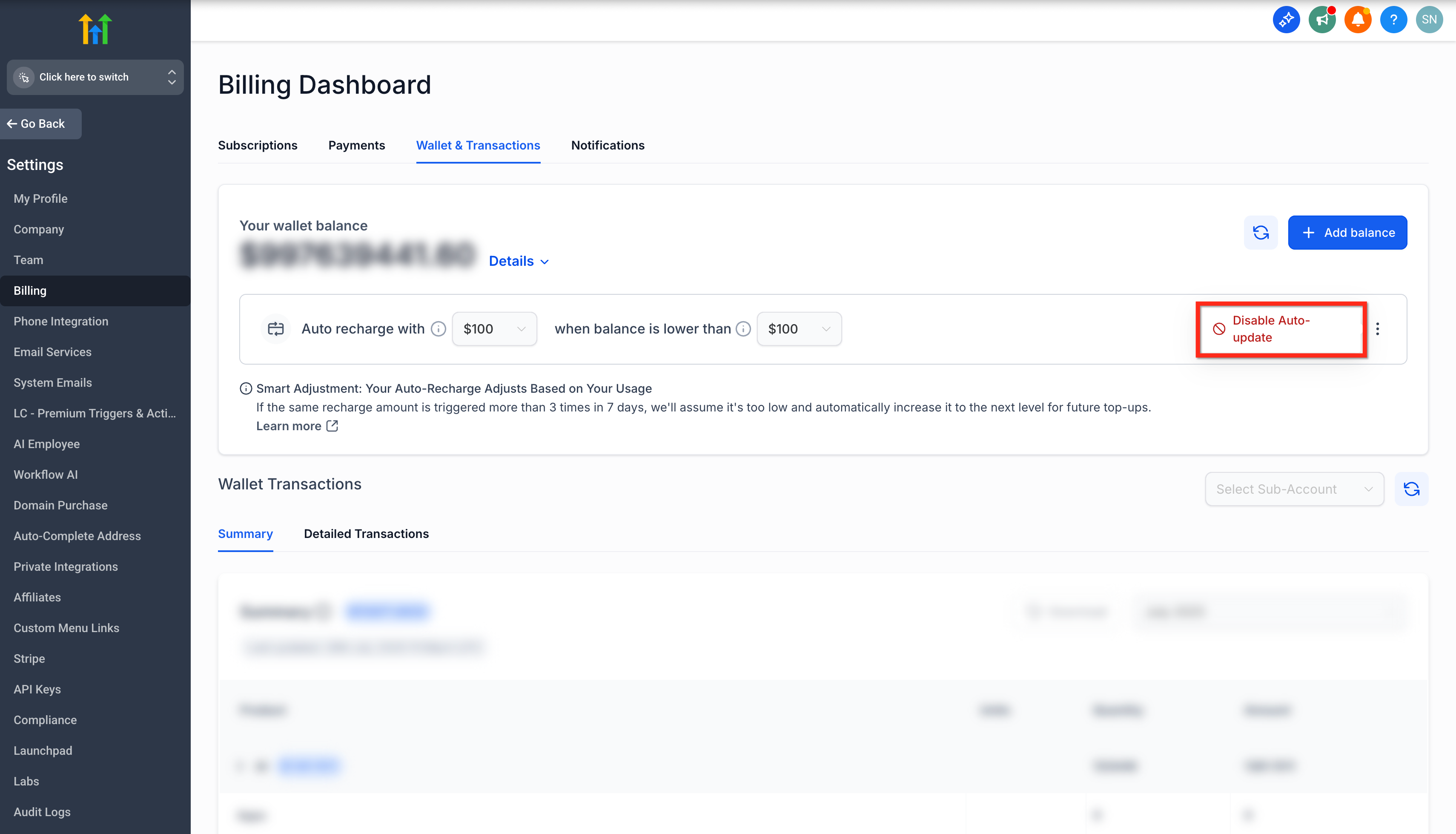
- Click Disable Auto-update.
- In the confirmation window, click Yes.
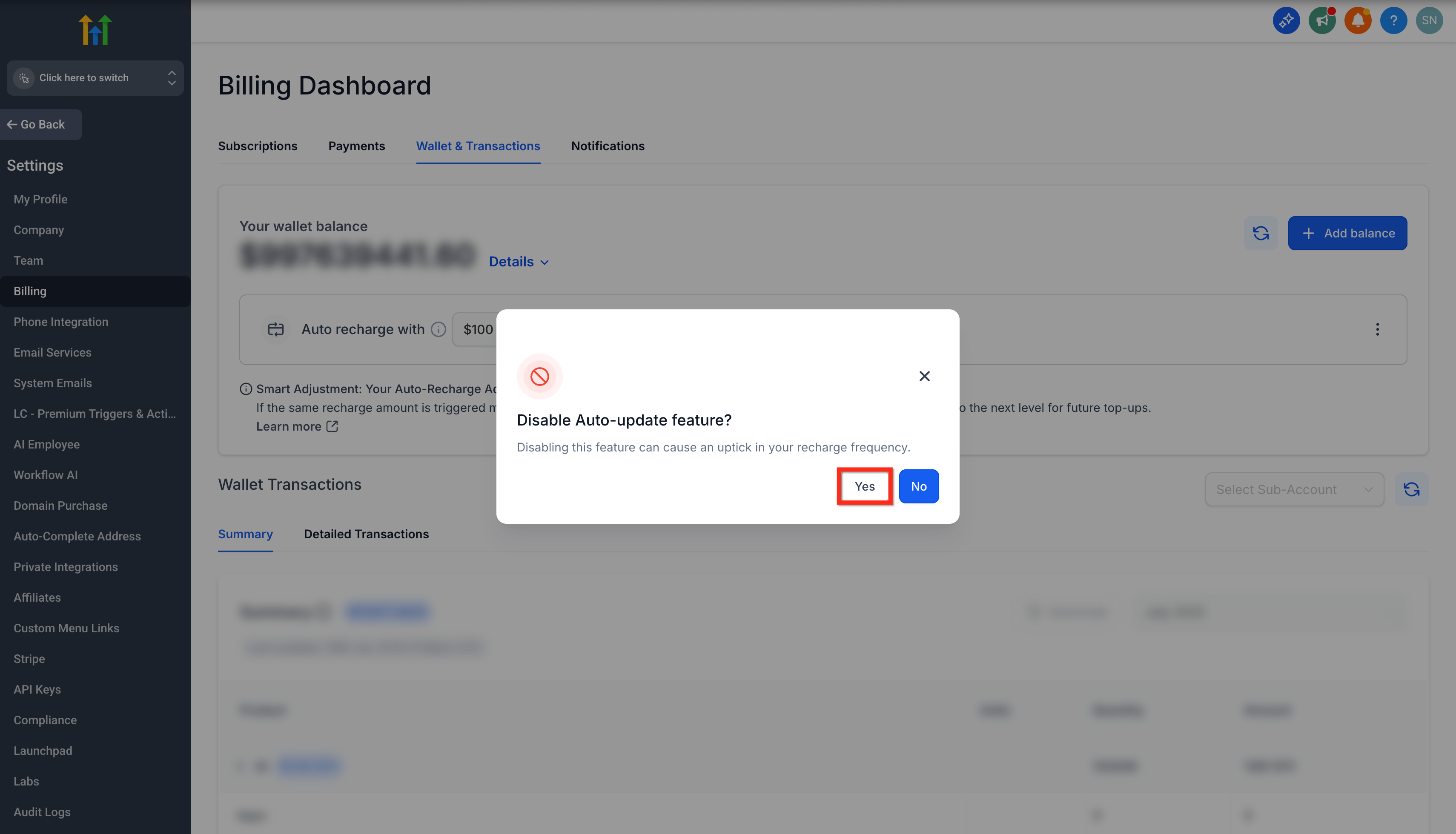
Smart Adjustment will no longer automatically increase the recharge amount. Auto Recharge will remain active using your configured recharge settings.
Frequently Asked Questions
Q: Is an Auto Recharge the same as a usage charge?
No. An Auto Recharge adds prepaid funds to your Agency Wallet. Eligible usage-based services then deduct charges from the available wallet balance as they are used.
Q: Is the Agency Wallet used to pay my main HighLevel subscription?
No. The Agency Wallet is used for eligible usage-based services and wallet-related charges. It does not pay the agency’s primary HighLevel subscription fee.
Q: Why is my Agency Wallet recharging frequently?
Frequent recharges generally mean wallet-funded services are consuming the balance quickly relative to your current recharge amount and threshold. Review Settings → Billing → Wallet & Transactions to see where wallet spending is occurring. If Smart Adjustment is enabled, HighLevel may also increase the recharge amount after the same amount is triggered more than three times within seven days.
Q: Where can I review which services are using my wallet balance?
Go to Settings → Billing → Wallet & Transactions. The Summary and Detailed Transactions views can help you review wallet spending and identify usage by product or sub-account.
Q: Where can I review records of previous wallet top-ups?
Monthly Wallet Top-up Receipts provide a record of wallet funding transactions, including Auto Recharges. These receipts can be accessed from the Billing Dashboard for reconciliation and recordkeeping.
Q: Can I stop Smart Adjustment without stopping Auto Recharge?
Yes. Use Disable Auto-update to stop Smart Adjustment from automatically increasing the recharge amount. Wallet Auto Recharge will remain active.
Related Articles
Was this article helpful?
That’s Great!
Thank you for your feedback
Sorry! We couldn't be helpful
Thank you for your feedback
Feedback sent
We appreciate your effort and will try to fix the article