Send Estimate automates proposal delivery directly from your HighLevel workflows using your Estimate Templates. Use email or Text to deliver professional, branded estimates at the right moment. This guide shows how to use the Send Estimate Action in HighLevel Workflows.
TABLE OF CONTENTS
- What is the Send Estimate Workflow Action
- Key Benefits of Send Estimate Action
- Prerequisites
- How to Setup the Send Estimate Action in Workflows
- Example: Home Renovation Estimate
- Frequently Asked Questions
- Related Articles
What is the Send Estimate Workflow Action
The Send Estimate action automatically generates an estimate from an estimate template and delivers it to a contact through the channel you choose (Email or Text). It’s designed for pipeline‑driven sales motions where proposals must go out consistently, with proper branding, taxes, and totals without manual effort.
In short, once a workflow reaches this action, HighLevel builds an estimate from your chosen template, fills in available contact/opportunity details, and sends it to the contact using your selected sender and channel.
Key Benefits of Send Estimate Action
Speed to proposal: Send estimates instantly when a lead reaches a specific stage, submits a form, or requests pricing.
Consistency & branding: Ensure every estimate uses the correct template, logos, taxes, and currency—no ad‑hoc PDFs.
Channel flexibility: Deliver by Email or SMS based on the contact data you have and their preferred communication.
Audit-ability: Keep a record of when each estimate was sent, viewed, accepted, and paid.
Prerequisites
Getting these items ready avoids delivery failures and template mismatch issues that slow down sales.
Payments is enabled for the location and a payment processor is connected.
At least one Estimate Template is created and active (branding, taxes, currency set).
The contact has a valid Email and/or Phone based on your selected channel.
Email sending domain is verified and compliant; SMS sending is compliant and the contact is opted in.
How to Setup the Send Estimate Action in Workflows
Follow these steps to add the action to a workflow and configure it for consistent, predictable outcomes.
Log in to your sub-account.
Go to Automations > Workflows.
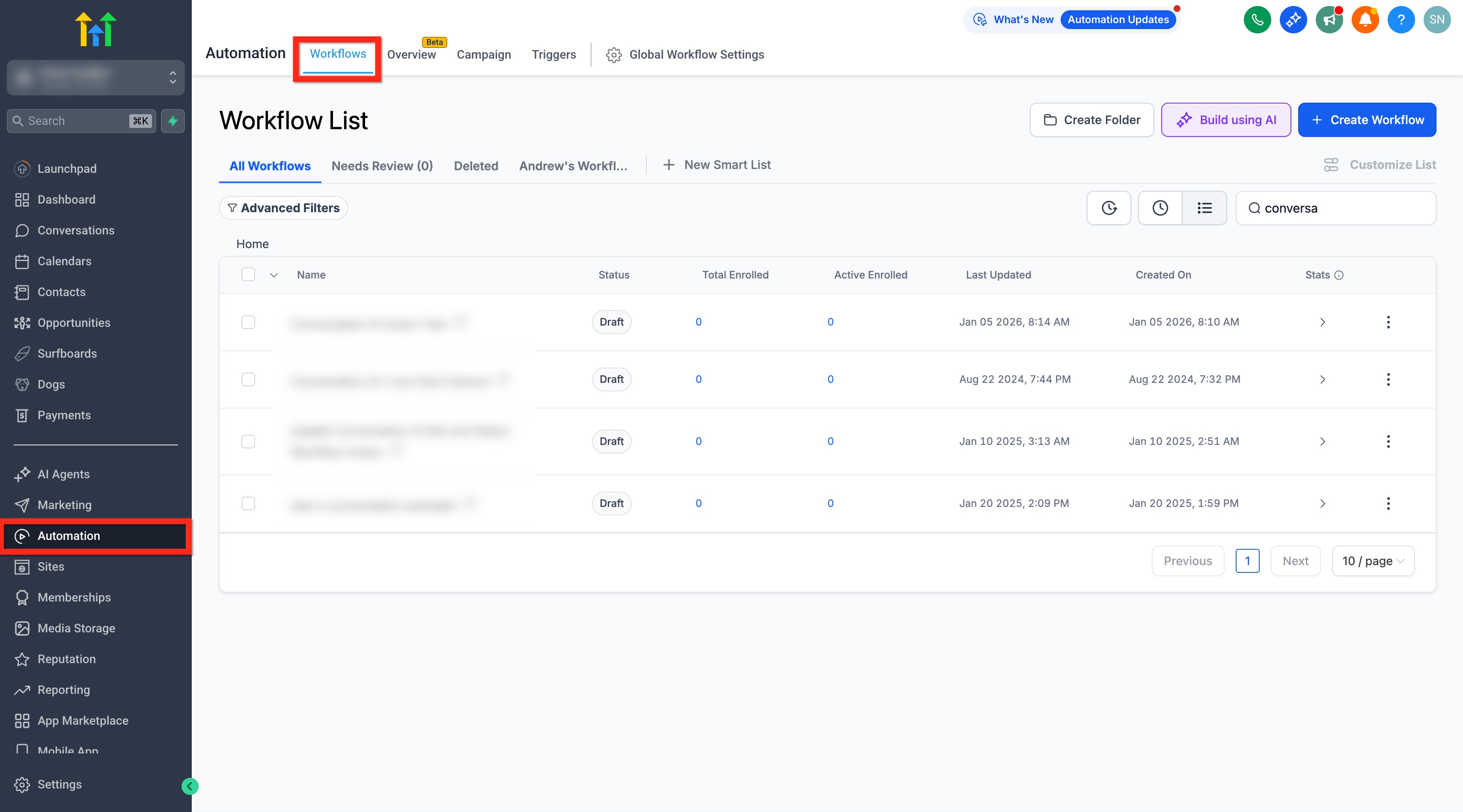
Create a new workflow or open an existing one.
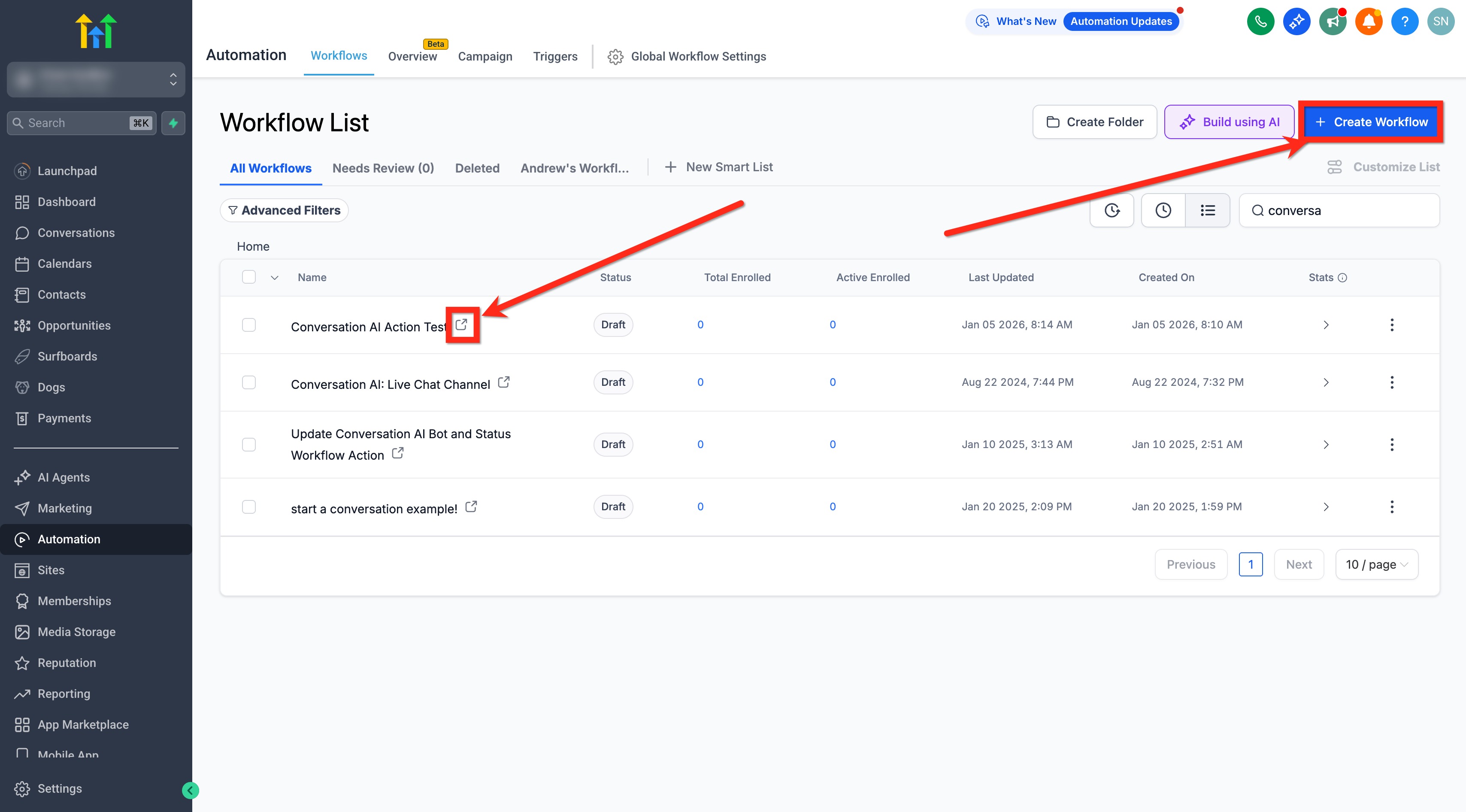
Click on the + Add New Trigger button to add a trigger that correlates to the Send Estimate Action (e.g., Pipeline Stage Changed, Opportunity Status Changed, Form Submitted etc.)

Click + to add an Action and search for Send Estimate.

Select From User and Estimate Template.
Select Payment Mode - Use Live mode for real payments and Test mode for non‑chargeable, sandbox validation.
Select Sending Mode between Create as Draft (estimate will be saved as draft for reviewing before sending) or Send Directly (estimate will be sent immediately after workflow execution.)
Select Channel: Choose how the invoice is delivered Email, Text, or Email & Text. Default: Email & Text.
Click on Save Action.

Test the workflow to make sure everything is setup correctly. Publish and Save the workflow.

Example: Home Renovation Estimate
Scenario: A home renovation company wants to send estimates promptly when a potential client shows interest.
Setup:
- Trigger: Opportunity Created (or any other relevant trigger)
- Action Name: Send Home Renovation Estimate
- From User: Sarah Johnson
- Estimate Template: Home Renovation Proposal
- Estimate Mode: Live
Outcome: When the specified trigger occurs, the selected estimate is automatically sent to the customer, improving conversion potential.
Frequently Asked Questions
Q: What happens if the contact has both email and phone?
Select the Email and Text option in the Channel field.
Q: Does Test mode notify real customers?
No, use Test mode with a seed contact you control to validate copy, variables, and delivery before going Live.
Q: Which user identity is used to send the estimate?
The From User you select. If that user is deactivated later, update the action to an active sender.
Q: Where do I see whether an estimate was viewed or accepted?
Open the contact or estimates area to see delivery history and status events like Sent, Viewed, Accepted, Declined, or Paid.
Related Articles
Was this article helpful?
That’s Great!
Thank you for your feedback
Sorry! We couldn't be helpful
Thank you for your feedback
Feedback sent
We appreciate your effort and will try to fix the article