TABLE OF CONTENTS
Overview
The Manual SMS action allows you to create a task for a user to manually send an SMS to a contact. This is useful when you want a personalized message sent that requires human intervention. The task created will appear in the Conversations > Manual Actions tab.
Action Name
Manual SMS
Action Description
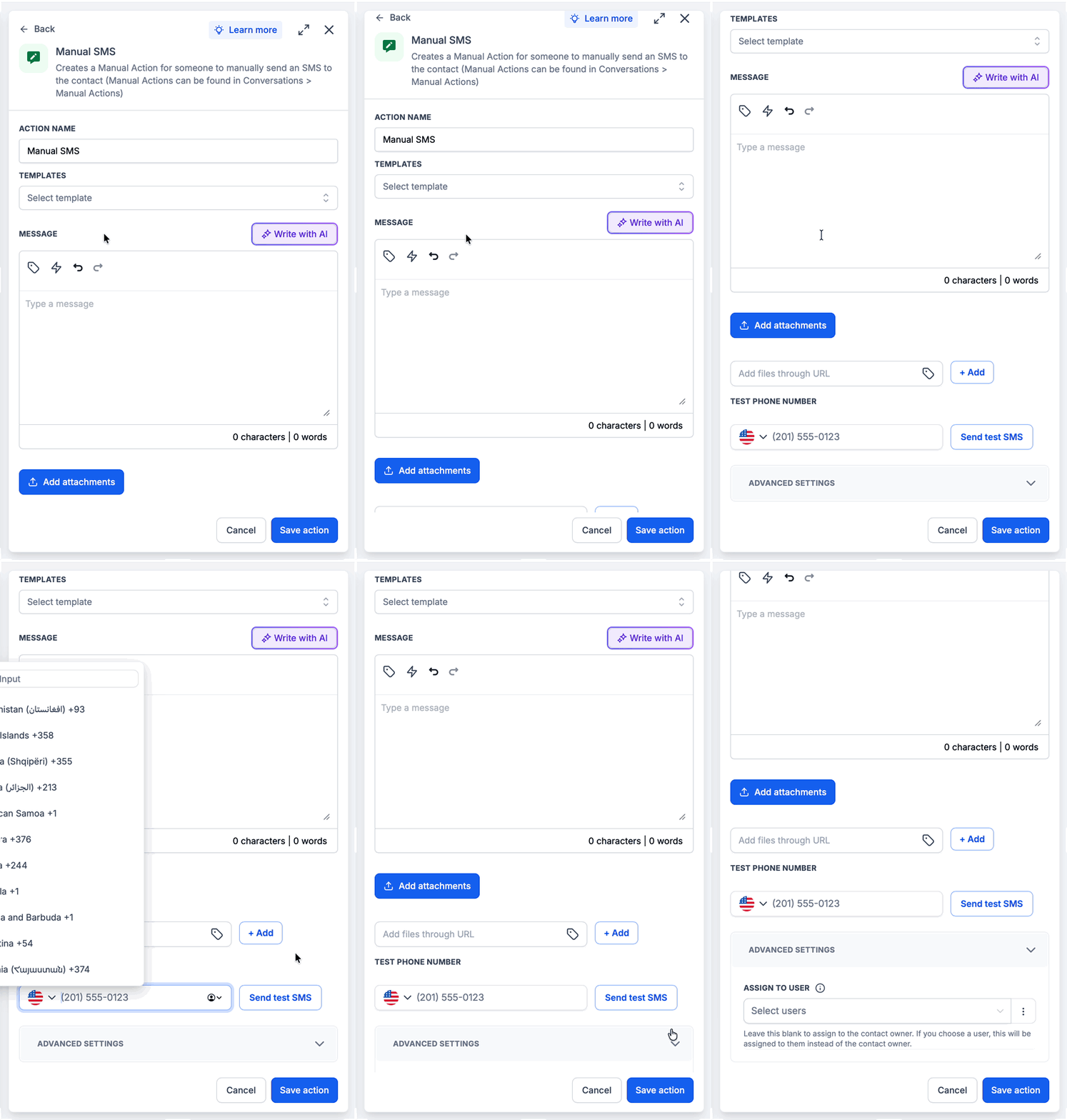
This action generates a manual task to send an SMS message to a specific contact. The task requires user intervention to finalise and send the message. Users can select a template, add custom values, include trigger links, and test the message before sending.You can also assign the task to a specific user instead of the default contact owner.
Action Details
| A phone number to send a test SMS. The country picker defaults to your sub-account's country. Select another country if needed, then enter the number in local format. |
How to Configure
- Select Template: Choose a pre-defined SMS template if applicable. This populates the message field with the template content.
- Enter Message: Write the message you want to send. Use the custom values dropdown to insert placeholders for dynamic data (e.g., contact name, appointment details).
- Add Attachment: If needed, add files by entering the URL.
- Test SMS: Enter a phone number to test how the SMS will appear when received.
- Test SMS: Check the country flag in the Test Phone Number field. It defaults to your sub-account's country. To use another country, click the flag and search by country name or dialing code. Enter the phone number in local format for the selected country, then click Send test SMS.
- HighLevel saves the number in full international format before sending the test SMS. If the number is not valid, the field displays “Invalid phone number.”
- Assign To (Advanced Settings): Optionally select a specific user to assign the task to. This overrides the default contact owner assignment.
Custom Values and Trigger Links
The Manual SMS action supports custom values as well as Trigger links in the body of the message.
Such as joining a calendar community or filling out a custom form. These links are clickable and can direct the contact to specific actions.
Assign To Behavior
The Assign To field in Advanced Settings allows you to assign the manual SMS task to a specific user instead of the default contact owner. This is useful when you want a particular team member to handle certain tasks regardless of who owns the contact.
Assignment logic:
- If a user is selected and has contact access, the task is assigned to that user.
- If a user is selected but does not have contact access, the task falls back to the contact owner.
- If no user is selected, the task defaults to the contact owner.
- If neither the selected user nor contact owner is available, the task is marked as Unassigned.
Example
- Trigger: When a lead fills out a form on the website.
- Action: Create a Manual SMS task for the assigned user to send a follow-up SMS.
- Message: "Hi {{Contact Name}}, thank you for filling out our form. Click here to schedule an appointment: [Calendar Link]."
- Test Phone Number: Confirm the appropriate country in the country picker, then enter the test number in local format.
In this example, when a lead submits a form, a manual task is created to send a personalised SMS with a link to book an appointment. The message uses custom values to personalise the text and a trigger link for scheduling.
Was this article helpful?
That’s Great!
Thank you for your feedback
Sorry! We couldn't be helpful
Thank you for your feedback
Feedback sent
We appreciate your effort and will try to fix the article