Audience Controls determine where ads can be shown and, when supported, which audiences a campaign can target. Available controls vary by advertising platform, campaign type, and campaign configuration.
Meta, Google, and LinkedIn use different audience-targeting structures in Ad Manager. This guide explains geographic targeting, Meta Intended Audience controls, Google audience options, LinkedIn targeting, and audience eligibility states.
What are Audience Controls in Ad Manager?
Audience Controls define the geographic areas and supported audience criteria used by an ad campaign. The exact controls available depend on the advertising platform, campaign type, and targeting restrictions that apply to the campaign.
Meta campaigns can include optional Intended Audience settings such as Target Interests, Lookalike Audiences, and Retargeting. Google and LinkedIn use their own platform-specific geographic and audience controls.
Some Ad Manager workflows may display a Budget and Audience step. Current platform-specific campaign builders can place audience controls at different levels of the campaign structure.
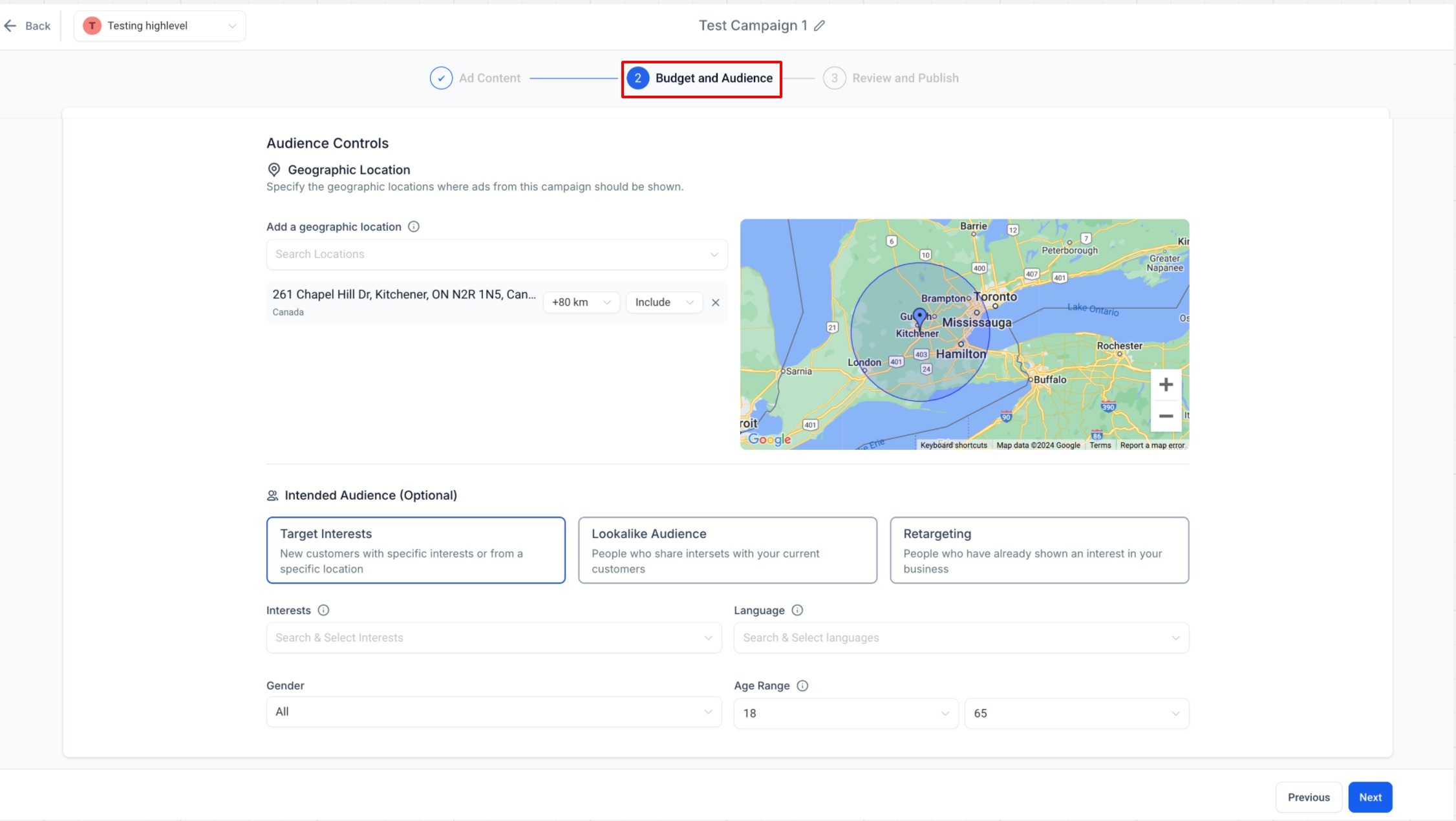
Key Benefits of Audience Controls
Audience Controls help define where a campaign can run and which eligible audiences can be included in its targeting.
- Geographic Targeting: Select supported geographic areas and use Include or Exclude controls where available.
- Audience Refinement: Add optional audience criteria when supported by the advertising platform and campaign.
- Reusable Audiences: Select eligible Lookalike or Custom Audiences without rebuilding an audience definition.
- Audience Visibility: Review estimated audience size and audience eligibility when HighLevel provides those indicators.
- Platform-Specific Targeting: Use audience controls designed for Meta, Google, or LinkedIn campaign requirements.
Where To Find Audience Controls
Audience Controls appear at different campaign levels depending on the advertising platform. Use the platform-specific workflow below instead of assuming every campaign uses the same Budget and Audience step.
Meta Campaigns
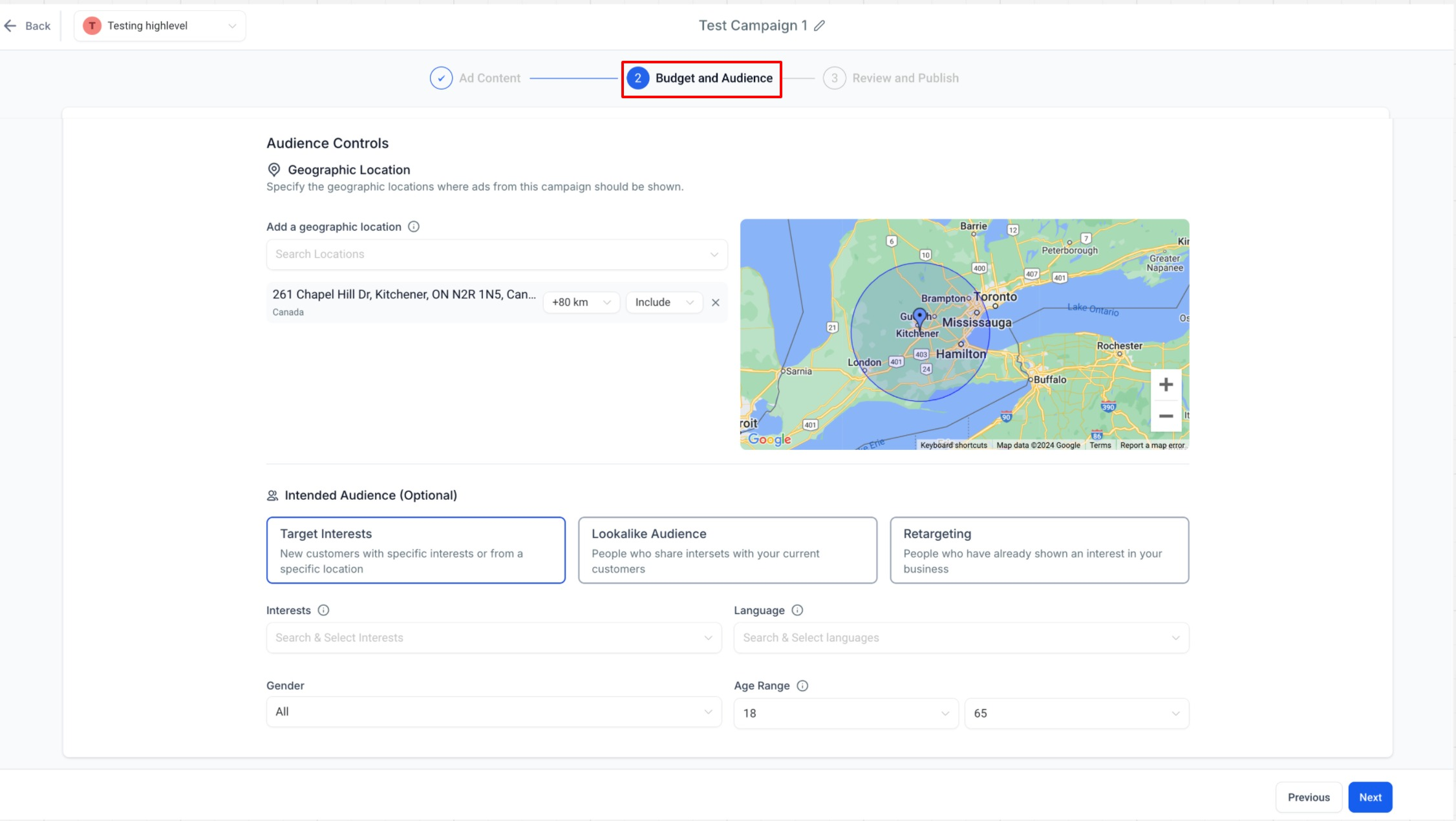
Current Meta campaigns configure Audience Controls at the Ad Set level. This area contains Geographic Location and, when supported, the optional Intended Audience settings.
From the HighLevel Sub-Account view, select Marketing.
Select Ad Manager.
Create a new Meta campaign or open the applicable campaign setup.
Continue to the Ad Set level.
Locate Audience Controls.
Configure Geographic Location.
Configure Intended Audience when needed.
Google Campaigns
Google uses campaign-level audience settings rather than Meta's Target Interests, Lookalike Audience, and Retargeting cards. Available controls depend on the Google campaign type.
From the HighLevel Sub-Account view, select Marketing.
Select Ad Manager.
Create or open the applicable Google campaign.
Continue to the Campaign configuration.
Locate the available geographic and audience controls.
Configure the required settings before continuing to the next campaign level.
LinkedIn Campaigns
LinkedIn defines geographic and intended-audience targeting at the Campaign level inside a Campaign Group. Geographic targeting is required, while Intended Audience attributes are optional.
From the HighLevel Sub-Account view, select Marketing.
Select Ad Manager.
Create or open a LinkedIn Campaign Group.
Create or open the applicable Campaign.
Configure Geographic Location.
Configure Intended Audience when additional targeting is needed.
How To Configure Geographic Location
Geographic targeting defines the physical areas where a campaign can be eligible to show. Search, radius, Include, and Exclude controls can vary by advertising platform and targeting mode.
Add a Geographic Location
Start by selecting the specific geographic area you want the campaign to target. Review similarly named search results carefully before adding the location.
Open the geographic-location search field.
Enter the supported city, state, country, place, or address.
Select the intended result from the dropdown.
Review the selected geographic area on the map.
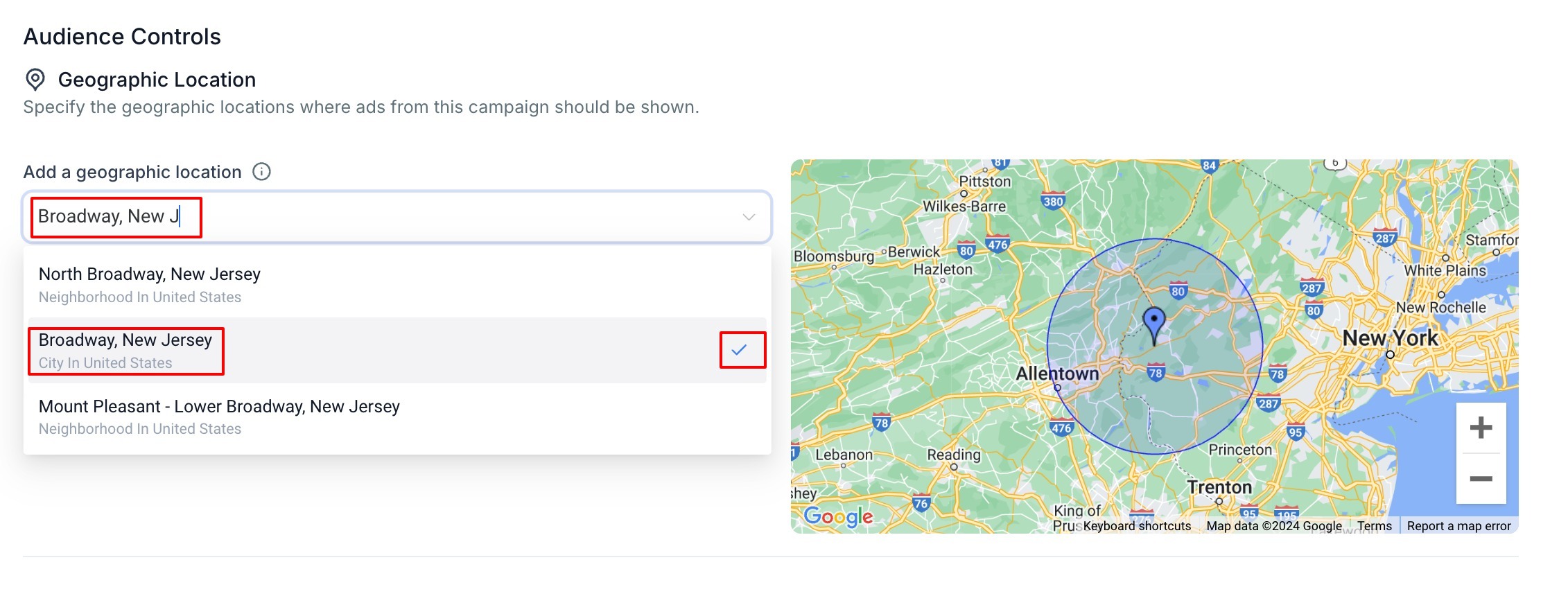
Configure the available radius or Include/Exclude controls when needed.
Include or Exclude a Geographic Location
Use Include or Exclude when the selected platform and targeting mode support those controls. This lets you add an eligible area to targeting or remove an area from it.
Include: Adds the selected geographic area to the campaign targeting.
Exclude: Removes the selected geographic area from eligible targeting.
Use the X control beside a selected location to remove that location entirely.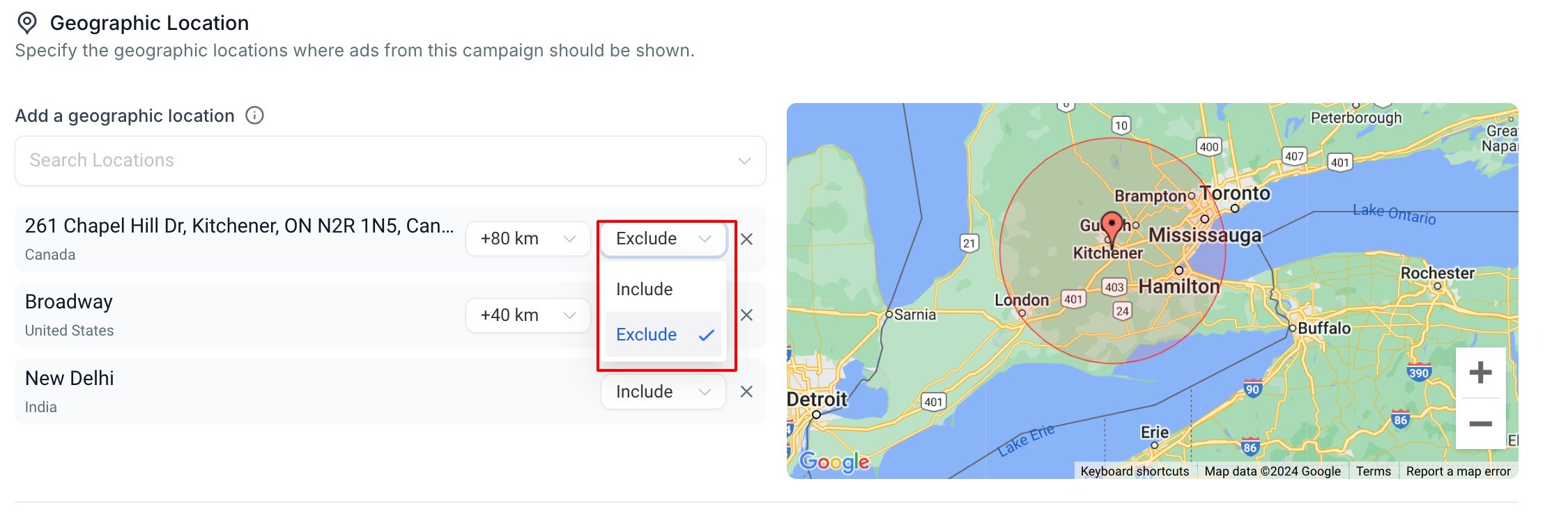
Configure Radius Targeting
Radius targeting lets you define a supported distance around a selected point when that targeting mode is available.
Use the radius control or slider shown in the campaign builder to adjust the targeting distance. Review the resulting area on the map before continuing.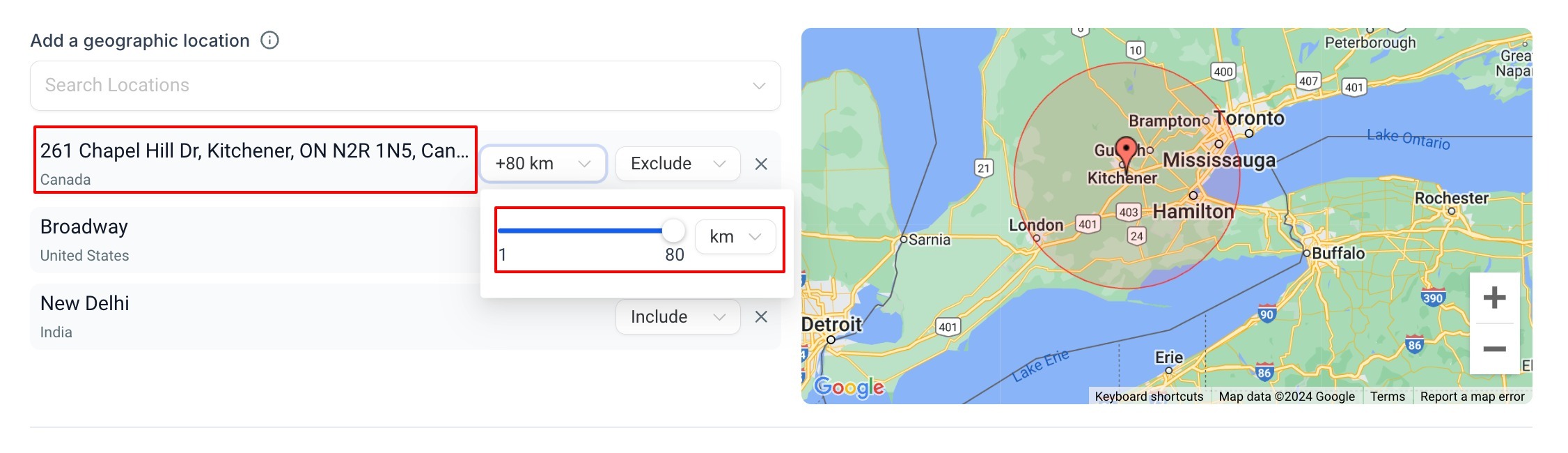
Google Radius Targeting
Google Search campaigns provide separate Location and Radius geographic-targeting modes. Radius targeting lets you define a supported distance around an address or coordinate.
Google does not support Include or Exclude controls when using Radius targeting. The defined radius is included as the campaign's geographic reach.
Google Ads: EU Political Ads
Google campaigns require an additional declaration about EU political advertising. This control is specific to Google Ads and should not be treated as a general Meta or LinkedIn Audience Control.
Select the option that accurately describes the campaign:
No, this campaign doesn't have EU political ads
Yes, this campaign has EU political ads
A selection is required before the supported Google campaign can continue to publication. Refer to Google's current Political Content policy when determining the requirements that apply to a campaign.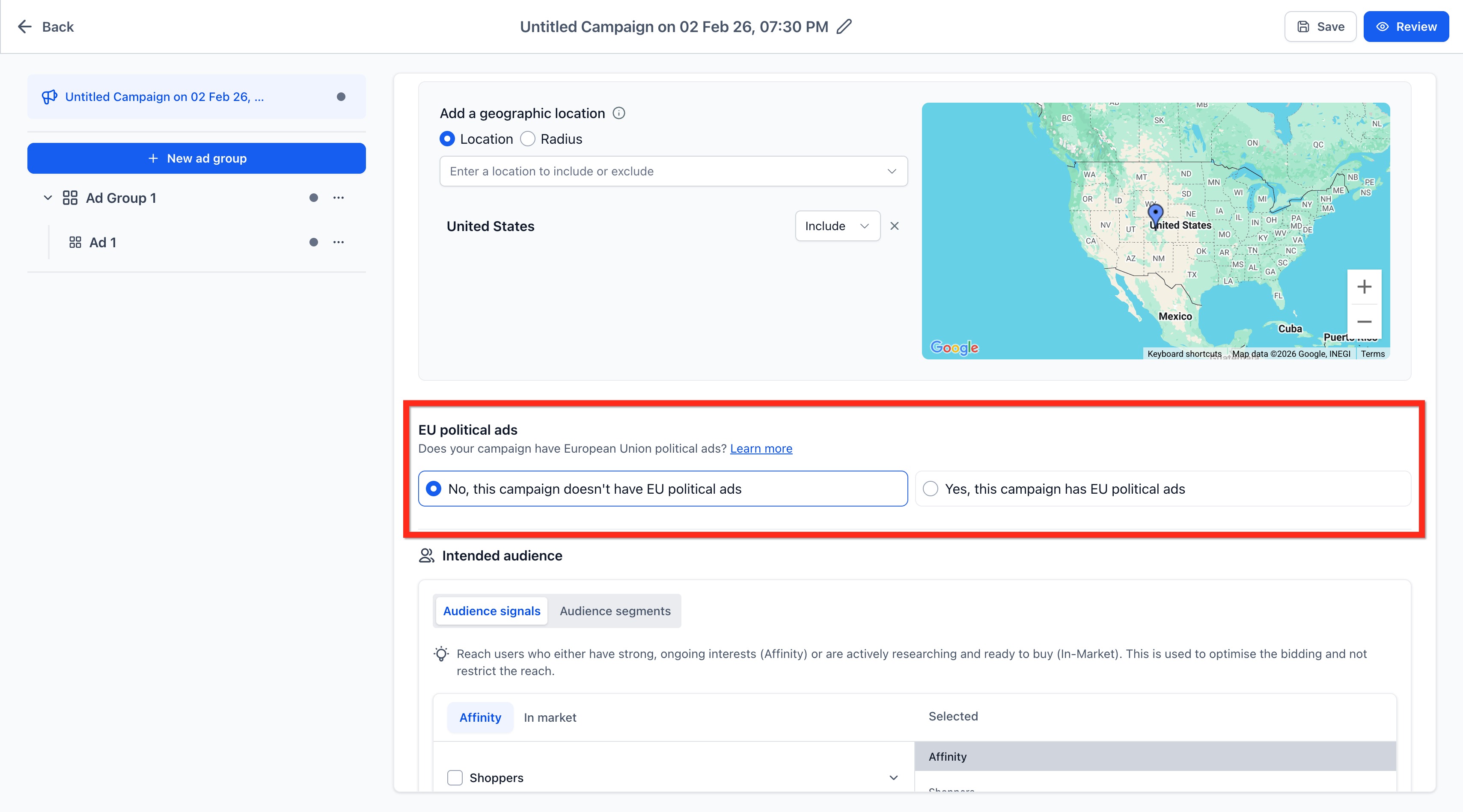
Meta Intended Audience Controls
The Meta campaign builder can provide an Intended Audience (Optional) section for refining campaign targeting. The available controls can depend on the campaign configuration and any targeting restrictions that apply.
The current interface includes:
Target Interests
Lookalike Audience
Retargeting
Target Interests
Target Interests lets you refine the Meta audience using the targeting controls available for the campaign.
The current interface can include:
Interests
Language
Gender
Age Range
Select the available criteria needed for the campaign and review the resulting audience before continuing.
Meta Special Ad Category campaigns restrict several of these targeting controls. Current HighLevel documentation states that age and gender cannot be edited and that most detailed targeting options are unavailable for those campaigns.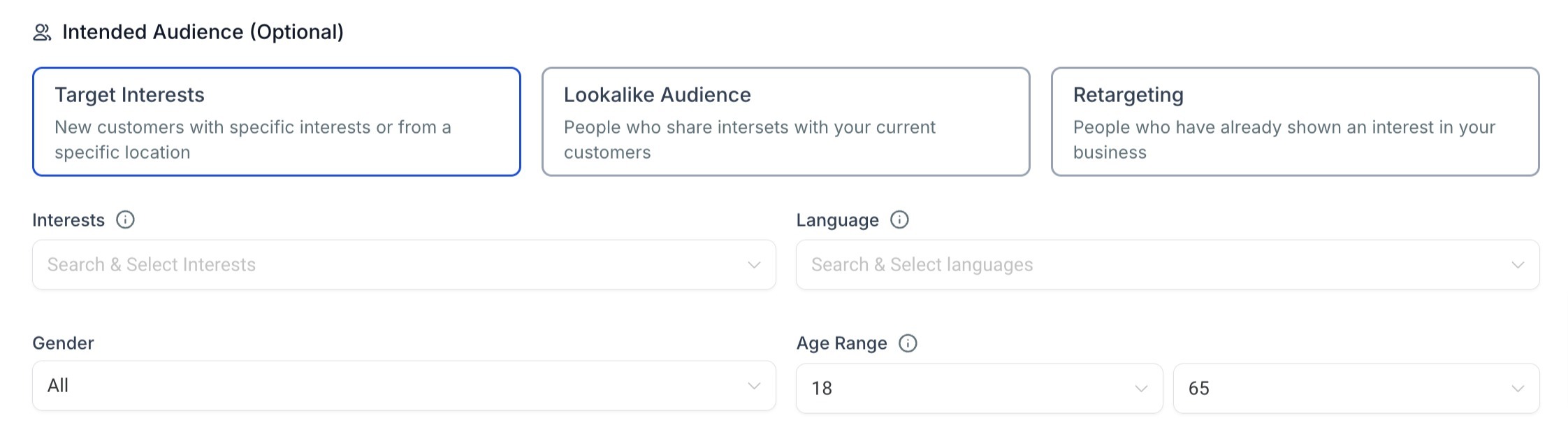
Lookalike Audience
A Lookalike Audience uses an eligible source audience to identify people with similar characteristics. The source audience does not have to represent only existing customers.
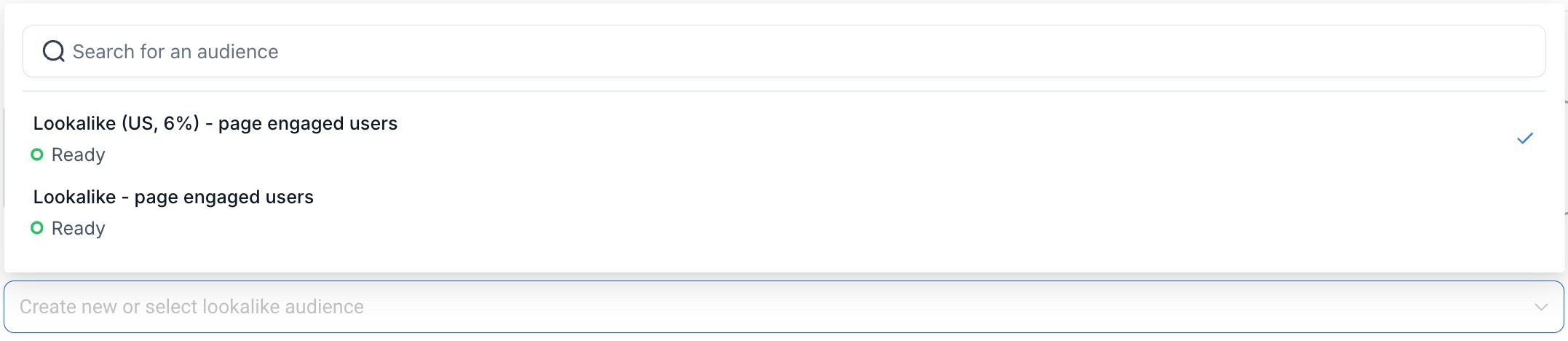
Select Lookalike Audience, then use Create new or select lookalike audience to choose an eligible audience available from the connected Meta ad account.
When available, HighLevel displays an estimated audience size based on the selected audience and targeting criteria.
Lookalike Audiences are not allowed for Meta Special Ad Category campaigns.
For detailed creation steps, use the dedicated Create Lookalike Audiences in Ad Manager article.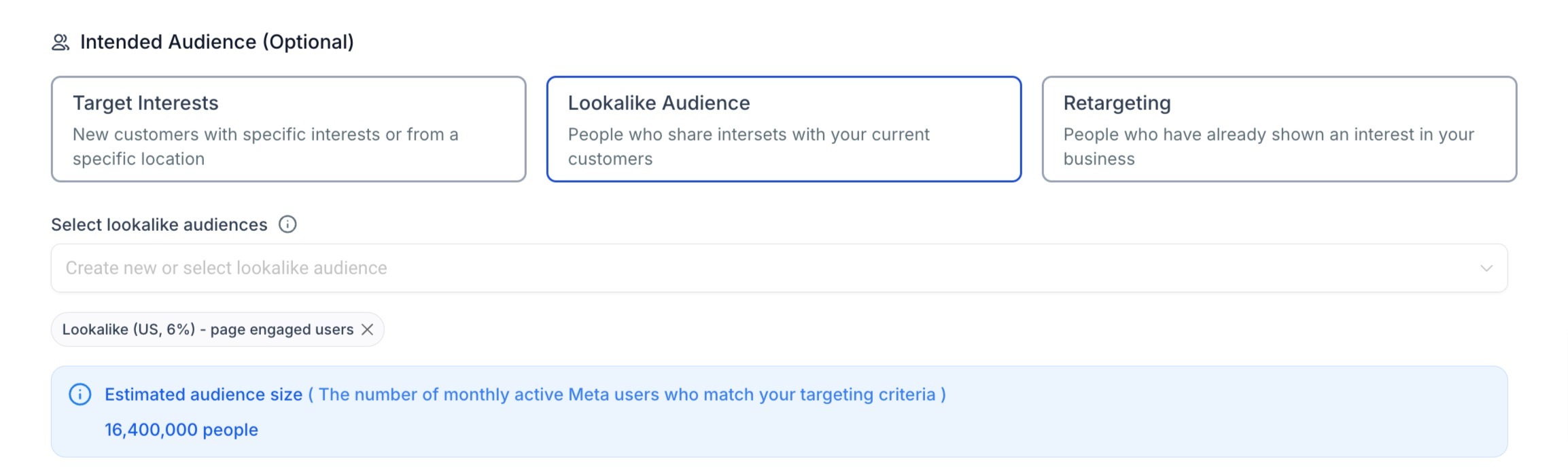
Retargeting
Retargeting lets you select eligible Custom Audiences for the campaign. A Custom Audience can originate from several supported sources instead of only prior interactions on Meta.
Supported Custom Audience sources currently include website activity, Facebook Page engagement, Lead Form activity, and Customer List data. Customer List audiences can also use uploaded customer identifiers or HighLevel Smart Lists.
Select Retargeting, then use Create new or select retargeting audience to choose an eligible Custom Audience.
When available, HighLevel displays the estimated audience size for the selected targeting criteria.
For detailed creation steps, see Create Custom Audiences in Ad Manager.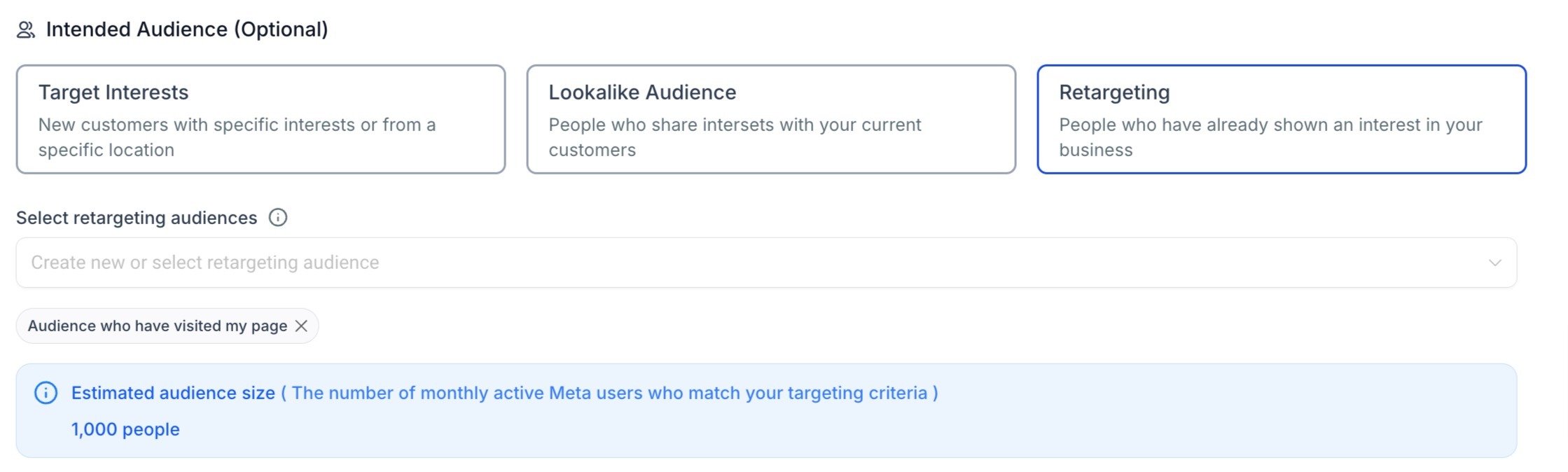
Audience Status and Estimated Size
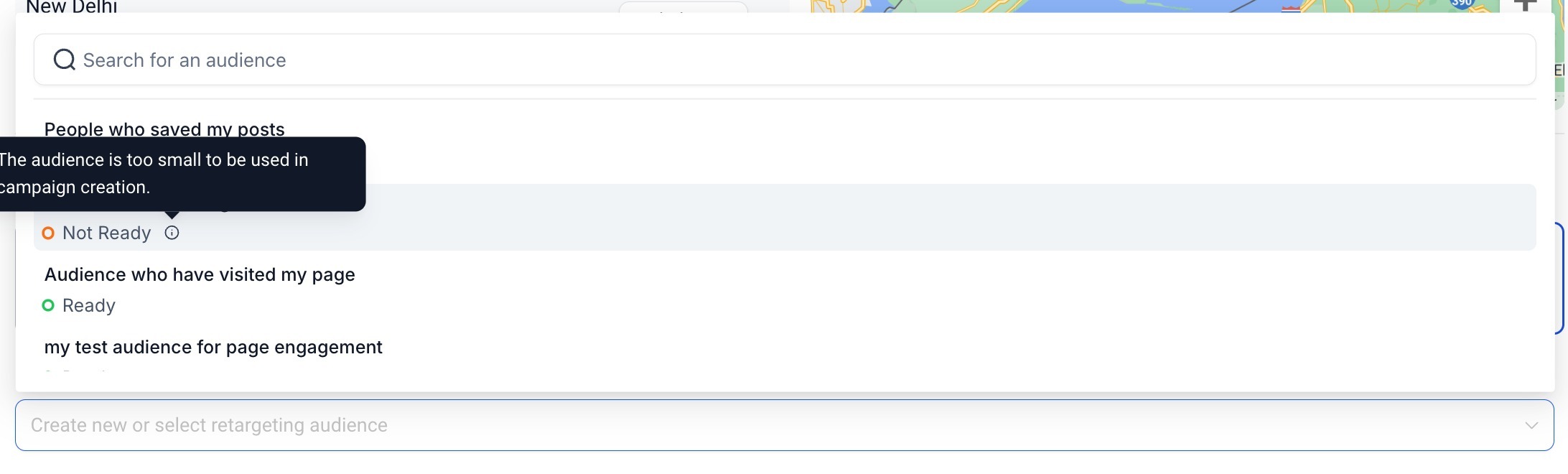
HighLevel displays audience eligibility in the Lookalike and Retargeting audience selectors. The status determines whether the audience can currently be selected for campaign targeting.
Ready: The audience is eligible for selection.
Not Ready: The audience cannot currently be selected.
When available, use the information icon or tooltip to review why an audience is Not Ready.
For example, the interface may report:
The audience is too small to be used in campaign creation.
Ready is an eligibility status. It does not guarantee campaign performance or advertising results.
Estimated audience size shows the approximate number of monthly active Meta users who match the current targeting criteria.
Google Audience Controls
Google uses a different audience model from Meta. Available Google targeting controls depend on the selected campaign type and should not be described using Meta's Target Interests, Lookalike Audience, and Retargeting structure.
Current Google Search campaign controls include Geographic Location and the required EU political-ads declaration. Additional demographic or audience controls can be available based on the Google campaign type.
Google Audience Segments
Supported Google campaign types can provide Audience Signals or Audience Segments for additional targeting. HighLevel's current Google Audience Segments workflow supports multiple segment types. (HighLevel Support Portal)
These can include:
Customer Match
Website Visitors
Interest Segments
Lookalike Segments
Availability depends on the selected Google campaign type.
For detailed Google audience creation and targeting, see Ads Manager - Audience Segments for Google Ads.
LinkedIn Audience Controls
LinkedIn uses professional profile and company attributes for audience targeting. Geographic targeting is mandatory, while additional Intended Audience attributes are optional.
Geographic Targeting
Every LinkedIn campaign requires at least one geographic location. Supported location targeting includes countries, states, regions, and cities, with Include and Exclude controls available for selected locations.
Open the LinkedIn Campaign.
Locate Geographic Location.
Search for the required location.
Add the location to the campaign.
Select Include or Exclude where needed.
Intended Audience
LinkedIn's optional Intended Audience controls use professional attributes rather than Meta's audience cards. Use these controls when the campaign needs additional professional or organizational targeting.
Available attribute categories can include:
Company
Demographics
Job Experience
Education
Interests & Traits
Specific attributes can include options such as industry, company size, job title, seniority, job function, education, and professional interests.
For advanced Include/Exclude behavior and attribute-group logic, see Audience Targeting for LinkedIn Campaigns in Ad Manager.
Frequently Asked Questions
Q: Where are Audience Controls in a Meta campaign?
In the current Meta campaign builder, Audience Controls are configured at the Ad Set level.
Q: Is Intended Audience required for Meta campaigns?
No. The current interface identifies Intended Audience as optional.
Q: Can I include or exclude a geographic location?
Yes, when the selected advertising platform and geographic targeting mode support Include and Exclude controls.
Q: Can I exclude part of a Google Radius target?
No. Current Google Search documentation states that Include and Exclude controls are not supported for Radius targeting.
Q: What does Ready mean for a Meta Lookalike or Retargeting audience?
Ready means the audience is eligible for selection. It does not guarantee campaign performance.
Q: What does Not Ready mean?
The audience cannot currently be selected. When available, use the information icon or tooltip to review the reason.
Q: Can I use a Lookalike Audience for a Meta Special Ad Category campaign?
No. Current HighLevel Meta campaign documentation states that Lookalike Audiences are not allowed for Special Ad Category ads.
Q: Are Google audience controls the same as Meta Intended Audience controls?
No. Google uses platform-specific geographic targeting and Audience Segment features.
Q: Does LinkedIn use the same audience controls as Meta?
No. LinkedIn uses mandatory geographic targeting and optional professional attributes such as company, job experience, education, demographics, and professional interests.
Related Articles
Ad Manager - Create New Facebook Ad Campaigns Open article
Create Custom Audiences in Ad Manager Open article
Create Lookalike Audiences in Ad Manager Open article
Ads Manager - Audience Segments for Google Ads Open article
Ad Manager - Create a Google Search Ad Campaign Open article
Audience Targeting for LinkedIn Campaigns in Ad Manager Open article
Was this article helpful?
That’s Great!
Thank you for your feedback
Sorry! We couldn't be helpful
Thank you for your feedback
Feedback sent
We appreciate your effort and will try to fix the article