The Blog Posts element in HighLevel lets you display published blog posts directly on funnel steps or website pages. You can highlight recent articles, filter posts by category or author, and customize how they appear. This helps visitors discover relevant content without navigating to your main blog page.
This article explains how to add and configure the Blog Posts element.
TABLE OF CONTENTS
- What is the Blog Post Element?
- Key Benefits of the Blog Posts Element
- Requirements for Using the Blog Posts Element
- Blog Posts Element Settings
- How To Set Up the Blog Post Element
- Frequently Asked Questions
- Related Articles
What is the Blog Post Element?
The Blog Posts element displays published articles from a selected HighLevel blog on a funnel step or website page. It supports different display styles, filtering options, and button customization to control which posts visitors see.
Key Benefits of the Blog Posts Element
The Blog Posts element helps you display relevant blog content on different website and funnel pages.
Flexible Placement: Display blog posts on website pages or funnel steps.
Content Filtering: Show recent posts or filter content by category or author.
Customizable Display: Adjust the layout, number of displayed posts, and button appearance.
Content Discovery: Help visitors access published articles from relevant pages.
Requirements for Using the Blog Posts Element
The element displays content from an existing HighLevel blog. You must have a blog with at least one published post before adding the element to your page.
If you haven't created a blog, refer to Getting Started with Blogs and Blog Posts.
Blog Posts Element Settings
The element settings determine which blog posts appear and how they are displayed. You can select a source blog, apply filters, and customize the presentation.
| Setting | Description |
|---|---|
| Display Style | Choose how blog posts appear on the page. |
| Choose Blog Site | Select the HighLevel blog containing the posts. |
| Sort By | Display Recent Posts, Recent Posts by Category, or Recent Posts by Author. |
| Choose Categories | Select the categories to include when filtering by category. |
| Pagination | Configure how many blog posts are featured. |
| Button Options | Customize button text and colors. |
How To Set Up the Blog Post Element
Adding the Blog Posts element allows you to display existing blog content within a funnel or website page without manually recreating individual posts.
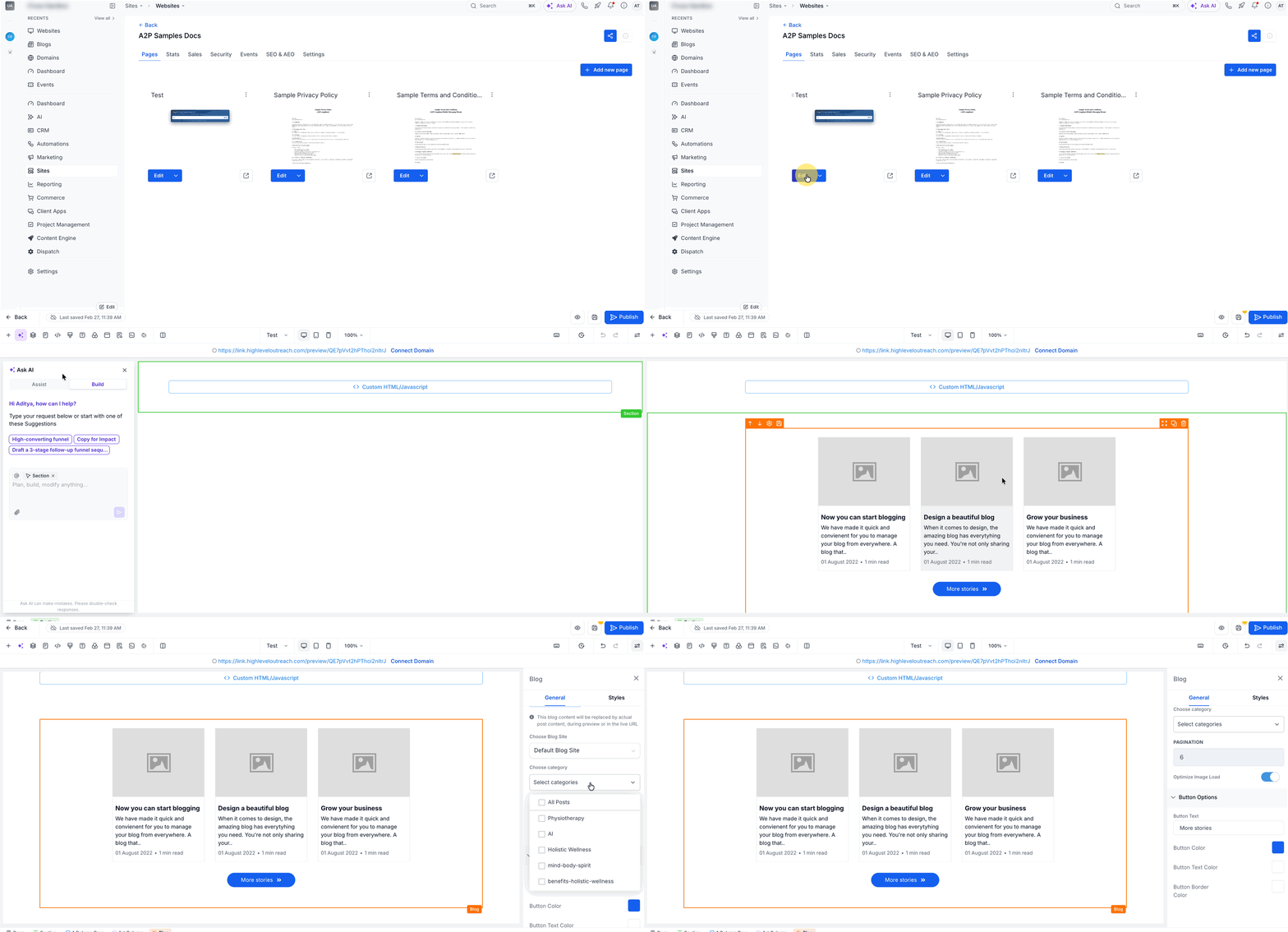
1. Go to Sites and open Funnels or Websites. Select the specific funnel step or website page you want to edit and click Edit.
2. Click Add Elements.
3. Locate and drag the Blog Posts element into the desired area on the page.
4. Click the element to open the element settings. From here you can choose how the blog content should be displayed:
- Display Style: Select how the element looks on the page.
- Choose Blog Site: Select the blog that the content will come from.
- Sort By: Select which blogs will show first. Choose from Recent Posts, Recent Posts by Category and Recent Posts by Author.
- Choose Categories: Select the categories to be included.
- Pagination: Select how many blogs to feature.
- Button Options: Customize the button text and colors.
5. Save your changes and Publish the site/funnel.
Frequently Asked Questions
Q: Why aren't my blog posts appearing in the element?
A: Verify that the correct blog is selected, the posts are published, and any category or author filters match the available content.
Q: Can I display posts from a specific author?
A: Yes. Select Recent Posts by Author under Sort By and configure the applicable author filter.
Q: Can I use the Blog Posts element on multiple website or funnel pages?
A: Yes. You can add the element to different pages and configure its display settings independently.
Q: Why are my posts missing after migrating to a new blog?
A: The element may still reference the previous blog. Select the migrated blog under Choose Blog Site, save your changes, and republish the page.
Q: Can I use the Blog Posts element on a landing page?
A: Yes. You can display relevant blog content on landing pages or resource pages to help visitors explore related articles.
Related Articles
Was this article helpful?
That’s Great!
Thank you for your feedback
Sorry! We couldn't be helpful
Thank you for your feedback
Feedback sent
We appreciate your effort and will try to fix the article