This guide provides a comprehensive overview of Round Robin calendar's appointment distribution logic in HighLevel.
It explains how appointments are automatically assigned among a team, ensuring fair scheduling and optimized availability.
TABLE OF CONTENTS
- Introduction
- Appointment Distribution Methods
- Setting Team Member Priorities
- Selecting Meeting Location
- Frequently Asked Questions
- Related Articles
Introduction
Round Robin Calendars automate the distribution of appointments among a team of users. This feature ensures fair scheduling while optimizing availability, making it ideal for businesses that rely on team-based bookings, such as sales, customer support, and medical services.
For more please refer to Round Robin Calendars: The Setup Guide
Appointment Distribution Methods
Round Robin Calendars use 2 primary distribution methods: Optimize for Availability and Optimize for Equal Distribution. Choosing the right method depends on your business goals.
1. Optimize for Availability
This method prioritizes assigning appointments to team members based on who is available at the selected appointment time.

Best for: Businesses prioritizing immediate availability (e.g., customer support, urgent medical services).
Key Features:
Assigns appointments to available team members first
Team members with higher priority are preferred first incase multiple members are available
Ensures efficient use of available slots
Reduces wait times for customers
2. Optimize for Equal Distribution
This method balances the number of appointments across team members over time, regardless of who is immediately available. It rotates assignments to maintain fairness.
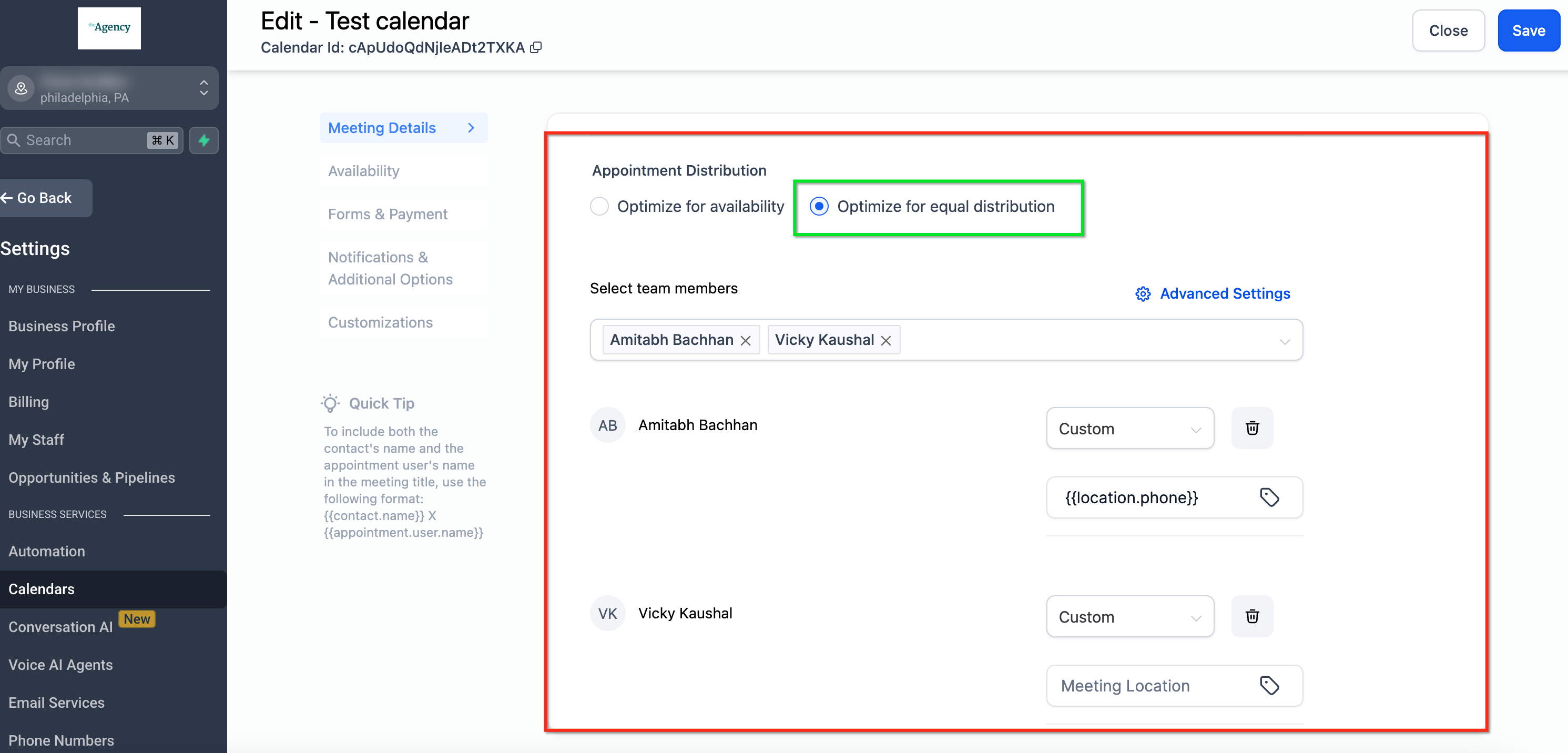
Best for: Sales teams, consultation services, or businesses that want equal workload distribution.
Key Features:
Distributes appointments evenly across the team
Ensures no team member gets overloaded
Works best when all team members have similar availability
How it works?
We distribute appointments evenly among team members by evaluating bookings over a 1-month period.
⚠️ This logic applies only when “Any Available” is selected.

If a booker selects a specific team member, the booking will go through regardless of distribution.
Monthly Distribution Logic
When a booker selects a time slot in a given month (e.g., April):
- The system counts how many appointments are assigned to each team member within that month.
- New appointments are assigned to maintain balanced distribution across the team.
- No team member can be more than 3 appointments ahead of another.
- Availability Rules
- The system tracks how many Round Robin meetings each teammate has in the selected month.
- If a team member is ahead by 3 or more meetings:
- Their availability is temporarily hidden.
- They become available again once others catch up.
- Example
- John has 3 meetings, Hannah has 0 → John's availability is hidden.
- Once Hannah gets 1 meeting → John becomes eligible again.
- If John gets another meeting (making it 4–1) → his availability is hidden again.
Important Notes
- If you add or remove a team member, the meeting count resets for everyone.
- If you switch from “Optimize for Equal Distribution” to “Optimize for Availability”and then switch back, the meeting count will reset.
How Assignment Works at Booking Time
When a booking is made:
- The system checks the number of appointments assigned to each team member in that month.
- The team member with the fewest appointments is selected.
- If multiple members have the same count then the system uses the team’s predefined order as a tiebreaker.
- If the selected team member is unavailable at that time then the system moves to the next eligible member.
Over time, this ensures that team members with fewer bookings are prioritized until distribution becomes even again.
Best Practices for Equal Distribution
- Disable “Allow Staff Selection” to ensure the system can assign appointments automatically and maintain true equal distribution.
- Equal distribution works best when team members have similar or overlapping availability, allowing the system to fairly rotate bookings across all members.
Setting Team Member Priorities
You can assign priority levels to team members to influence appointment distribution. Higher-priority members will receive bookings first if multiple team members are available.
If multiple team members are available simultaneously, priority settings can be applied to determine the assignment order.

The available priority levels are:
| Priority Level | Description |
|---|---|
| High Priority | The team member will be selected first if available. |
| Medium Priority | The team member will be selected if no high-priority member is available. |
| Low Priority | The team member will be selected only if no high or medium-priority members are available. |
Selecting Meeting Location
When setting up appointments, you can define a preferred meeting location for each team member. This allows flexibility in how and where meetings take place.
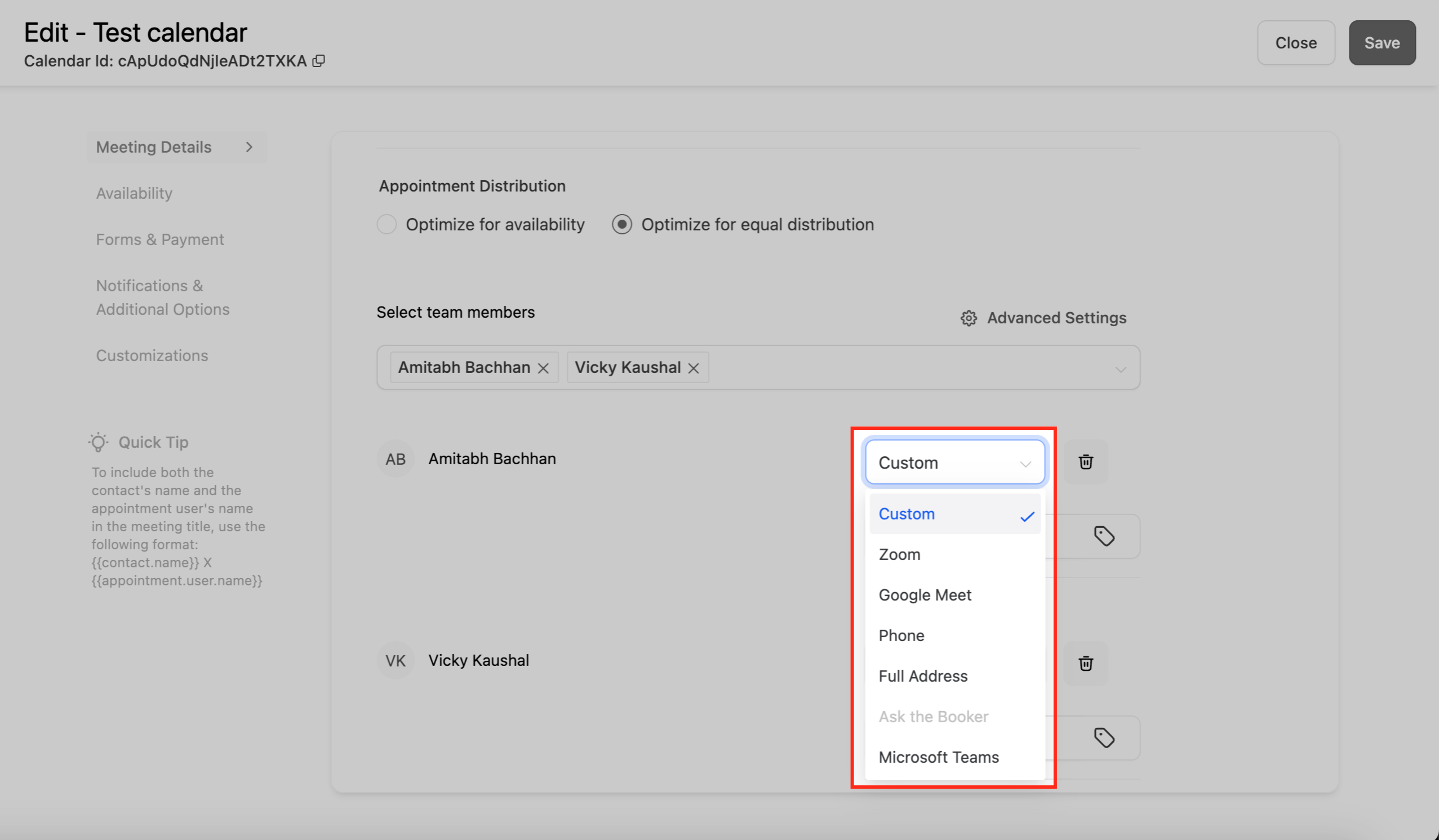
| Meeting Location Option | Description |
|---|---|
| Zoom | Select this option if the meeting will be conducted via Zoom. |
| Google Meet | Use this option to schedule Google Meet appointments. |
| Phone | Select if the meeting will be conducted over a phone call. |
| Full Address | Useful for in-person meetings requiring a physical location. |
| Ask the Booker | Allows the person booking to specify a meeting location. |
| Microsoft Teams | Choose this if the meeting will take place via Microsoft Teams. |
Frequently Asked Questions
Q: Can I change the distribution method after setup?
Yes, you can update your settings anytime in the calendar configuration panel.
Q: What happens if a team member is unavailable?
With Optimize for Availability, the system assigns the appointment to the next available member.
With Optimize for Equal Distribution, the system skips unavailable members and continues the rotation.
Q: Can I exclude certain team members from the Round Robin Calendar?
Yes, you can remove members from the rotation in the calendar settings.
Related Articles
Was this article helpful?
That’s Great!
Thank you for your feedback
Sorry! We couldn't be helpful
Thank you for your feedback
Feedback sent
We appreciate your effort and will try to fix the article