TABLE OF CONTENTS
Overview
Setting up Custom Objects is easier, with Custom Object Templates: pre-built, industry-specific configurations that can be applied in one click.
Each template comes with ready-to-use custom objects, fields (organized into folders), and associations — so you can skip the setup and start using Custom Objects right away.
Custom Object Templates are now part of the Template Library, alongside Emails, Funnels, Websites, and other existing template modules.
Feature Description
Use Custom Object Templates to:
- Browse a library of pre-built industry templates (Real Estate, Insurance, Automotive, SaaS, Events, Pets, Home Services).
- Preview each template's objects, fields, and associations before applying.
- Apply a template to your account in one click to get a ready-to-use Custom Object setup.
- Agency-level controls (for Agency Admins): manage which Custom Object templates are visible to specific sub-accounts through the existing Template Library settings.
How to Use
A) Browse and apply a template (Sub-account users)
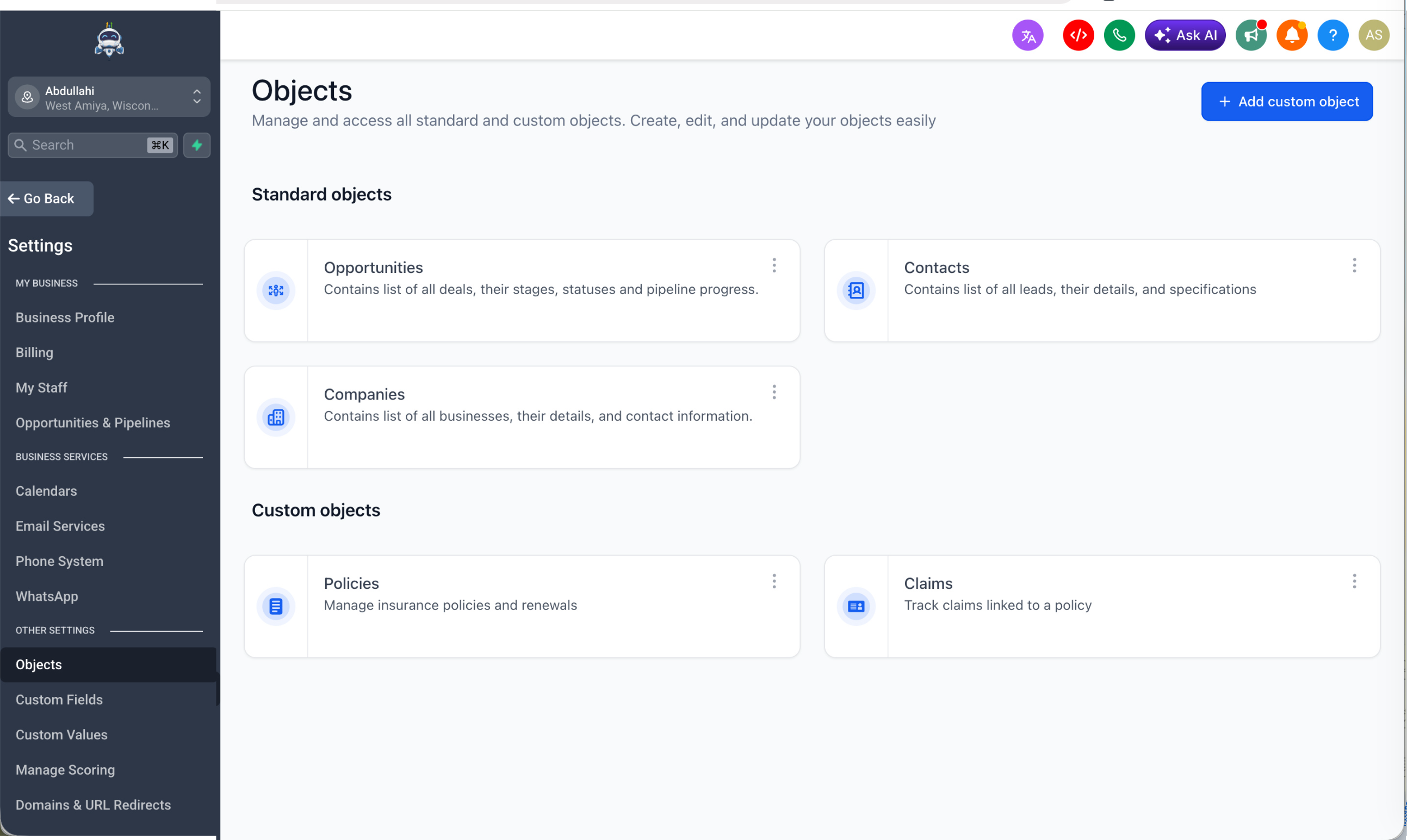
- Go to Settings → Objects.
- Click on any template to open the Preview page — review the objects, fields, associations, description, and prerequisites.
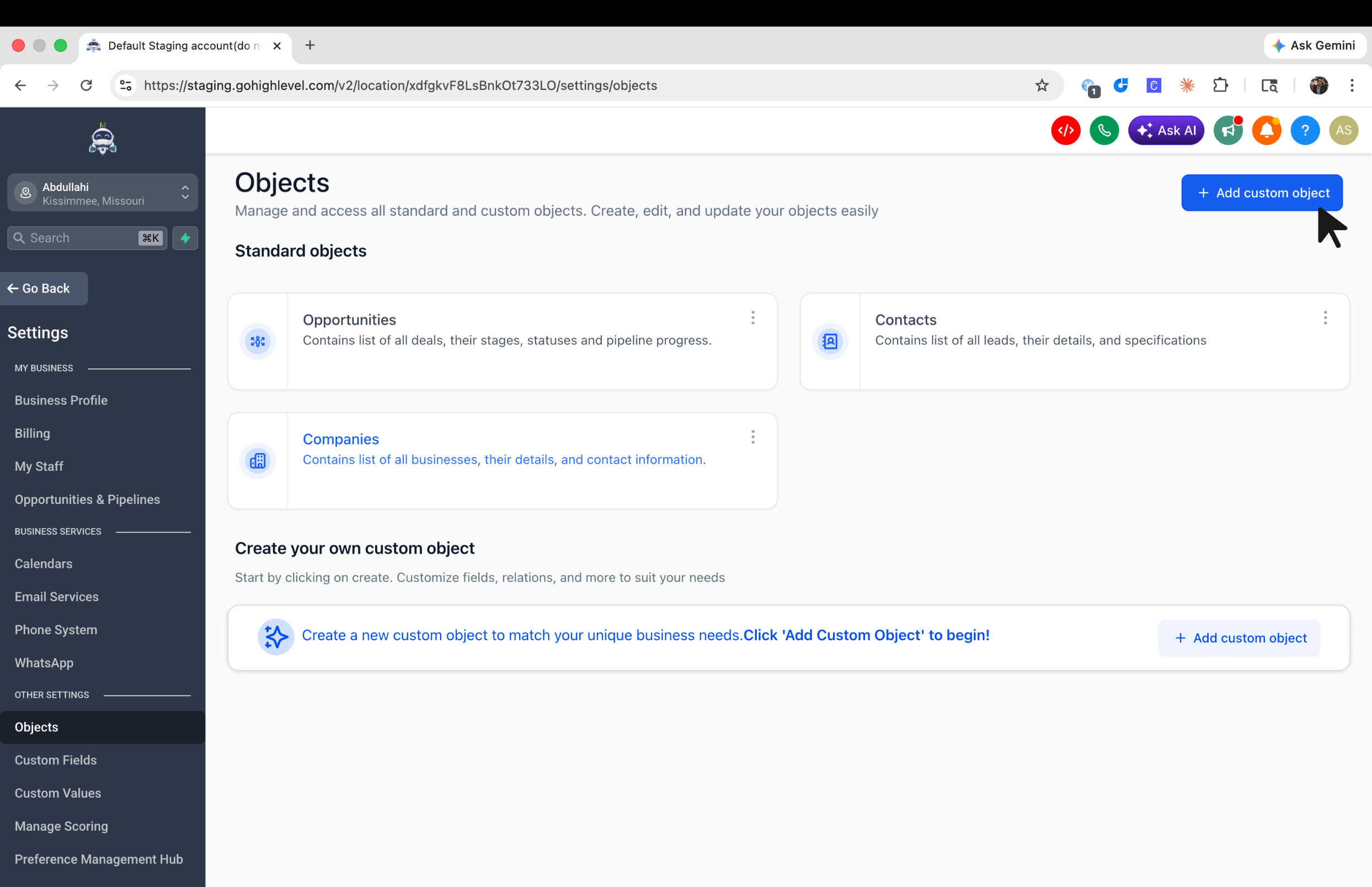
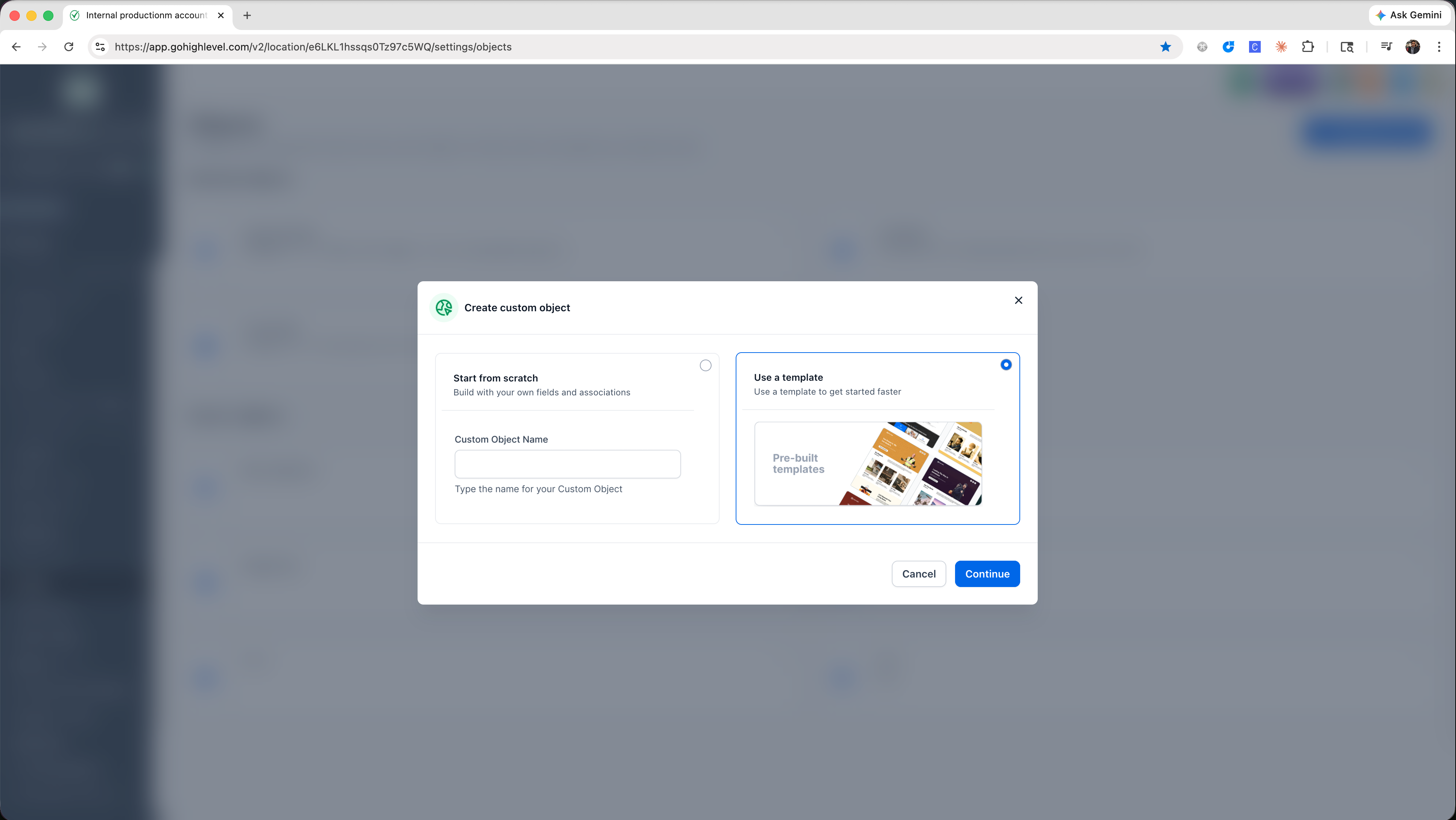
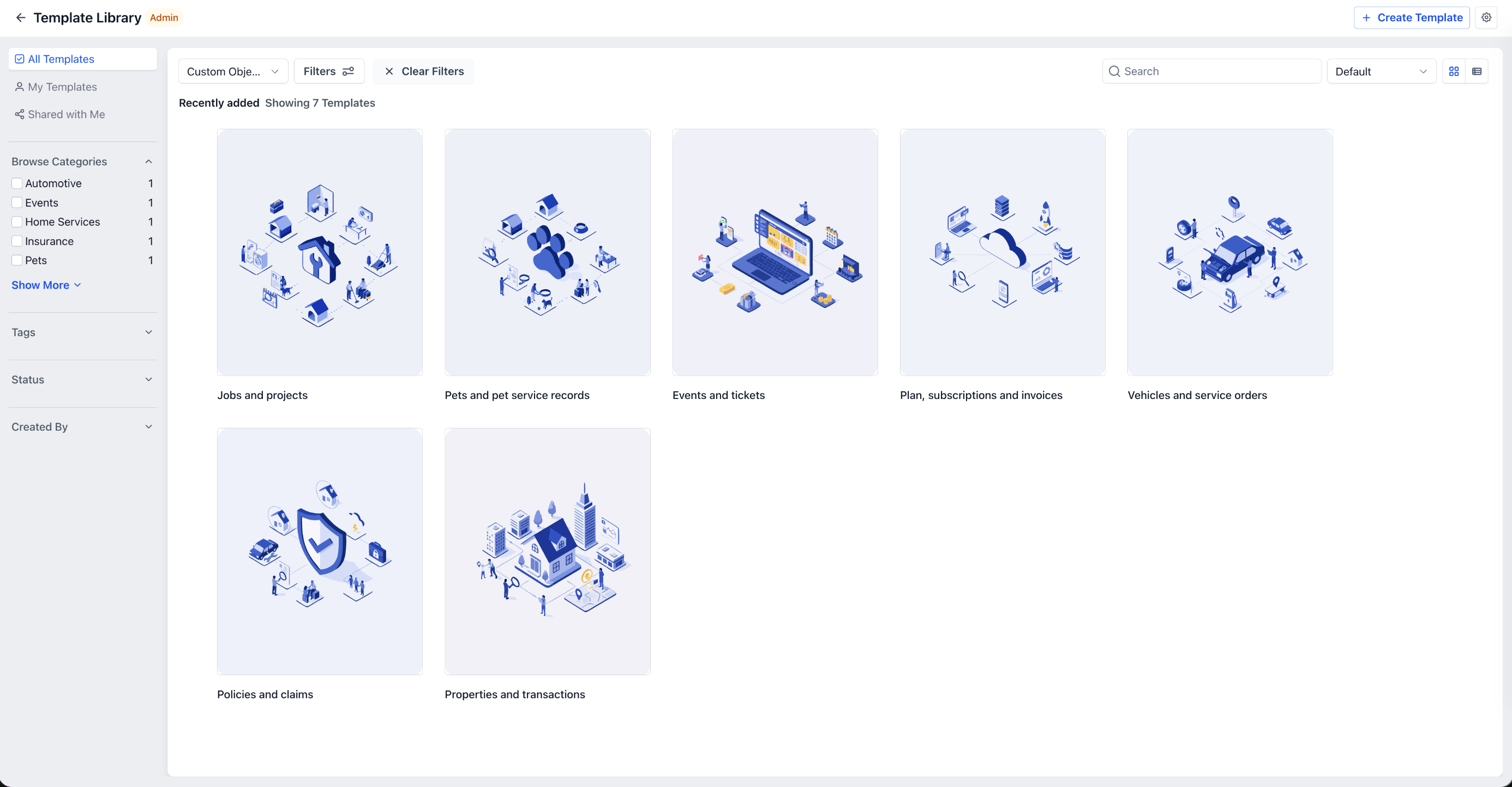
2. Add Custom Object → Use a template
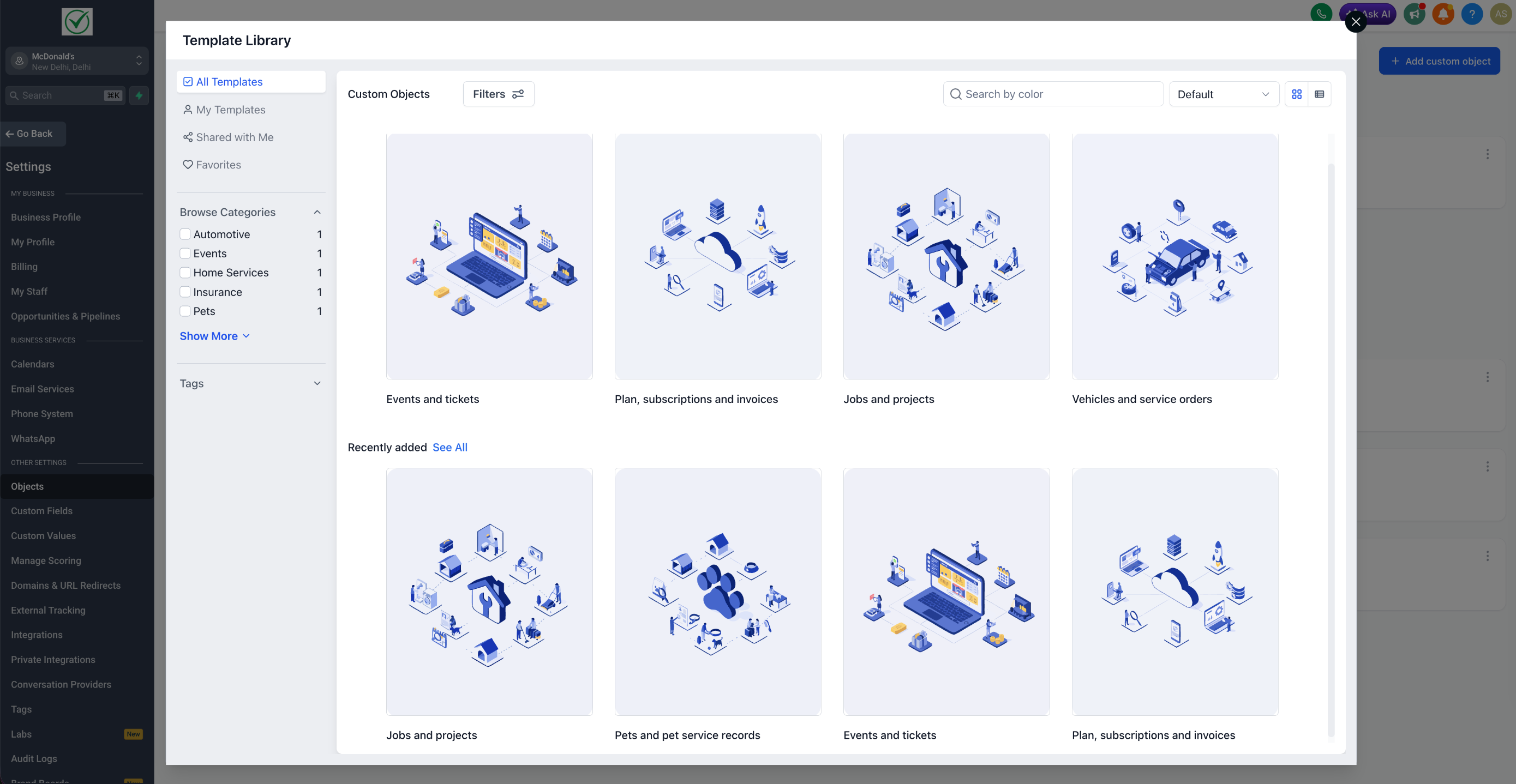
3. Click on any template to open the Preview page — review the objects, fields, associations, description, and prerequisites.
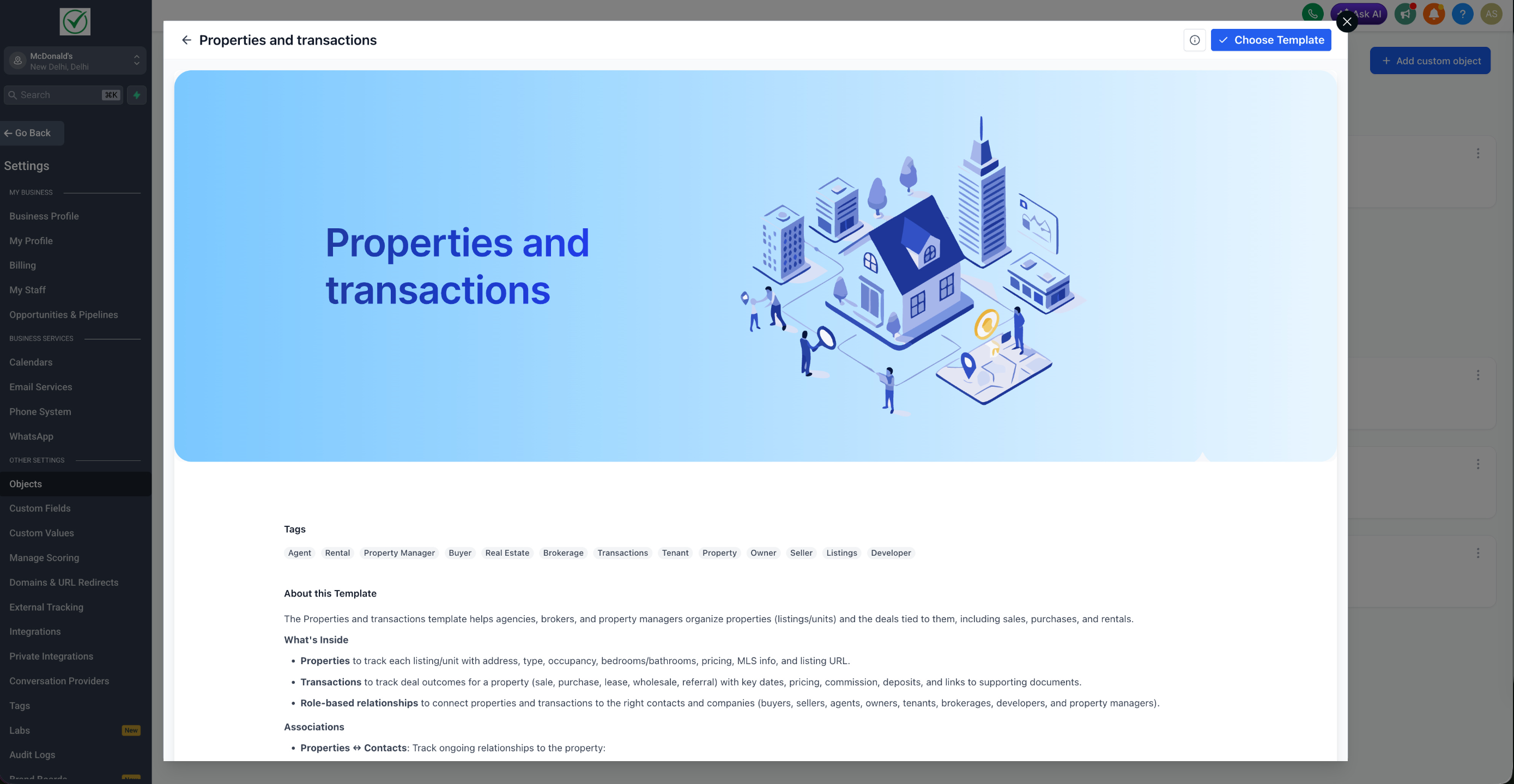
4.Click Import objects to apply the template to your account.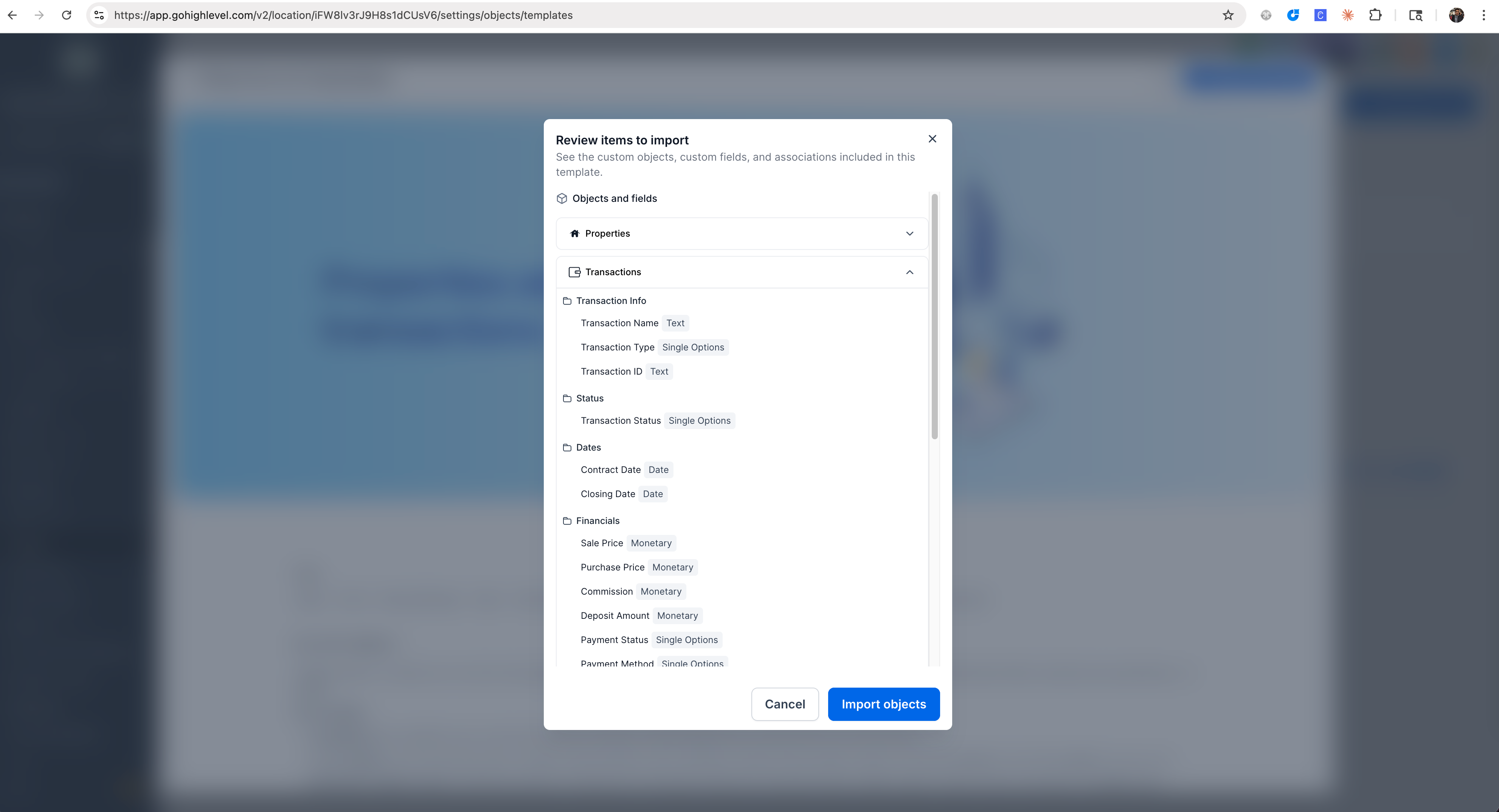
5. The obects are set up in the account
B) Manage template visibility (Agency Admins)
Custom Object templates use the same visibility controls as other Template Library modules:
- From the Agency Dashboard, click Template Library in the left navigation.
- Click the Settings (gear) icon in the top-right.
- To control visibility per sub-account:
- Go to the Customize for Sub-Account Settings tab.
- Search for the sub-account → click Edit.
- Choose to hide the Template Library fully, show it, or hide it only for specific modules (including Custom Objects).
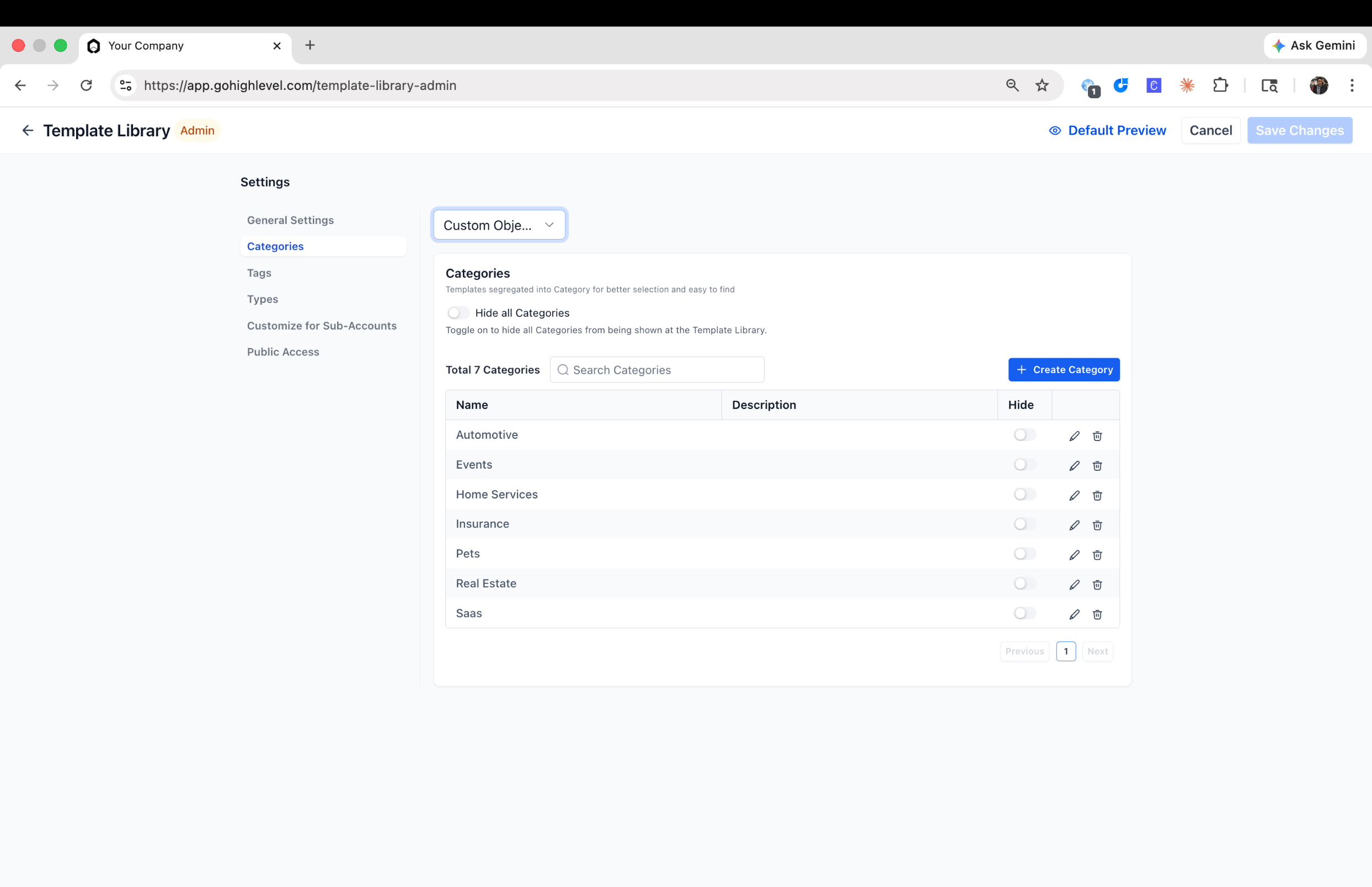
- To control which categories are globally visible:
- Go to the Categories tab and toggle visibility on individual categories (e.g., Real Estate, Insurance).
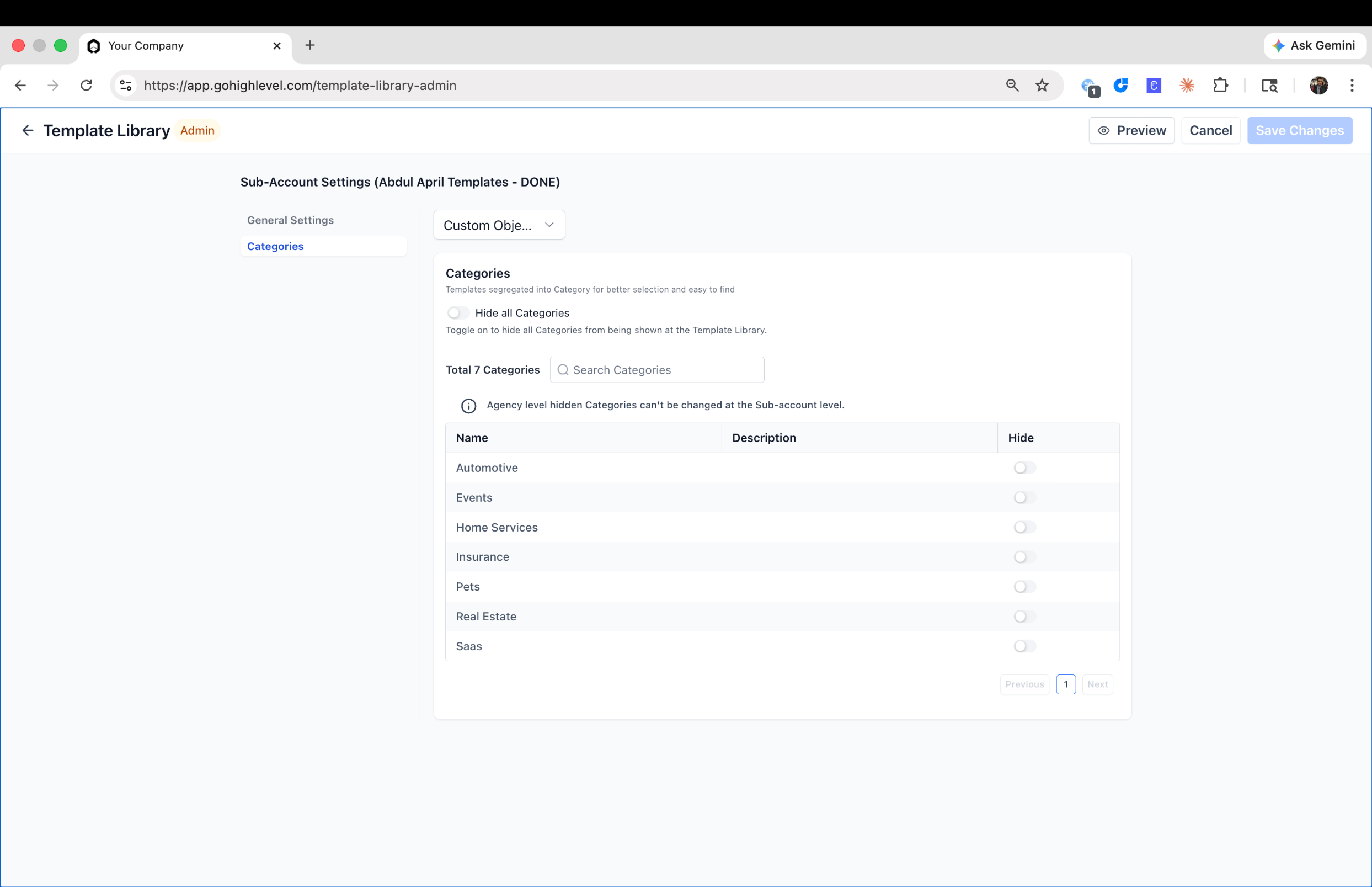
Changes apply instantly. Agency users/admins always see the Template Library regardless of these settings — restrictions only affect sub-account users.
Notes
- Custom Object Templates is available in Labs at the company (agency) level.
- Each template applies objects, fields, and associations
- Agency Admins manage visibility through the existing Template Library settings, not a separate Custom Objects settings page.
- Assets already created from templates remain functional even if the template is later hidden.
Was this article helpful?
That’s Great!
Thank you for your feedback
Sorry! We couldn't be helpful
Thank you for your feedback
Feedback sent
We appreciate your effort and will try to fix the article