Digital Product Delivery lets HighLevel store owners sell downloadable products, such as ebooks, audio files, videos, documents, images, and ZIP files, through ecommerce stores. Customers can access eligible digital downloads from the Order Confirmation Email, the Thank You page download button when enabled, or the Customer Access Center after verifying their identity with an OTP sent to the checkout email address. Digital downloads appear only when at least one valid file has been uploaded to the purchased digital product or variant.
TABLE OF CONTENTS
- What is Digital Product Delivery for E-commerce Stores?
- Key Benefits of Digital Product Delivery
- Before You Begin
- Digital Product File Requirements and Limits
- Customer Download Experience
- Enable the Download Button on the Thank You Page
- Payment, Shipping, and Fulfillment Behavior
- How To Setup Digital Product Delivery
- Frequently Asked Questions
- Related Articles
What is Digital Product Delivery for E-commerce Stores?
Digital product delivery helps businesses sell non-physical products without manual fulfillment. Once configured, HighLevel securely provides customers with access to their files after purchase while keeping order details and download access protected through the Customer Access Center.
Key Benefits of Digital Product Delivery
Digital products make it easier to sell downloadable content directly from your HighLevel ecommerce store. Secure access, automatic fulfillment, and variant-level setup give store owners more control over how each product is sold and delivered.
- Secure Customer Access: Customers access digital files through the Customer Access Center using OTP verification sent to the email address used at checkout.
- Automatic Digital Fulfillment: Digital products are automatically fulfilled because no physical shipment is required.
- Flexible Product Variants: Store owners can configure different variants of the same product as Physical or Digital, such as Ebook, Audiobook, and Physical Book.
- No Shipping Fees for Digital Products: Shipping fees do not apply to digital products. When an order includes both physical and digital products, shipping is calculated only for the physical items.
- Customer Self-Service Downloads: Customers can return to the Customer Access Center to view current orders, past orders, and digital downloads when applicable.
Before You Begin
Proper setup ensures customers receive download access after checkout and can securely retrieve their digital files. Before selling digital products, confirm that your store, product, variant, and notification settings are ready.
Before configuring digital product delivery, make sure you have:
- An ecommerce store created in HighLevel.
- A product created under Payments > Products.
- Product pricing or variants configured.
- Digital files ready to upload.
- Order Confirmation Email for Stores enabled under Payments > Settings > Notifications. If this setting is disabled, customers will not receive access emails.
For ecommerce store setup, refer to How to Set Up an E-Commerce Online Store (Websites). For product creation, refer to Getting Started - Create & Sell Products.
Digital Product File Requirements and Limits
Digital files are attached to the product price or variant that customers purchase. This helps ensure the correct downloadable files are shown for each product option.
Digital product uploads follow these requirements:
- You can upload up to 10 files for a digital product or variant.
- Each file can be up to 100 MB.
- Supported file types include images, audio, video, documents, and ZIP files.
- If you need to bundle additional files together, create a ZIP file and keep it under 100 MB.
- Store owners must save the product variant after uploading files.
- Files download as separate files, not as one automatically generated ZIP file.
Customer Download Experience
Customers receive secure access to digital downloads after completing checkout. The Customer Access Center protects the download experience by requiring OTP login through the same email address used during checkout.
After a customer purchases a digital product:
- The customer completes checkout in the ecommerce store.
- The customer receives an Order Confirmation Email.
- The email displays an Access Downloads or View Order button when the purchased digital product has at least one uploaded file.
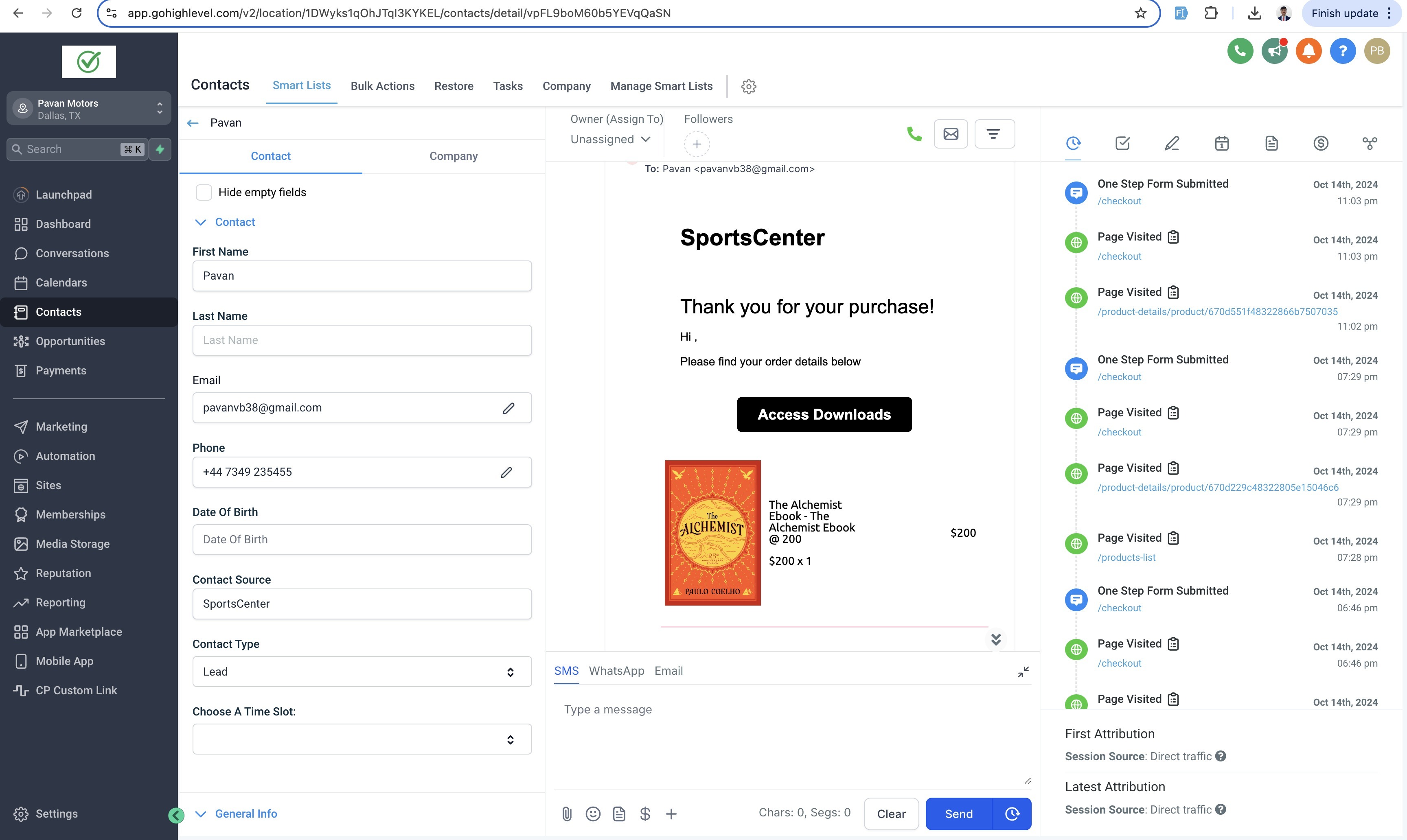
- The customer clicks the button and is redirected to the Customer Access Center.
- The customer logs in using the OTP sent to the checkout email address.
- The customer views the order and downloads the available digital files.
Customers can also access orders directly from:
<storeurl>/store/account/ordersEg. myawesomestore.com/products/store/account/orders
The Download button appears only when at least one valid digital file has been uploaded. If no files are uploaded, the
Download button remains hidden, and the Customer Access Center may display “No downloads available yet.”
Enable the Download Button on the Thank You Page
The Thank You page download button gives customers a faster way to access digital purchases immediately after checkout. When enabled, the button redirects customers to the Customer Access Center, where they can securely access their downloads.
To enable the Download button on the Thank You page:
- Go to Stores > Select Store > Edit Page Details.
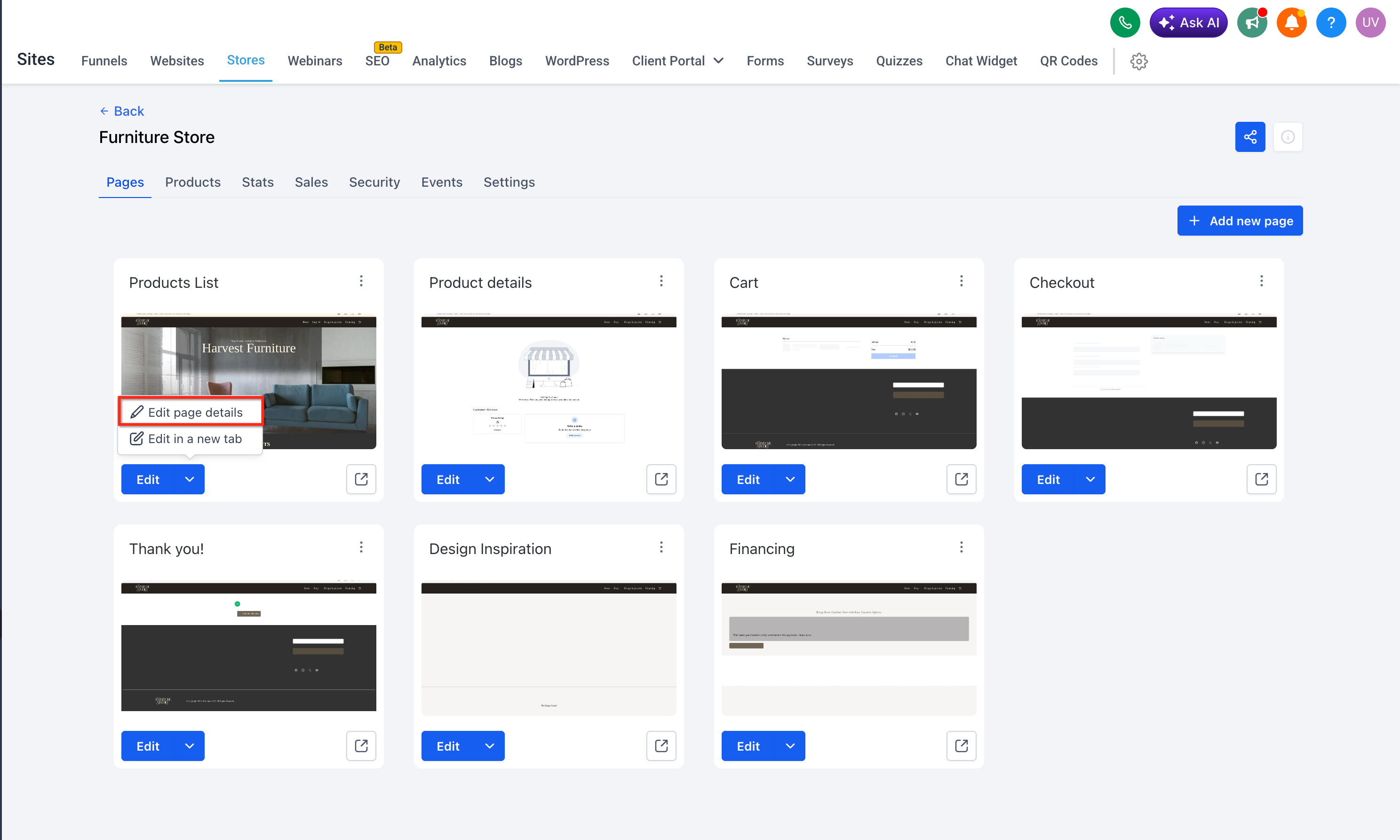
- Select the Thank You Page element.
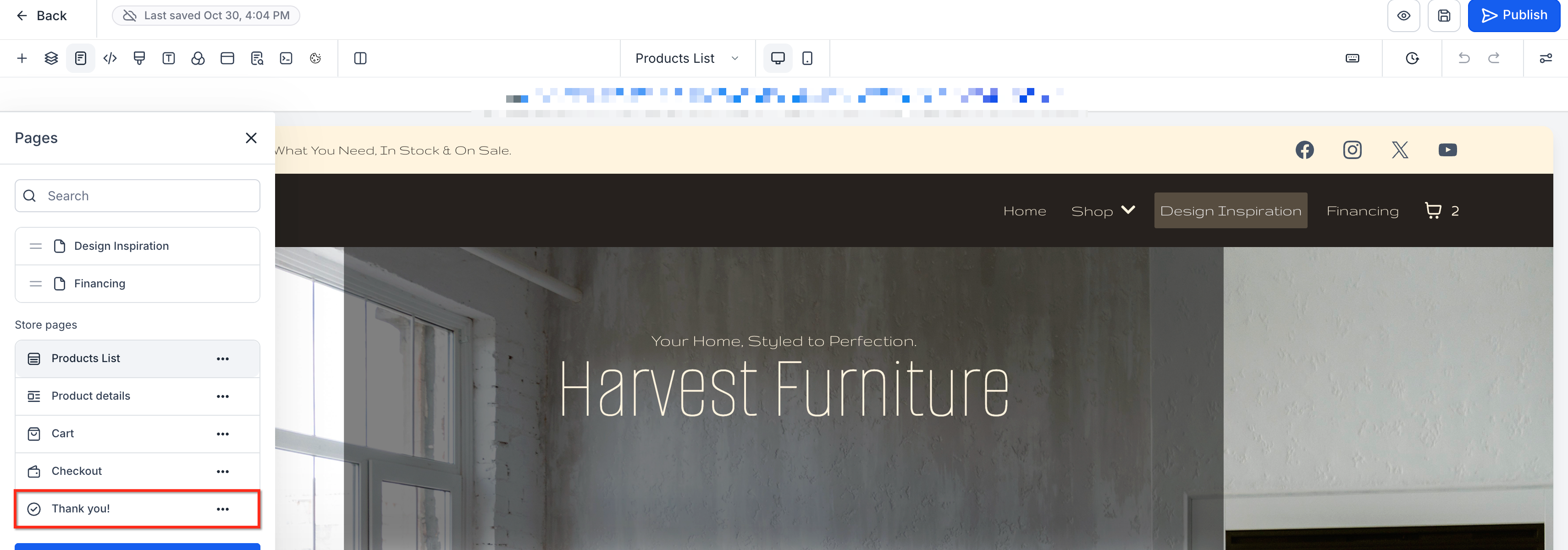
- In the right-side panel, enable the Download Digital Products toggle.
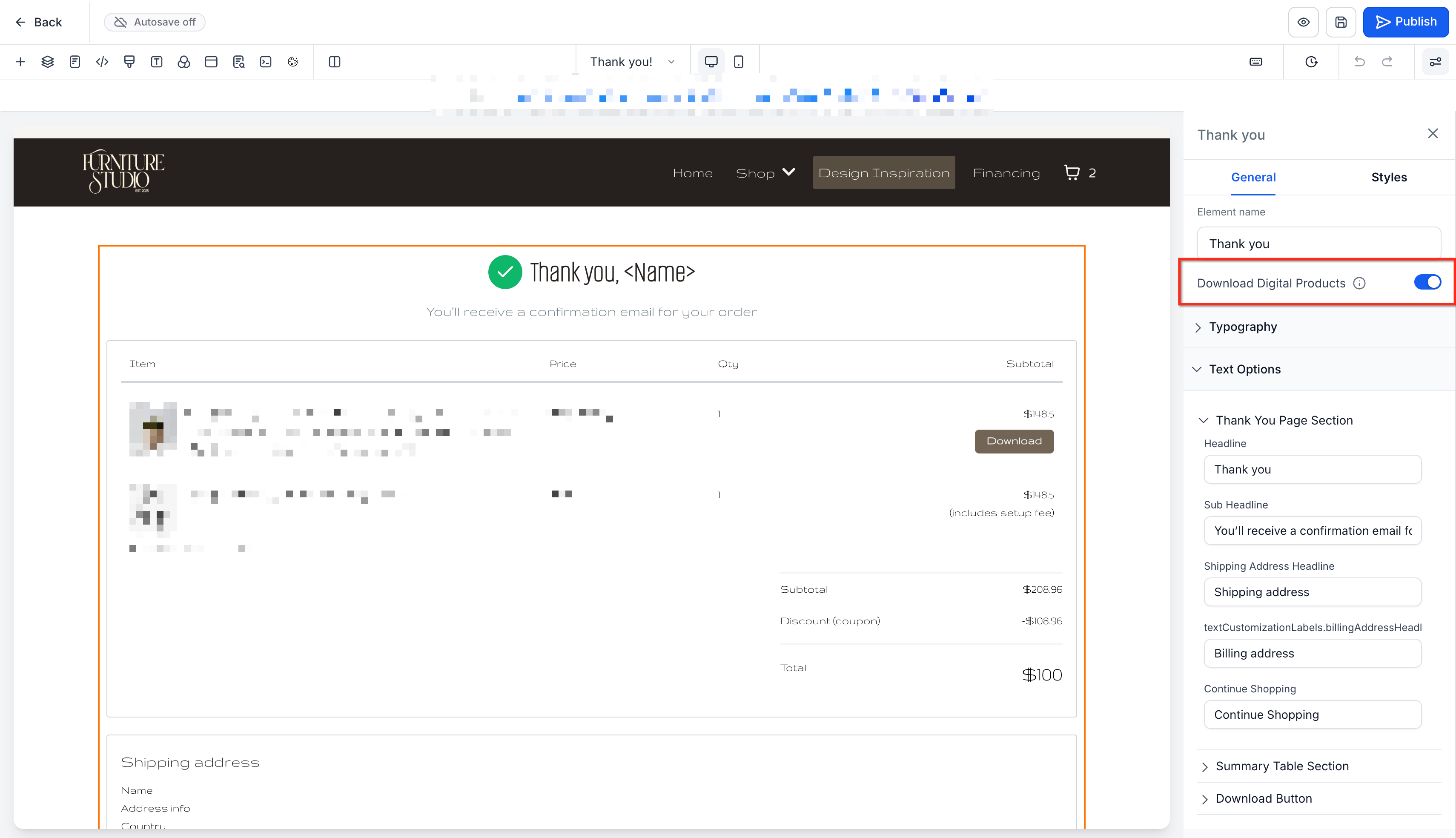
- Customize the Download button text and colors.
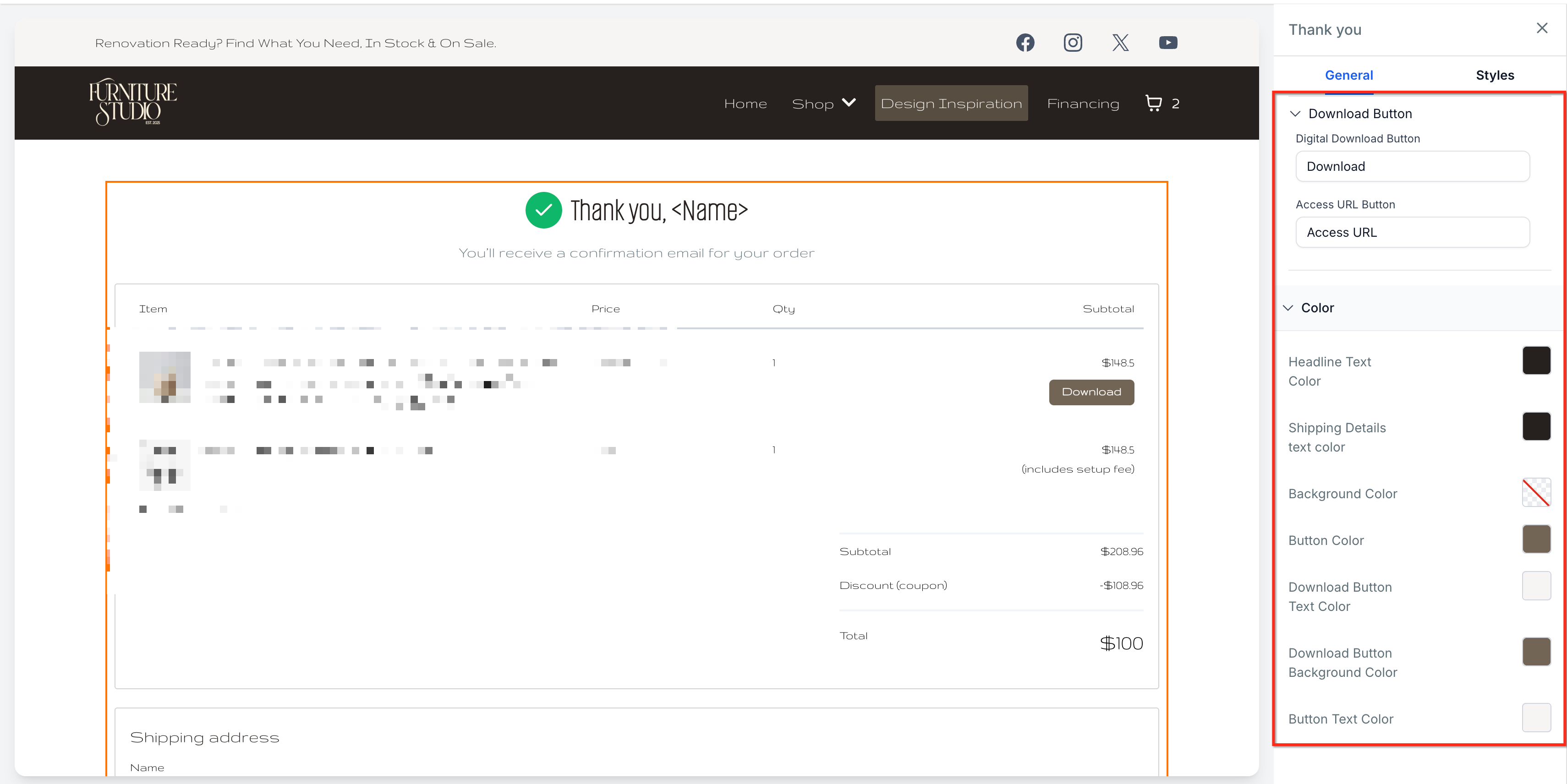
- Save and publish your changes.
When customers click the Download button, they are redirected to the Customer Access Center to access eligible digital product downloads. The button remains hidden when the purchased digital product or variant does not have uploaded files.
Payment, Shipping, and Fulfillment Behavior
Digital products follow different fulfillment and shipping behavior than physical products. Understanding these rules helps store owners set the right payment options and avoid confusion when carts include both digital and physical products.
Important Behavior to Know:
- Digital product delivery is available only for orders placed through ecommerce stores.
- Cash on Delivery (COD) is not available when any product in the order is digital.
- Shipping fees do not apply to digital products.
- If the cart contains both physical and digital products, standard shipping charges are calculated for the physical products only.
- If a physical product is purchased using COD, any digital upsell products must be paid for using an alternate online payment method.
- Digital products are automatically fulfilled, with fulfillment details left empty because no shipment is required.
- Physical products never display a Download button.
- In mixed orders, only digital products with uploaded files display a Download option.
How To Setup Digital Product Delivery
Accurate setup ensures customers receive the correct download access after purchase. Digital files should be uploaded to the correct product variant, and store notifications should be enabled before customers begin purchasing.
To set up digital product delivery:
- Go to Payments > Products.
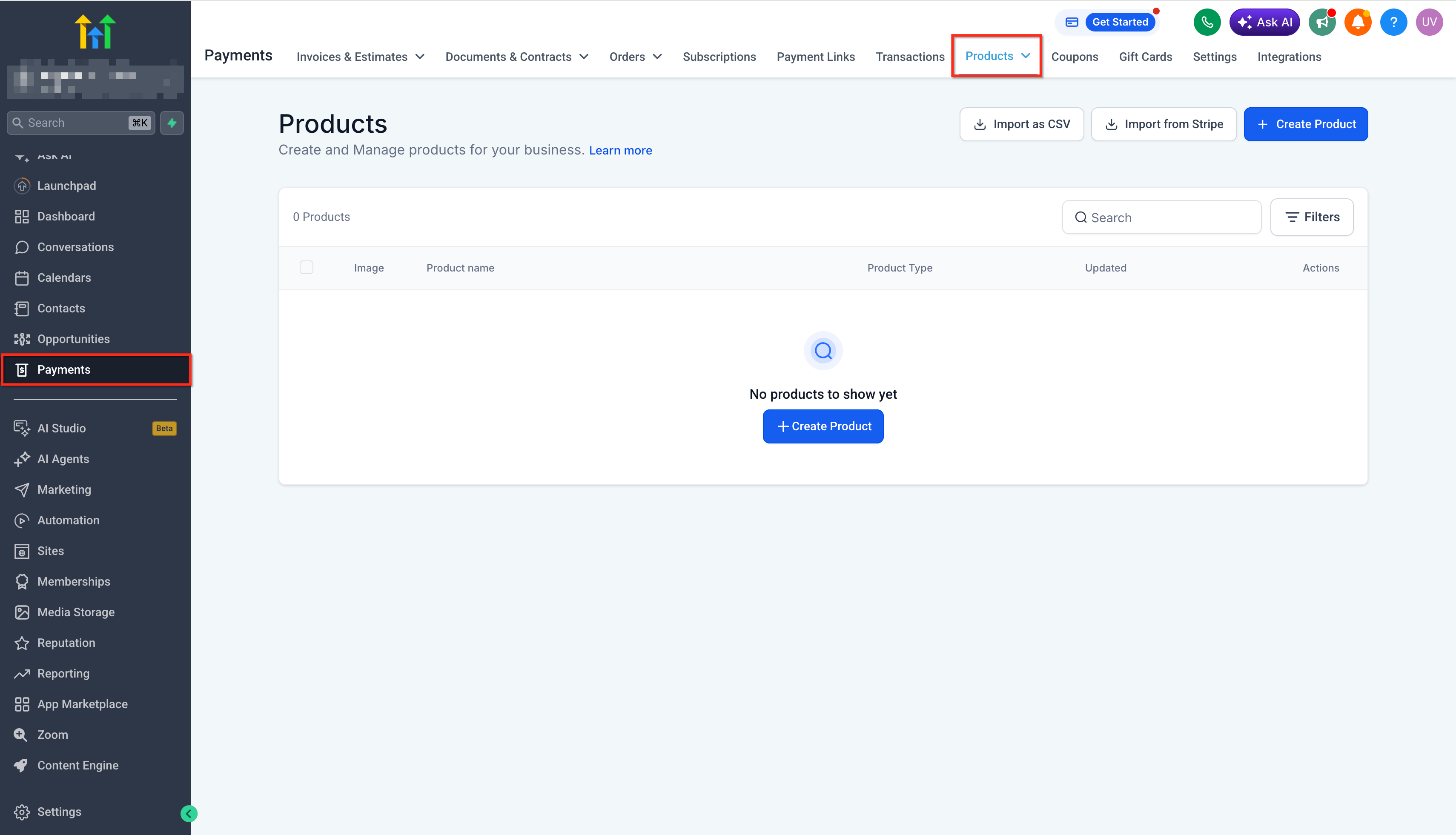
- Select an existing product or create a new product.
- Open the Inventory option available under the Products.
- Go to Shipping and Delivery.
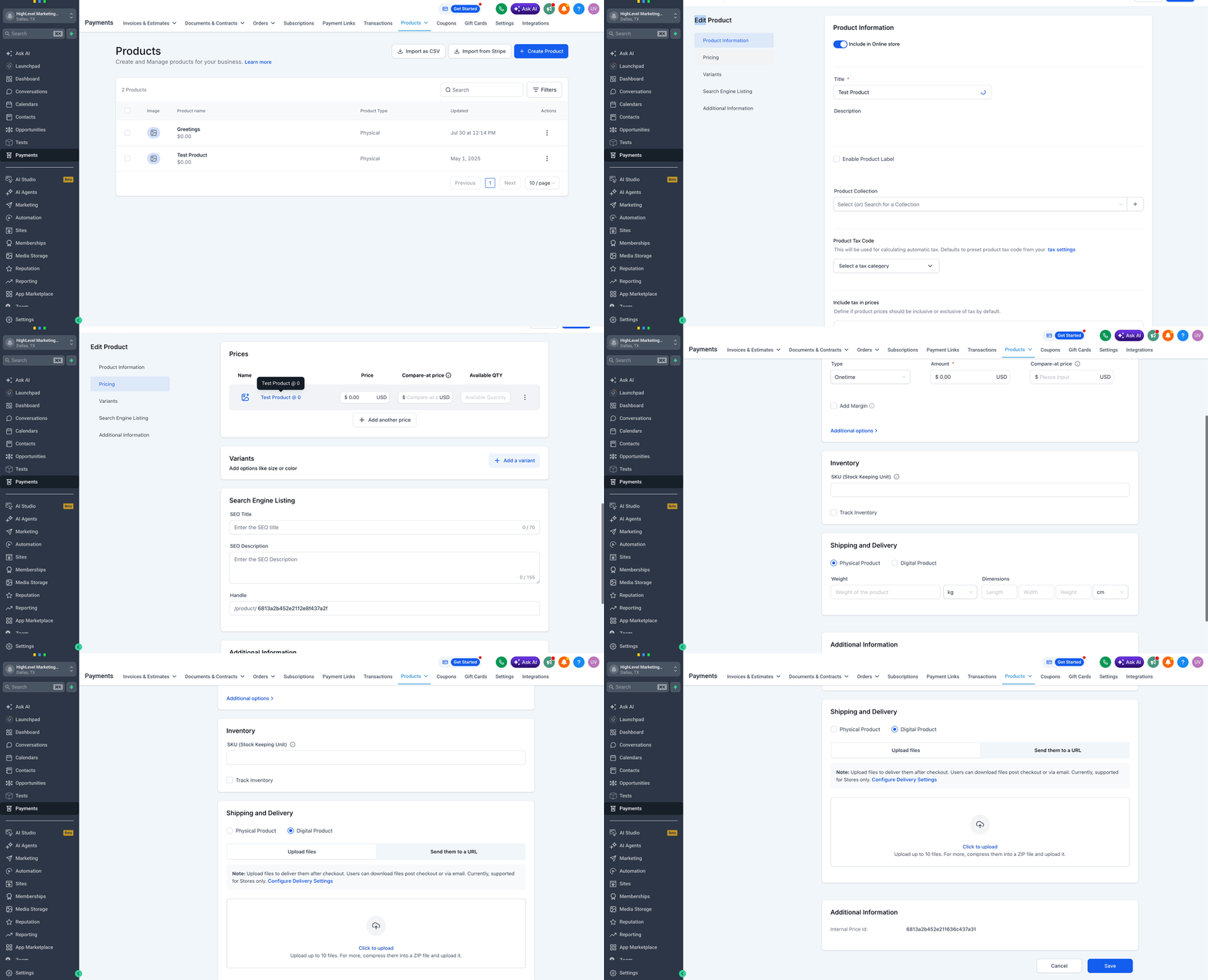
- Set the product or variant type to Digital.
- Upload the digital files for that product or variant.
- Confirm each uploaded file meets the file limit requirements.
- Save the product variant after uploading files.
- Go to Payments > Settings > Notifications. Enable Order Confirmation Email for Stores.
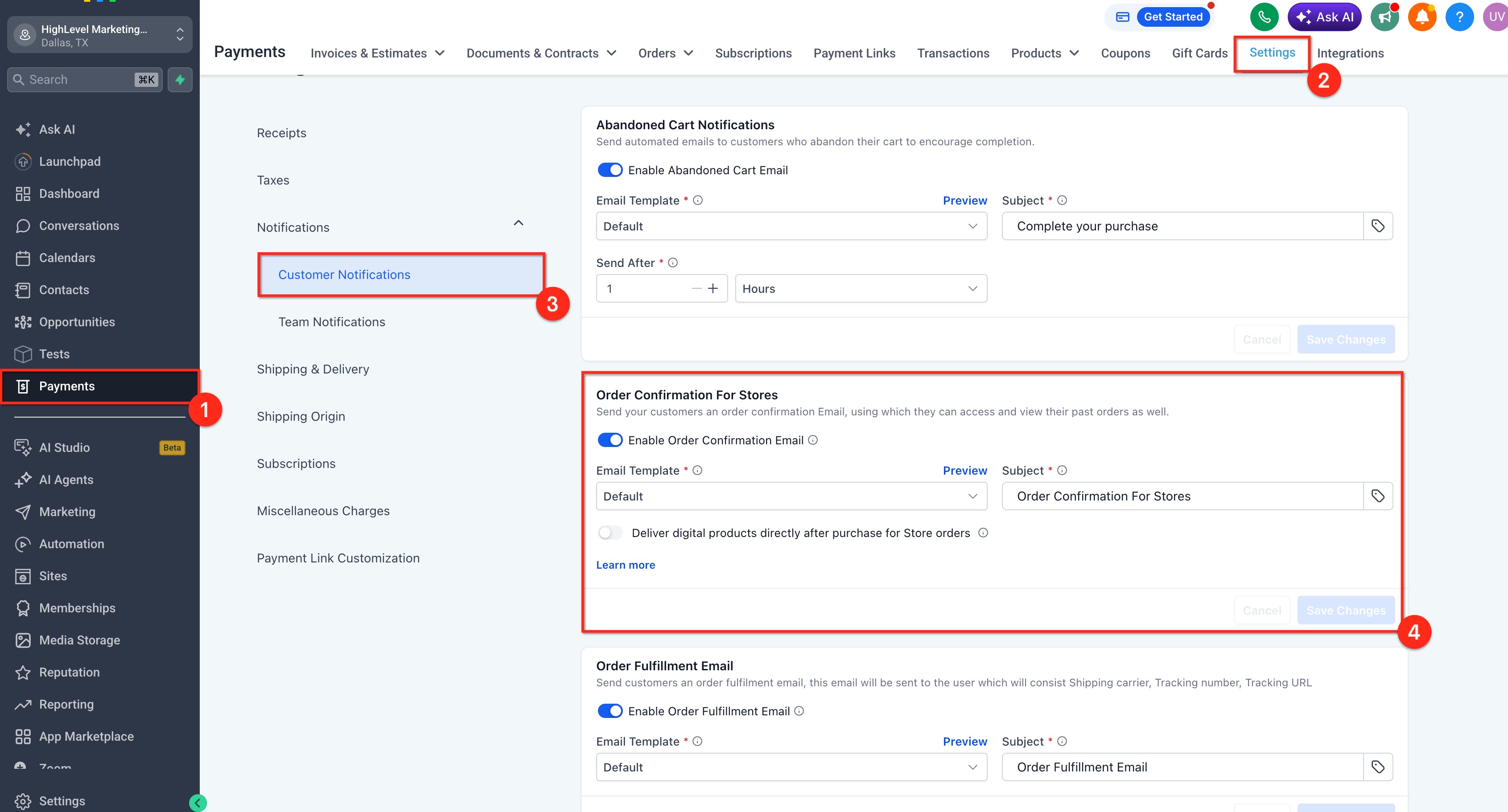
- Save your notification settings.
- Test the checkout experience to confirm that the customer receives the Order Confirmation Email and can access downloads through the Customer Access Center.
Frequently Asked Questions
Q: Why is the Download button not showing after purchase?
The Download button appears only when at least one valid digital file has been uploaded to the purchased digital product or variant. If no files are uploaded, the button remains hidden.
Q: Why does the Customer Access Center show “No downloads available yet”?
This message appears when the purchased digital product does not have uploaded files assigned to it.
Q: What happens if I upload digital files after a customer has already purchased?
The Customer Access Center updates automatically. Once files are uploaded, eligible customers can access the download.
Q: What happens if I delete uploaded digital files?
If all digital files are removed from a product or variant, the Download button disappears from the Thank You page and the Customer Access Center.
Q: Can I sell both physical and digital versions of the same product?
Yes. You can configure separate product variants as Physical or Digital. For example, one product can include Ebook, Audiobook, and Physical Book variants.
Q: Can customers download files without logging in?
No. Customers must access downloads through the Customer Access Center and verify access using the OTP sent to the checkout email address.
Q: Can I use Cash on Delivery for digital products?
No. COD is not available when any product in the order is digital.
Q: What happens when an order contains both physical and digital products?
The digital product is delivered through the Customer Access Center, and shipping is calculated only for the physical product.
Q: Are digital products automatically fulfilled?
Yes. Digital products are automatically fulfilled because there is no physical shipment required.
Q: Do digital files download as a ZIP file?
No. Files download as separate files unless the store owner uploads a ZIP file as one of the digital files.
Related Articles
- Getting Started - Create & Sell Products
- Customer Access Center to View Current and Past Order Details
- Customer Login for Ecommerce Stores
- How to Send Confirmations After a Purchase/Order
- How to Set Up an E-Commerce Online Store (Websites)
- How to Add Product Weights, Dimension, and SKU Information in Your Ecom Store
Was this article helpful?
That’s Great!
Thank you for your feedback
Sorry! We couldn't be helpful
Thank you for your feedback
Feedback sent
We appreciate your effort and will try to fix the article