This article will show you how to add a Manual Call action to a workflow in HighLevel. This action allows you to create call tasks automatically when a workflow trigger is met. This is perfect for sales or support follow-ups that require a personal touch.
TABLE OF CONTENTS
- What is Manual Action to Call?
- How To Add a Manual Action to Call to a Workflow
- Viewing Assigned Manual Calls
- Assign To Behavior
- Example
- Frequently Asked Questions
- Related Articles
What is Manual Action to Call?
Manual Call Action is a type of Manual Action used in HighLevel workflows. It allows you to assign outbound call tasks to a team member based on workflow triggers such as tags, form submissions, or appointments. Once the workflow is triggered, the contact appears under the Manual Actions tab in the Conversations section.
How To Add a Manual Action to Call to a Workflow
Manual Call Actions are added from the workflow builder using the "Manual Action" step. Follow the steps below to configure this action correctly.
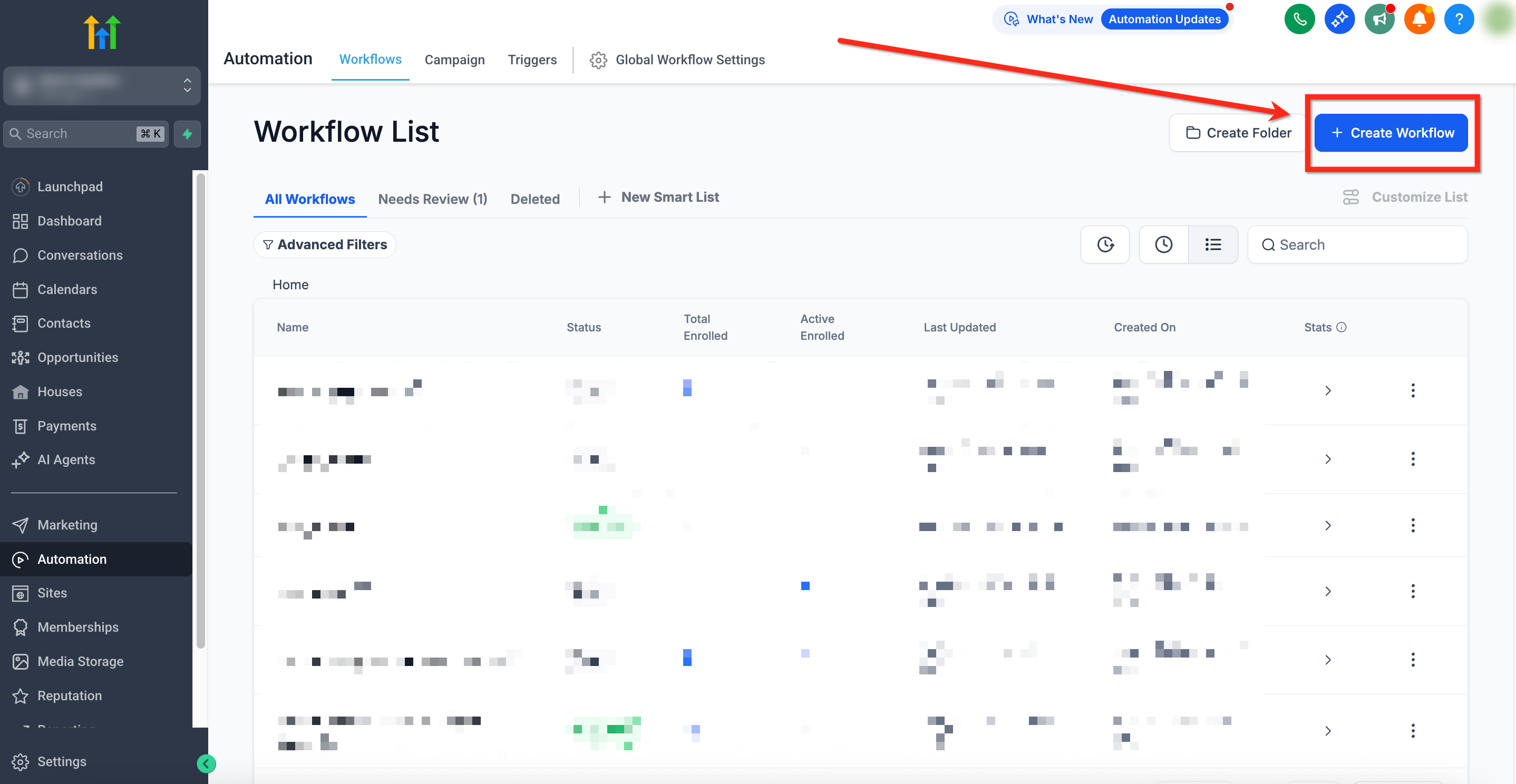
Navigate to Automations in the left-hand navigation bar.
Click + Create Workflow to create a new workflow.
Click + Add Trigger and choose a trigger.
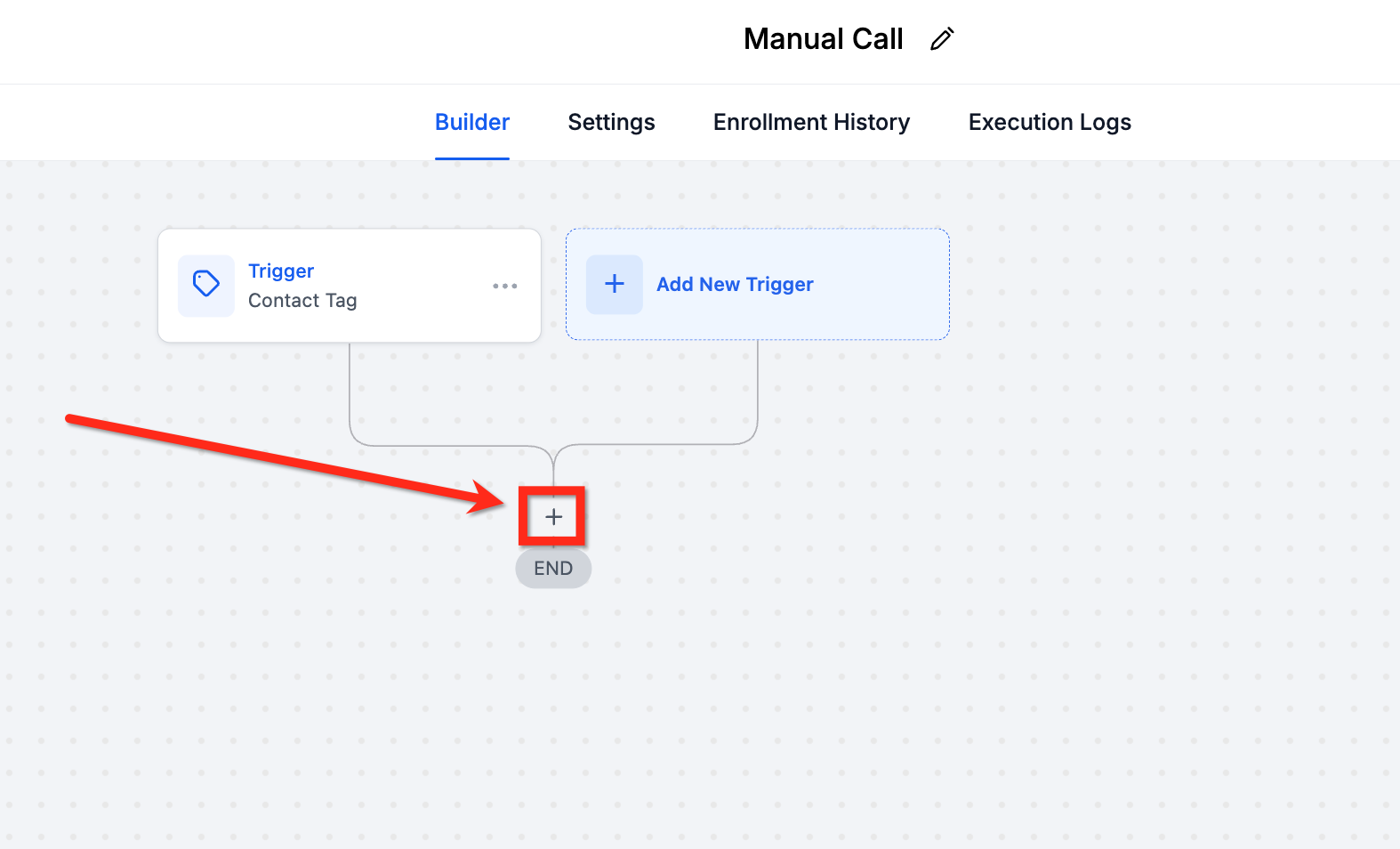
After adding the trigger, click the + icon beneath it to add a new action.
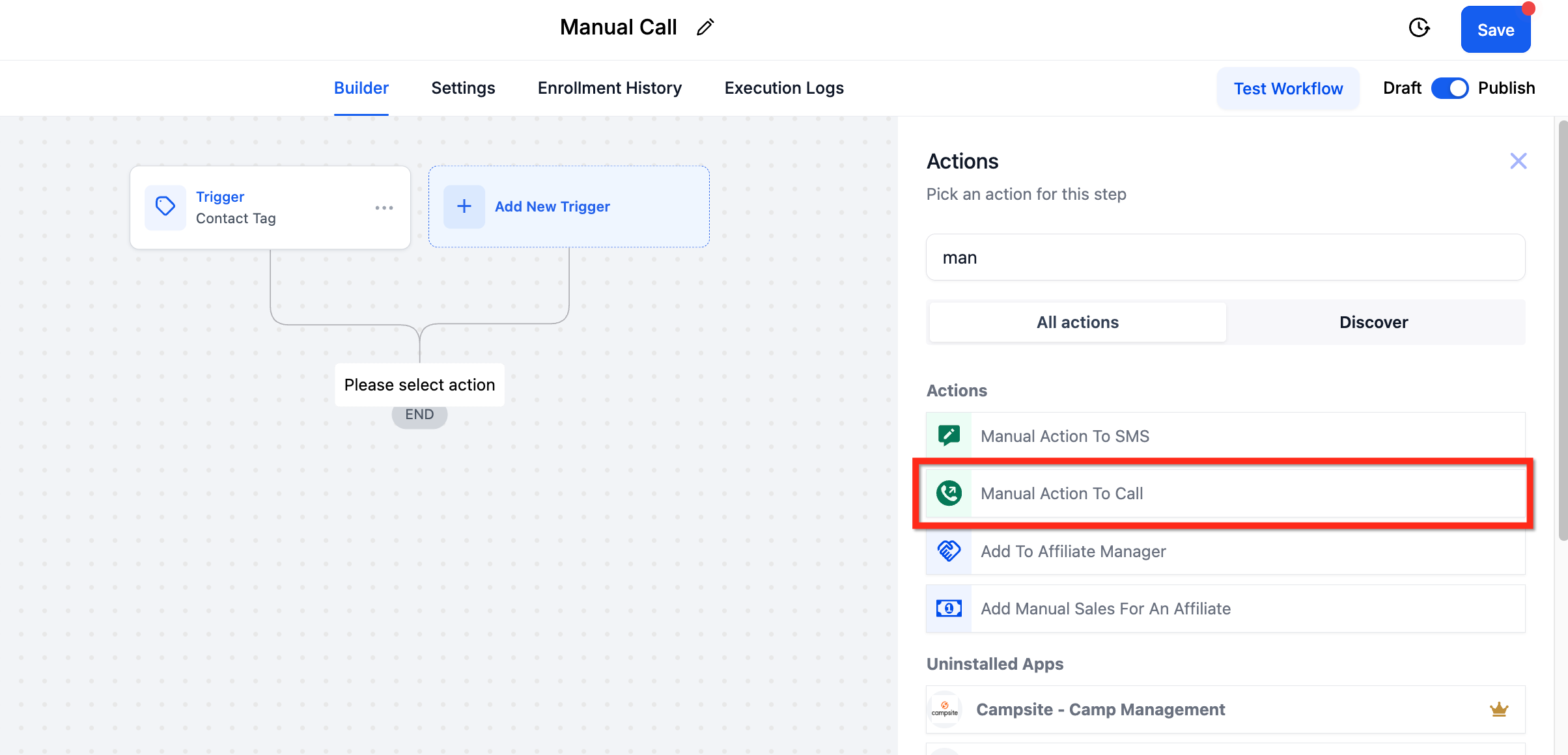
- Choose the Manual Action To Call action. Enter a name for the action, like “Manual Call”.
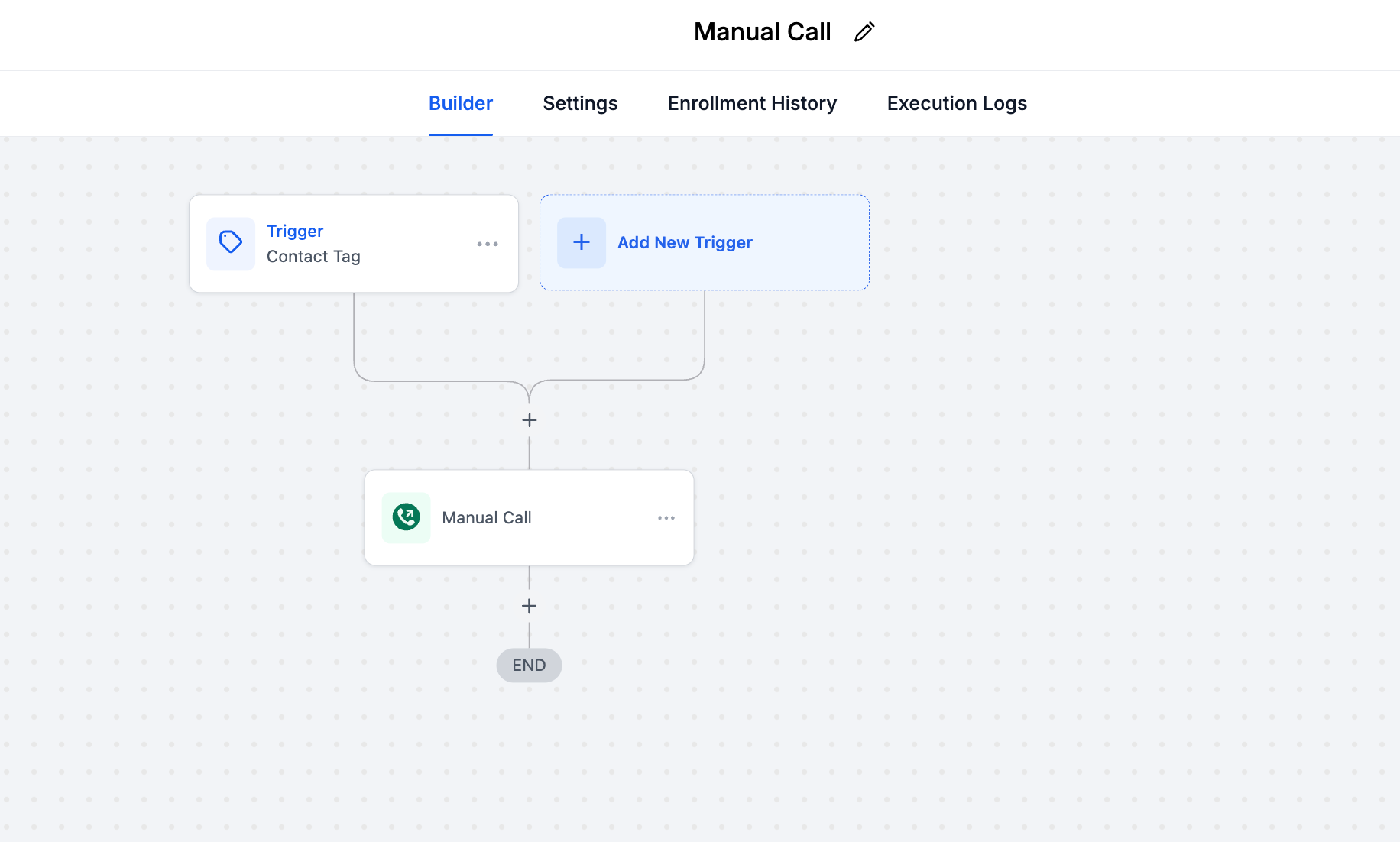
Click Save and then Publish your workflow.
Viewing Assigned Manual Calls
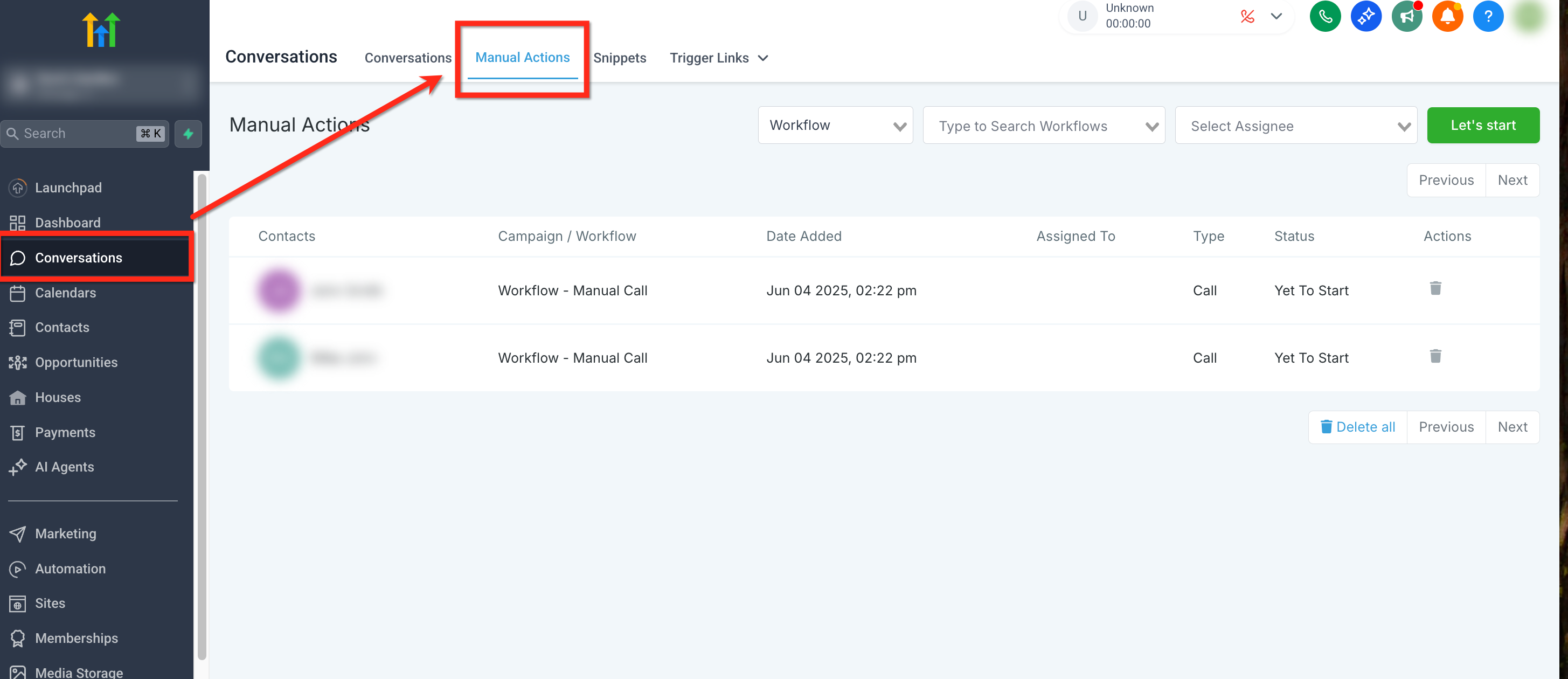
Once triggered, contacts assigned to a Manual Call action will appear under Manual Actions in the Conversations tab. Here’s how to find and track them.
Go to the left navigation and click Conversations
Click the Manual Actions tab at the top of the page
You'll see a list of manual tasks generated by the workflow.
Assign To Behavior
The Assign To field in Advanced Settings allows you to assign the manual call task to a specific user instead of the default contact owner. This is useful when you want a particular team member to handle certain calls regardless of who owns the contact.
Assignment logic:
- If a user is selected and has contact access, the task is assigned to that user.
- If a user is selected but does not have contact access, the task falls back to the contact owner.
- If no user is selected, the task defaults to the contact owner.
- If neither the selected user nor contact owner is available, the task is marked as Unassigned.
Execution Logs:
- The action logs will show a manual call action with a message "Manual Call added to the manual queue". This helps in tracking the of your call.
Important:

The Manual Call action only progresses the workflow when the task is explicitly deleted from the Manual Actions tab. Simply calling the contact from the Contacts page or any other area will not complete the task or move the workflow forward.
Example
Scenario: A business wants to ensure that a sales representative follows up with every new lead within 24 hours of their initial inquiry. Once the call is complated, delete the task to move to next step in workflow.
Workflow Setup:
- Trigger: New Contact Created
- Action:Manual Call
- Name: "Lead Follow-Up Call"
Outcome: The sales team member receives a task to call the new lead, ensuring a timely follow-up, which can significantly increase the chances of conversion.
Frequently Asked Questions
Q: Can I assign the manual call task to someone other than the contact owner?
Yes! Use the Assign To field in Advanced Settings to select a specific user. The task will be assigned to that user if they have contact access. Otherwise, it falls back to the contact owner or is marked as Unassigned.
Q: Where do I check call results or notes?
Call notes and results can be logged directly within the contact record after the call is completed.
Q: How do I start a manual call task once it appears in Manual Actions?
Click the Let’s Start button next to the task in the Manual Actions tab.
Q: Can I manually delete the Manual Call task?
Yes! You must manually delete the task in the Conversations > Manual Actions tab after completing the call. This step tells the system to move the contact to the next action in the workflow.
Q: What happens if the assigned user doesn't have access to the contact?
If the selected user does not have contact access, the task automatically falls back to the contact owner. If the contact owner is also unavailable, the task is marked as Unassigned.
Related Articles
Was this article helpful?
That’s Great!
Thank you for your feedback
Sorry! We couldn't be helpful
Thank you for your feedback
Feedback sent
We appreciate your effort and will try to fix the article