Keep your WordPress sites clean and harder to break into. Antivirus checks each site for harmful files and common security gaps, explains what it finds in plain language and lets you fix it in one click, with the option to take a backup first. This guide covers how to open Antivirus, how to review and fix what Shield finds, how to turn on Hardening protections and how to see threats across all your sites.
TABLE OF CONTENTS
- What is Antivirus?
- Key Benefits of Antivirus
- How to Open Antivirus
- How to Review and Fix Threats in Shield
- How to Turn On Hardening Protections
- How to See Threats Across All Your Sites
- Frequently Asked Questions
- Related Articles
What is Antivirus?
Antivirus is a section in every WordPress site's menu. It has two main parts:
- Shield scans the site, lists anything that needs you and fixes it in one click.
- Hardening gives you one-click protections that close the usual ways attackers get in.
Key Benefits of Antivirus
- See problems early: Shield tells you what needs attention and why it matters, in plain words.
- Fix in one click: Apply a fix to one item, or apply every available fix at once.
- Fix safely: Every fix shows when the last backup was taken and lets you take a new one first.
- Close common gaps: Turn on Hardening protections one by one, or all at once.
- Manage every site from one list: See the threat count for each site and scan all sites together.
How to Open Antivirus
- Go to Sites.
- Click on WordPress and open your site.
- In the left menu, click on Antivirus, then choose Shield or Hardening.
How to Review and Fix Threats in Shield
Step 1: Check the Scan Result
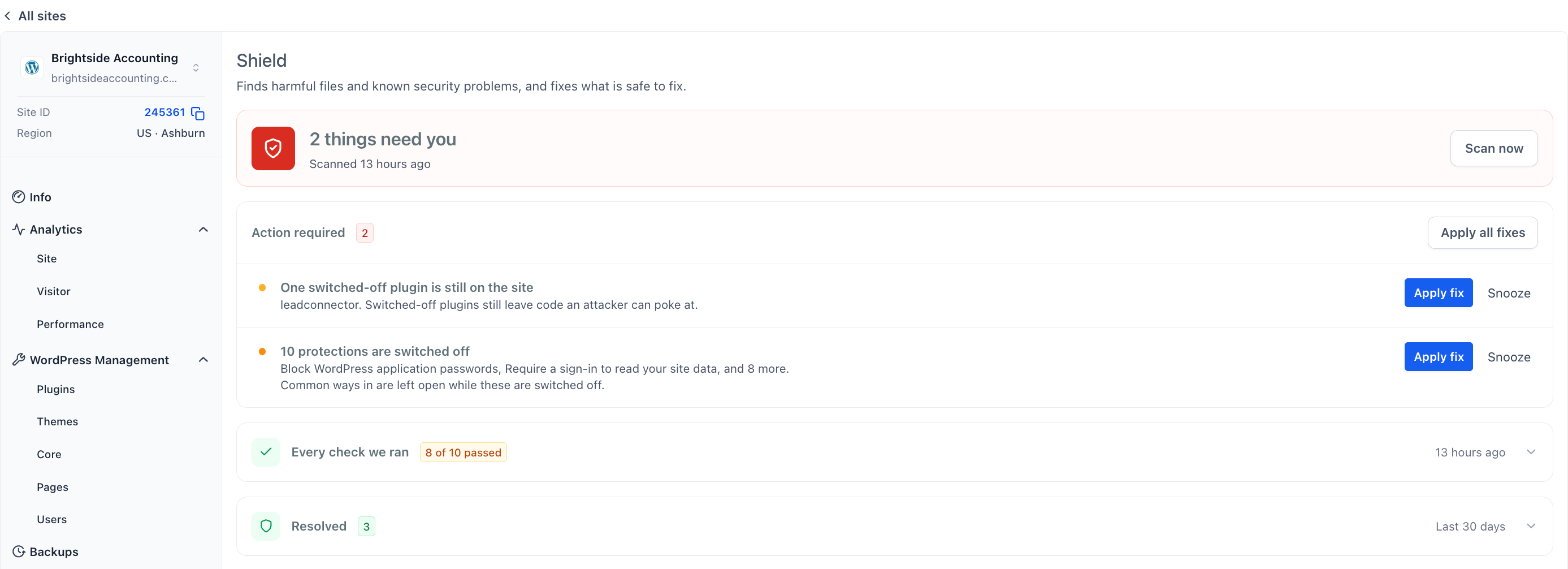
- The banner at the top shows how many things need you and when the site was last scanned.
- Click Scan now to run a fresh scan at any time.
Step 2: Review Action Required
- Each item explains what was found and why it matters, for example a switched-off plugin still on the site, or protections that are turned off.
- The count next to Action required shows how many items are open.
Step 3: Apply a Fix
- Click Apply fix on an item, or Apply all fixes to fix everything that can be fixed.
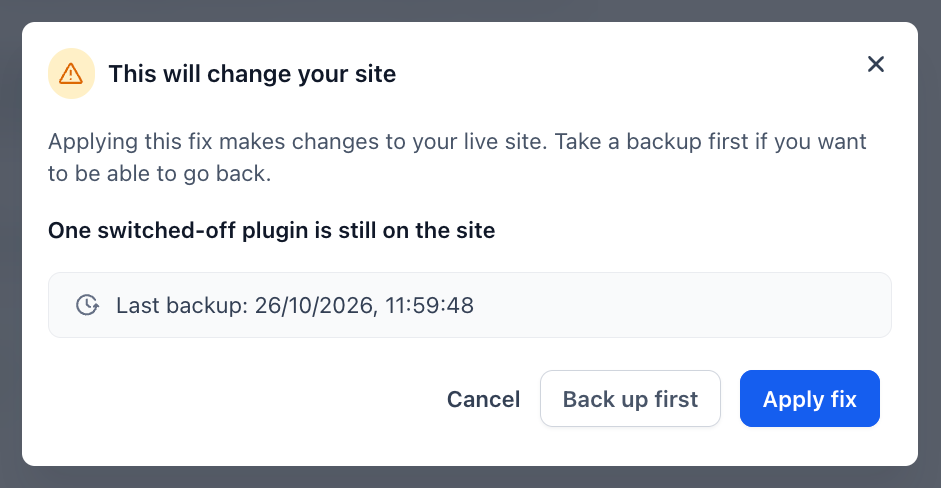
- A confirmation window shows the item and when your last backup was taken.
- Click Back up first to take a new backup before the fix, or Apply fix to go ahead.
Note: Applying a fix changes your live site. Take a backup first if you want to be able to go back.
Step 4: Snooze Items You Are Not Ready to Fix
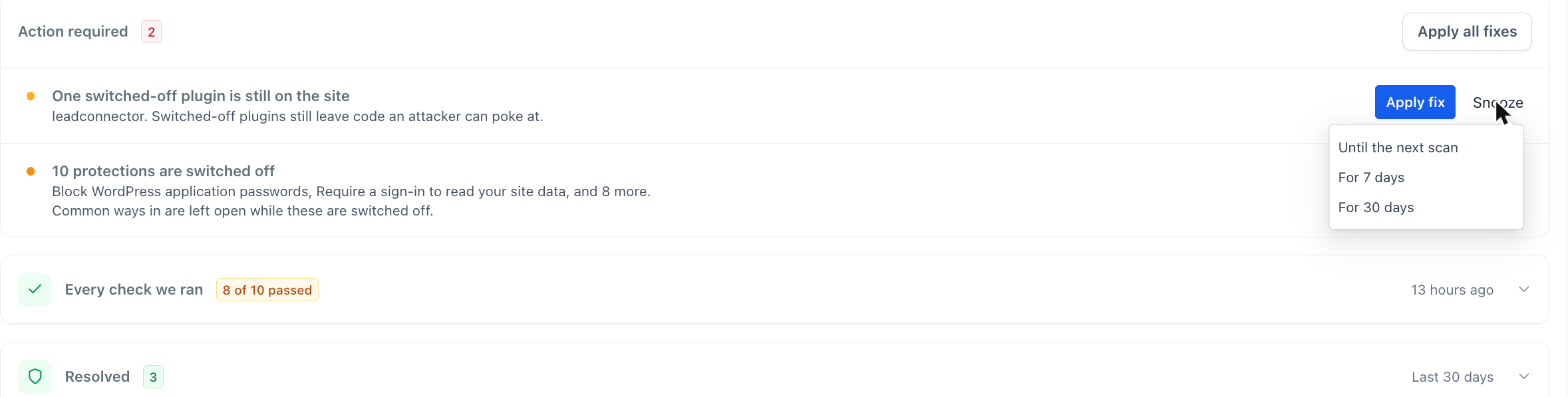
- Click Snooze on an item and choose Until the next scan, For 7 days or For 30 days.
Step 5: See Every Check and What Was Resolved
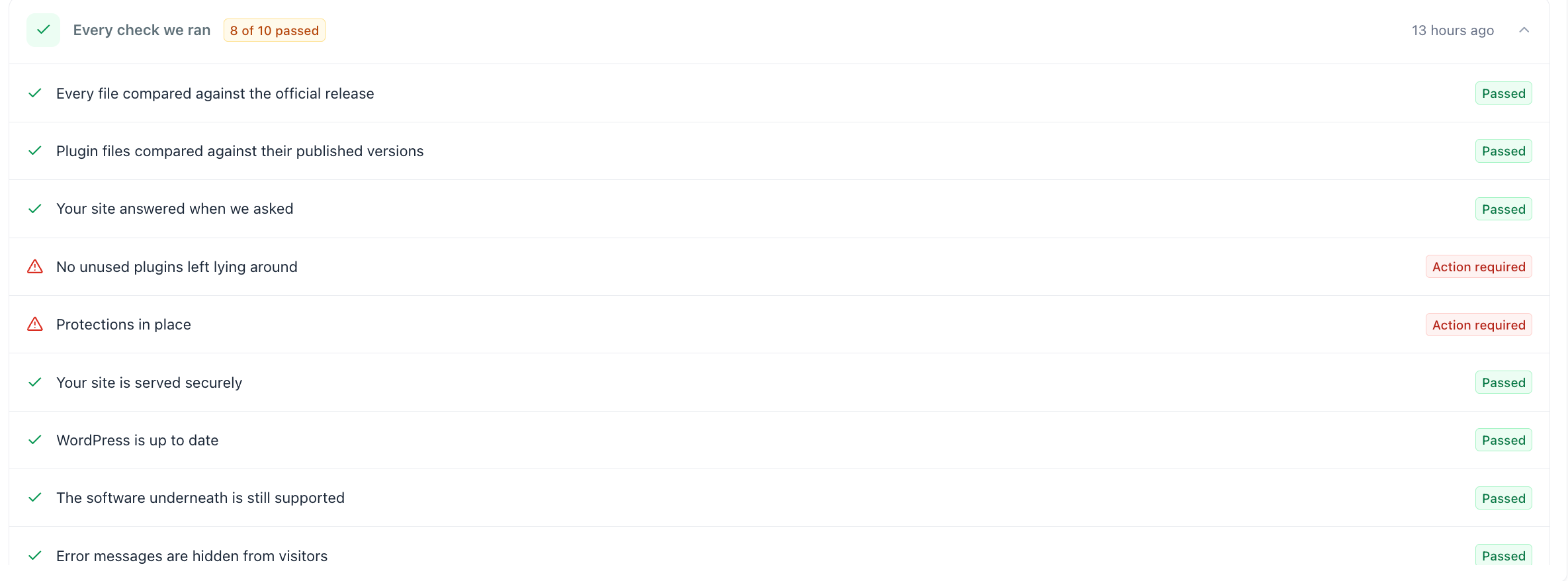
- Expand Every check we ran to see each check from the latest scan, marked Passed or Action required.
- Expand Resolved to see items fixed in the last 30 days.
Shield runs these checks:
- Every file compared against the official release
- Plugin files compared against their published versions
- Your site answered when we asked
- No unused plugins left lying around
- Protections in place
- Your site is served securely
- WordPress is up to date
- The software underneath is still supported
- Error messages are hidden from visitors
- Search engines can find your site
How to Turn On Hardening Protections
- Open Antivirus → Hardening.
- Read the one-line description under each protection.
- Use the toggle to turn a protection on or off, or click Turn all on.
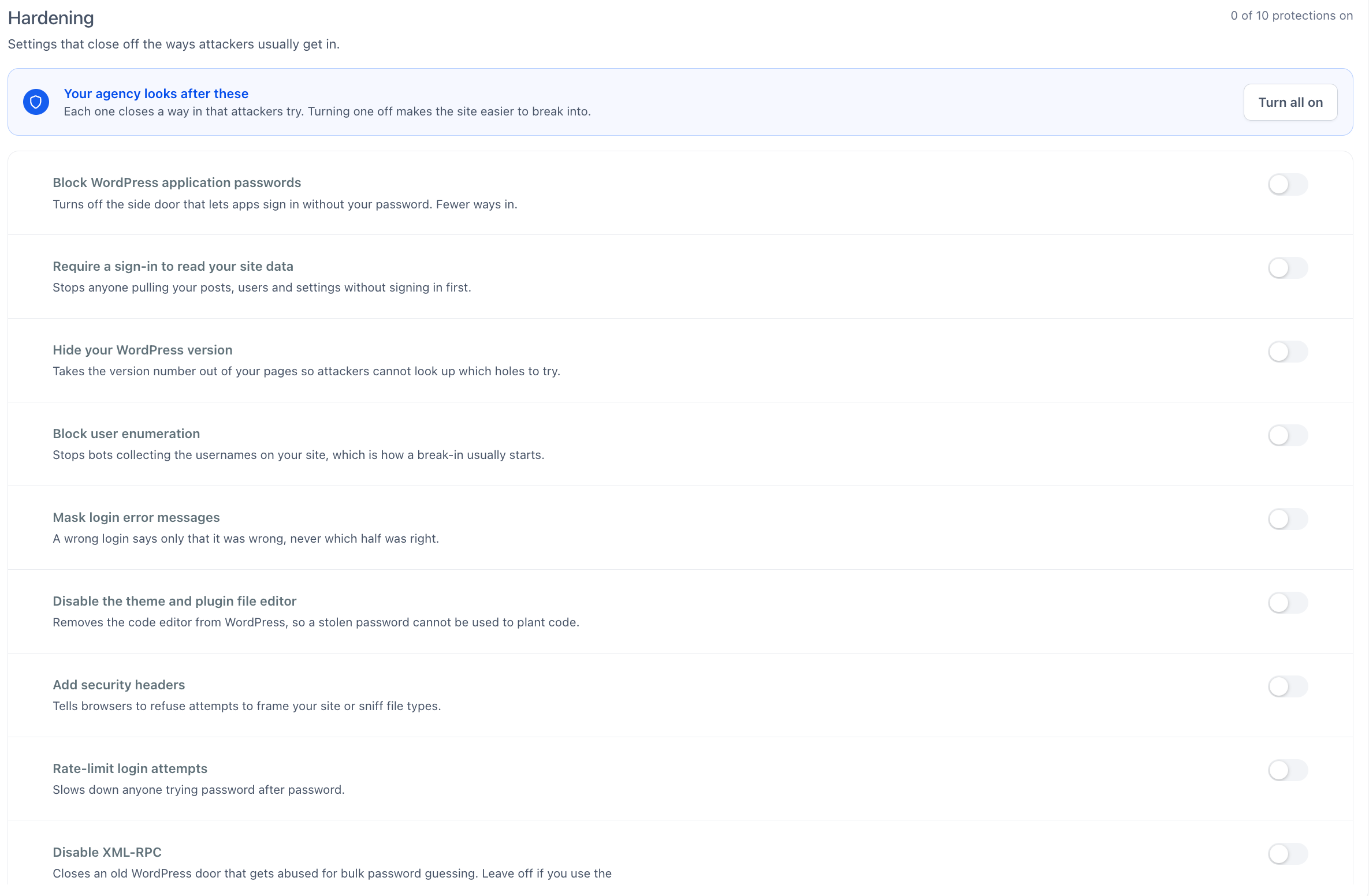
Available protections:
- Block WordPress application passwords: Turns off the side door that lets apps sign in without your password.
- Require a sign-in to read your site data: Stops anyone pulling your posts, users and settings without signing in.
- Hide your WordPress version: Takes the version number out of your pages.
- Block user enumeration: Stops bots collecting the usernames on your site.
- Mask login error messages: A wrong login says only that it was wrong.
- Disable the theme and plugin file editor: Removes the code editor from WordPress.
- Add security headers: Tells browsers to refuse attempts to frame your site or sniff file types.
- Rate-limit login attempts: Slows down anyone trying password after password.
- Disable XML-RPC: Closes an old WordPress door that gets abused for bulk password guessing.
- Harden your .htaccess: Stops code running from your uploads folder and hides files like wp-config.php.
Note: Leave Disable XML-RPC off if you use the WordPress phone app.
How to See Threats Across All Your Sites
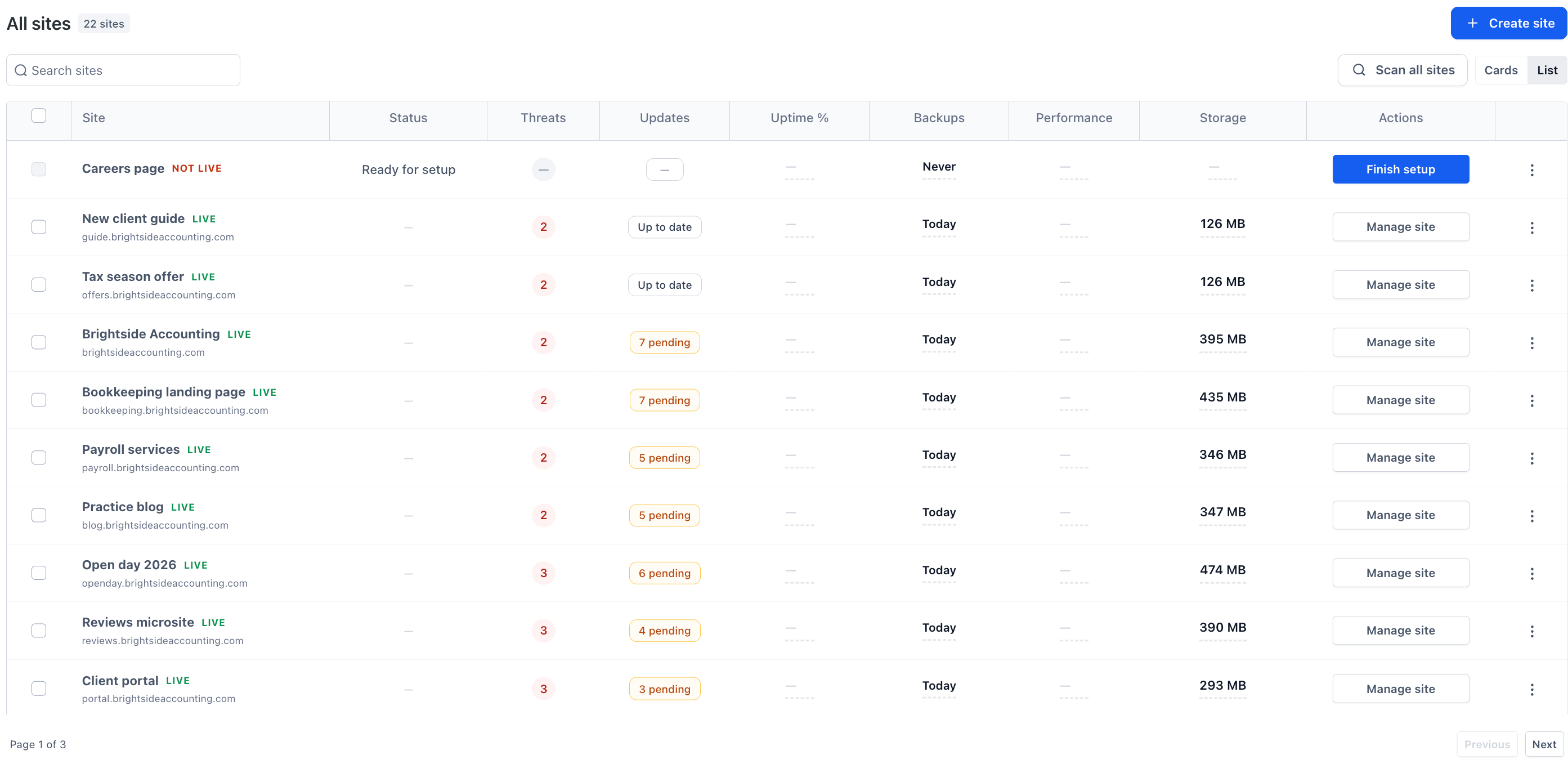
- Go to Sites → WordPress.
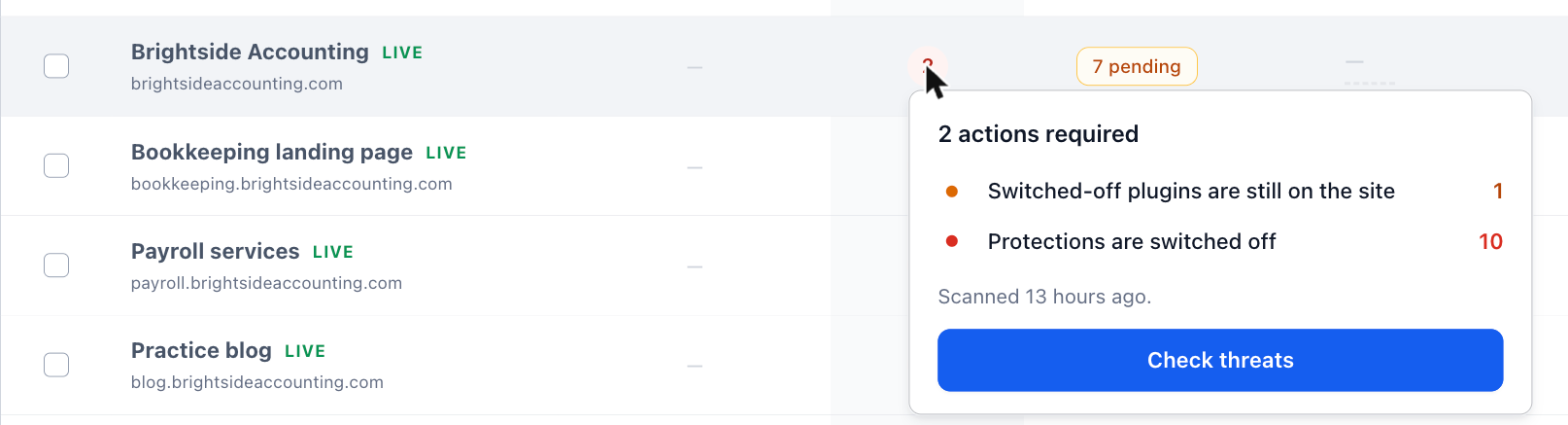
- Check the Threats column for each site.
- Hover over a count to see what was found and when the site was last scanned, then click Check threats to open the details.
- Click Scan all sites to run a fresh scan across every site.
Frequently Asked Questions
Q: Does Apply fix change my live site?
Yes. Every fix asks you to confirm first and shows when your last backup was taken. Click Back up first if you want to be able to go back.
Q: Can I fix everything at once?
Yes. Click Apply all fixes in Shield to apply every available fix.
Q: What happens when I snooze an item?
It is hidden from Action required for the time you choose: until the next scan, for 7 days or for 30 days.
Q: How do I run a scan now?
Click Scan now in Shield for one site, or Scan all sites in the WordPress sites list.
Q: Will Hardening break my site?
Most protections have no visible effect on visitors. Some apps rely on features a protection turns off, for example the WordPress phone app uses XML-RPC. If something stops working, turn that protection off again.
Q: Does Antivirus guarantee my site cannot be hacked?
No. Antivirus finds common problems and closes common gaps. Keep WordPress, plugins and themes up to date, and keep regular backups.
Related Articles
- WordPress Plugin and Theme Management
- How to Use the New WordPress Site Menu
Was this article helpful?
That’s Great!
Thank you for your feedback
Sorry! We couldn't be helpful
Thank you for your feedback
Feedback sent
We appreciate your effort and will try to fix the article