Table of Contents
- Overview
- Key Benefits
- Action Name
- Action Description
- Action Details
- How to Configure
- Behaviour and Logic
- Testing and Execution Logs
- Use Case
- FAQs
Overview
The Loop action runs a group of actions once for each item in a list, or once for each number in a range. Use it when one trigger brings in several records at the same time, such as a webhook payload with three service requests, and you want to create an opportunity, a task or a note for each one. Without a loop you would need code or complex workarounds to repeat the same actions for every item.
Key Benefits
- Handle many items from one trigger: one webhook or form submission can create many opportunities, tasks or notes.
- No code needed: build the repeat logic with the same drag-and-drop actions you already use.
- Per-item data: use Loop Item values inside the loop to pull the current item’s fields into any action.
- Run a fixed number of times: choose a number range when you simply want the actions to repeat 5 or 10 times.
- Sequential or parallel: run iterations one after the other, or at the same time for faster runs with external systems.
- Clear logs: see every iteration and every action inside it in the Test and Execution Logs views.
Action Name
Loop
Action Description
Iterate over a list or a range of numbers and run the actions inside this loop once for each item.
Action Details
| Field | Description | Mandatory |
|---|---|---|
| Action Name | The name shown on the workflow canvas. Defaults to “Loop”. | Yes |
| Loop Over | What the loop repeats for: A list of items or A range of numbers. | Yes |
| Items | Shown for A list of items. The list the loop runs through, picked from a previous step such as an inbound webhook array (for example {{inboundWebhookRequest.services}}). | Yes, for a list |
| Start Number | Shown for A range of numbers. The first number to count from. Default 1. | Yes, for a range |
| End Number | Shown for A range of numbers. The last number to count to. Default 10. | Yes, for a range |
| Execution Mode | Sequential (default, toggle off) runs iterations one after the other. Parallel (toggle on) runs several iterations at the same time. | No |
How to Configure
The steps below follow the most common journey: a trigger that brings in a list, then a loop that handles each item in that list.
Step 1: Add the Loop action
In the workflow builder, click the + icon at the point where the loop should start. In the Actions panel, search for Loop and select it.
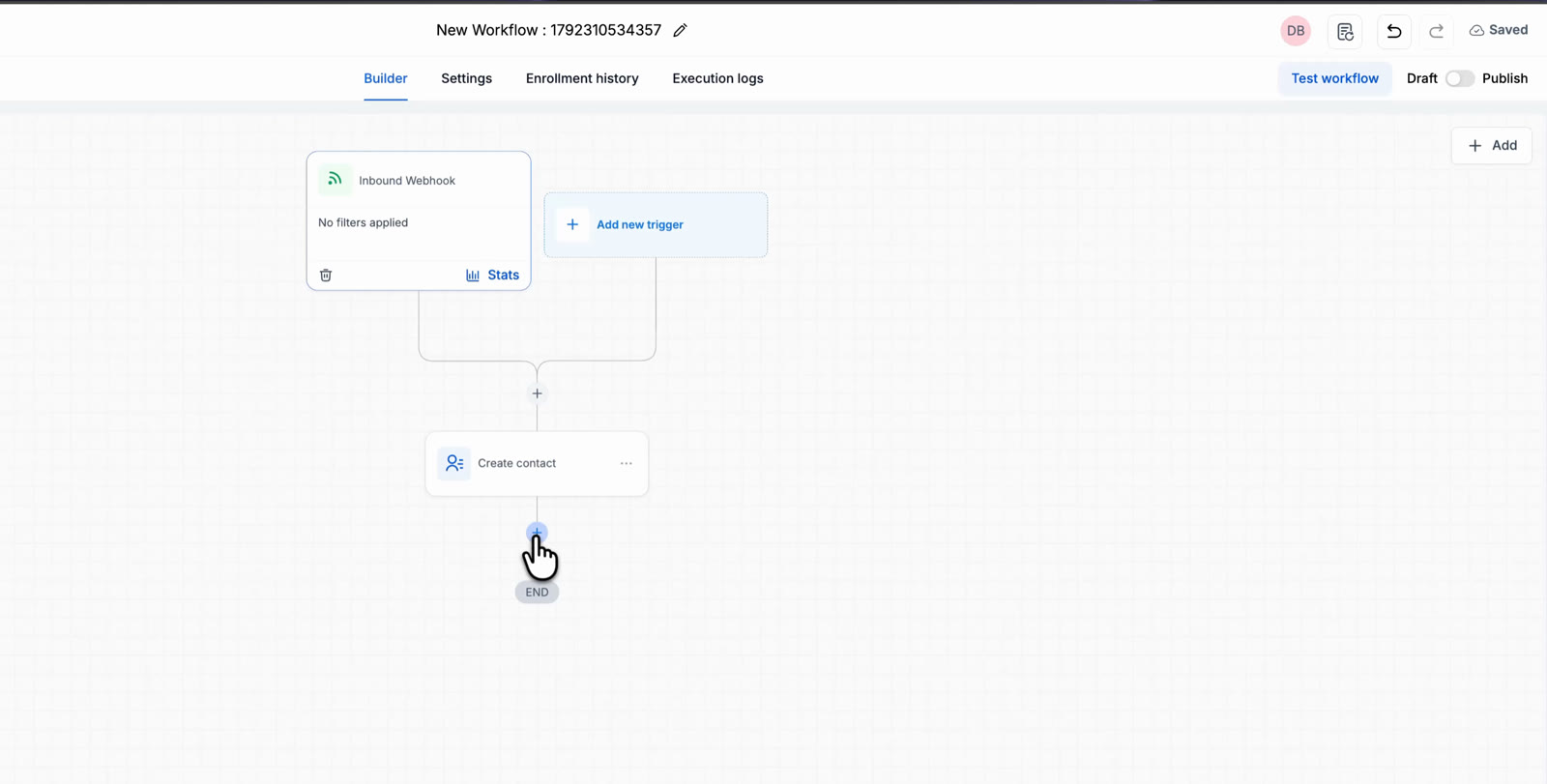
Click the + icon below the step that comes before the loop.
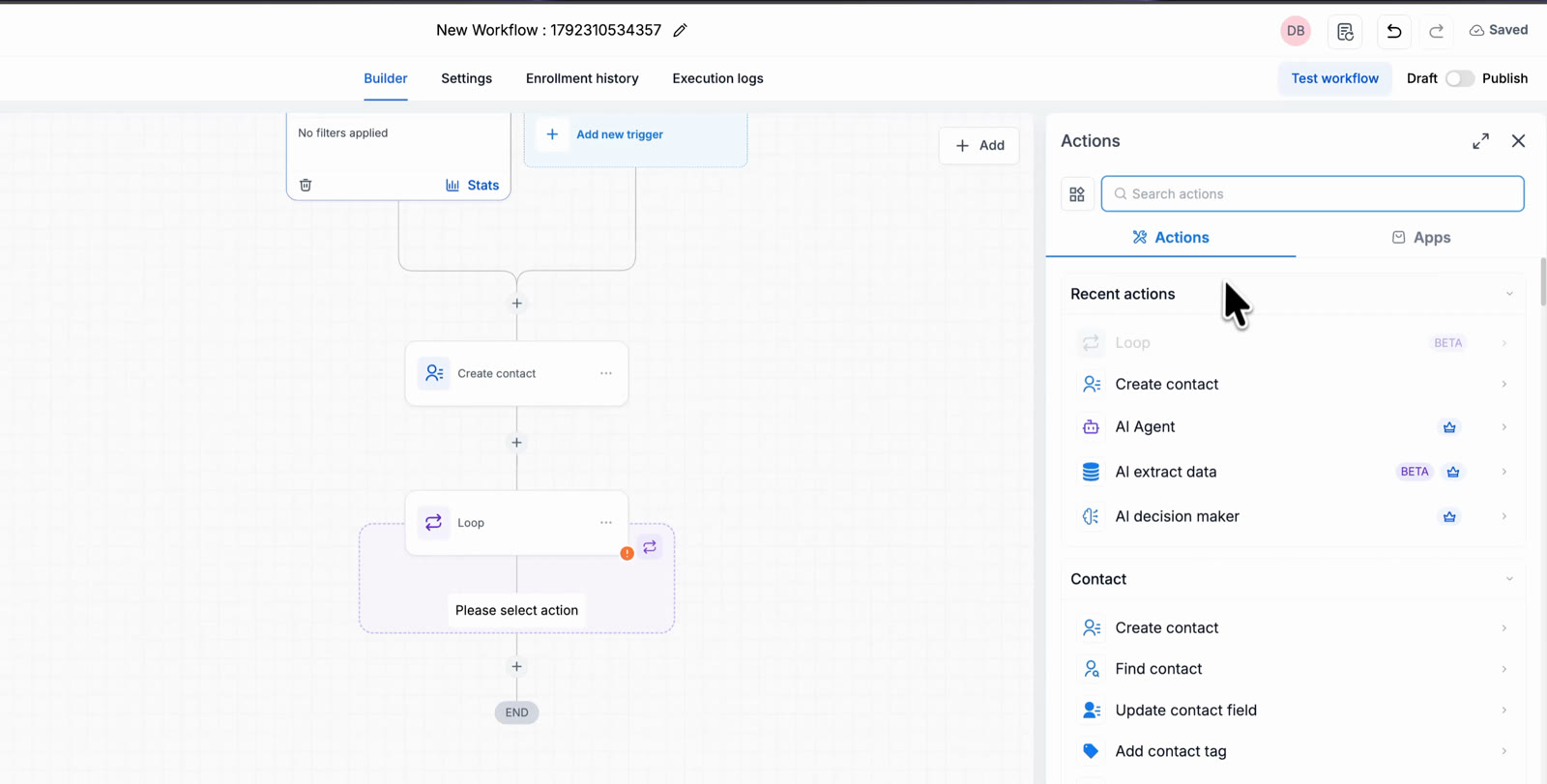
Select Loop from the Actions panel. The loop block appears on the canvas.
Step 2: Choose what to loop over
Under Loop Over, pick one option. Hover the i icon next to any field for a short explanation.
- A list of items: run the actions once for each item in a list, such as the products in an order.
- A range of numbers: run the actions once for each number, counting from a start number to an end number. Use this when you want the loop to run a set number of times.
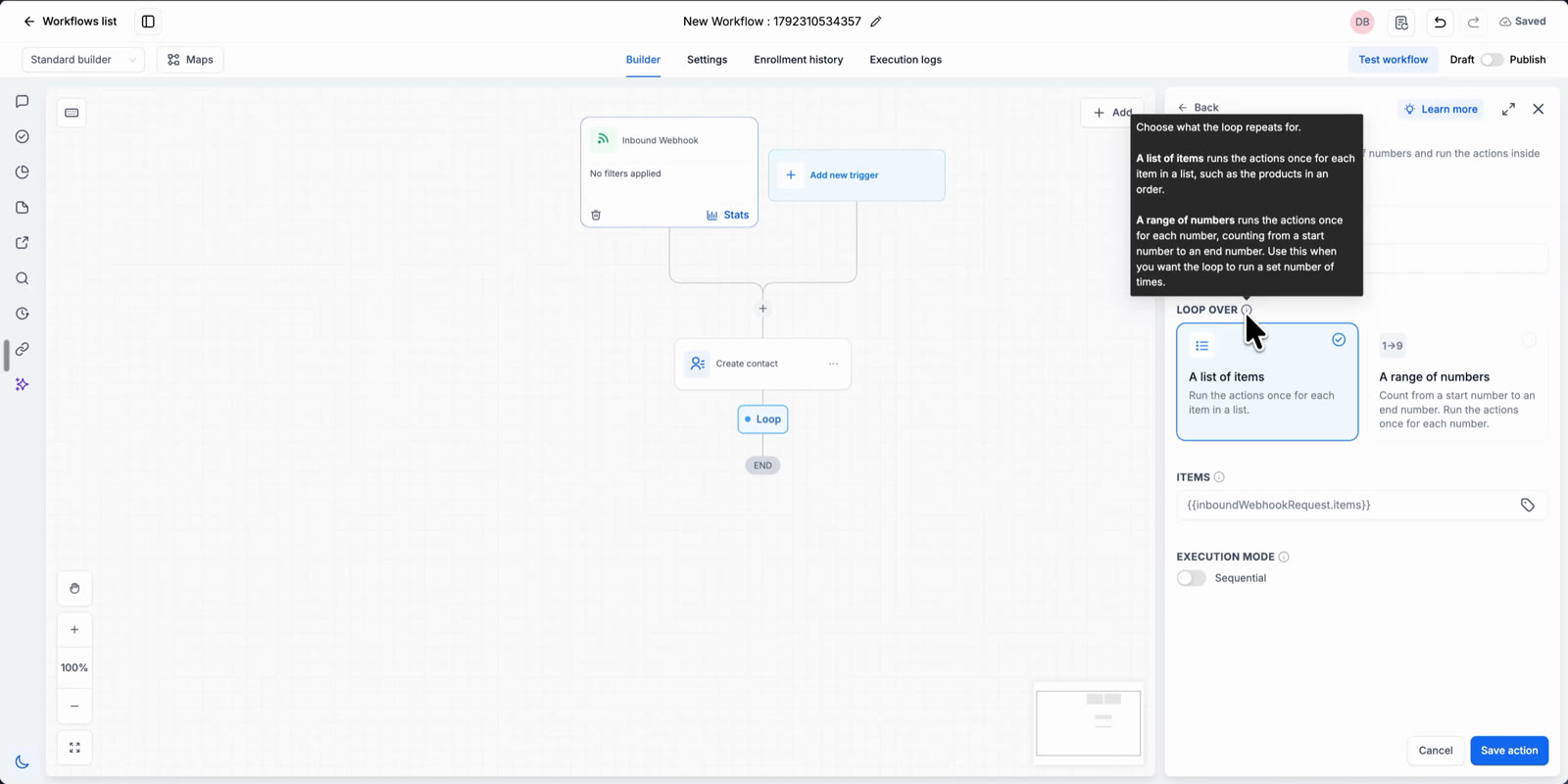
The Loop Over options with the i icon tooltip open.
Step 3: Set the list or the range
For a list of items: click the tag icon in the Items field, open Previous steps, select the trigger or step that holds the list, and pick the list field. In the example below the list is the services array from the Inbound Webhook Trigger.
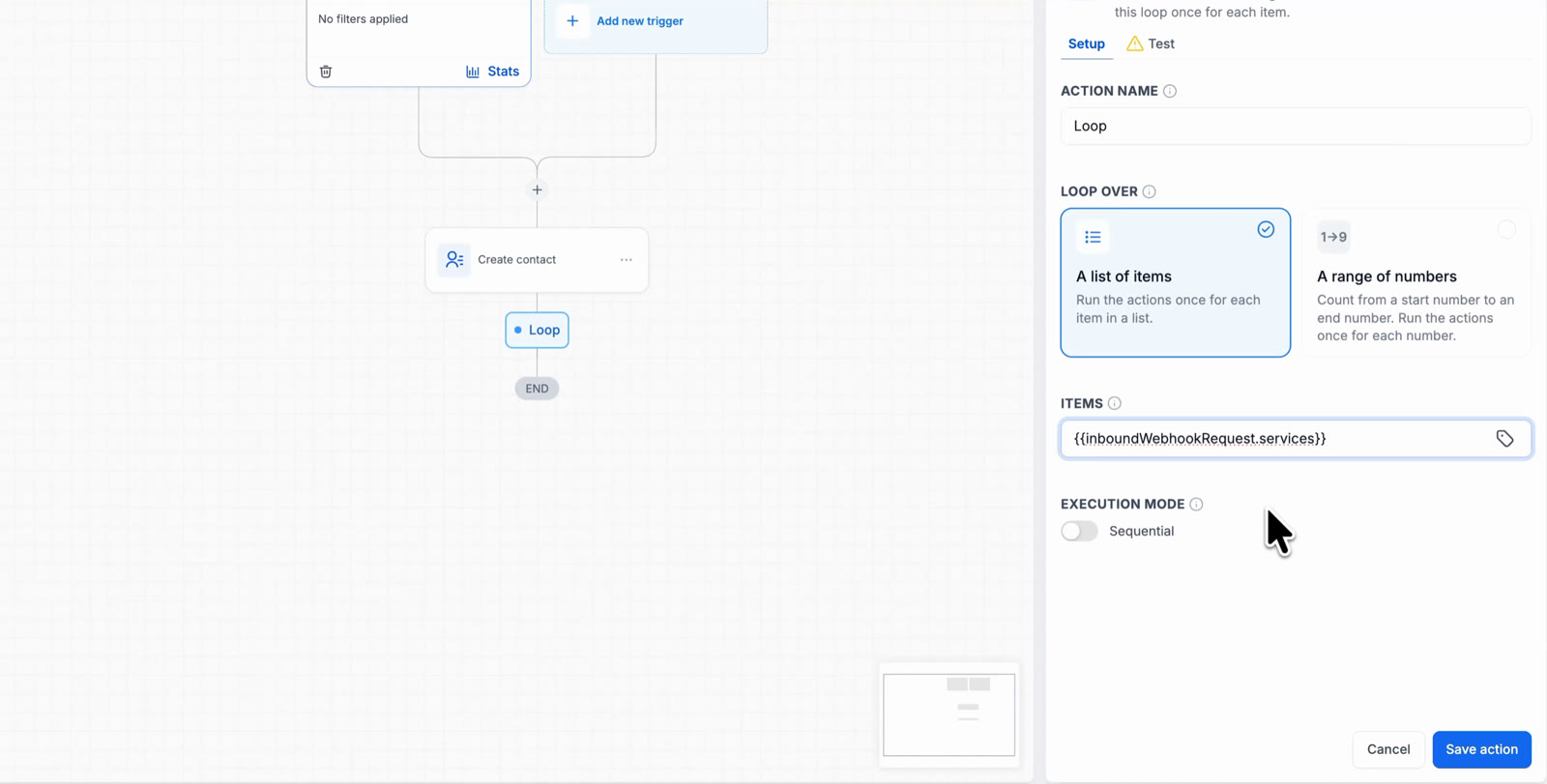
Items set to the services list from the inbound webhook.
For a range of numbers: enter a Start Number and an End Number. The helper text shows how many times the actions inside the loop will run.
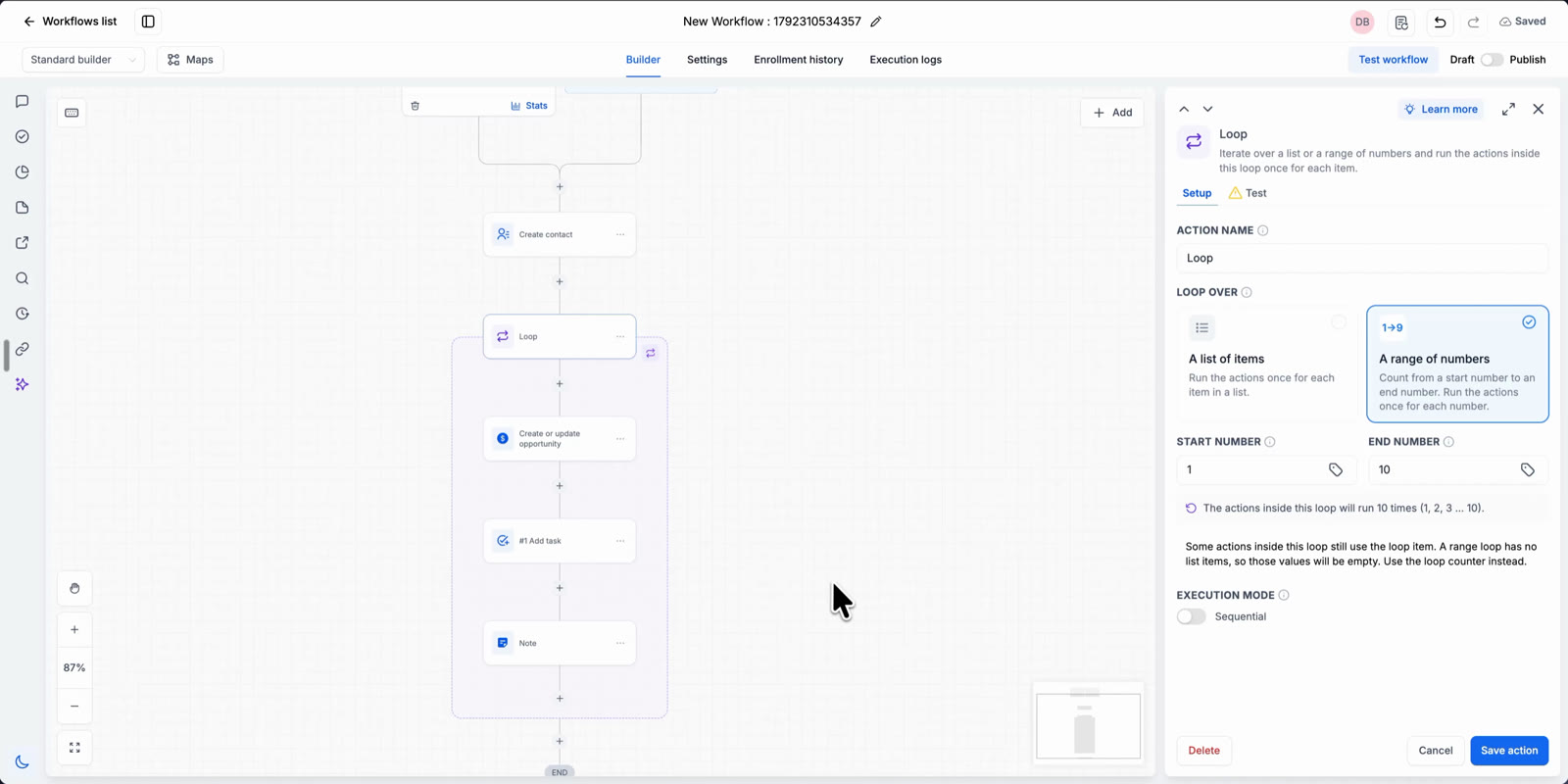
A range of numbers from 1 to 10. The actions inside the loop will run 10 times.
Step 4: Choose the Execution Mode
Leave the toggle off for Sequential, where each iteration finishes before the next one starts. Turn it on for Parallel, where several iterations run at the same time. Parallel is faster when the actions inside the loop call external systems that add latency.
Step 5: Save the action
Click Save action. The loop block appears on the canvas with a dashed box and a “Please select action” placeholder inside it.
Step 6: Add actions inside the loop
Click the + icon inside the dashed loop box and add the actions you want to repeat. Inside any field, click the tag icon and open Custom values → Loop Item to insert a field from the current item, such as Name, Estimated Value, Urgency or Preferred Date.
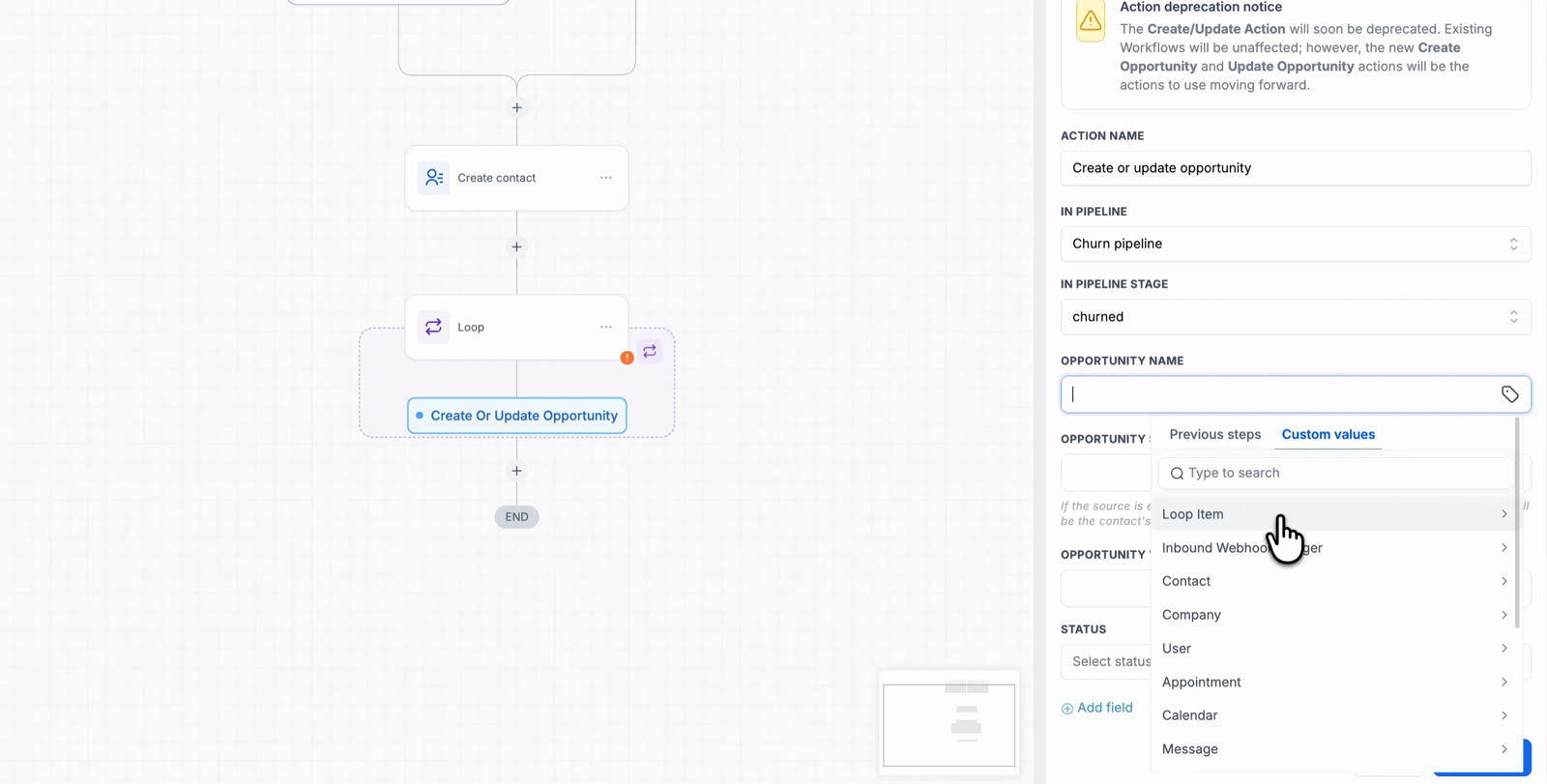
Loop Item appears under Custom values in every action inside the loop.
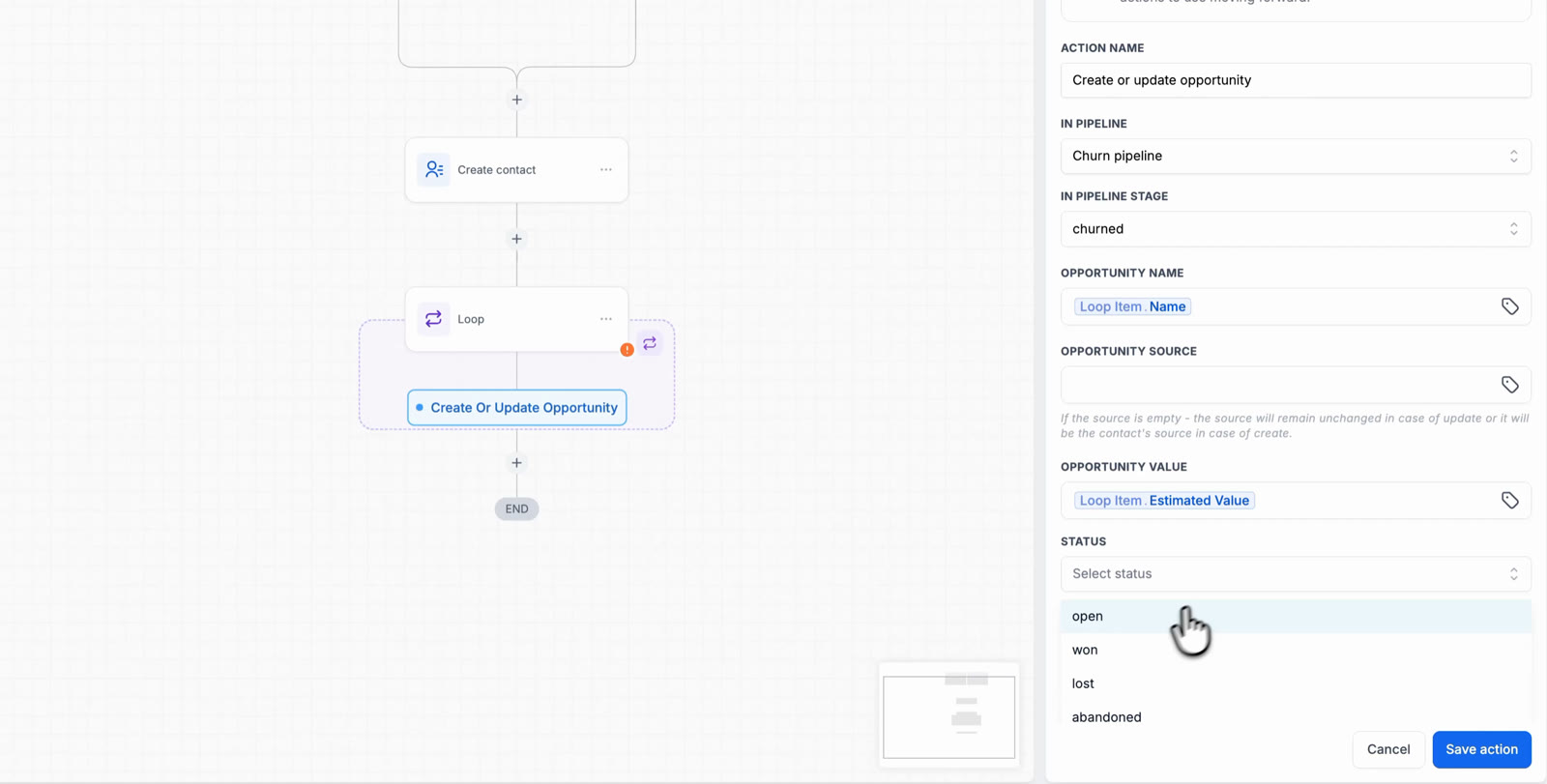
Create or update opportunity with Opportunity Name and Opportunity Value mapped to Loop Item fields.
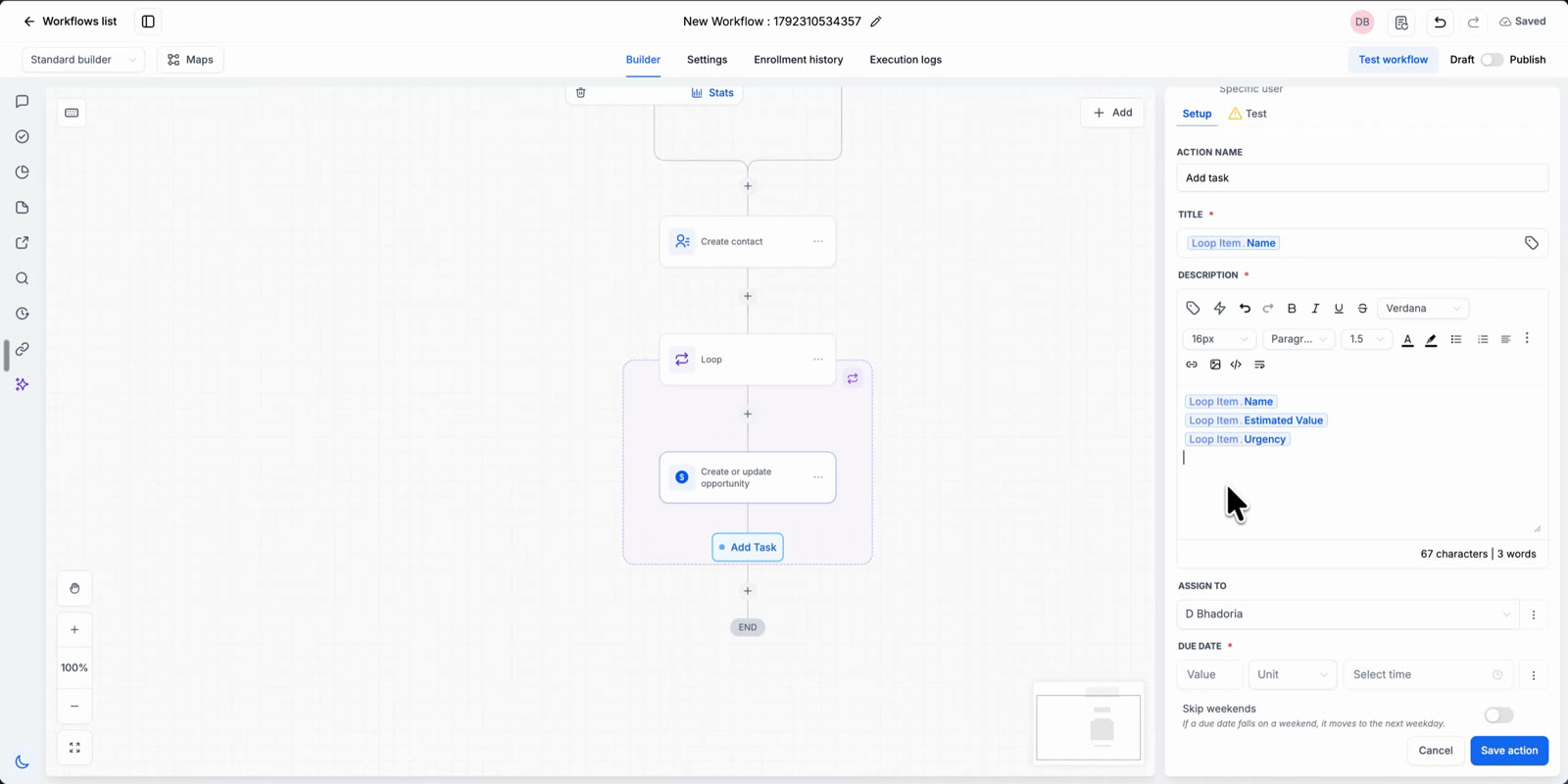
Add task with the title and description built from Loop Item fields.
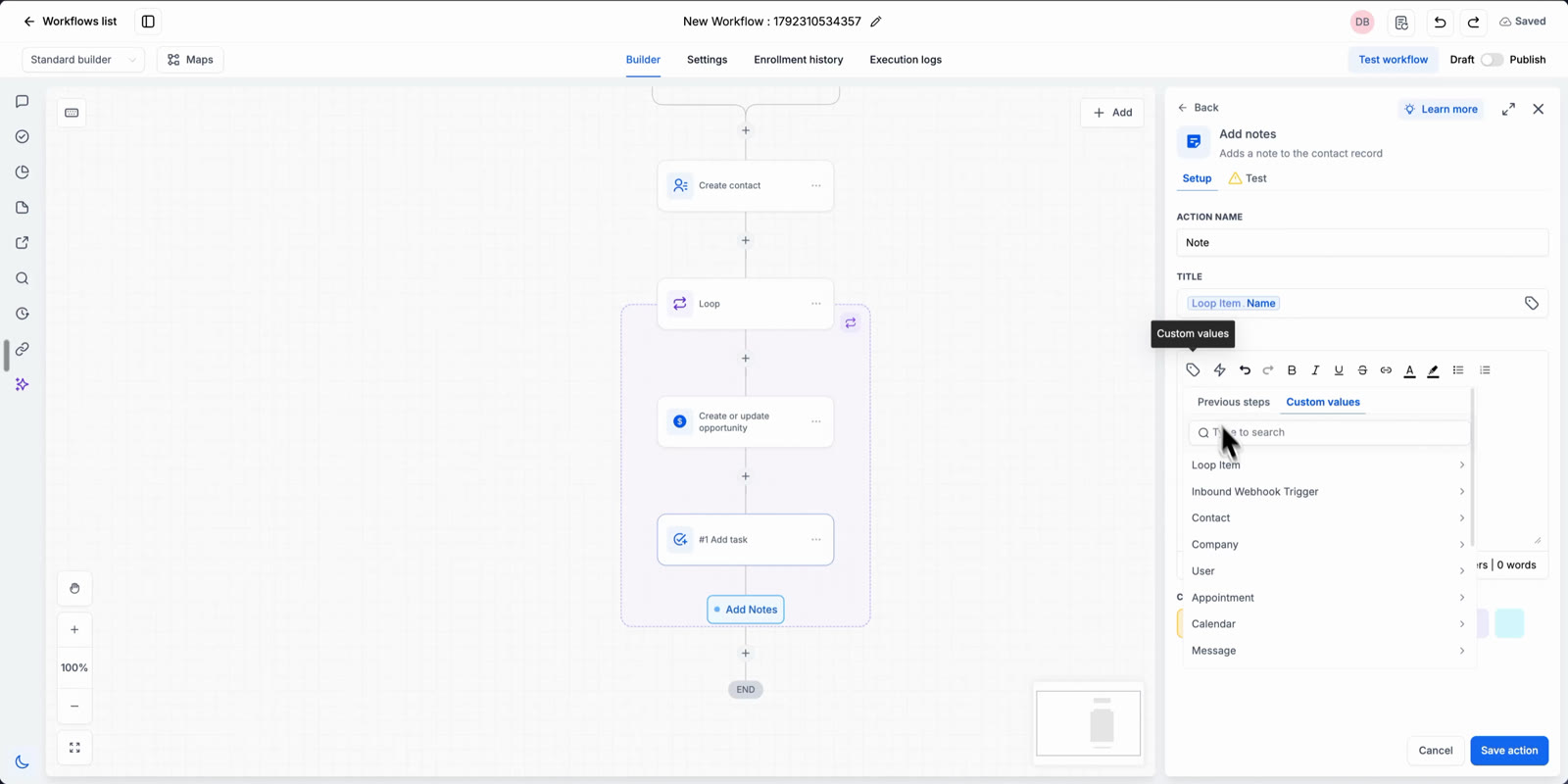
Add notes with Loop Item values picked from Custom values.
Step 7: Review the finished loop
All actions inside the dashed box run once per item. Actions placed below the box run after the loop finishes.
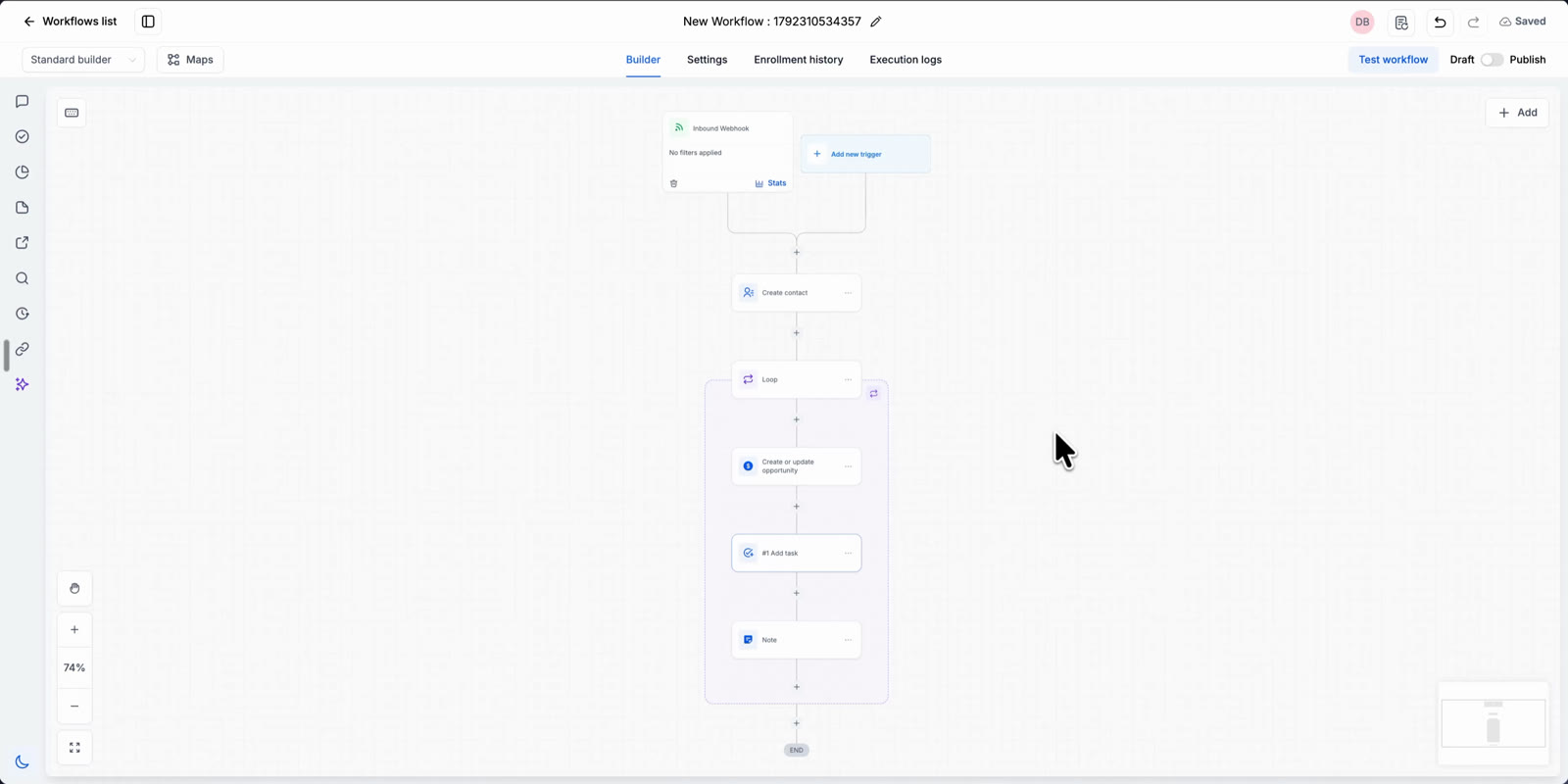
A loop with three actions inside: Create or update opportunity, Add task and Note.
Behaviour and Logic
| Rule | What happens |
|---|---|
| Number of iterations | One iteration per item in the list, or one per number in the range. A list of 3 services runs the inner actions 3 times. |
| Sequential mode | Iteration 2 starts only after iteration 1 completes all its actions. |
| Parallel mode | Several iterations run at the same time. Use it when the inner actions call external systems. |
| Loop Item in a list loop | Loop Item holds the fields of the current item. Each iteration sees a different item. |
| Loop Item in a range loop | A range loop has no list items, so item fields are empty. Use the loop counter from Custom values → Loop Item instead. It holds the current number. |
| Actions after the loop | Run once, after every iteration has finished. |
Testing and Execution Logs
Run a test
Click Test workflow, choose Test using events, and turn on Listening for events. Send the real trigger event, for example post the webhook again. When the event appears, select it and click Start test run.
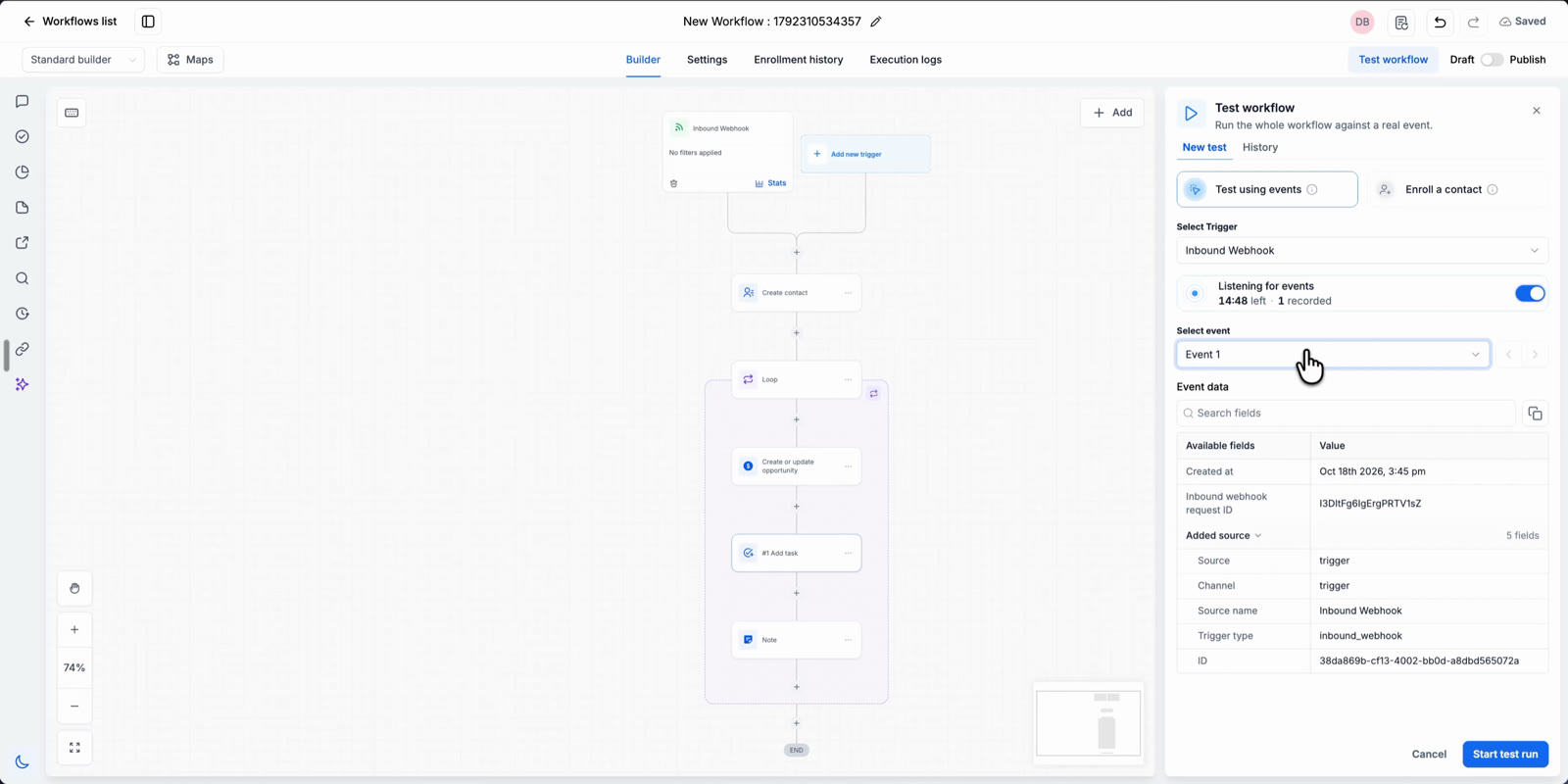
Test workflow listening for an Inbound Webhook event.
Read the loop results
After the run, click the Loop step and open the Test tab.
- Input shows the Action name, Items, Mode and Loop Over values used in the run.
- Output shows Items, Succeeded, Failed and Duration for the whole loop.
- Iterations lists each iteration with its status and time. Expand an iteration to see every action inside it and its status. Use the arrows to move between iterations.
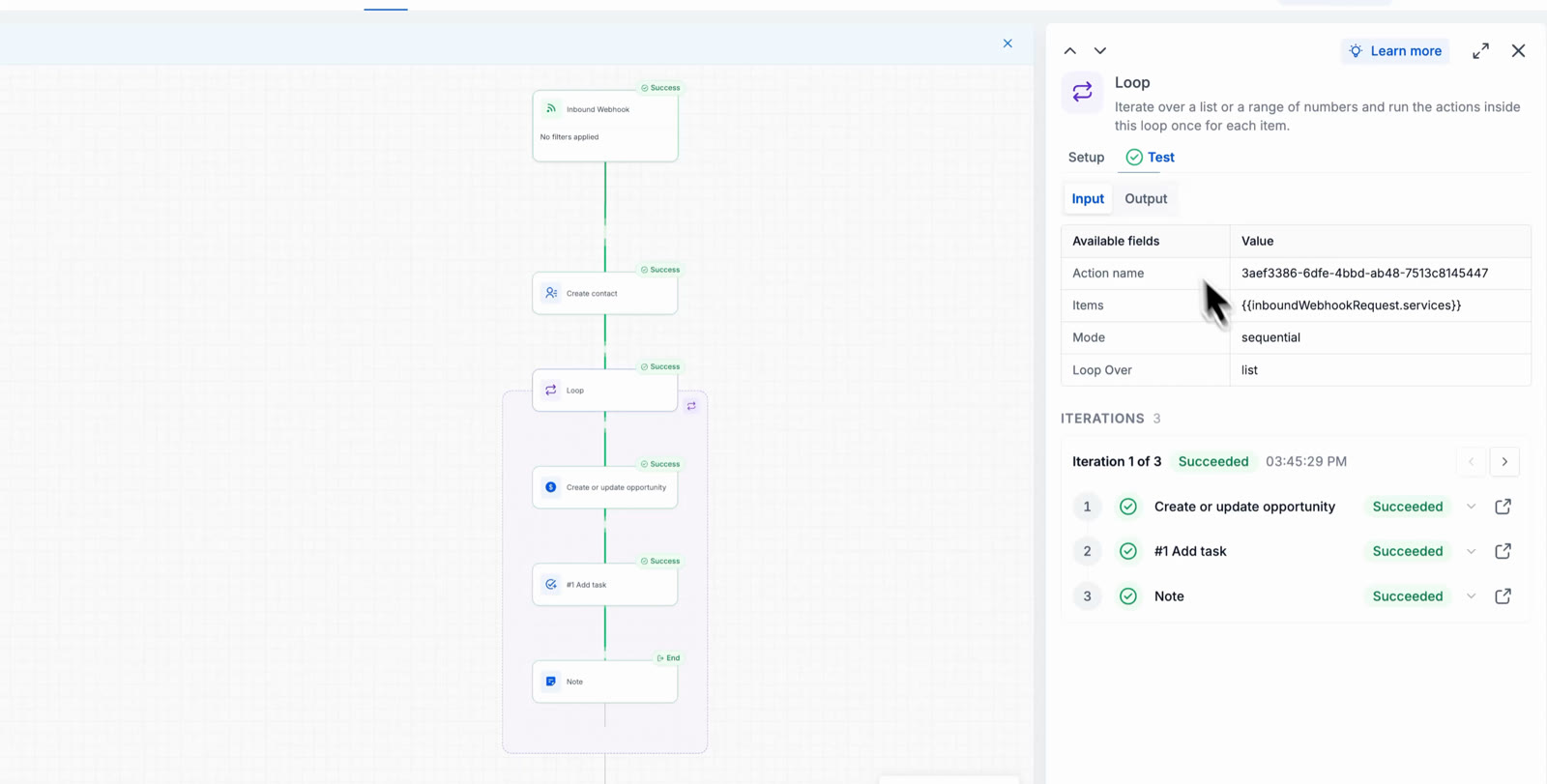
Loop Input and the Iterations list.
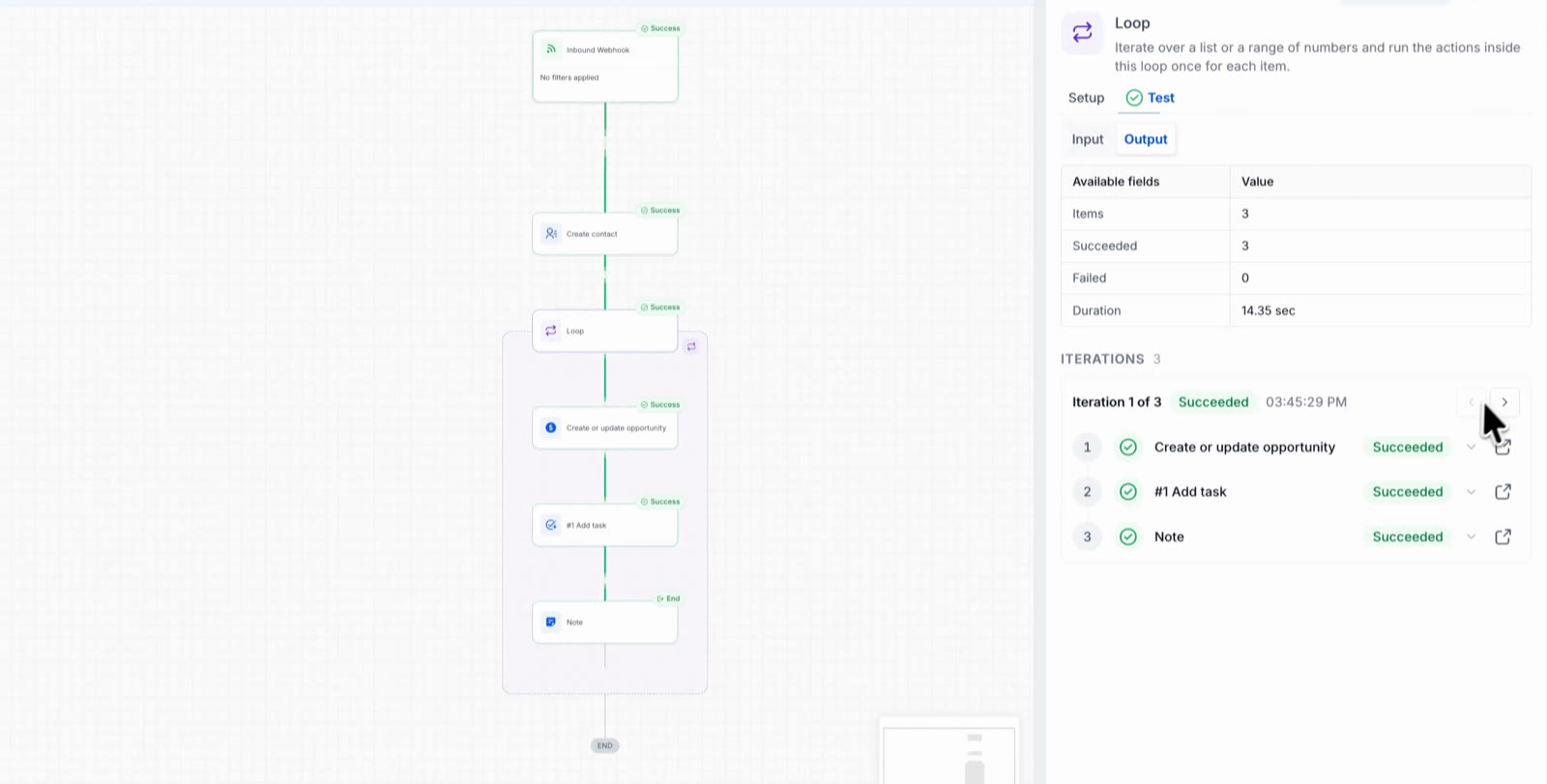
Loop Output: 3 items, 3 succeeded, 0 failed.
Click the open icon next to any action inside an iteration to see that action’s own Input and Output for that iteration. The header shows which iteration you are viewing, for example Iteration 3 of 3.
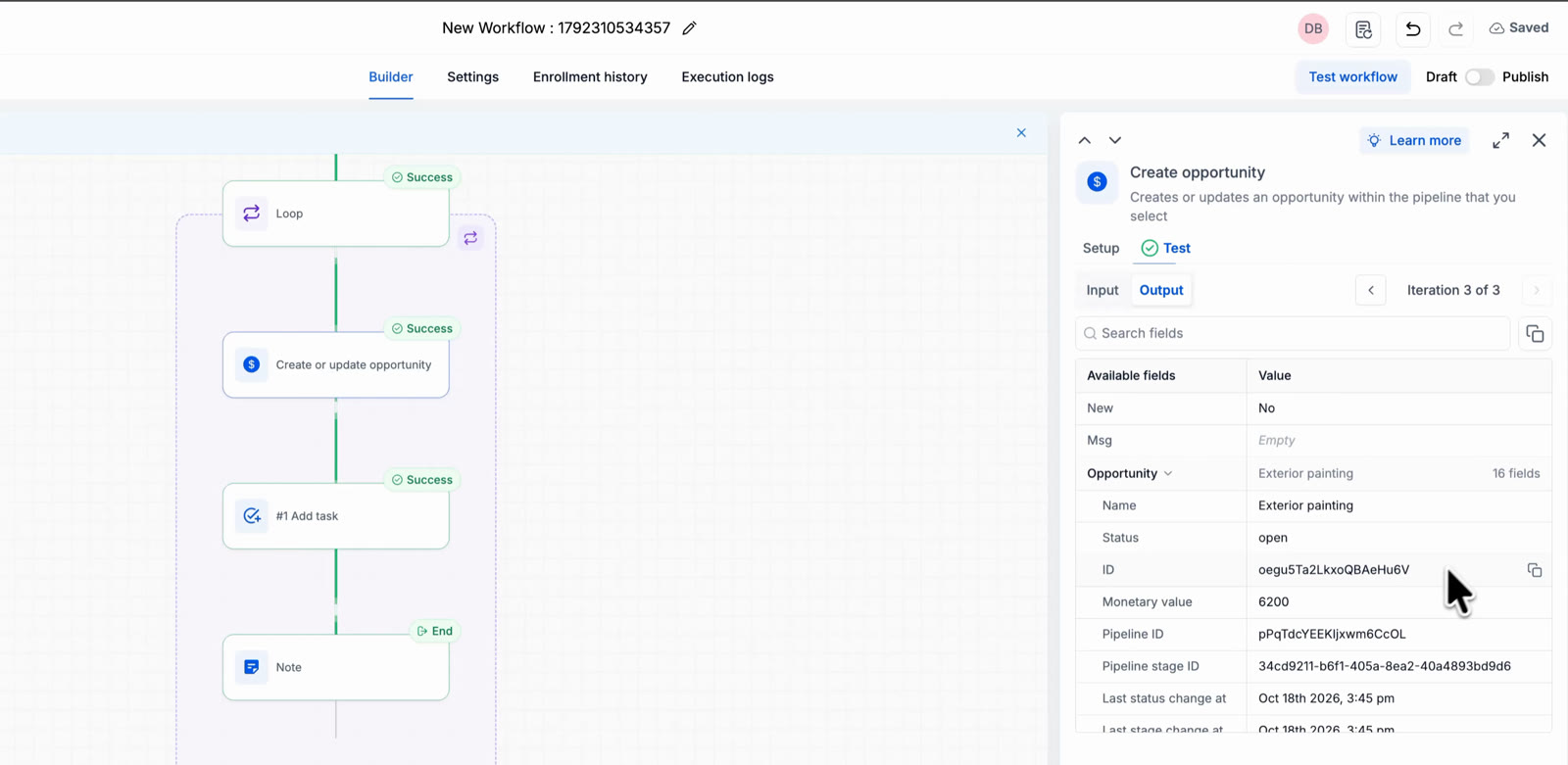
The Create or update opportunity output for iteration 3 of 3.
Use Case
Scenario: a service request form posts one webhook per customer. Each webhook holds the contact details and a list of services, each with a name, estimated value, urgency and preferred date. You want one opportunity, one task and one note for every service.
- Trigger: Inbound Webhook. The payload contains a contact object and a services list with three items.
- Action: Create contact. Map First name, Email and Phone from the webhook contact fields.
- Action: Loop. Loop Over = A list of items. Items = the services list from the Inbound Webhook Trigger.
- Inside the loop: Create or update opportunity. Pipeline and stage of your choice. Opportunity Name = Loop Item → Name. Opportunity Value = Loop Item → Estimated Value. Status = open.
- Inside the loop: Add task. Title = Loop Item → Name. Description = Name, Estimated Value and Urgency from Loop Item. Due date = Loop Item → Preferred Date. Assign to a user.
- Inside the loop: Add notes. Title = Loop Item → Name. Note = Loop Item → Urgency.
- Result: a webhook with Roof repair, Gutter cleaning and Exterior painting runs the loop three times and creates three opportunities, three tasks and three notes.
FAQs
Q: What is Loop Item?
Loop Item is the current item the loop is working on. Inside any action in the loop, open Custom values → Loop Item to insert one of its fields. The value changes with each iteration.
Q: How many times will the loop run?
Once for each item in the list, or once for each number from Start Number to End Number. For a range, the helper text under the fields shows the count.
Q: What is the difference between Sequential and Parallel?
Sequential runs one iteration at a time, in order. Parallel runs several iterations at the same time, which is faster when the inner actions wait on external systems.
Q: Can I use Loop Item with A range of numbers?
Yes, but only for the loop counter. A range loop has no list items, so item fields are empty. Open Custom values → Loop Item and pick the counter to get the current number.
Q: Where can I see what happened in each iteration?
Open the Loop step after a run and go to the Test tab. The Iterations list shows every iteration and every action inside it. Click the open icon on an action to see its Input and Output for that iteration.
Q: Where do the items come from?
From any list produced by a previous step, such as an array in an inbound webhook payload. Pick it with the tag icon in the Items field.
Q: Do actions placed after the loop run for every item?
No. Only actions inside the dashed loop box repeat. Actions below the box run once, after the loop finishes.
Was this article helpful?
That’s Great!
Thank you for your feedback
Sorry! We couldn't be helpful
Thank you for your feedback
Feedback sent
We appreciate your effort and will try to fix the article