User permissions control which team members can use Loyalty & Referral in your account. You can give a user access to view and manage loyalty and referral programs, access to the scanner app, or both. The same permissions control these features on the HighLevel mobile app too.
1. Open the User's Permissions
- Go to Settings > Users.
- Click the Edit icon next to the user you want to update.
[[IMG1]]
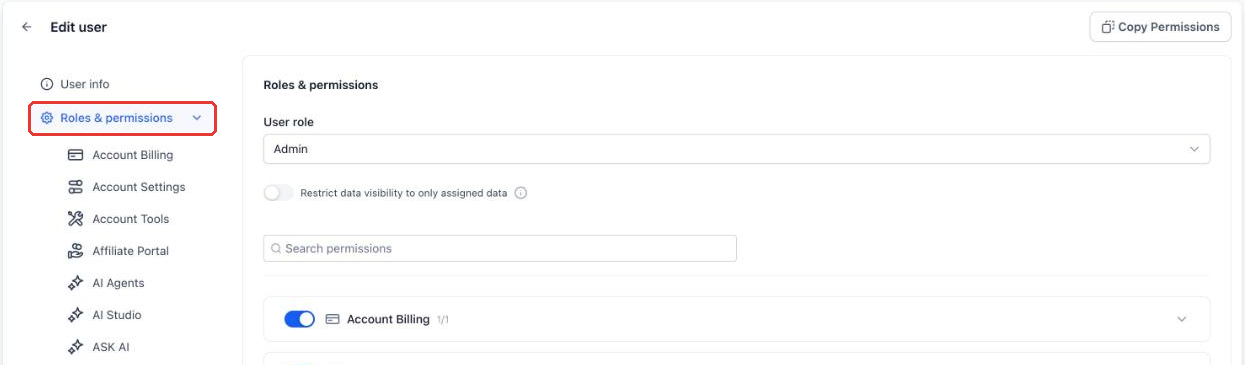
- In the Edit user screen, click Roles & permissions.
2. Find the Loyalty Permissions
- In the Search permissions box, type Loyalty. You can also scroll the list to find it.
- Open the Loyalty group. The counter next to its name (for example, 2/2) shows how many of its permissions are turned on.
[[IMG3]]
3. Choose What the User Can Do
The Loyalty group has two permissions. Tick the ones this user needs:
- View & manage loyalty & referral: lets the user access Loyalty & Referral and manage your programs.
- Manage scanner app: lets the user access the scanner app, used to record in-store customer visits.
Note: You can turn on one or both permissions. For example, you can give front-desk staff only Manage scanner app and keep program management for your managers.
4. Remove Access
- To remove access to a single feature, untick its checkbox.
- To remove all Loyalty access, turn off the Loyalty toggle. This unticks both permissions.
[[IMG4]]
5. Save Your Changes
Click Save at the bottom of the screen. Changes apply to this user on both web and mobile.
What's Next
- How to Create and Manage a Loyalty & Referral Program
- How to Record an In-Store Visit (Scan Customer QR)
Related Articles
- Admin Vs. User Roles and Permission Scopes
- Loyalty & Referral Walkthrough Videos (For BETA Users Only)
Was this article helpful?
That’s Great!
Thank you for your feedback
Sorry! We couldn't be helpful
Thank you for your feedback
Feedback sent
We appreciate your effort and will try to fix the article