This article explains how Additional Fees work in HighLevel Rentals — what they are, how to create and manage them globally, how to attach them to listings, and how they appear to customers during booking. Additional Fees allow you to automatically include mandatory charges such as cleaning, service, resort, or damage waiver fees in rental bookings. With flexible pricing options, listing-specific overrides, and independent tax configuration, you can manage these charges without incorporating them into the base rental price.
TABLE OF CONTENTS
- What Are Additional Fees?
- Key Benefits of Additional Fees
- Additional Fee Pricing Types
- How to Create a Global Fee Template
- How to View and Manage Additional Fees
- How to Attach Fees to a Listing
- How to Override a Fee at Listing Level
- How Fees Appear in the Booking Widget
- Additional Fees in Booking Summaries and Payments
- Fees and Taxes
- Inactive Fee Behavior
- Frequently Asked Questions
- Related Articles
What Are Additional Fees?
Additional Fees are mandatory charges that are automatically applied to every booking for a listing where the fee is active and attached. Unlike optional add-ons, customers cannot remove or opt out of Additional Fees — they are automatically included in the booking total.
Common examples include:
- Cleaning fees
- Service fees
- Resort fees
- Damage waiver fees
Fees are configured as reusable global templates and can be attached to multiple listings. Each listing can also override the fee amount independently without affecting other listings.
Additional Fees can be configured as flat amounts or percentages of the base rental subtotal. Taxes can also be applied to fees independently of the base rental price, allowing businesses to maintain clear financial records.
Once attached to a listing, applicable Additional Fees are included in the total shown to customers and are displayed as separate charges in booking and invoice details.
Important: Additional Fees are mandatory and cannot be made optional for customers. Applicable fees are included in the booking total shown before checkout, helping customers understand their charges before completing a reservation.Key Benefits of Additional Fees
Additional Fees help rental businesses manage charges that are separate from the base rental price. Instead of manually adding expenses or adjusting rental rates to account for them, administrators can configure reusable fees that are automatically included in applicable bookings.
- Automatic Fee Application: Apply mandatory charges such as cleaning, service, or resort fees to every applicable booking without manual adjustments.
- Reusable Fee Templates: Create a fee once in the global catalog and associate it with multiple rental listings.
- Flexible Pricing: Choose between fixed amounts and percentage-based fees, including charges calculated per booking or per booking unit.
- Listing-Specific Overrides: Customize fee amounts for individual listings without changing the global template or affecting other listings.
- Independent Tax Configuration: Configure taxes on Additional Fees separately from the base rental price.
- Transparent Booking Experience: Display mandatory charges in the customer's booking total before checkout to reduce unexpected pricing differences.
- Clear Payment Records: Display fees as separate line items in booking summaries and invoices for easier review and reconciliation.
Additional Fee Pricing Types
Additional Fees support flexible pricing options to accommodate different rental business requirements. You can charge a fixed amount for each booking, calculate charges based on rental duration, or apply a percentage of the base rental subtotal.
Flat Amount
A Flat Amount fee applies a fixed monetary charge. Flat fees support two pricing units:
- Per Booking: A single fixed charge applied once per booking, regardless of the rental duration.
- Per Booking Unit: A charge applied for each booking unit, such as an hour, day, week, or month, based on the listing's configured booking unit.
Example: If a cleaning fee is configured as $50 per booking, the customer pays $50 regardless of the rental duration.
If an equipment maintenance fee is configured as $10 per booking unit and the customer books three daily units, the total maintenance fee is $30.
Percentage
Percentage-based fees are calculated as a percentage of the base rental subtotal. This is useful for service charges or other fees that should increase or decrease with the rental value.
Example: If a rental has a base subtotal of $1,000 and a service fee of 5%, the service fee is $50.
| Pricing Type | Example | Fee Charged |
|---|---|---|
| Flat - Per Booking | $50 cleaning fee | $50 once per booking |
| Flat - Per Booking Unit | $10/day for 3 daily units | $30 |
| Percentage | 5% of a $1,000 rental subtotal | $50 |
Percentage fees are calculated on the base rental subtotal, excluding other Additional Fees, taxes, and security deposits. They do not compound with other fees. When advanced pricing rules or discounts are applied, review the final fee amount in the booking summary.How to Create a Global Fee Template
Global fee templates are reusable configurations that can be attached to one or more rental listings. Creating fees from the global catalog helps maintain consistent charges across listings while reducing repetitive setup.
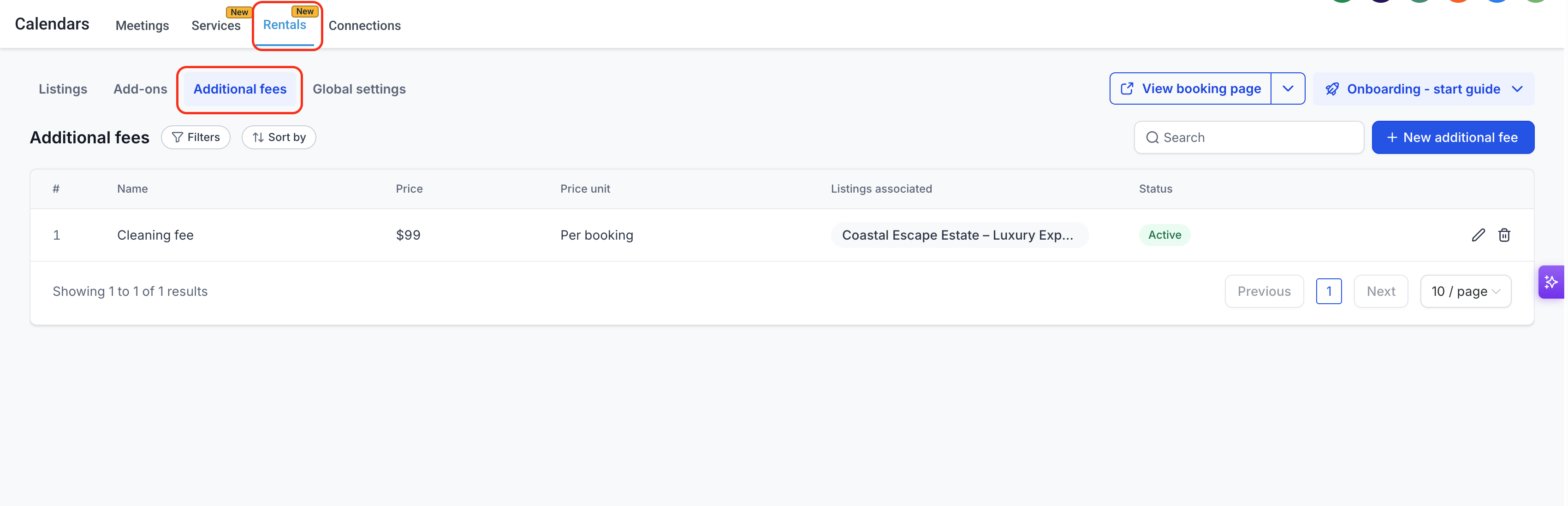
Step 1: Navigate to Additional Fees
Go to Calendars → Calendar Settings → Rentals → Additional fees.
Step 2: Create a New Fee
Click the + New additional fee button in the top-right corner. The New additional fee modal will appear.
Step 3: Fill in the Fee Details
Configure the following fields:
- Name (required): Enter the name that customers will see on the booking page and invoice (e.g., "Cleaning Fee" or "Resort Fee").
- Status: Set the fee to Active or Inactive to control whether it applies to new bookings.
- Price:Choose between:
- Flat amount: A fixed monetary charge.
- Percentage (%): A percentage of the base rental subtotal.
- Fee Value: Enter the amount or percentage based on your selected pricing type.
- Pricing Unit:Available when the pricing type is Flat amount. Choose:
- Per Booking: Charge the amount once per booking.
- Per Booking Unit: Charge the amount for each rental booking unit (hour, day, week, or month).
- Tax: Taxes can be configured for the fee after it has been created. See the Fees and Taxes section for more information.
Step 4: Attach to Listings (Optional)
Before saving, you can attach the fee to one or more listings directly from the creation modal. Select the listings where the fee should apply. This eliminates the need to open each listing separately.
Step 5: Save the Fee
Click Create additional fees to save. The fee is now available in the global catalog and can be attached to other rental listings.
How to View and Manage Additional Fees
The global Additional fees catalog provides a centralized place to review and manage reusable fee templates. You can check fee amounts, identify associated listings, update fee settings, and manage fee availability without opening each rental listing individually.
Go to Calendars → Calendar Settings → Rentals → Additional fees.
The table displays the following columns:
| Column | Description |
|---|---|
| Name | The fee name shown to customers. |
| Price | The configured flat amount or percentage. |
| Price Unit | Per booking or per booking unit, where applicable. |
| Listings Associated | The listings associated with the fee. |
| Status | Whether the fee is Active or Inactive. |
| Actions | Options to edit or delete the fee. |
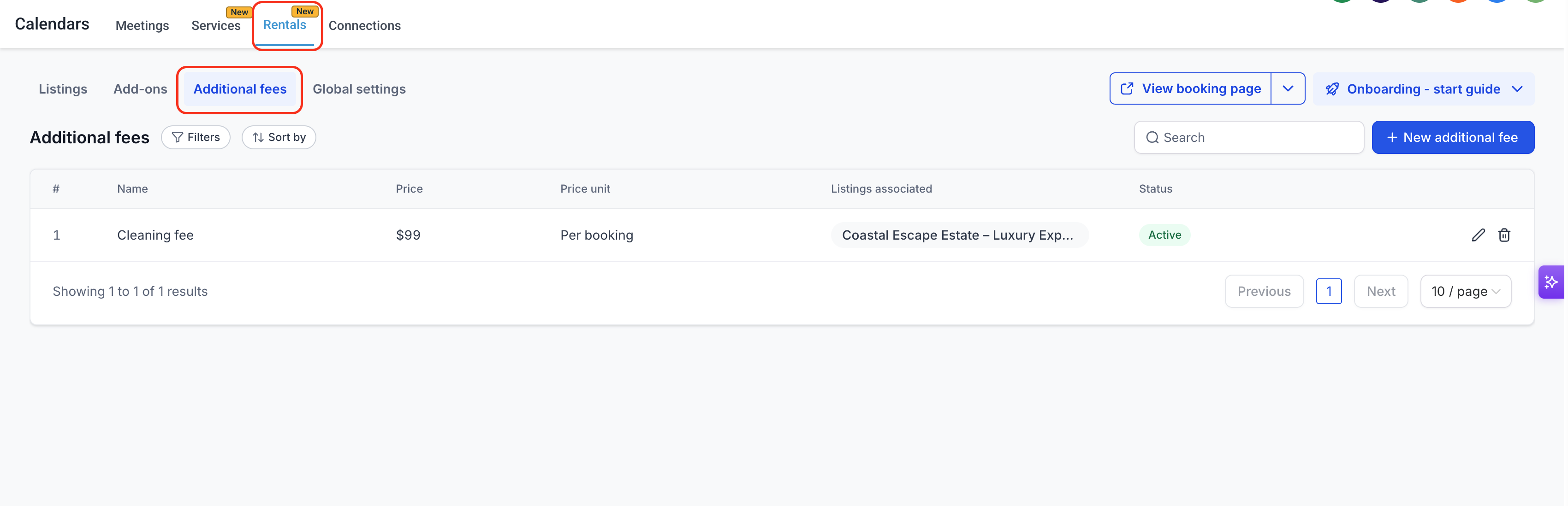
Filtering: Use the Filters button to narrow the list by associated listings. This helps you identify the fees configured for a specific rental listing.
Search: Use the search bar to find a fee by name.
Editing a Fee: Click the Edit icon next to a fee to update its name, amount, pricing unit, tax configuration, status, or associated listings. You can add or remove listings directly from the edit modal without opening each listing individually.
Changes to a global fee template apply to associated listings unless a listing-specific amount override has been configured. See How to Override a Fee at Listing Level for more information.
Deleting a Fee: Click the Delete icon to remove a fee template from the global catalog.
Deleting a global fee template removes it from its associated listings. Existing bookings that already include the fee retain their recorded fee details. Confirm existing-booking behavior before deleting fees used by active bookings.How to Attach Fees to a Listing
Additional Fees must be associated with a rental listing before they can be automatically applied to its bookings. You can attach one or more existing global fees from the listing's Inventory & Pricing settings or create a new fee directly from the fee selector.
Step 1: Navigate to Listings
Go to Calendars → Calendar Settings → Rentals → Listings.
Step 2: Edit a Listing
Click the Edit (pencil) icon next to the listing you want to configure.
Step 3: Go to the Pricing Tab
Select the Inventory & Pricing tab, then scroll to the Additional fees section.
Step 4: Attach a Fee
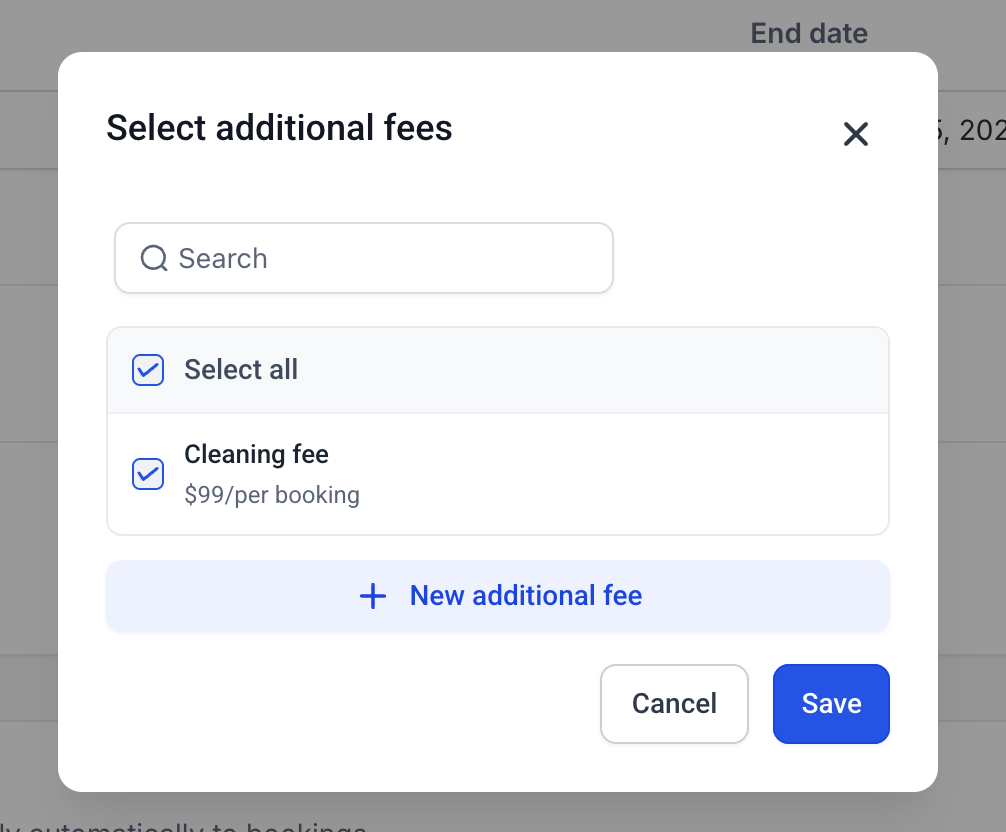
Click + Additional fee to open the fee selector. You can:
- Select one or more existing fees from the global catalog using their checkboxes.
- Use the search field to locate a specific fee.
- Choose Select all to select all available fees.
- Click + New additional fee to create a new fee from within the listing.
After selecting the required fees, click Save to confirm your selection.
Once attached, the fee appears in the listing's Additional fees table. Review the fee name, amount, pricing unit, and status.
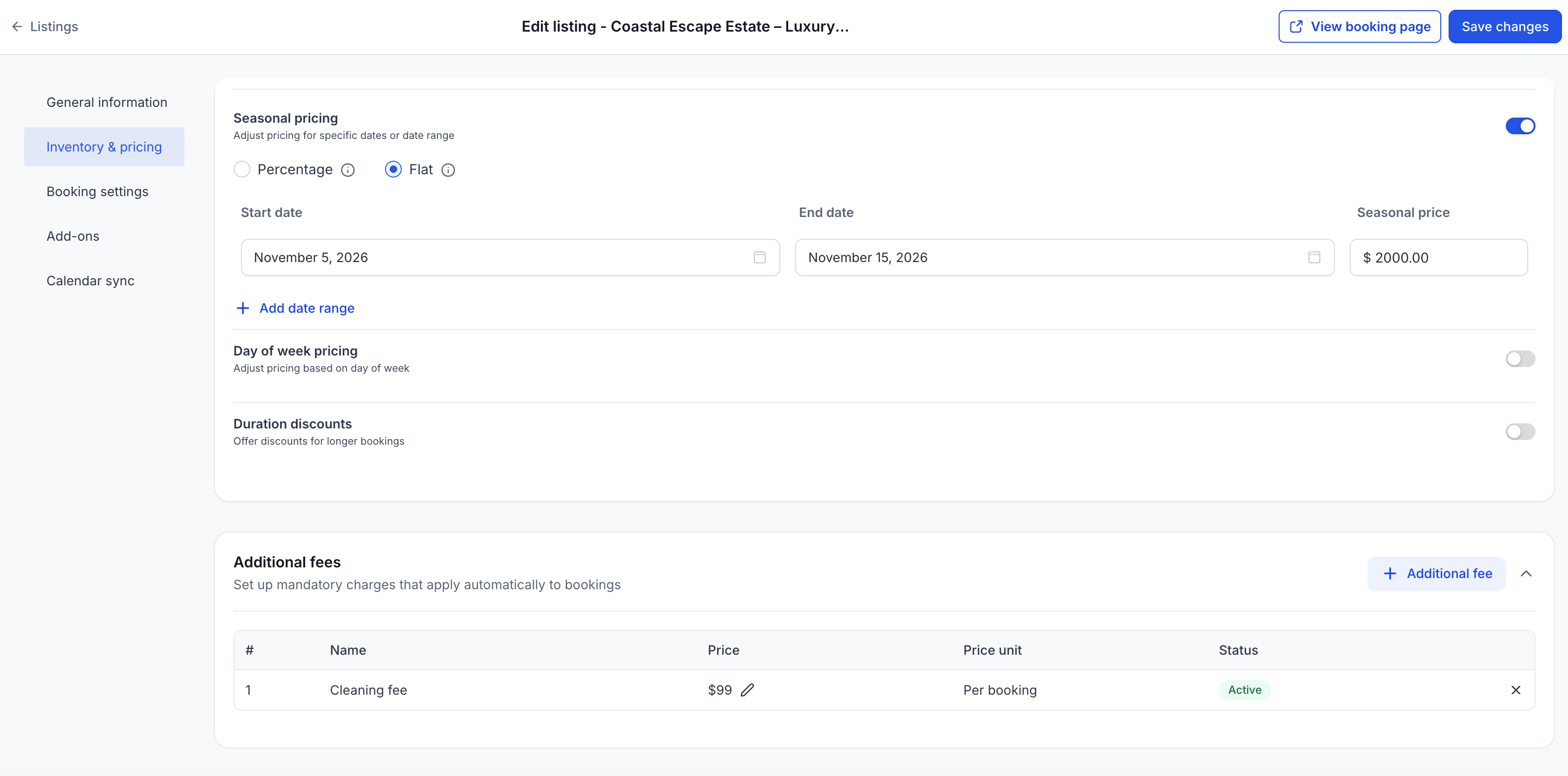
Click Save changes on the listing page to save the updated configuration.
Tip: You can attach multiple Additional Fees to a single listing. All active fees associated with the listing are automatically applied to applicable new bookings.
To remove a fee from a listing: Click the Remove action next to the fee in the listing's Additional fees table and save the listing changes. This detaches the fee from the selected listing without deleting its global template.
How to Override a Fee at Listing Level
By default, an attached fee uses the amount configured in the global template. However, different rental listings may have different operating costs. Listing-level overrides allow you to customize the fee amount for a particular listing without affecting the global template or other listings using the same fee.
Step 1: Find the Fee in the Listing
Open the listing and navigate to Inventory & Pricing → Additional fees.
Locate the fee you want to override.
Step 2: Edit the Amount
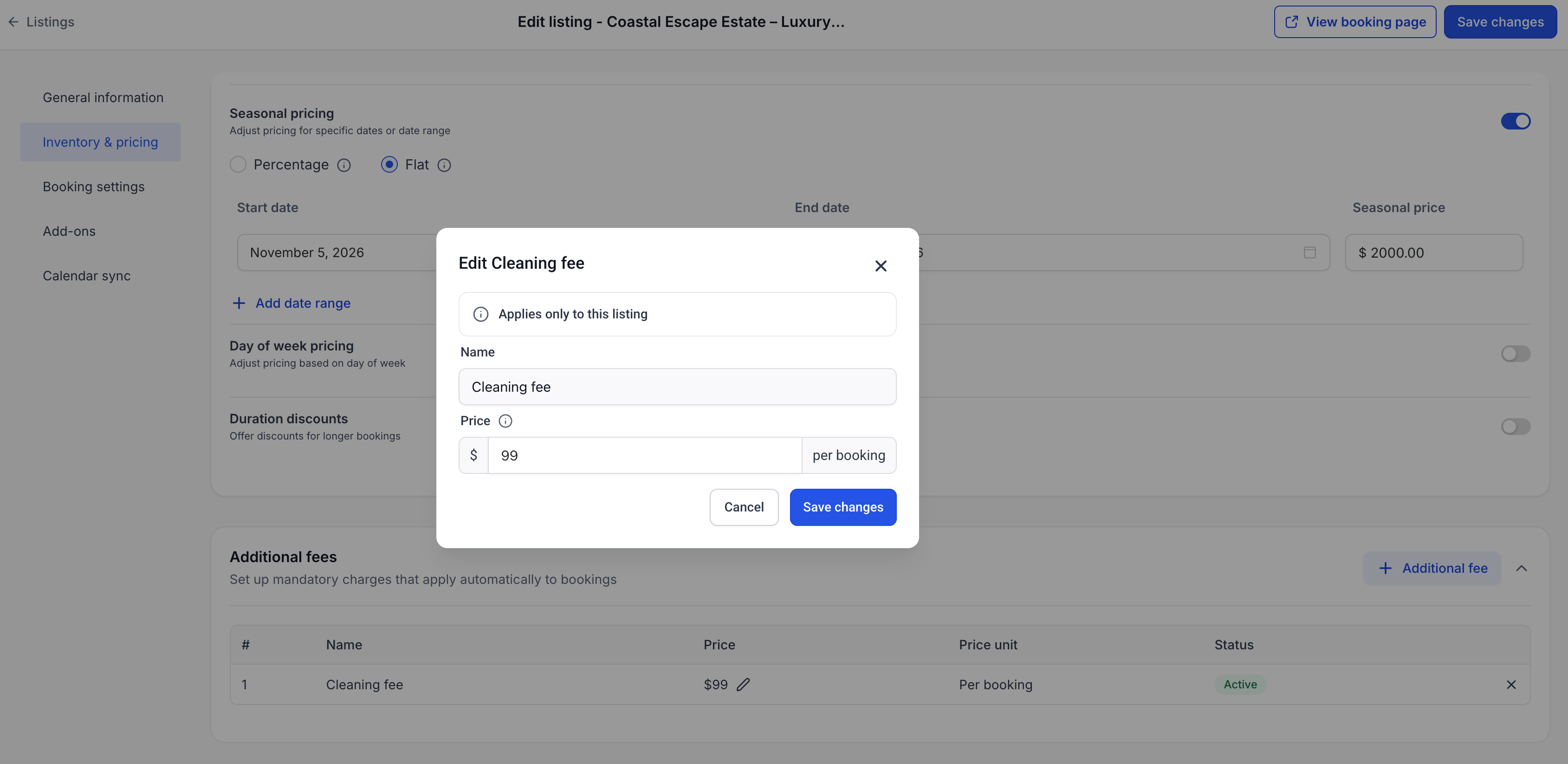
Click the Edit (pencil) icon next to the fee amount.
An override modal will appear with the following information:
- Fee Name: Displays the name of the global fee. The name cannot be changed at listing level.
- Price: Enter the new amount or percentage for this listing.
- Reset to Default: Revert the overridden amount to the value defined in the global fee template.
Step 3: Save Changes
Click Save changes to apply the override. The updated amount applies only to the selected listing. Other listings using the same global fee retain their existing fee amounts.
A listing-level override changes only the fee amount. It does not change the pricing unit defined by the global fee template.

If the global fee amount is updated after a listing-level override has been configured, the overridden amount remains in effect. Use Reset to default to restore the global fee amount.
How Fees Appear in the Booking Widget
Additional Fees are displayed to customers before they complete a rental booking. The booking widget includes applicable fees in the total shown to customers, allowing them to review mandatory charges alongside the rental price and other applicable costs.
Price Summary Display:
Additional Fees are included in the booking price breakdown and may appear alongside applicable taxes and other charges.
Example Booking Summary:

Base Rental Price          $200.00
Additional Fees             $75.00
Taxes                       $23.75
---------------------------------
Total                      $298.75
Important details:
- Additional Fees are mandatory and cannot be removed or modified by customers during checkout.
- Applicable fees are included in the first booking total shown to the customer.
- Fees contribute to the total amount payable for the booking.
- Applicable taxes and refundable security deposits may also appear in the booking summary.
- Customers can review the charge breakdown before completing their reservation.
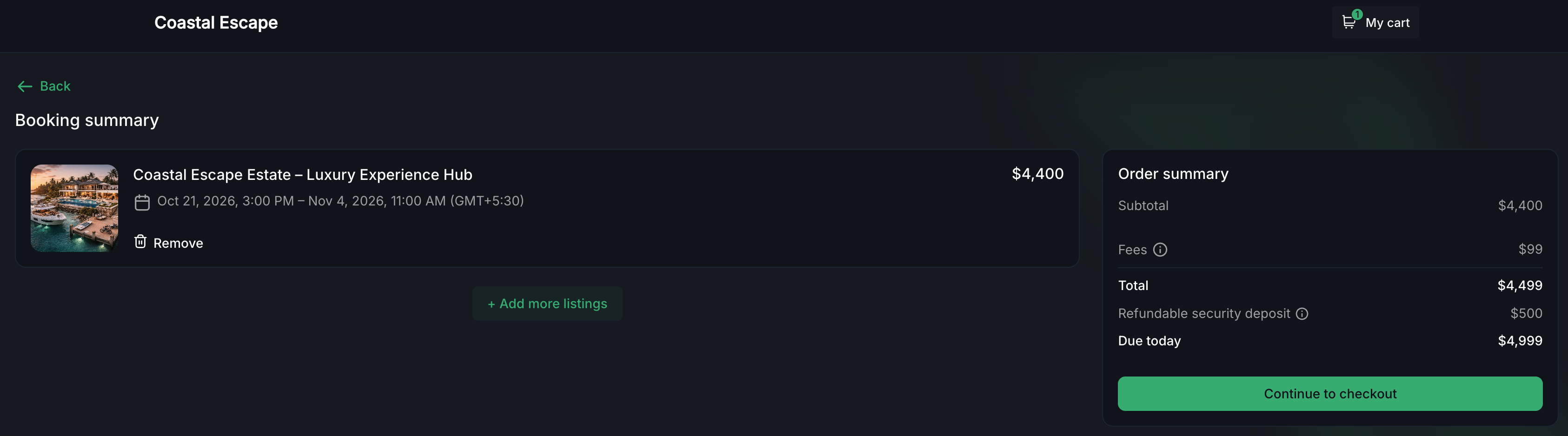
Additional Fees are not added as unexpected charges at checkout. Applicable fees are already included in the displayed booking total before the customer completes payment.Additional Fees in Booking Summaries and Payments
In addition to appearing in the customer-facing booking widget, Additional Fees are reflected in rental booking records and invoices. This helps administrators review mandatory charges separately from base rental amounts, taxes, and refundable security deposits.
Review Additional Fees in a Booking
To review Additional Fees associated with a booking:
- Go to Calendars → Appointment List View.
- Select Rentals from the available booking categories.
- Locate the booking you want to review.
- Click the Edit (pencil) icon to open its details.
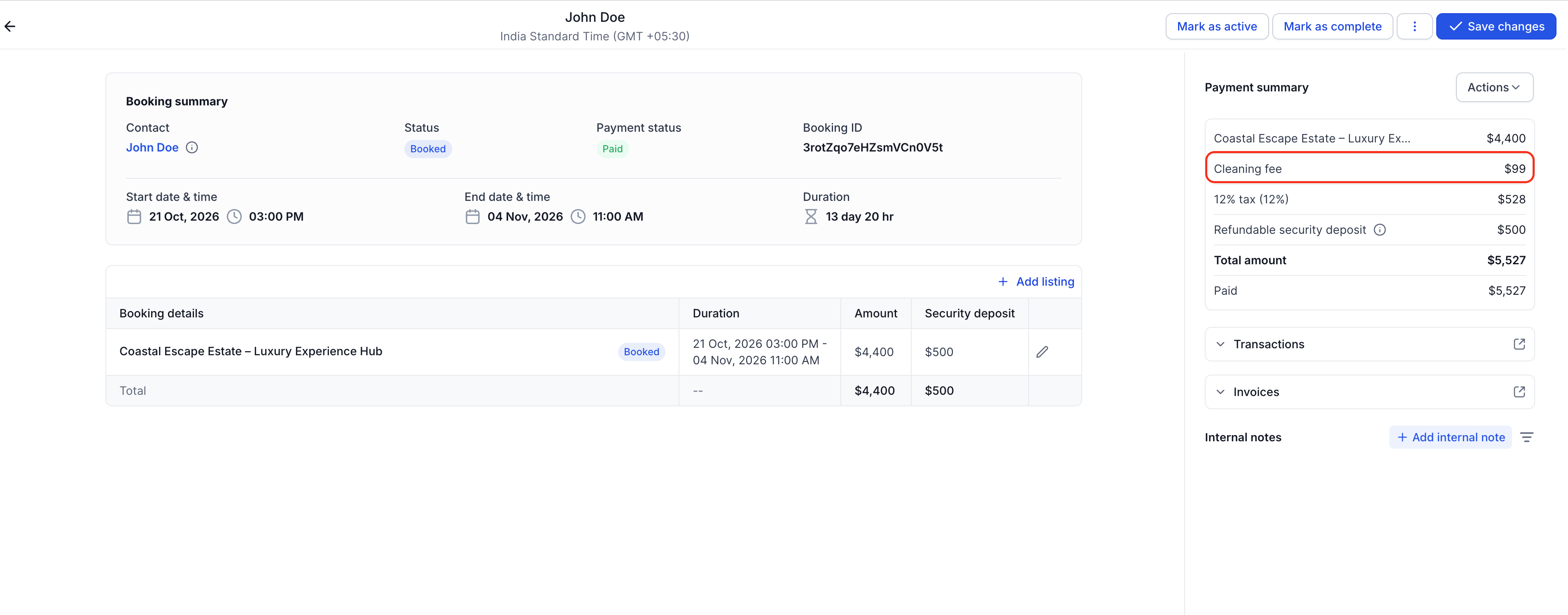
- Review the Payment Summary to identify the rental charges and applicable Additional Fees.
The Payment Summary provides a breakdown of the booking's financial details, which may include:
- Base rental charges
- Additional Fees such as cleaning or service fees
- Applicable taxes
- Refundable security deposits
- Total booking amount
- Payments received
- Remaining amount due
Additional Fees on Invoices
Additional Fees appear as identifiable line items on rental invoices rather than being incorporated into the base rental charge. When taxes are applied to Additional Fees, the applicable tax is calculated on the fee amount and shown separately.
This makes it easier for customers and administrators to understand which charges contribute to the booking total.
Review Additional Charges After Booking Changes
When booking details are modified, the Payment Summary may display updated charges or an outstanding balance. Administrators can review the amount due, payment status, and collection information before saving the changes.
For example, a booking may show a pending Additional charge when an amount remains to be collected.
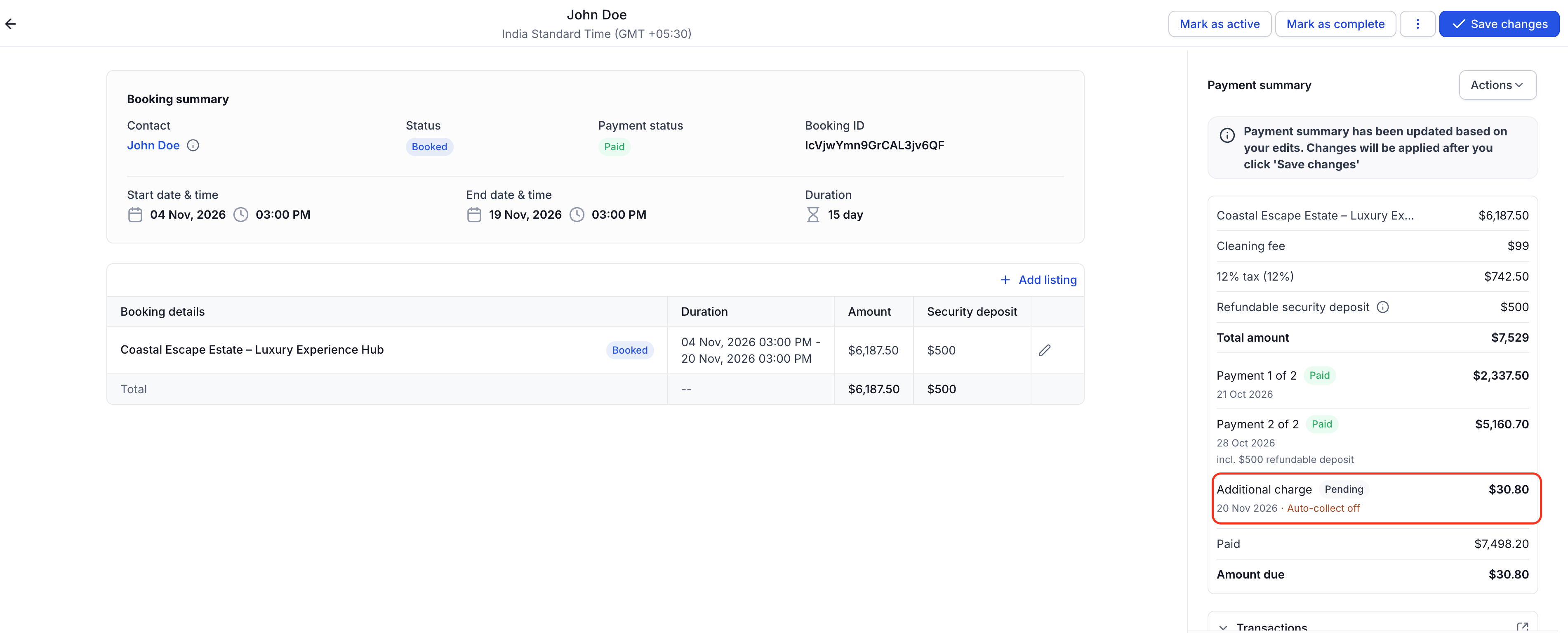
A pending Additional charge represents an outstanding payment amount. Review the booking's payment collection settings and status to determine whether further payment action is required. A pending charge is not necessarily caused by an Additional Fee.For additional guidance on booking modifications, refer to Rentals — Editing a Booking.
Fees and Taxes
Taxes can be applied to Additional Fees independently of the base rental price. This allows businesses to configure the appropriate tax on mandatory charges while keeping fees and their associated taxes distinguishable in booking summaries and invoices.
How to Configure Tax on an Additional Fee
To configure tax on a fee:
- Navigate to Calendars → Calendar Settings → Rentals → Additional fees.
- Locate the fee you want to configure.
- Click the Edit icon for that fee.
- Select Configure tax.
- On the linked product configuration page, attach the appropriate tax rate to the fee.
- Save the tax configuration.
How Taxes Are Calculated on Additional Fees
Tax on an Additional Fee is calculated using the applicable fee amount rather than the base rental price.
For example, if a cleaning fee is $100 and is subject to a 10% exclusive tax rate:
| Charge | Amount |
|---|---|
| Cleaning Fee | $100.00 |
| Tax on Cleaning Fee (10%) | $10.00 |
| Total Fee Including Tax | $110.00 |
The applicable fee tax is included in the total shown to customers during booking and appears separately in the invoice breakdown.
Important: Taxes on Additional Fees are configured separately from taxes on the base rental price. This allows businesses to apply the appropriate tax configuration to each charge without combining the fee amount with the rental rate.For more information about rental tax settings, refer to Rentals — Taxes.
Inactive Fee Behavior
Setting an Additional Fee to Inactive allows administrators to stop applying a fee to new bookings without removing the global template or its listing associations. This is useful when a charge is temporarily suspended or no longer required for new reservations.
What happens when a fee is marked Inactive:
- The fee remains attached to the listings where it was configured — it is not automatically removed.
- The inactive fee is not applied to new bookings created after the status change.
- Existing confirmed bookings retain the fee amounts previously recorded on those bookings.
- To reactivate the fee, edit its global template and change its status back to Active.
- Once reactivated, the fee can be applied to new bookings for its associated listings.
Deactivating a fee is different from deleting it. Inactive fee templates remain available in the global catalog and retain their listing associations. Confirm the effect on existing bookings before making changes to fees that have already been charged.Frequently Asked Questions
Q: Can I make an Additional Fee optional for customers?
No. Additional Fees are mandatory and cannot be made optional. If you need an optional charge that customers can select during booking, use the Add-ons feature instead.
Q: If I update a global fee template's amount, does it update all listings?
Yes. Changes to a global template apply to associated listings unless a listing has a listing-level amount override. Listings with overrides retain their customized amounts. Use the Reset to default option to restore the global amount.
Q: Can I override the fee amount for one specific booking?
Booking-level fee overrides are not currently supported. Fee amount overrides are configured at the listing level.
Q: Are taxes on Additional Fees included in the customer-facing total?
Yes. Applicable tax on fees is calculated and included in the total shown to customers. The tax is displayed separately from the fee amount in the booking's financial breakdown and invoice.
Related Articles
- Rentals — Overview & How to Get Started
- Rentals — Create & Edit Listings
- Rentals — Configuring Pricing & Discounts
- Rentals — Taxes
- Rentals — Overview of Bookings
- Rentals — Editing a Booking
Was this article helpful?
That’s Great!
Thank you for your feedback
Sorry! We couldn't be helpful
Thank you for your feedback
Feedback sent
We appreciate your effort and will try to fix the article