TABLE OF CONTENTS
- What is the Linear Integration in Workflows?
- Key Benefits of the Linear Integration in Workflows
- Linear Triggers and Actions
- Linear Triggers
- Linear Actions
- Linear Workflow Use Cases
- Customer-Reported Bug to Linear Issue and Customer Need
- Resolved Linear Issue to Customer Notification
- How To Setup the Linear Integration in Workflows
- Option 2: Connect Linear from Settings
- Frequently Asked Questions
- Related Articles
What is the Linear Integration in Workflows?
The Linear integration in HighLevel Workflows connects your CRM, customer requests, support activity, and customer facing automations directly with Linear. Linear is an issue tracker used by product and engineering teams to plan, manage, and ship work. With this integration, teams can create, update, find, and respond to Linear records from workflows without building custom webhooks.
Use the Linear integration to turn customer feedback into actionable product work, notify customers when issues are resolved, and keep customer records aligned between HighLevel and Linear.
Key Benefits of the Linear Integration in Workflows
The Linear integration helps customer-facing teams and product teams work from the same context. Instead of manually copying customer requests into Linear or checking engineering updates one by one, workflows can automatically move information between HighLevel and Linear based on trigger and action logic.
- Closed Loop Customer Feedback: Capture customer-reported bugs and feature requests as Linear issues or customer needs, then notify the original reporter when the work is completed.
- Revenue Weighted Prioritization: Link customer needs to Linear customer records so product teams can understand request volume by customer tier, revenue, or account importance.
- Real Time Engineering Visibility: Use Linear issue, project, customer need, and initiative updates to trigger internal or customer-facing notifications.
- Two Way Customer Context: Attach CRM record URLs to Linear issues so engineering teams can quickly view the related HighLevel contact, company, conversation, or opportunity.
- Native Workflow Automation: Connect Linear using OAuth and configure triggers or actions directly in the Workflow Builder without long-lived API tokens or webhook setup.
- Full Issue and Planning Coverage: Use Linear triggers and actions for issues, comments, projects, customers, customer needs, initiatives, and documents.
Linear Triggers and Actions
Linear triggers start workflows when activity happens in Linear, while Linear actions let workflows create, update, search, or attach information inside Linear. Use triggers when Linear should be the starting point of an automation, and use actions when activity in HighLevel should create or update product work in Linear.
Linear Triggers
All Linear triggers are instant and powered by Linear webhooks. They fire when the related event happens in Linear.
| Trigger | What it does |
|---|---|
| New Issue | Fires when a new issue is created. Can be filtered by team. |
| Updated Issue | Fires when an issue’s status, priority, assignee, labels, or other fields change. |
| New Issue Comment | Fires when a new comment is added to an issue. |
| New Project | Fires when a new project is created in Linear. |
| New Project Update | Fires when a project update is posted. |
| Updated Project Update | Fires when an existing project update is edited. |
| New Customer | Fires when a new customer record is created in Linear. |
| Updated Customer | Fires when an existing customer record is edited. |
| New Customer Need | Fires when a new customer need or feature request is captured. |
| Updated Customer Need | Fires when a customer need’s status, priority, or linked work changes. |
| New Document Comment | Fires when a new comment is added to a Linear document, such as a PRD, spec, or proposal. |
| New Initiative Update | Fires when an update is posted on a Linear initiative. |
Linear Actions
Linear actions run from a workflow and create, update, search, or attach data in Linear. These actions help move CRM and customer context into product workflows without manual handoff.
| Action | Purpose |
|---|---|
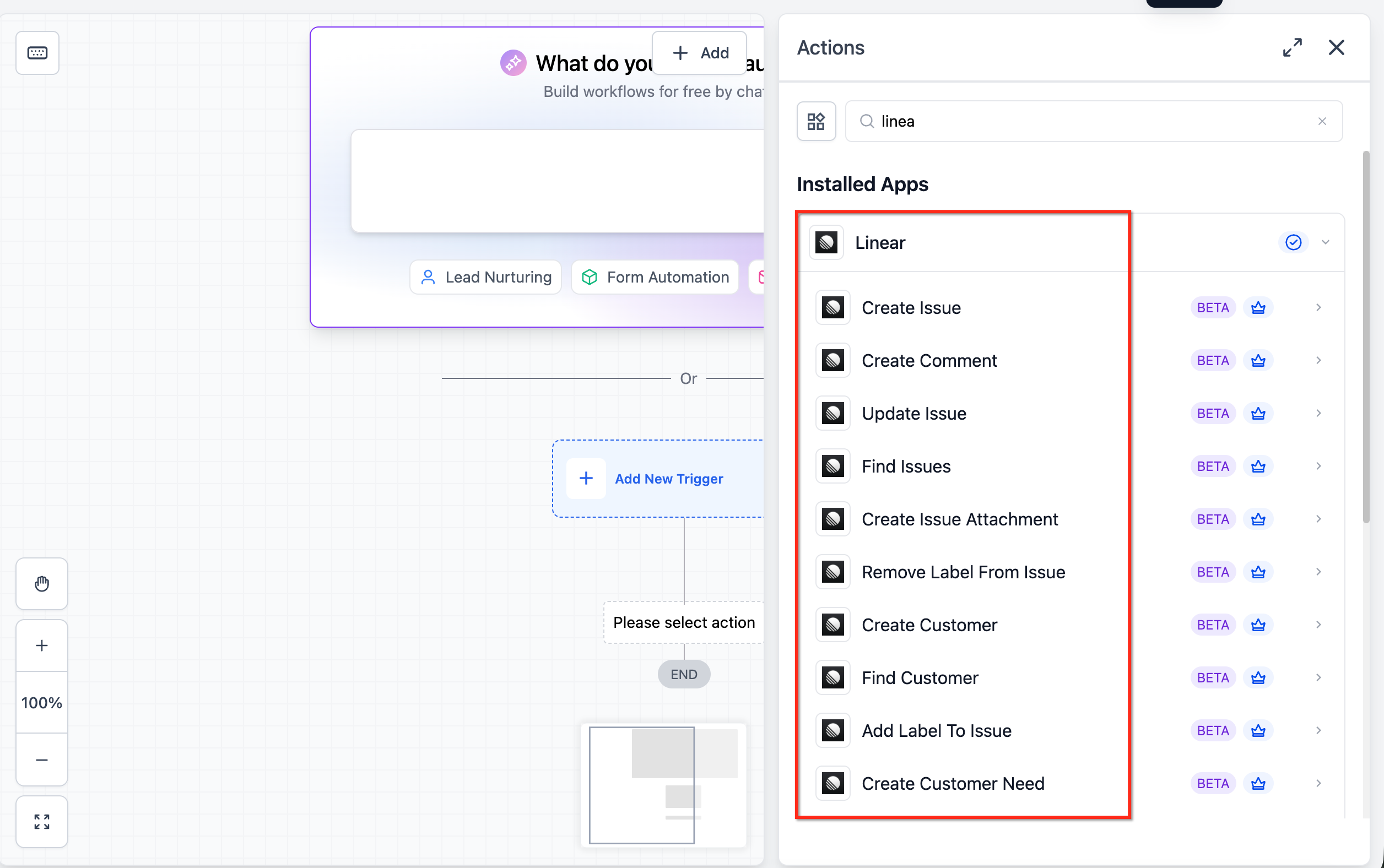
| Create Issue | Creates a new Linear issue with fields such as title, description, team, project, priority, assignee, labels, and due date. |
| Update Issue | Updates selected fields on an existing issue. Fields that are not set remain unchanged. |
| Get Issue | Fetches the latest state of a single issue by ID. |
| Find Issues | Searches Linear issues by team, project, label, status, assignee, or text. |
| Create Comment | Adds a comment to an existing issue. Markdown is supported. |
| Create Issue Attachment | Attaches a URL to an issue with a link back to the source record. |
| Add Label To Issue | Adds a label to an existing issue. |
| Remove Label From Issue | Removes a label from an existing issue. |
| Create Project | Creates a Linear project with name, description, lead, and target date. |
| Find Project | Looks up a Linear project by name or filter. |
| Create Customer | Creates a customer record in Linear with details such as name, domain, tier, and revenue. |
| Find Customer | Finds a Linear customer by name or domain. |
| Create Customer Need | Creates a customer need linked to a customer record, issue, or project. |
Linear Workflow Use Cases
Linear workflows are most useful when customer activity in HighLevel needs to become structured product work, or when engineering progress in Linear needs to trigger customer communication. These examples show how different teams can automate handoffs while keeping customer context attached.
Customer-Reported Bug to Linear Issue and Customer Need
Use a form submission, inbound conversation, or support workflow to create a Linear issue with customer context.
Example Workflow:
- Trigger the workflow when a customer submits a bug report or feature request.
- Find the matching Linear customer by name or domain.
- Create a Linear issue with the report details, contact context, priority, and labels.
- Attach the HighLevel CRM record URL to the Linear issue.
- Create a customer need linked to the Linear customer and issue.
Resolved Linear Issue to Customer Notification
Use Linear status changes to notify the original customer when a customer-reported issue is complete.
Example workflow:
- Use the Updated Issue trigger.
- Filter for issues where status is Done.
- Add a label filter, such as a customer-reported source label.
- Get the latest issue details.
- Send a personalized email or SMS to the original reporter.
How To Setup the Linear Integration in Workflows
Connecting Linear before building your workflow ensures HighLevel can securely read from and write to the authorized Linear workspace. After the connection is saved, each trigger or action still needs to be configured with the correct team, project, issue, label, customer, or field mapping.
Option 1: Connect Linear from the Workflow Builder
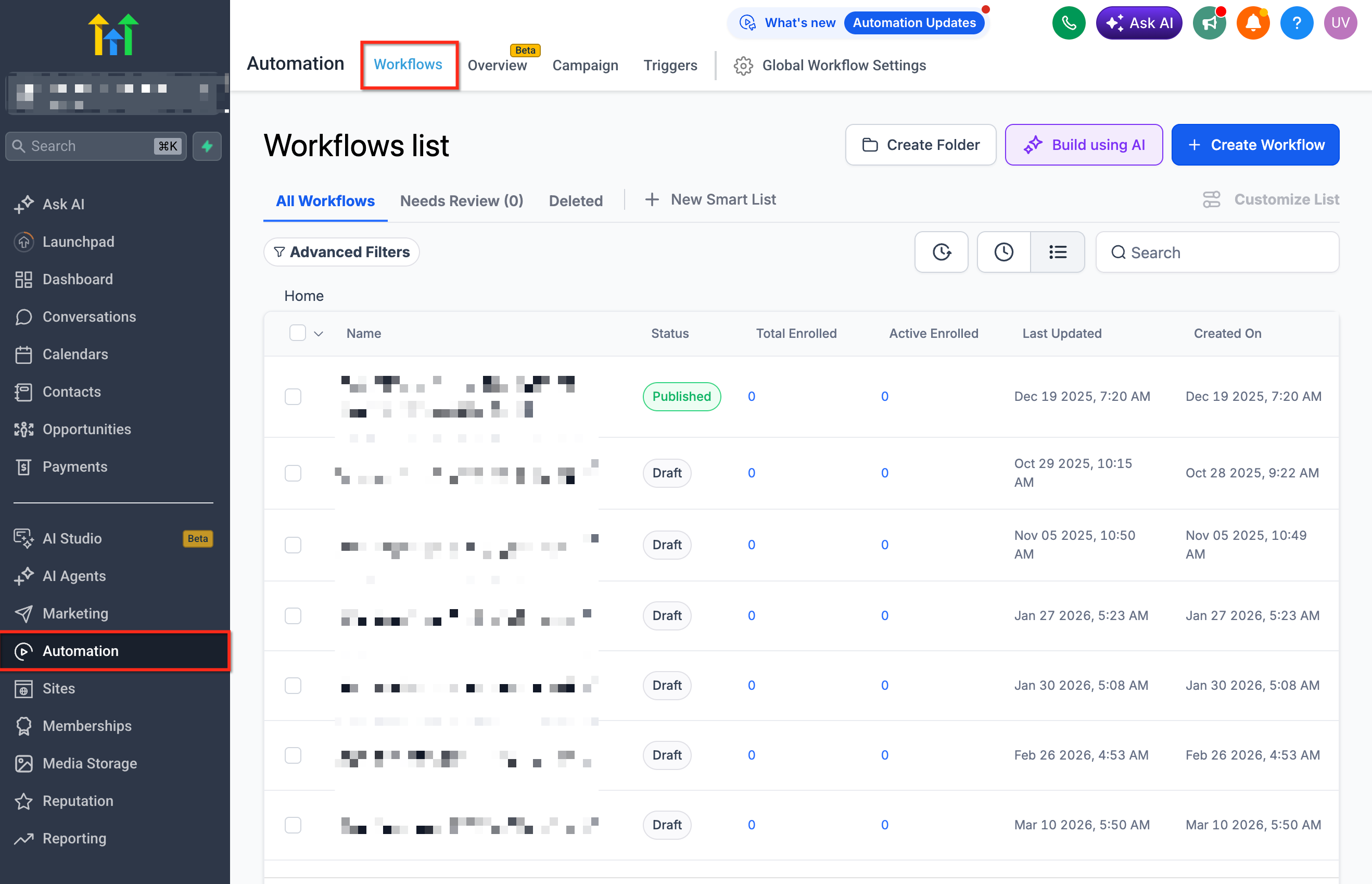
- Go to Automation → Workflows.
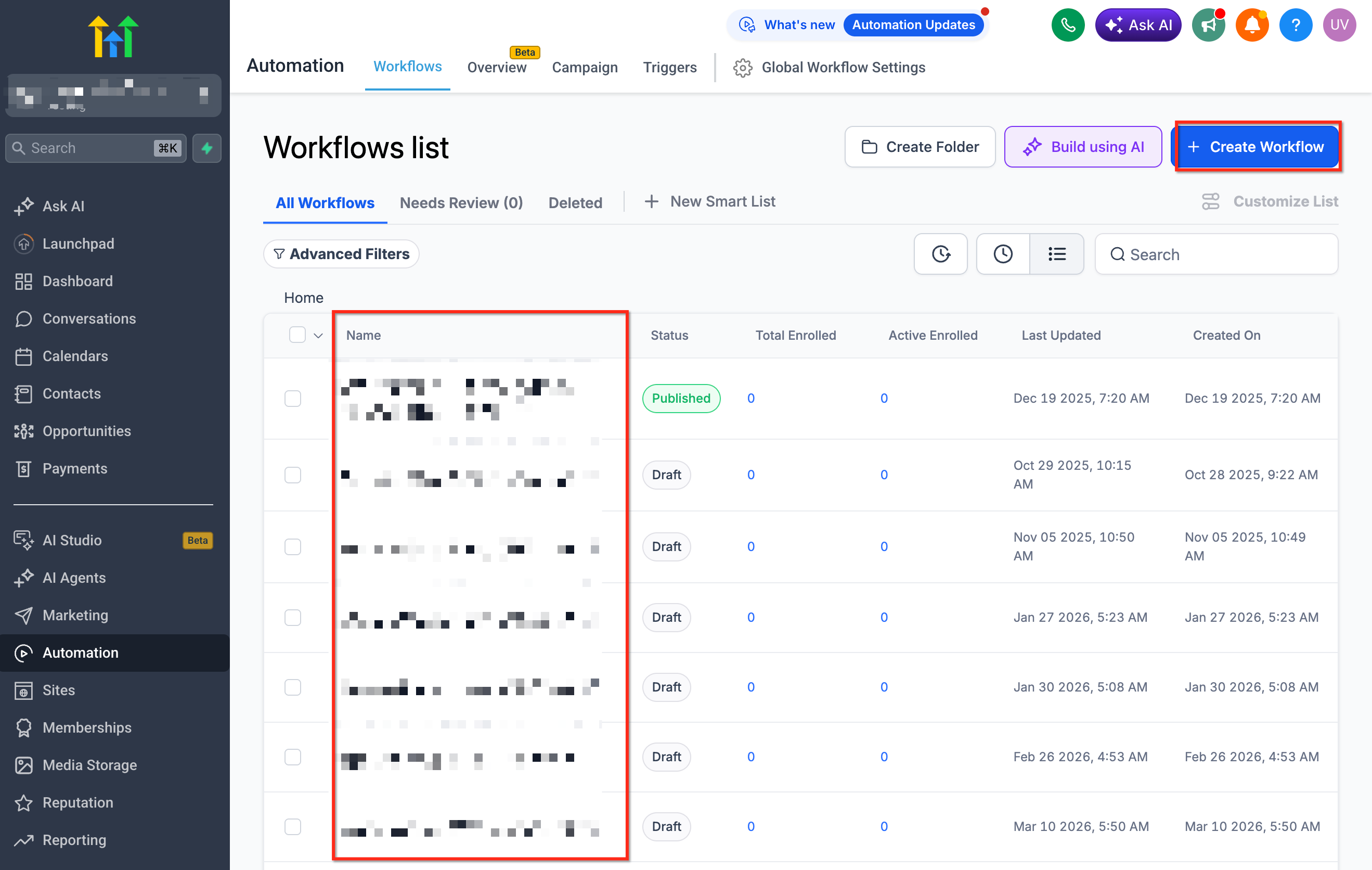
- Open an existing workflow or create a new workflow.
- Add a Linear trigger or action.
- Select the trigger or action you want to use.
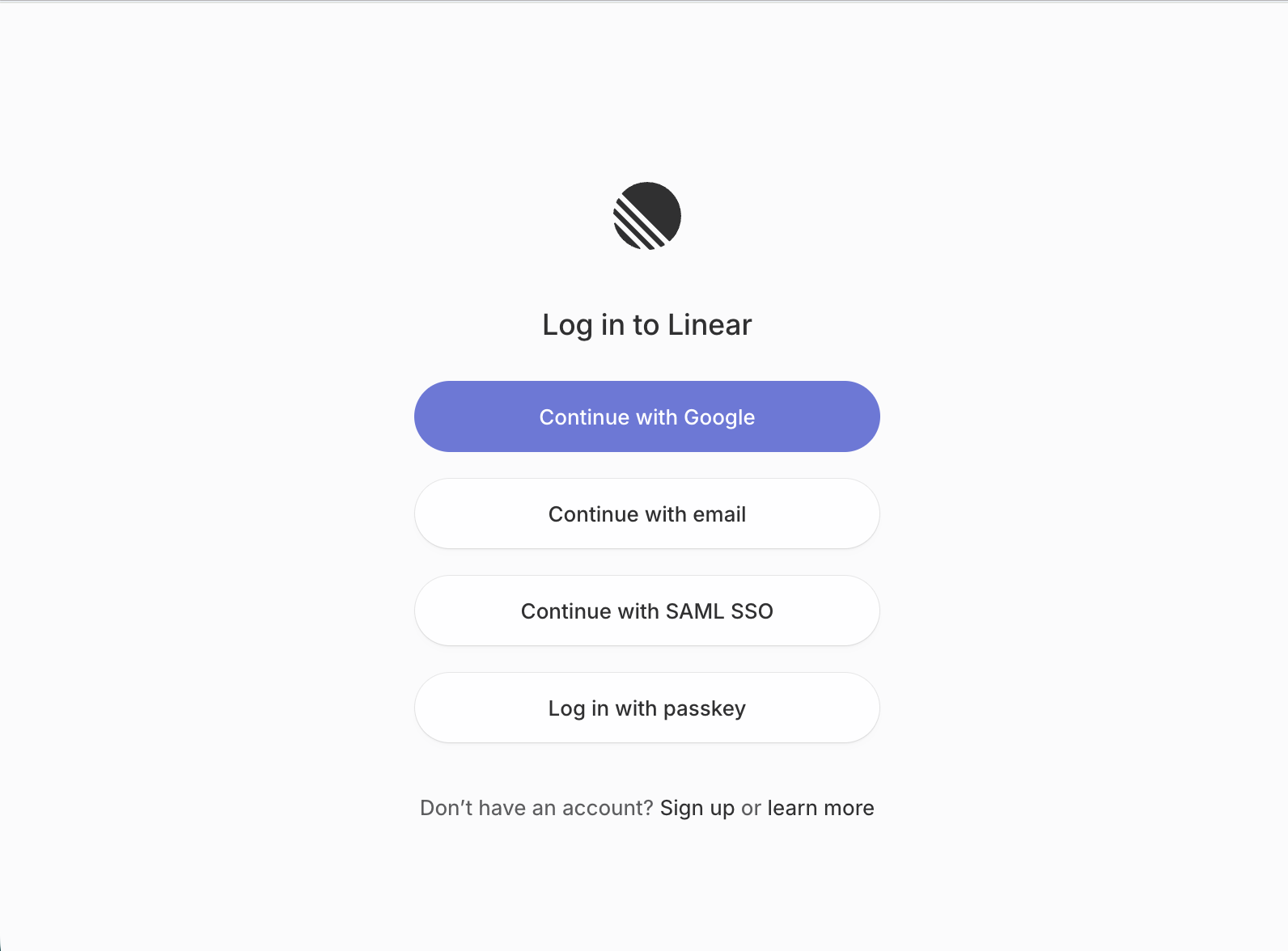
- Click Connect Now.
- Sign in with your Linear account using OAuth.
- Authorize the workspace and team or teams the integration should access.
- Click Save.
- Continue configuring the selected trigger or action.
Option 2: Connect Linear from Settings
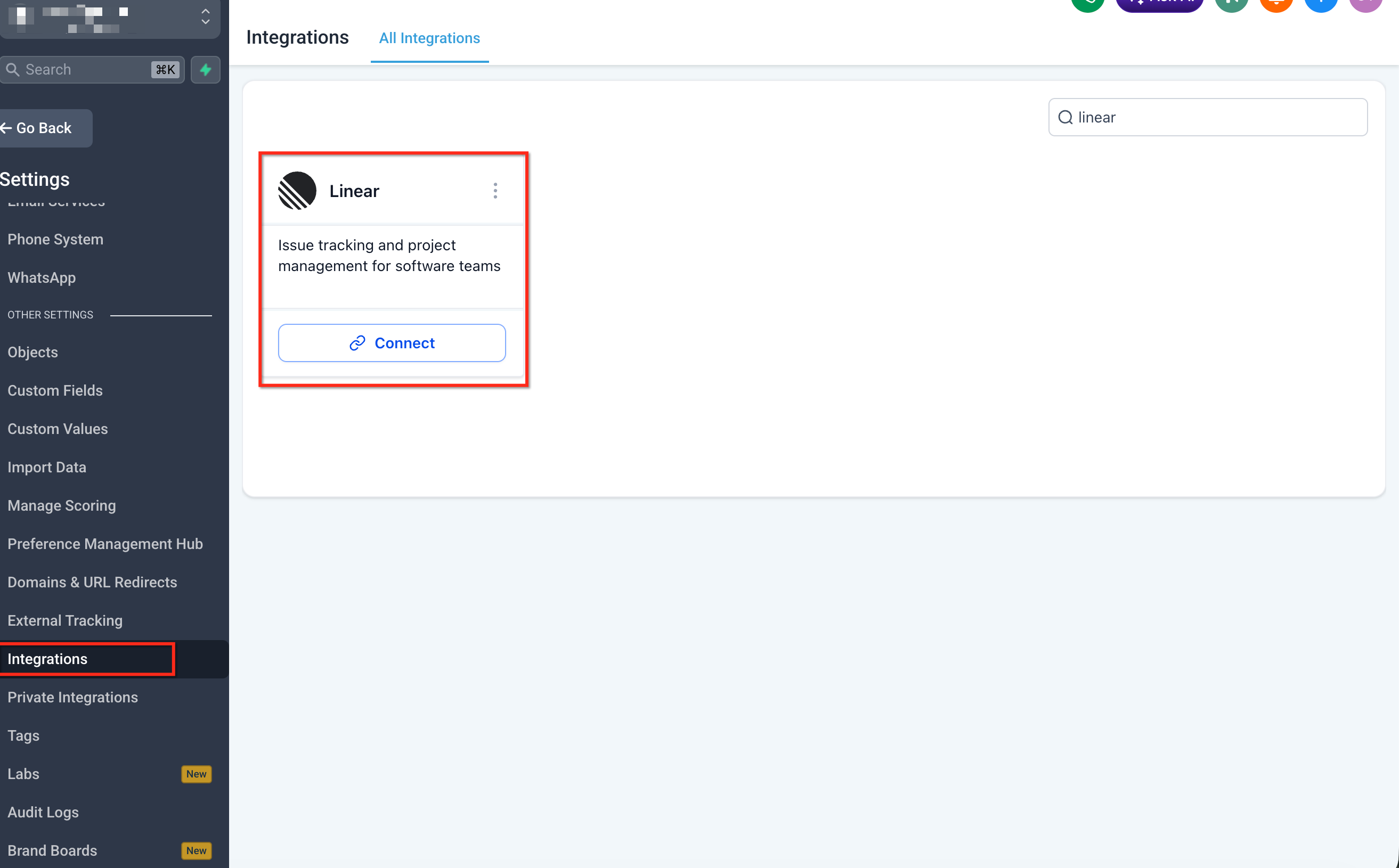
- Go to Settings → Integrations. Locate Linear in the integrations list. Click Connect.
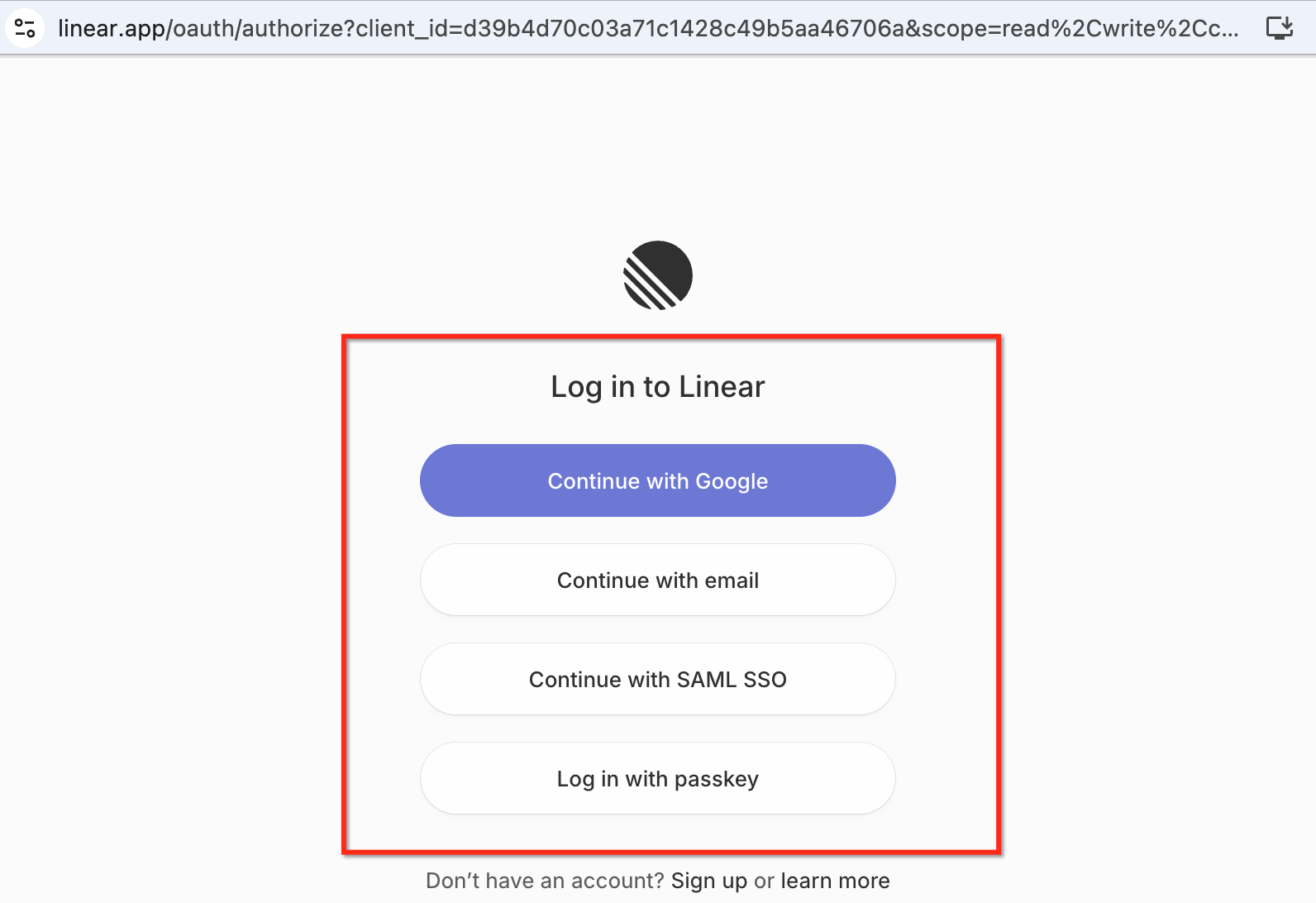
- Sign in with your Linear account using OAuth.
- Authorize the workspace.
- Save the connection.
- Return to the Workflow Builder to configure Linear triggers or actions.
Frequently Asked Questions
Q: Are Linear triggers instant?
Yes. Linear triggers are instant and powered by Linear webhooks, so workflows fire when the matching Linear event occurs.
Q: Are Linear triggers and actions premium workflow components?
Yes. Linear triggers and actions are flagged as premium workflow components and consume premium action credits at the standard automation rate.
Q: Why is my Linear team not available in the trigger or action dropdown?
The team may not have been authorized during OAuth setup. Reconnect or review the Linear connection and confirm the correct workspace and teams were authorized.
Q: Can one Linear connection be used across multiple workflows?
Yes. Once Linear is connected, the connection can be used when configuring Linear triggers and actions across workflows, as long as the authorized workspace and team access supports the selected workflow steps.
Q: Why is my Linear trigger not firing?
Check the selected team, filters, labels, project, status, and workflow publish status. Also test the trigger with a recent matching Linear record and review the workflow execution logs.
Q: Does Update Issue overwrite fields I do not configure?
No. Update Issue only sends the fields explicitly set in the action. Other Linear issue fields remain unchanged.
Q: Can the workflow create a Linear customer if one does not already exist?
Yes. Use Find Customer first. If no matching customer is found, branch to Create Customer, then continue to Create Customer Need if needed.
Q: Which Linear plan is required for customer needs?
Most triggers and actions work on standard Linear plans, but Customer and Customer Need functionality depends on Linear’s Customer Requests feature and may require specific Linear plan tiers.
Related Articles
- Linear: Workflow Actions & Triggers
- Introduction to Workflows and Automations in HighLevel
- Workflow Builder Walkthrough
- Getting Started with Workflows in HighLevel
- A List of Workflow Triggers
- A List of Workflow Actions
Was this article helpful?
That’s Great!
Thank you for your feedback
Sorry! We couldn't be helpful
Thank you for your feedback
Feedback sent
We appreciate your effort and will try to fix the article