Collecting card details inside Documents & Contracts helps you save a signer’s payment method during the document completion process. With the Card Details field, businesses can reduce payment follow-ups, support future invoices or subscriptions, and keep the signing-to-payment workflow smoother. This is useful when you want to collect authorization and payment details upfront without requiring an immediate payment at the time of signing.
TABLE OF CONTENTS
- What is Card Details in Documents & Contracts?
- Key Benefits of Card Details in Documents & Contracts
- Card Details Field Requirements
- Card Details Field Settings
- Signer Experience
- Card Details vs. Direct Payments
- How To Setup Card Details in Documents & Contracts
- Frequently Asked Questions
- Related Articles
What is Card Details in Documents & Contracts?
Card Details is a fillable field that can be added to HighLevel documents and templates so signers can securely enter their card information while completing a document. Once the signer adds their card, the card is saved on file and can be used for future payment workflows supported by your connected payment provider.
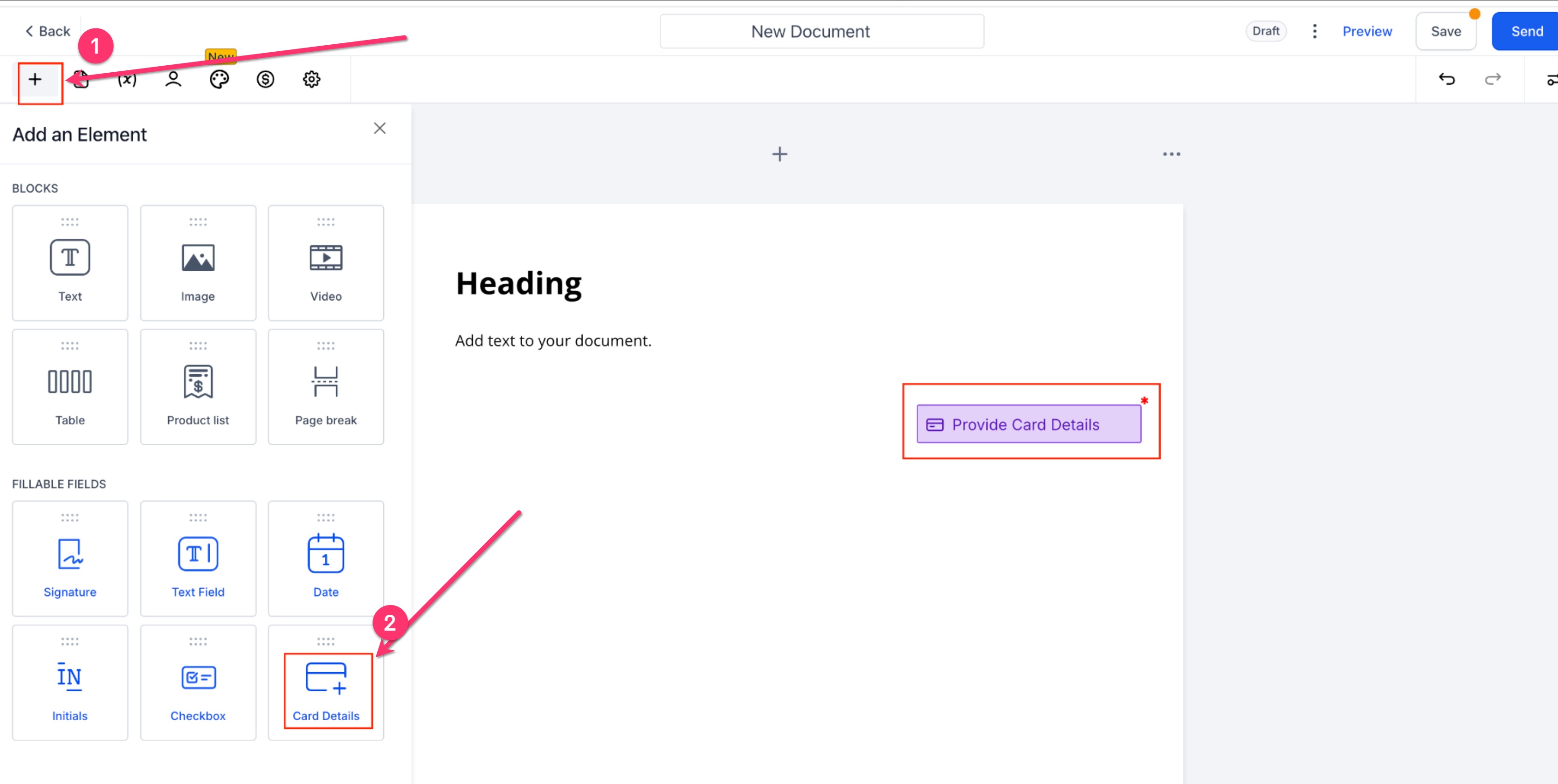
The Card Details field is available from the Add Element panel inside the Document Builder. It works alongside other fillable fields such as Signature, Text Field, Date, Initials, and Checkbox.
Key Benefits of Card Details in Documents & Contracts
Saving card details during document completion helps teams collect payment information earlier in the customer journey. This reduces delays after a contract, proposal, or agreement is signed and makes it easier to support future billing workflows.
Collect Card Details During Signing: Capture the signer’s card information while they are already completing the document.
Reduce Manual Follow-Ups: Avoid sending separate messages asking customers to provide payment details after signing.
Support Future Payment Workflows: Use saved cards for future invoices, orders, subscriptions, or auto-pay workflows where supported.
Improve Document-to-Payment Flow: Keep signing and payment authorization in one streamlined experience.
Make Card Collection Required When Needed: Mark the Card Details field as required so the signer must provide card details before finishing the document.
Use in Documents or Templates: Add the Card Details field to a one-time document or a reusable document template.
Card Details Field Requirements
The Card Details field depends on your payment setup because the signer’s card must be securely saved through a connected payment provider. Confirming your payment provider before sending the document helps prevent setup errors and ensures the signer can complete the card entry step successfully.
Before using the Card Details field, make sure:
A supported payment provider is connected to the location.
The payment provider is active and available for the document workflow.
The Card Details field is assigned to the correct signer.
The field is marked as required if the signer must add a card before completing the document.
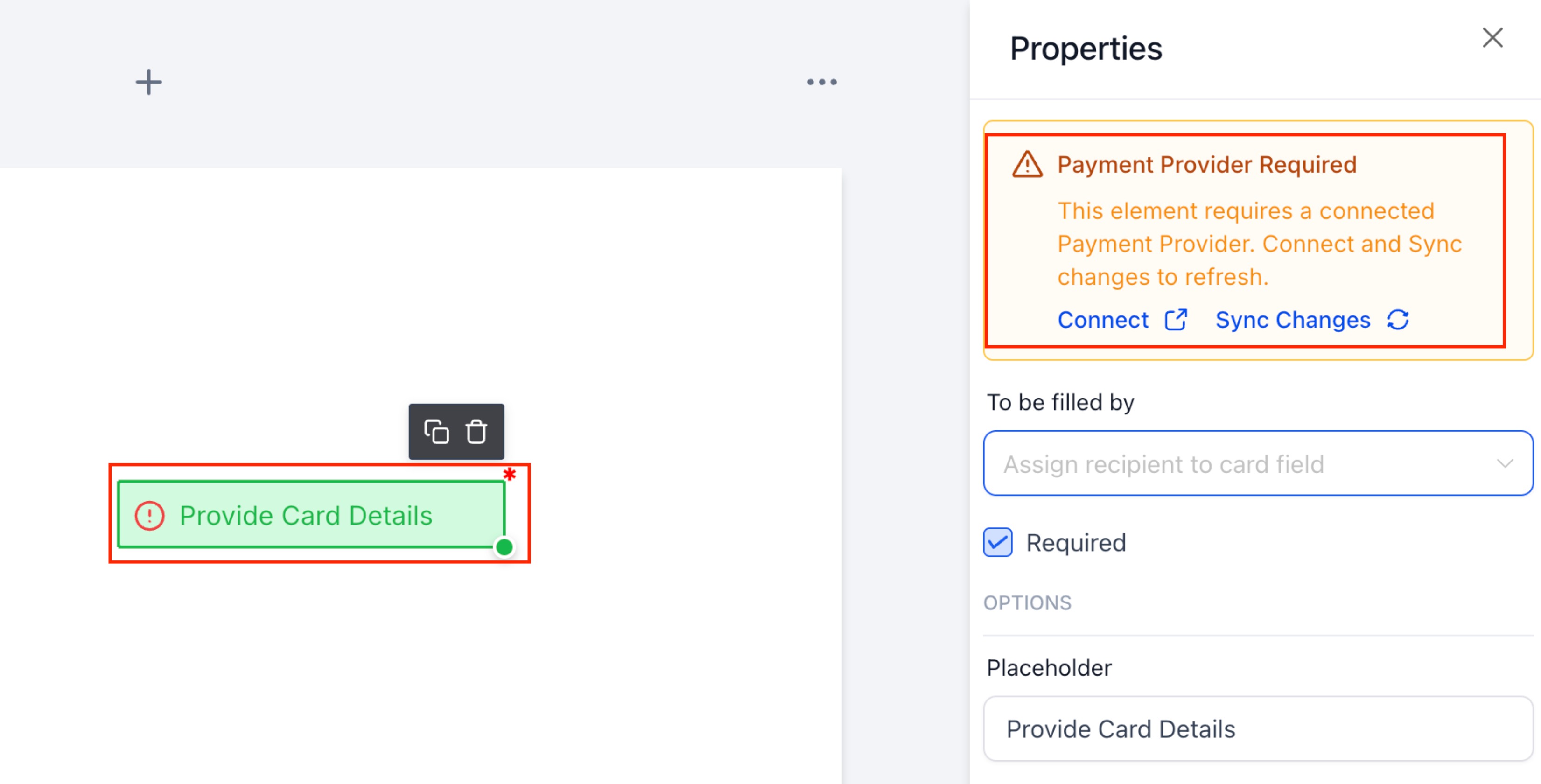
If no payment provider is connected, the Properties panel may display a Payment Provider Required warning. Use the Connect option to connect a provider or Sync Changes after updating your payment provider settings.
Card Details Field Settings
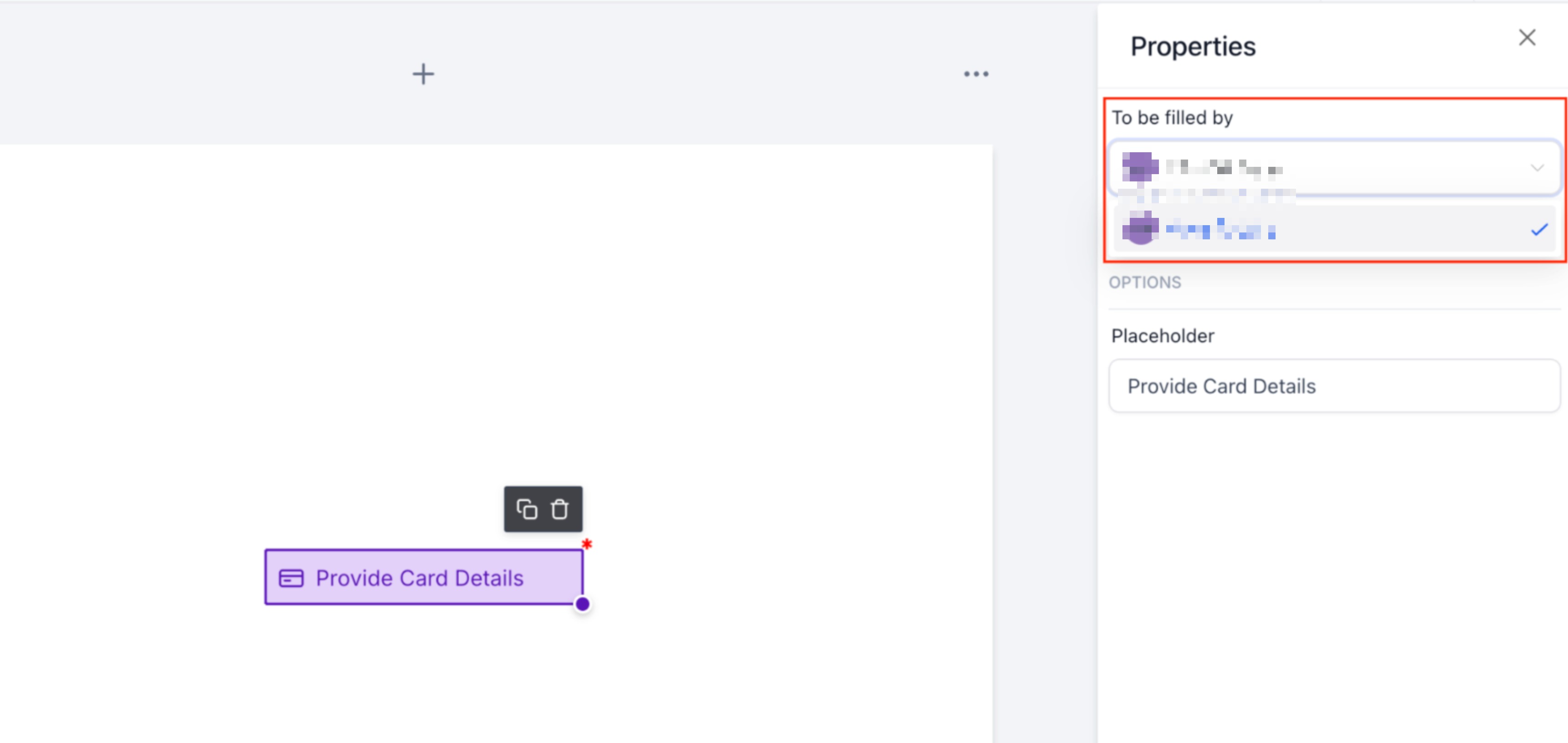
The Card Details field can be customized from the Properties panel after it is added to the document. These settings help control who fills out the field, whether it is required, and what text the signer sees on the field.
Available settings include:
To be filled by: Assigns the Card Details field to a specific signer.
Required: Makes the card field mandatory before the signer can finish the document.
Placeholder: Controls the field label shown to the signer, such as “Provide Card Details.”
Signer Experience
The signer completes the Card Details field as part of the document filling process. This allows the signer to provide payment details without leaving the document workflow.
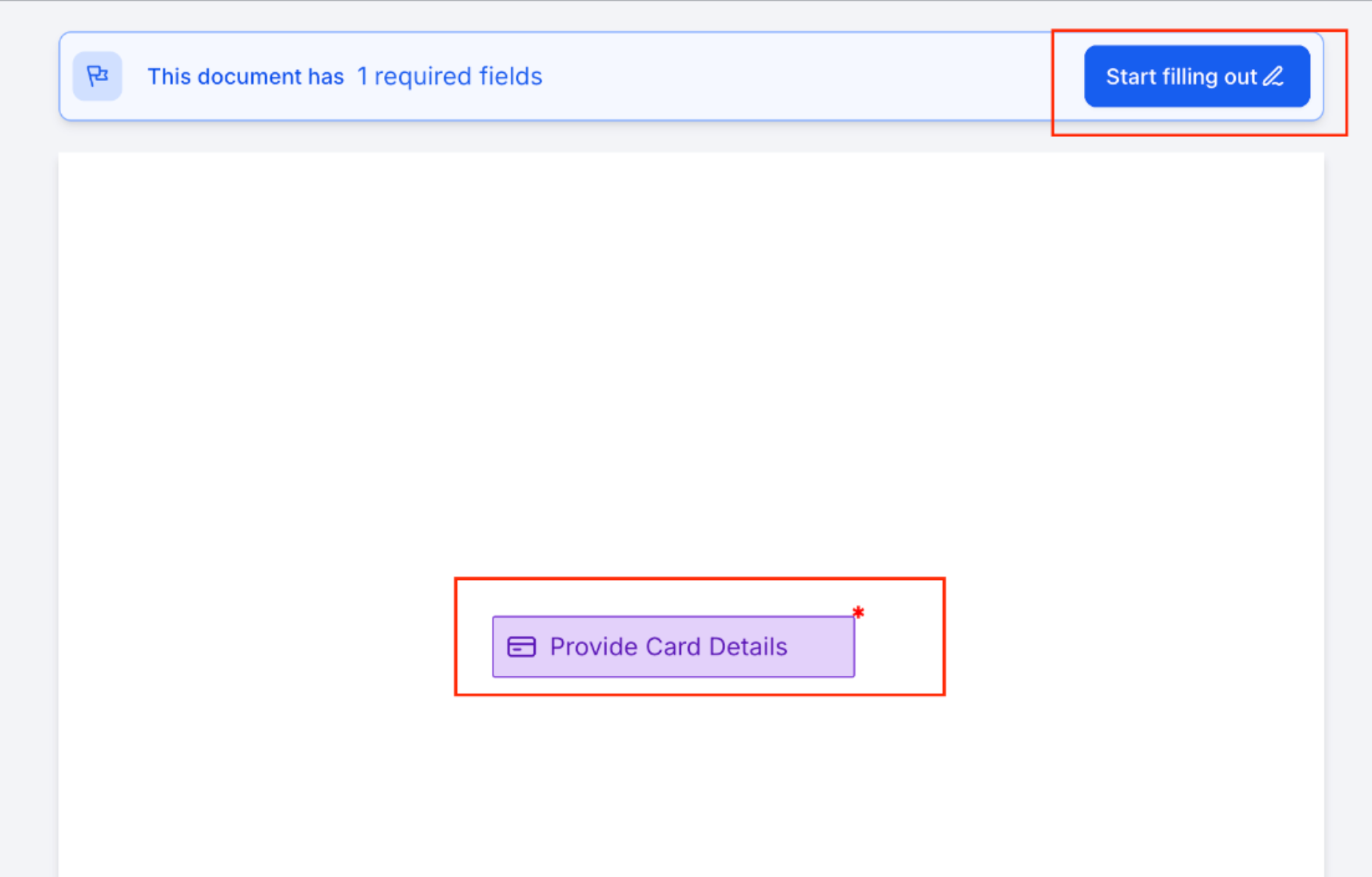
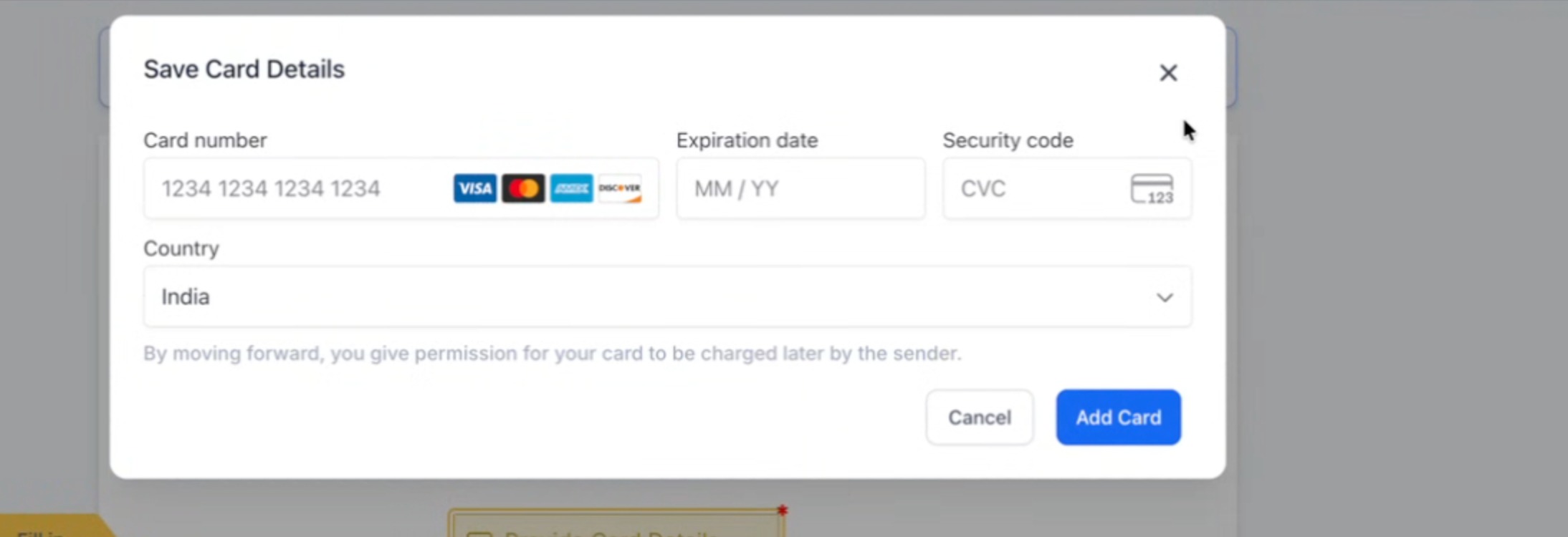
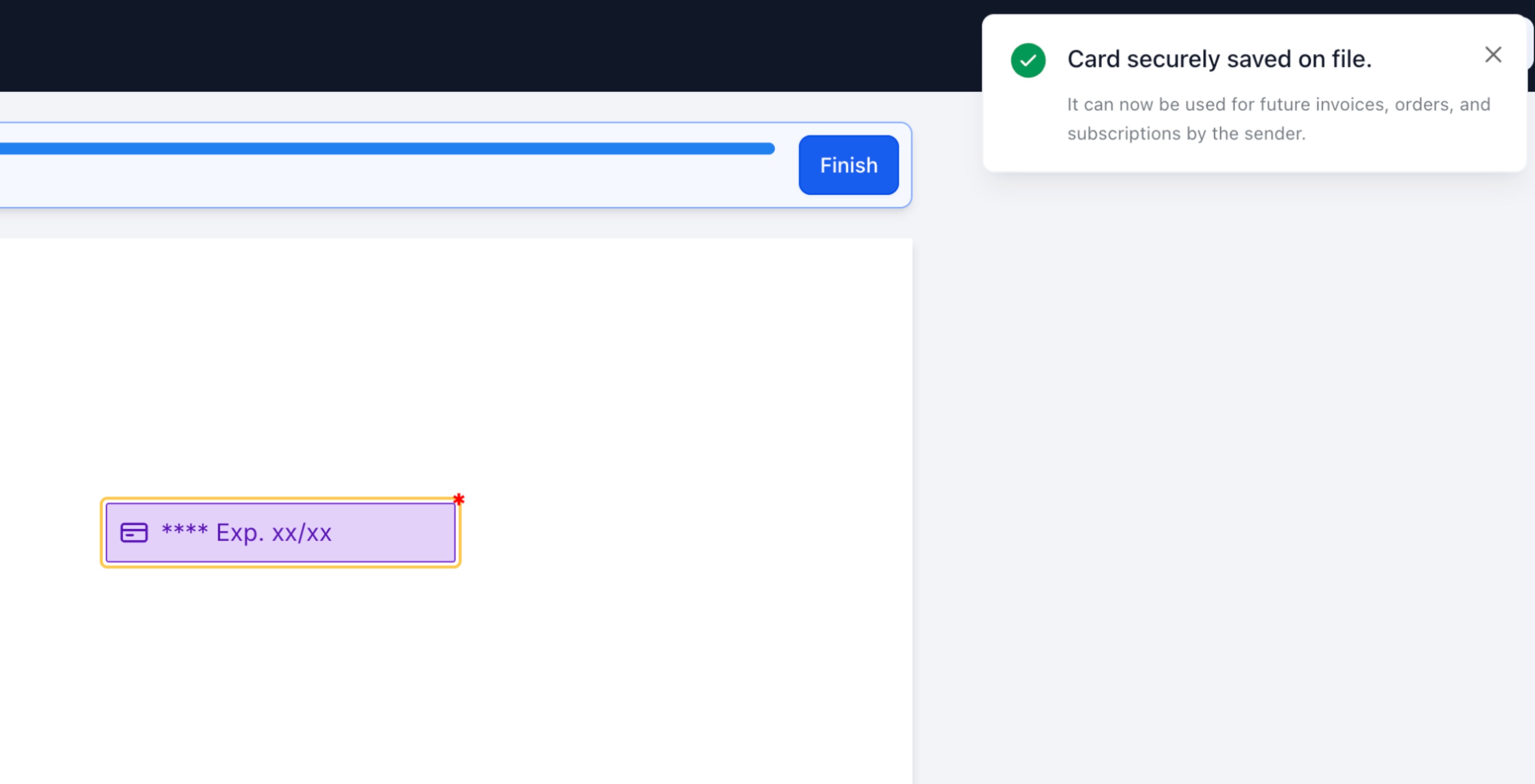
When the signer opens the document, they can click Start filling out and complete the required fields. When they select the Card Details field, a secure card entry modal appears where they can enter their card number, expiration date, security code, and country. After the card is added, the signer sees a confirmation that the card was securely saved on file.
Card Details vs. Direct Payments
Card Details and Direct Payments both support payment-related document workflows, but they serve different purposes. Choosing the right option helps prevent confusion for signers and ensures the document matches your billing process.
Use Card Details when you want to securely save a signer’s card on file for future payment use. Adding this field does not automatically mean the signer is charged immediately.
Use Product List + Direct Payments when the signer needs to pay immediately after signing. HighLevel’s existing document payment workflow can generate an invoice and redirect the signer to payment after the document is signed. Automatically Generate Invoices from Signed Documents & Contracts
How To Setup Card Details in Documents & Contracts
Setting up the Card Details field correctly ensures the signer can provide card information during document completion and helps prevent payment provider errors before the document is sent.
Navigate to Payments > Documents & Contracts.
Open an existing document or template, or create a new document.
Click + Add Element in the Document Builder.
Under Fillable Fields, drag and drop Card Details into the document.
Click the Card Details field to open the Properties panel.
Under To be filled by, assign the field to the correct signer.
Enable Required if the signer must add card details before completing the document.
Update the Placeholder text if needed.
Confirm that a payment provider is connected.
If the Payment Provider Required warning appears, click Connect or update your provider settings and click Sync Changes.
Save the document or template.
Send the document to the signer.
After the signer adds their card details, the card is securely saved on file and can be used for future payment workflows where supported.
Frequently Asked Questions
Q: Does the Card Details field charge the signer immediately?
No. The Card Details field is used to securely save the signer’s card on file. Use a Product List with Direct Payments if you want to collect payment immediately after signing.
Q: Is a payment provider required to use the Card Details field?
Yes. A connected payment provider is required so the card can be securely saved and used for future payment workflows.
Q: Can I make the Card Details field required?
Yes. You can mark the field as required from the Properties panel so the signer must add card details before finishing the document.
Q: Can I use Card Details in templates?
Yes. The Card Details field can be added to documents and templates.
Q: What should I do if I see “Payment Provider Required”?
Connect a supported payment provider, confirm it is active, and use Sync Changes if the warning still appears after updating your provider settings.
Q: Can the saved card be used for subscriptions or auto-pay?
Yes, saved cards can support future payment workflows such as invoices, subscriptions, and auto-pay where supported by your payment setup. Auto Payments for recurring invoices rely on a customer card being available for future invoice charges. Auto Payments for Recurring Invoices
Q: Can users see the full card number after it is saved?
No. Saved card workflows display limited card details, such as the card brand, last digits, and expiration information, instead of exposing the full card number. How to add and manage your customer’s cards on file
Q: Can I assign the Card Details field to a specific signer?
Yes. Use the To be filled by dropdown in the Properties panel to assign the field to the correct signer.
Related Articles
Automatically Generate Invoices from Signed Documents & Contracts
Documents & Contracts: How to automate sending invoices when documents are signed
Was this article helpful?
That’s Great!
Thank you for your feedback
Sorry! We couldn't be helpful
Thank you for your feedback
Feedback sent
We appreciate your effort and will try to fix the article