Generate Brand Voice from URL or Text
This article explains how to use HighLevel's AI-powered Brand Voice generation to instantly create brand messaging profiles from existing content.
You'll learn how to generate Brand Voices using website URLs or text input, and how to customize the generated voice to match your exact tone and messaging style.
What is Creating a Brand Voice from Text or URL?
In a world where AI-generated content is everywhere, sounding like everyone else just won't cut it. Brand Voice turns your brand's tone, values, and messaging into a reusable voice that AI tools can use across the platform! The "Create with Text or URL" feature lets you generate a complete Brand Voice in seconds by pasting a short brand description (50–100 words) or providing a reference website URL, no manual setup required.
Key Benefits of Creating Your Brand Voice from Text or URL
How To Create Your Brand Voice from Text or URL
HighLevel makes it incredibly simple to set up your brand voice! Just follow these steps:
Navigate to Marketing from the left navigation > Brand Boards > Brand Voice.

Click + Add Brand Voice.

Choose the Text or URL option.
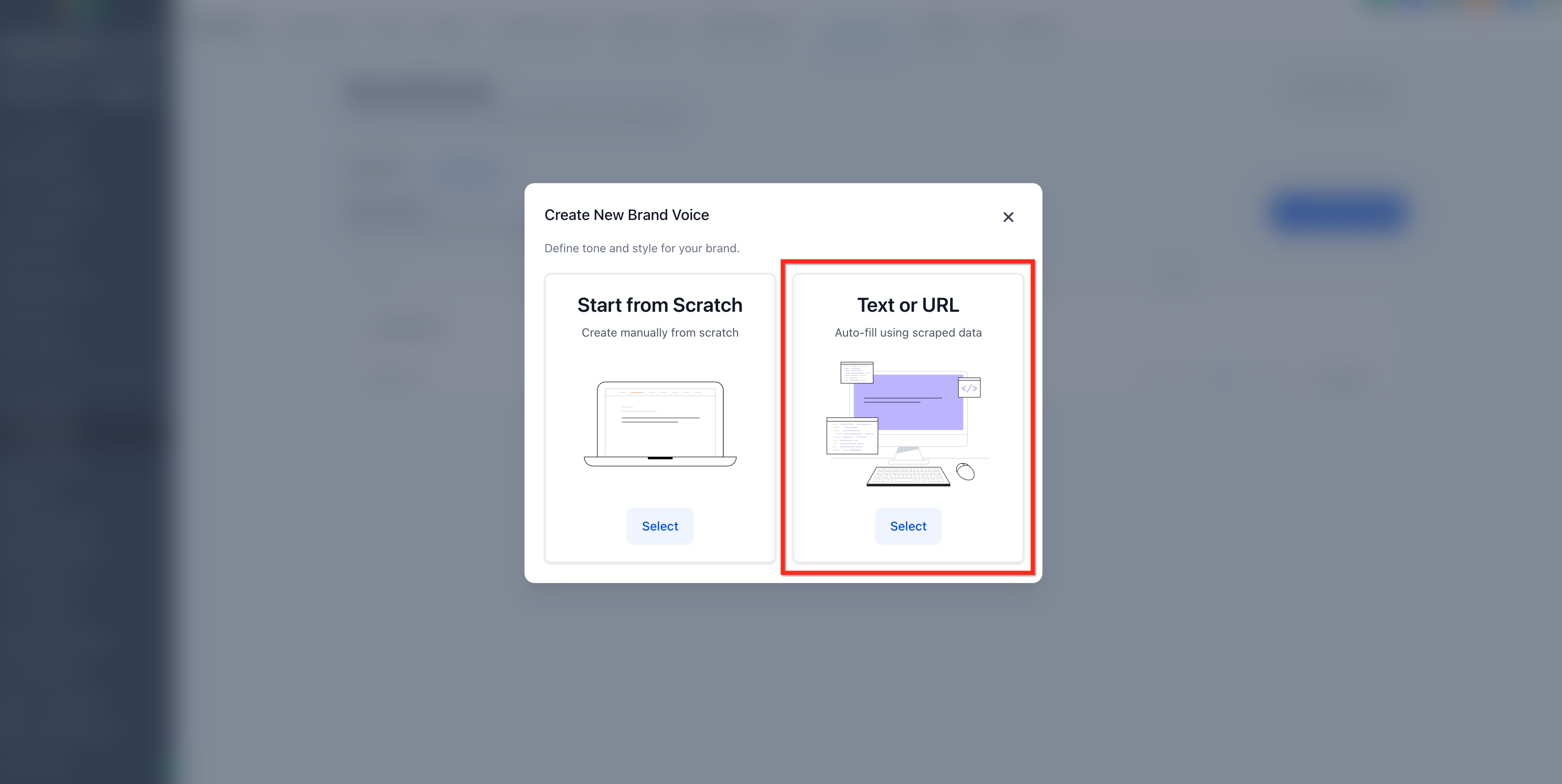
Enter a name for this voice. Provide either a URL to Import from Website or Describe Your Brand in at least 50 words.

Your brand's tone, values, and messaging will be auto-generated using the info provided. Review and refine the generated content, then click Save Brand Voice.

Customize Your Brand Voice Messaging
Once HighLevel has generated your Brand Voice, you can easily tailor it to refine your brand Promise, add or update brand values or clarify your mission and tone.
Everything is editable, so you can make sure it's dialed in before you apply it to your content. To edit your Brand Voice, click the 3 Dot icon then select Edit.

Frequently Asked Questions
Was this article helpful?
That’s Great!
Thank you for your feedback
Sorry! We couldn't be helpful
Thank you for your feedback
Feedback sent
We appreciate your effort and will try to fix the article