Personalize your Prospect Reports in HighLevel by choosing which sections to display and controlling the order they appear. This allows you to tailor Marketing Audit Reports to match your sales strategy, highlight priority insights, and remove unnecessary data. You can set a global default layout for all reports or customize a single report without affecting others.
TABLE OF CONTENTS
- What is Prospect Report Layout Customization?
- Key Benefits of Prospect Report Layout Customization
- Global Report Layout (Default for All Reports)
- Access the Global Report Layout Settings
- Adjust Section Visibility
- Reorder Sections
- Save Your Global Layout
- Customize a Specific Report Only
- Access Section Controls Inside a Report
- How To Set Up Prospect Report Layout Customization
- To Configure a Global Default Layout
- To Customize an Individual Report
- Verify Changes
- Frequently Asked Questions
- Related Articles
What is Prospect Report Layout Customization?
Prospect Report Layout Customization allows you to control the structure of your Marketing Audit Reports generated through the Prospecting tool in HighLevel. You can enable or disable report sections and reorder them to better support your presentation flow. This ensures your reports align with your agency’s sales process and client focus areas while maintaining flexibility for one-off adjustments.
Key Benefits of Prospect Report Layout Customization
Customizing your report layout ensures your Prospect Reports present insights in a way that strengthens your pitch and aligns with client priorities.
Control the Narrative: Arrange sections in a logical order that supports your sales conversation.
Highlight What Matters Most: Move key insights like Overall Score or SEO Analysis to the top.
Remove Unnecessary Sections: Hide sections such as Techno Stack if they’re not relevant to your prospect.
Set a Global Default: Create a standardized layout for consistency across all future reports.
Customize Individual Reports: Make one-off adjustments without impacting your default structure.
Consistent PDF Output: Section visibility and order apply to both the web report and exported PDF.
Global Report Layout (Default for All Reports)
Global layout settings define the default structure used in Prospect Reports moving forward. This is ideal for agencies that want consistency across all sales presentations.
Access the Global Report Layout Settings
Properly configuring your global layout ensures every new report follows your preferred structure automatically.
Go to Marketing
Select Prospecting
Click Prospect Accounts
Open the Settings tab
Select Report Settings
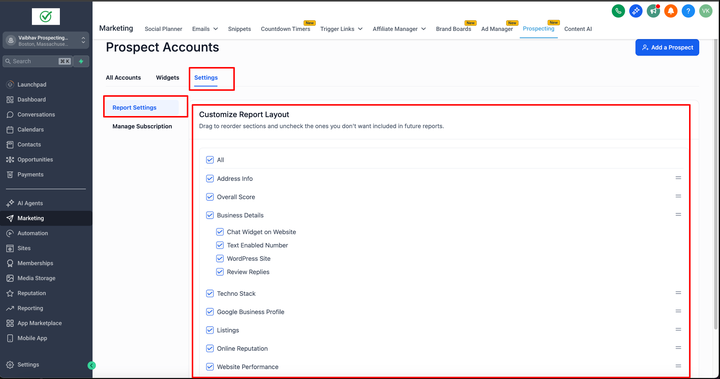
This screen displays the Customize Report Layout panel, where you can control section visibility and order.
Adjust Section Visibility
Controlling section visibility allows you to remove content that doesn’t align with your sales focus.
By default, all sections are enabled.
Uncheck any sections you do not want included in your reports.
You can re-enable sections at any time.
Example: Hide Techno Stack if your agency focuses strictly on SEO and reputation services.
Reorder Sections
Reordering sections allows you to guide prospects through insights in a strategic order.
Use the drag-and-drop handles beside each section.
Arrange sections in the sequence you want them displayed.
Example: Move Overall Score to the top to immediately show impact metrics.
Save Your Global Layout
Saving ensures your structure becomes the default for reports using the standard layout.
Click Save
The updated structure becomes your default layout for future reports
Important:
Save = Global Default Layout
Previously customized reports will not automatically update.
You can return to these settings anytime to update, reorder, include, or exclude sections.
Customize a Specific Report Only
When you need a different structure for a single prospect, you can adjust that report without changing your global settings.
Access Section Controls Inside a Report
Per-report customization allows flexibility for unique sales situations while preserving your standard template.
Open the desired Marketing Audit Report
Click Sections in the top-right corner
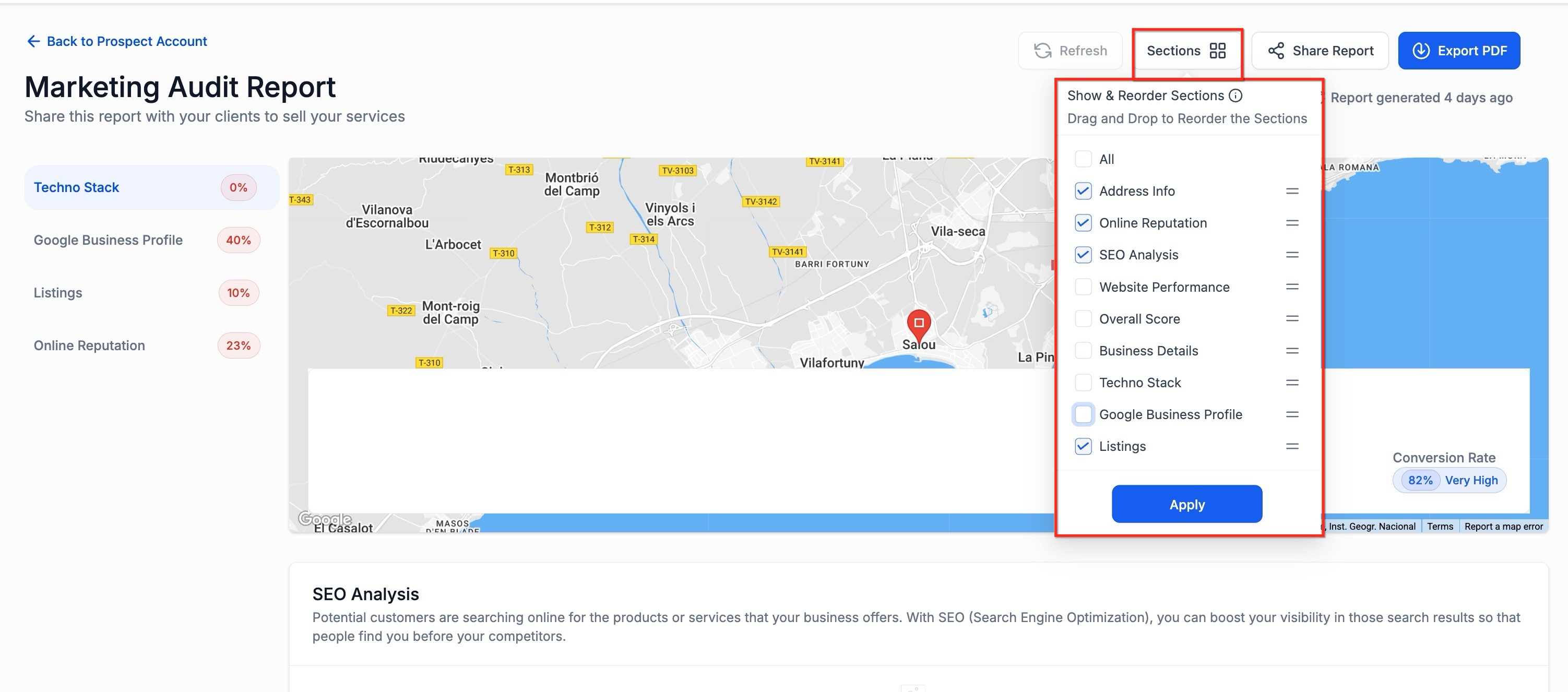
The Sections panel allows you to:
Check or uncheck sections to control visibility
Drag sections to reorder them
Click Apply to confirm changes
Apply = Changes affect this report only
Your global layout remains unchanged.
How To Set Up Prospect Report Layout Customization
Setting up your layout correctly ensures your reports consistently reflect your agency’s positioning and priorities.
To Configure a Global Default Layout
Navigate to Marketing → Prospecting → Prospect Accounts
Click Settings
Select Report Settings
Enable or disable sections as needed
Drag sections into your preferred order
Click Save
To Customize an Individual Report
Open the specific Marketing Audit Report
Click Sections
Reorder or hide sections
Click Apply
Verify Changes
Click Refresh inside the report if changes are not immediately visible.
Confirm the report generation timestamp.
Export the report using Export PDF to confirm structure consistency.
Refresh existing reports after major audit improvements to load the latest scoring, detection, and analysis updates.
Note:

Some report improvements are applied through backend processing. Existing reports may need a manual refresh before updated results appear.
Section order and visibility apply to:
The web-based report view
Shared report links
Exported PDF versions
Frequently Asked Questions
Q: Do global layout changes affect all reports?
Global changes become the default layout for reports moving forward that use the standard structure.
Q: Can I hide a section for just one report?
Yes. Use the Sections panel inside that specific report and click Apply.
Q: Will previously customized reports update if I change the global layout?
No. Reports that were individually customized retain their own layout settings.
Q: Does the section order affect the exported PDF?
Yes. The section order and visibility apply to both the web report and the exported PDF.
Q: What happens if I remove a section by mistake?
Return to either the global layout settings or the report’s Sections panel and re-enable the section.
Q: Why aren’t my layout changes appearing?
Confirm you clicked Save (global) or Apply (individual report), then click Refresh. If the issue continues, clear your browser cache.
Related Articles
Prospecting Tool - Customize and Reorder Your Report Sections
Prospecting Tool - Fully Customizable Prospect Report Builder
Was this article helpful?
That’s Great!
Thank you for your feedback
Sorry! We couldn't be helpful
Thank you for your feedback
Feedback sent
We appreciate your effort and will try to fix the article