What are Carousel Ads?
Carousel ads are an effective way of telling a story, highlighting different products, or showcasing various features of a single product. They engage users more actively than static ads, allowing for a more interactive experience.
It is a type of ad format that allows marketers to showcase multiple images or videos in a single ad unit. Users can swipe through the different cards, each of which can feature its own image, video, headline, description, and link.
What are the benefits of Carousel Ads over static advertisements?
The two ad formats are incomparable, but when it comes to usability and effectiveness, here are some key advantages of carousel ads:
- Improved Engagement: Carousel ads can enhance user's advertising strategy by making the ad content more engaging and effective.
- Increased Click-Through Rates: Users are often more likely to click on carousel ads since they can see more options at once, which can lead to higher click-through rates compared to single-image ads.
- Mobile-Friendly: The swipe-able format is well-suited for mobile users, who represent a significant portion of Facebook's audience.
- Cost-Effective: By showcasing multiple products in one ad, you may reduce the overall cost per click (CPC) compared to running several individual ads.
How can I create a multi-media or carousel ad campaigns in Ad Manager?
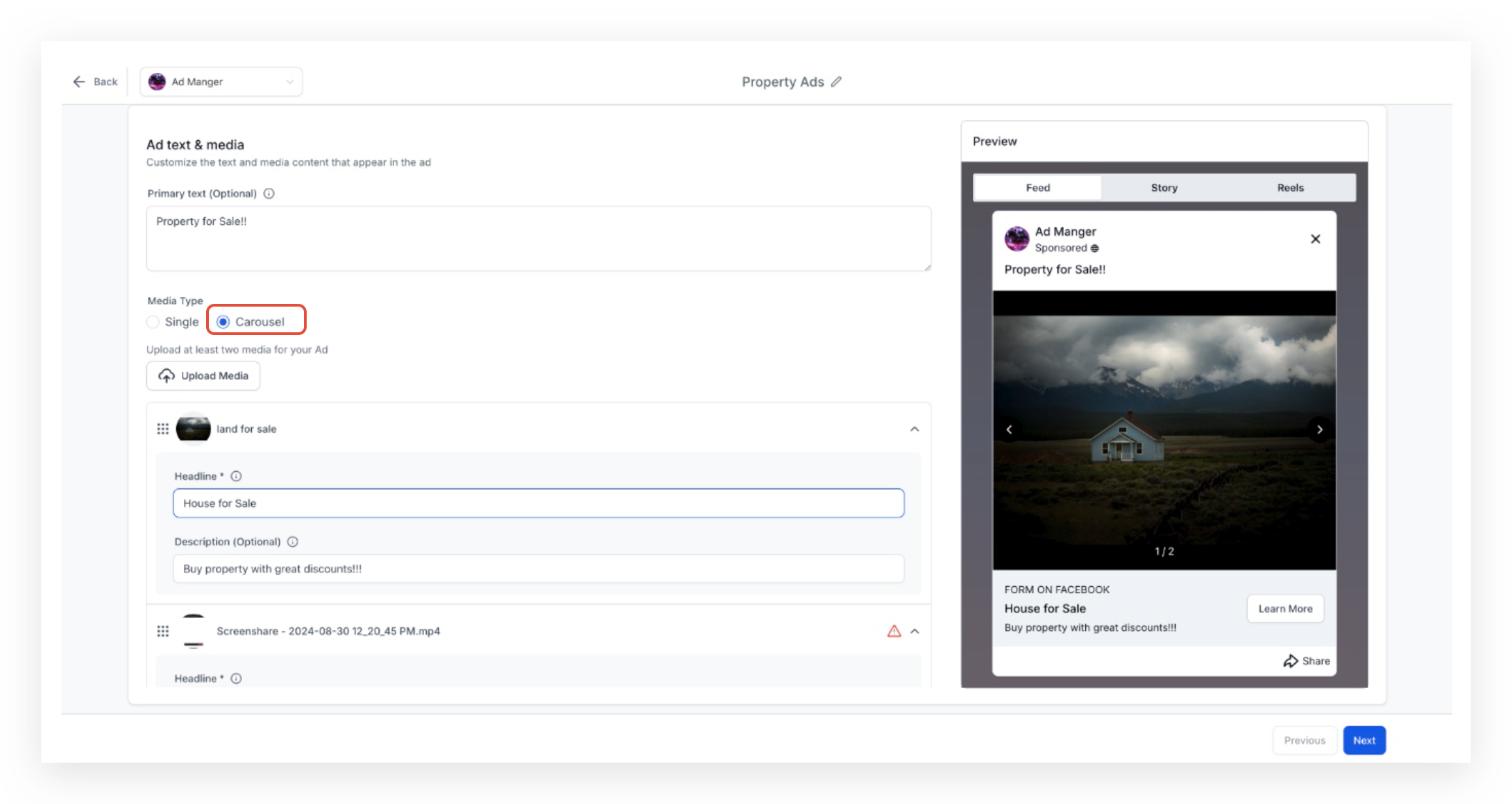
In the campaign creation process, when defining the Ad Content in the initial step, the existing media section offers two options under the media type sub-section: Single and Carousel.
Below is a short video demonstrating how to create a Carousel Ad using media from the Media Library, along with detailed steps outlined as follows:
- Select the 'Carousel' radio button and click on the"Upload media" button, user has the ability to add multiple images or videos up to a limit of 10 per campaign.
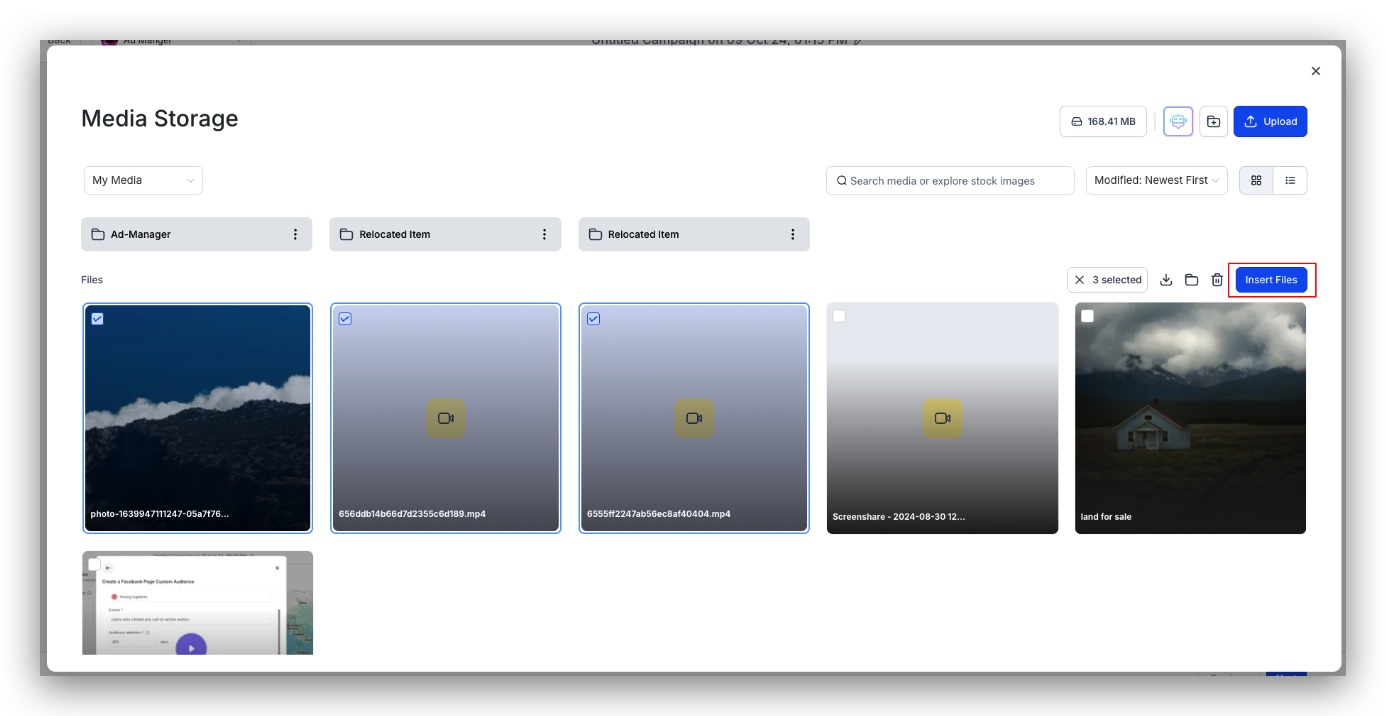
- Click on Upload Media button for the media library to open up and the images or videos or both needed for the campaign can be multi selected and used in the campaign by clicking "Insert Files".
- Each media that is added to the campaign will have a separate 'Headline' and 'Description', with headline being a required field.
Note: Each added image can be re-ordered in the same form as it's expected to be shown in the ad.
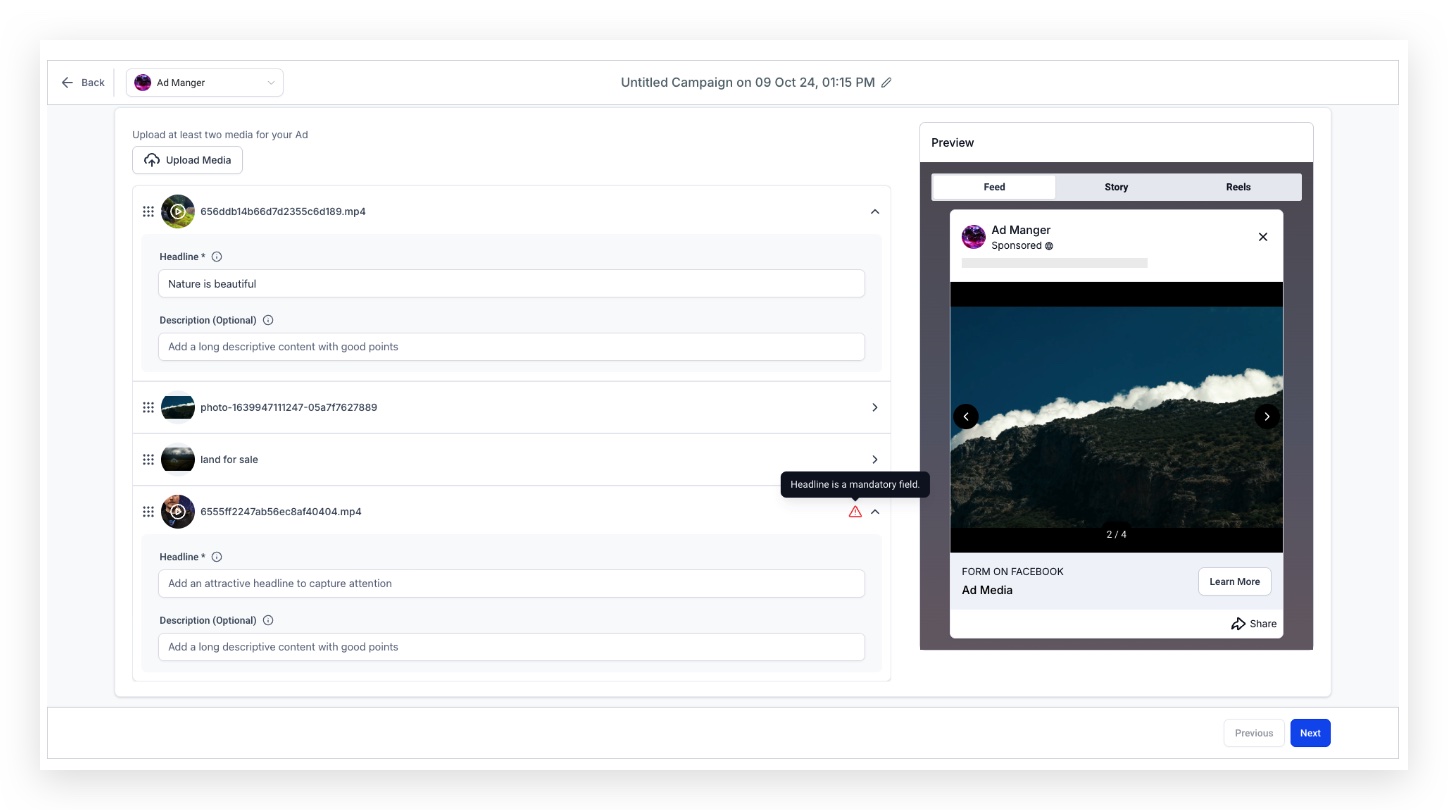
Note: A campaign cannot be published with errors and if a headline is not present for each media uploaded, the campaign will have errors.
- Thumbnail of an uploaded video can be modified by clicking on the uploaded video and selecting the thumbnail you wish to be shown in the ad.
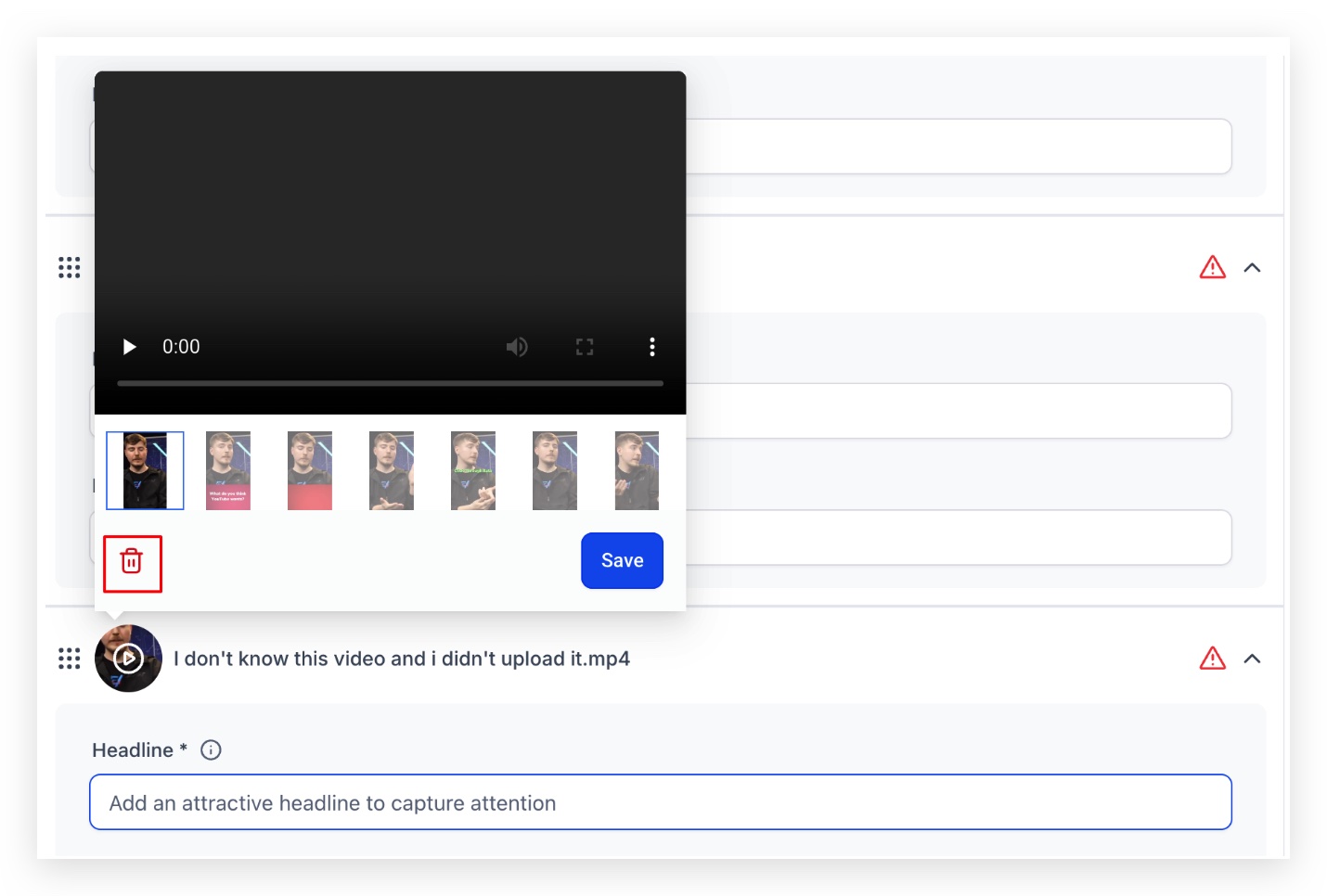
An uploaded image or video can be removed/deleted by clicking on the uploaded image/video icon and clicking on the dustbin icon.
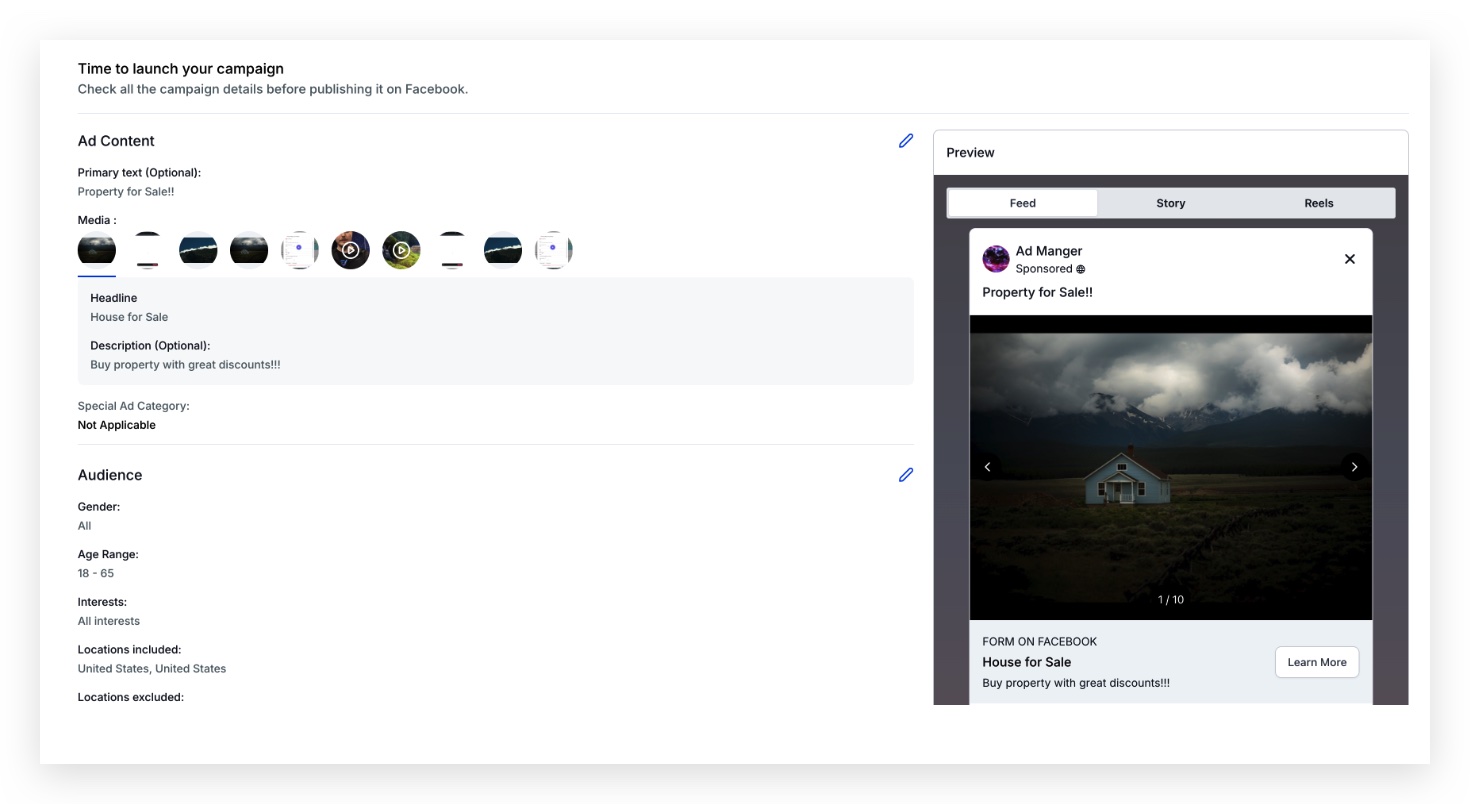
The preview section will demonstrate the media added for the campaign and how will it appear as an advertisement.
Under 'Review and Publish' section, all the images or videos which are used for the campaign are shown in the ad content > media section.
Frequently Asked Questions
Q: How many cards can I add to a Meta Carousel Ad?
Current HighLevel documentation supports up to 10 cards in a Meta Carousel Ad.
Q: Can I edit a Meta Carousel Ad after it has been published?
Published or In Review Meta campaigns can be edited when the applicable field is eligible. Ad Text and Media are supported editable fields. Meta reviews the updated campaign again after changes are published.
Q: When should I use a Carousel Ad instead of a single creative?
Use Carousel when the ad needs multiple creative cards, such as several products, features, or sequential visuals. Use a single creative when one image or video communicates the intended message.
Related Articles