A selection of key data from all subaccounts is rolled up into the agency account for reporting. In one place you get a clear view of performance of all subaccounts under your agency.

Please Note:
This feature is only available on the Pro Plan ($497/month , $4970/year)Subaccount Rolled Up Report
Navigate to Agency Account > Sub-accounts and click the Columns button.
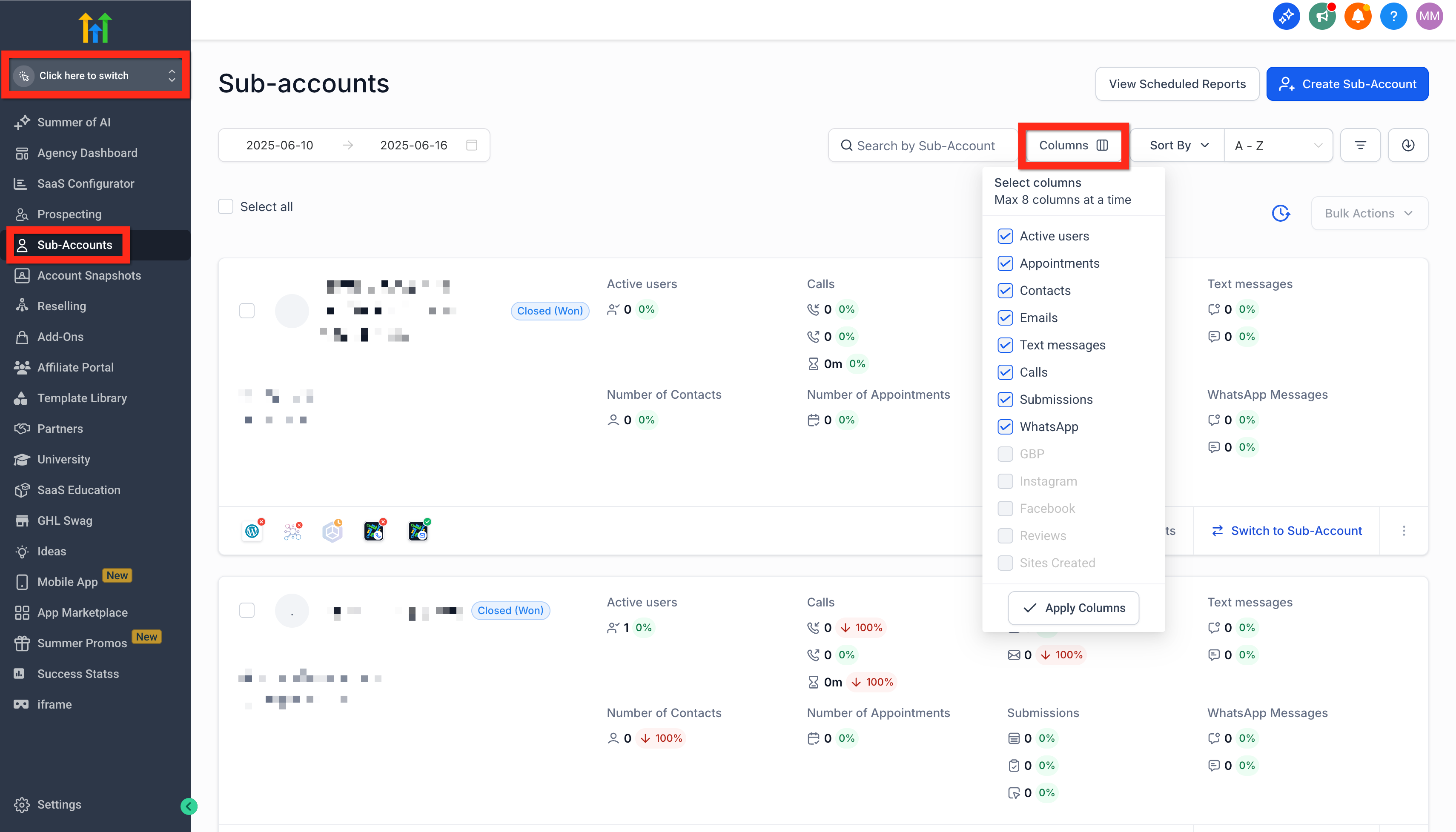
Select up to 8 columns to include in all of the subaccount summary cards.
- Active users:
- An active user is one logged in at least once in the chosen timeframe either on the web or on a phone (both IOS and android).
- We will show this in this format - 79/100 where 79 is the count of active users and 100 is the count of total users in the location that were created during the chosen timeframe.
- A user could be both a location admin or a location agent
- An active user is one logged in at least once in the chosen timeframe either on the web or on a phone (both IOS and android).
- Appointment: Count all the appointments that were created within the chosen timeframe irrespective of what status the appointment is in.
- Contact: Count of contacts in that location that are created within the chosen timeframe.
- Email:
- Inbound emails - Count of all the emails that a contact sent to the location admin/user within the chosen timeframe
- Outbound emails - Count all the SMS the sub-account admin/user sent to a contact. This will not include automated emails.
- Inbound emails - Count of all the emails that a contact sent to the location admin/user within the chosen timeframe
- Text Messages:
- Inbound SMS - Count all the SMS that contact sent to the location admin/user within the chosen timeframe.
- Outbound SMS - Count all the SMS the sub-account admin/user sent to a contact. This will not include automated SMS.
- Inbound SMS - Count all the SMS that contact sent to the location admin/user within the chosen timeframe.
- Calls:
- Inbound calls - Count of all the calls that contact made to the location admin/user within the chosen timeframe
- Outbound calls - Count of all the calls the sub-account admin/user made to contact. This will not include automated calls.
- Talk time - The summation of the total duration of calls that happened between the user and the contact
- Inbound calls - Count of all the calls that contact made to the location admin/user within the chosen timeframe
- Submissions:
- Forms: Count of total forms submitted
- Surveys: Count of total surveys submitted
- Facebook Forms: Count of total Facebook forms submitted
- Forms: Count of total forms submitted
- WhatsApp:
- Inbound - Count of all WhatsApp messages sent to the location/user within the chosen timeframe
- Outbound - Count of all WhatsApp messages sent
- Inbound - Count of all WhatsApp messages sent to the location/user within the chosen timeframe
- GBP (Google Business Profile):
- Inbound messages - Count of all the messages that a contact sent to the location admin/user within the chosen timeframe through GMB
- Outbound messages - Count all the messages the sub-account admin/user sent to a contact.
- This will not include automated messages.
- Inbound messages - Count of all the messages that a contact sent to the location admin/user within the chosen timeframe through GMB
- Instagram:
- Inbound messages - Count of all the messages that a contact sent to the location admin/user within the chosen timeframe through IG
- Outbound messages - Count all the messages the sub-account admin/user sent to a contact.
- This will not include automated messages.
- Inbound messages - Count of all the messages that a contact sent to the location admin/user within the chosen timeframe through IG
- Facebook:
- Inbound messages - Count of all the messages that a contact sent to the location admin/user within the chosen timeframe through Facebook
- Outbound messages - Count all the messages the sub-account admin/user sent to a contact.
- This will not include automated messages.
- Inbound messages - Count of all the messages that a contact sent to the location admin/user within the chosen timeframe through Facebook
- Review:
- Total: Count of reviews received for that location
- Positive: Count of positive reviews received
- Negative: Count of negative reviews received
- Total: Count of reviews received for that location
- Sites Created:
- Funnels: Count of funnels created
- Websites: Count of websites created
- Forms: Count of forms created
- Surveys: Count of surveys created
- Funnels: Count of funnels created
Managing Scheduled Reports for Sub-Accounts
In the Agency View, you can manage all scheduled reports across sub-accounts from a centralized interface. This includes pausing, resuming, filtering, and configuring behavior for newly added accounts.
Scheduled Reports Table
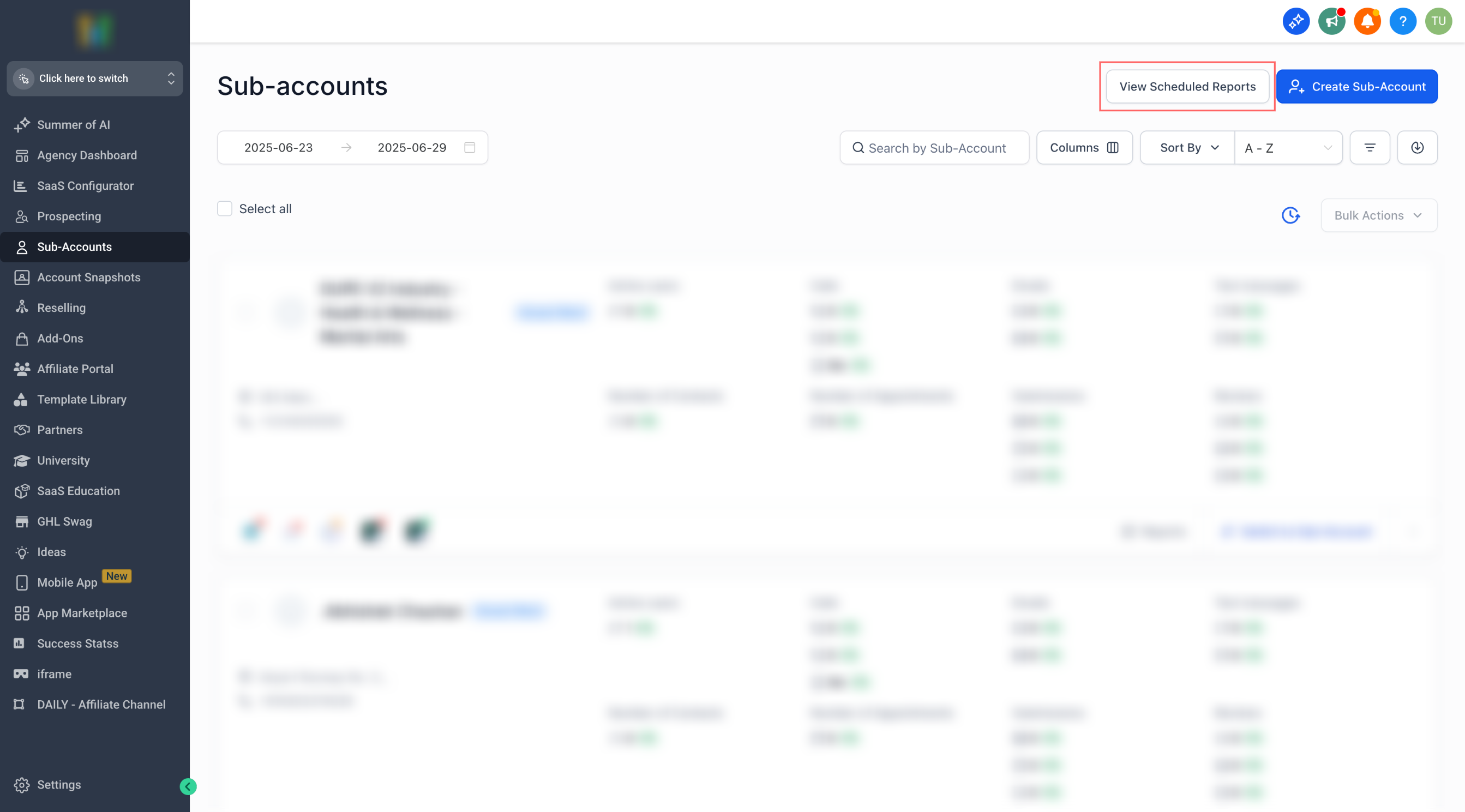
Navigate to: Agency View → Sub-Accounts → View Scheduled Reports
View a list of all scheduled reports for sub-accounts
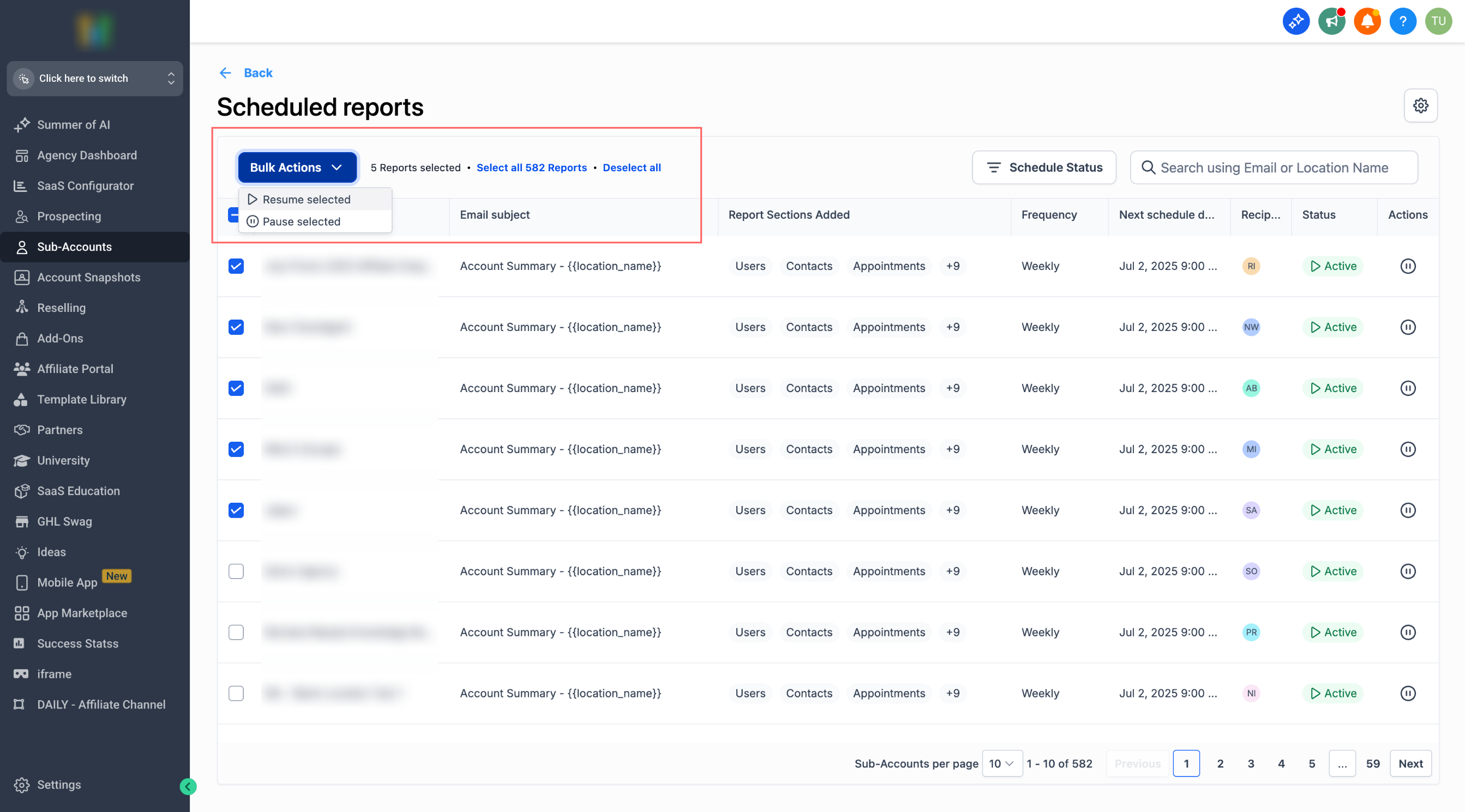
Use checkboxes to select one or more reports
Apply bulk actions to pause or resumeselected reports
Filter by Status
Quickly audit delivery by narrowing the list to only active or paused schedules.
Select the Status filter and choose Active or Paused.
Use Paused to find schedules that won’t send until resumed.
Settings Panel
Control global behavior during onboarding, holidays, or template changes to prevent unexpected sends.
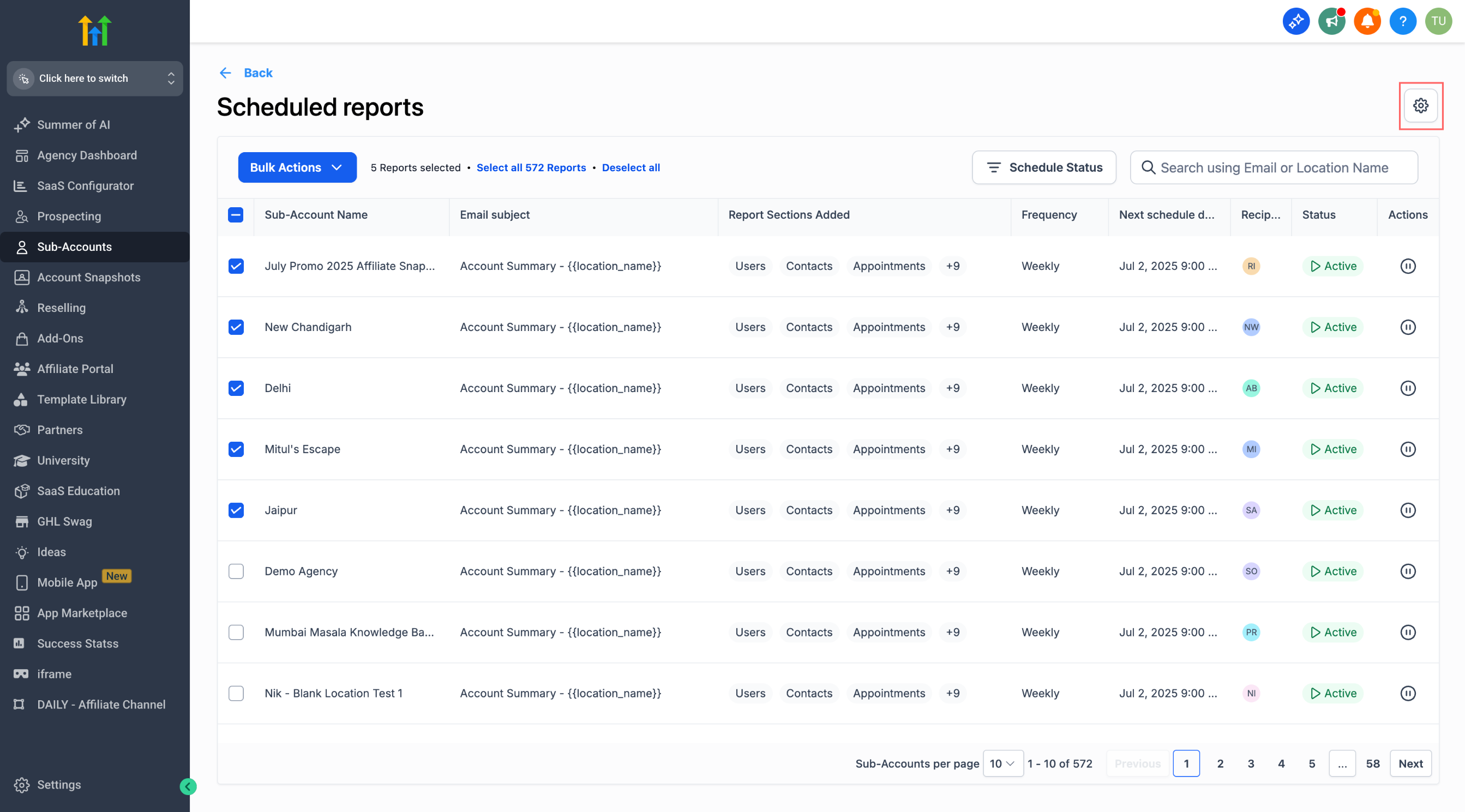
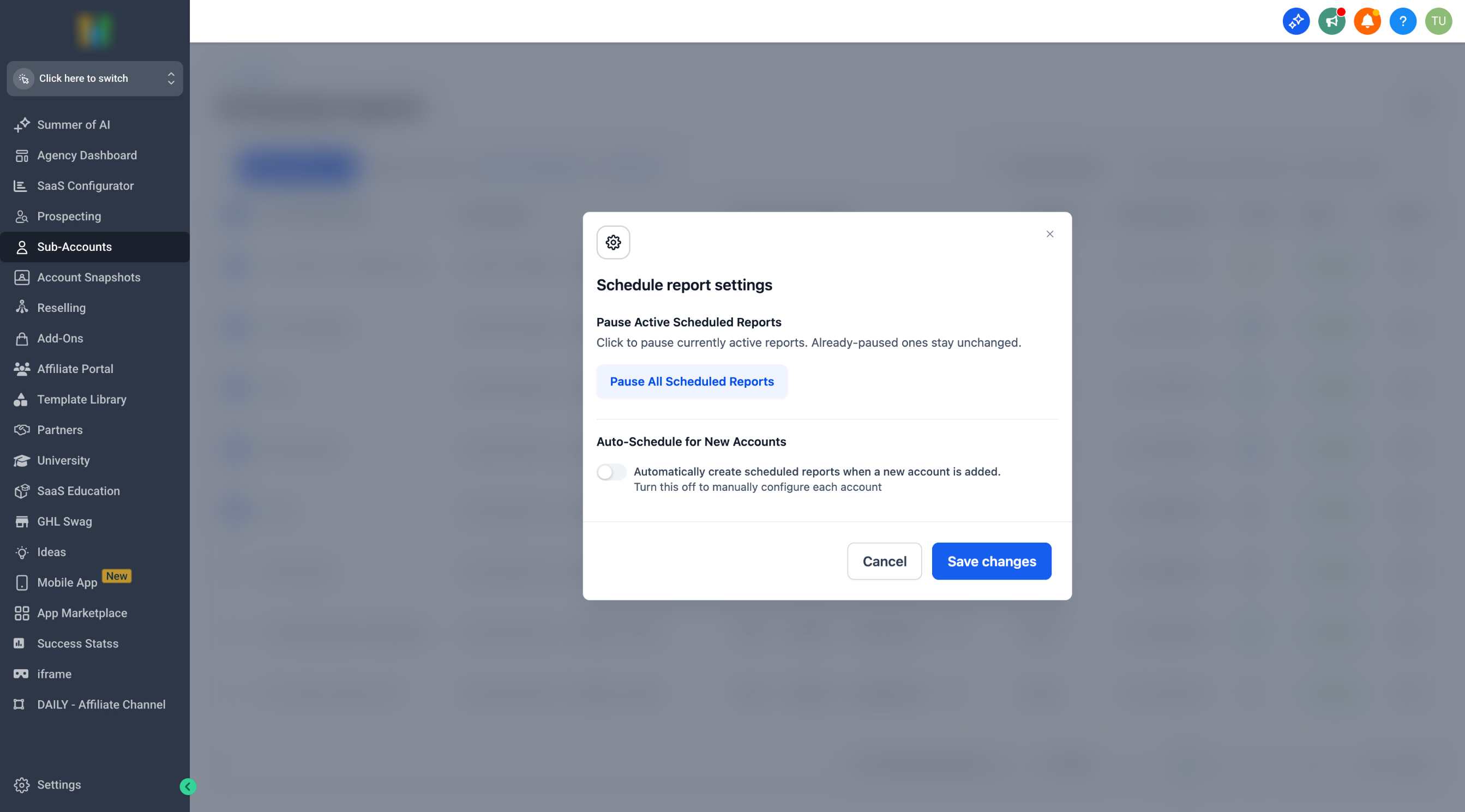
Click the Settings icon (gear) in the Scheduled Reports view.
Pause All Scheduled Reports: Immediately pauses all scheduled reports listed at the agency level. Use this before making widespread template or recipient changes.
Auto-create scheduled reports for new sub-accounts (toggle):
On: When a new sub-account is added, default scheduled reports are created automatically.
Off: New sub-accounts will not receive auto-created reports, preventing accidental sends during onboarding.
Best Practices
Enable Auto-create if you want every new client to receive a baseline report without manual setup.
Disable Auto-create if your agency prefers to review templates, recipients, and timing before any report is sent.
How to Use
Go to Agency Account → Sub-Accounts → View Scheduled Reports
Use the checkboxes to select reports you want to manage
Choose Pause or Resume from the bulk actions bar
Click the Settings icon to pause all reports or configure auto-creation behavior
Frequently Asked Questions
Q: Who can access Agency Rolled-up Reporting controls?
A: Users with Agency View access on $497/month and above plans.
Q: Can I unpause multiple reports at once?
A: Yes. Select multiple rows with checkboxes, then choose Resume from the Bulk Actions bar.
Q: Does Pause All stop reports that get auto-created later?
A: Pause All pauses current schedules. The Auto-create toggle controls whether new sub-accounts will receive schedules automatically. Use them together when needed.
Q: How do I quickly find which reports are not sending?
A: Use the Status filter and select Paused.
Was this article helpful?
That’s Great!
Thank you for your feedback
Sorry! We couldn't be helpful
Thank you for your feedback
Feedback sent
We appreciate your effort and will try to fix the article