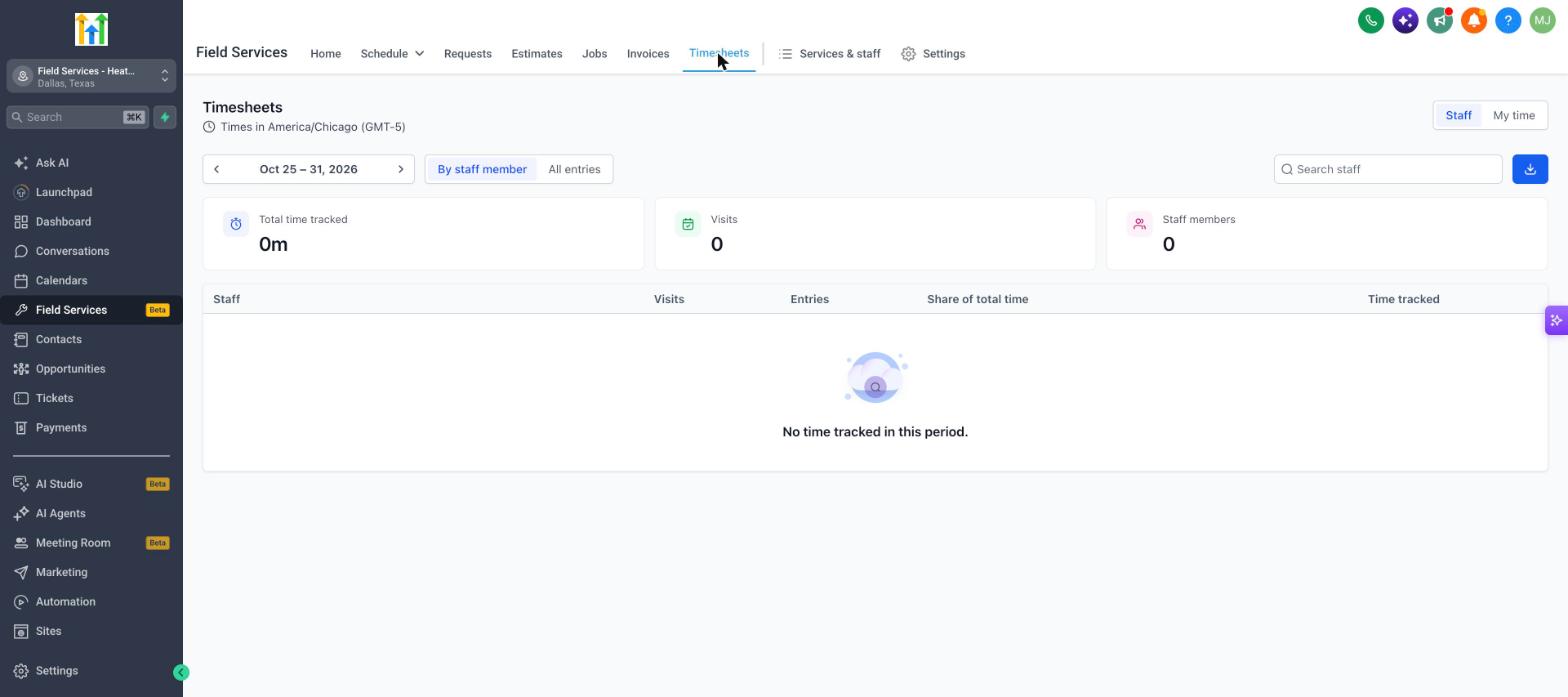
Know how long work really takes. Timesheets let your staff track hours against each visit, so you can see labor time per visit and per person, with an audit trail for every change. This article explains how timers and time entries work and who can edit them.
Note: Field Services is currently in private beta and is available to selected accounts.
In this article
- What are timesheets?
- How to turn on timesheets
- How timers work
- Add, edit and delete time entries
- Who can edit time entries?
- Frequently asked questions
- Related articles
What are timesheets?
Timesheets track the hours your staff work on each visit. Each time a staff member starts and stops a timer, Field Services saves a time entry. Entries add up per visit and per staff member so you can see how long work really took.
How to turn on timesheets
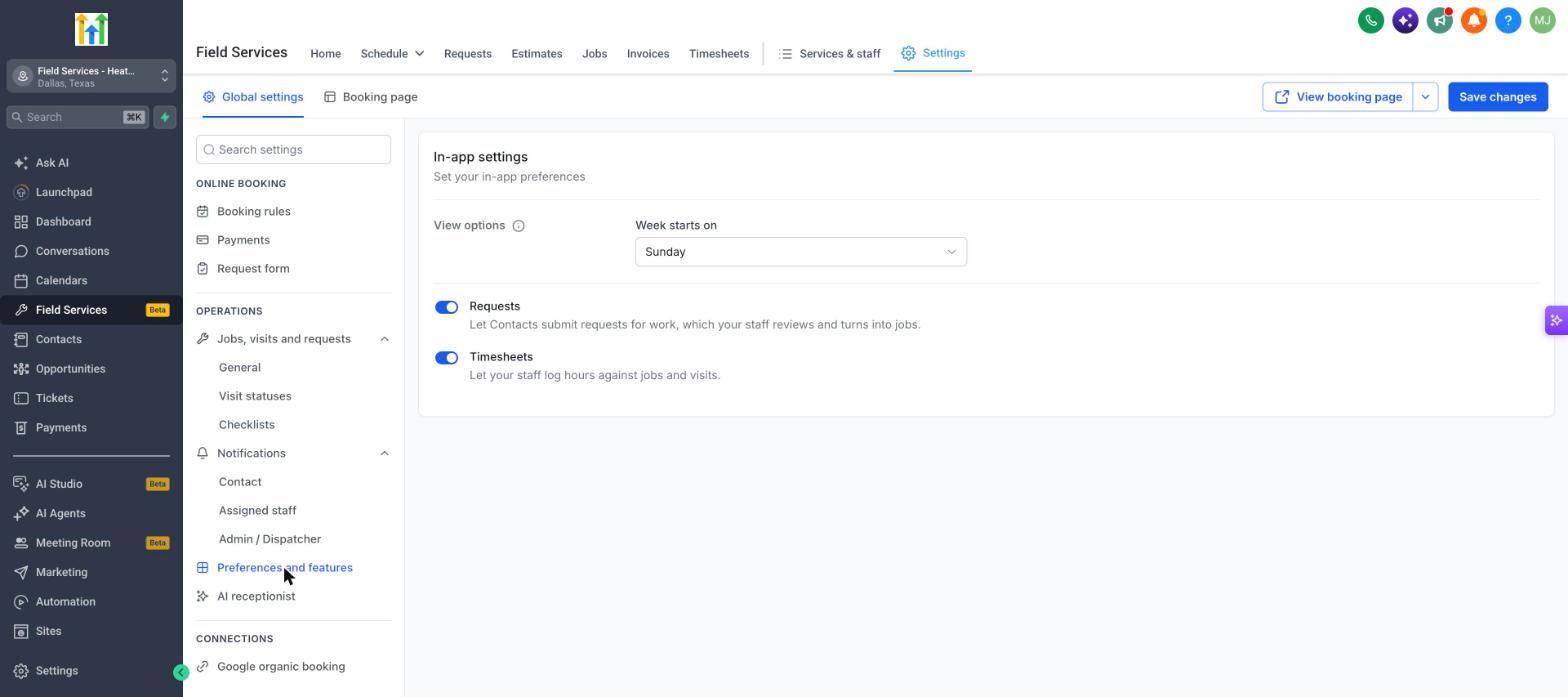
- Go to Field Services > Field Services Settings > Global settings.
- Under Operations, click Preferences and features.
- Turn on Timesheets (Let your staff log hours against jobs and visits).
- Click Save changes.
See Field Services Settings: Jobs, Visits and Preferences for the other settings on this page.
How timers work
- A staff member can start a timer on a visit. Each start and stop creates a separate time entry, so one visit can have several entries.
- A staff member can have more than one timer running at the same time, for example on two different visits.
- On a visit with several staff, each person has their own timer. Starting yours does not start anyone else's.
- Timers keep running if you change the visit status, for example from Checked in to Waiting on parts, until you stop them.
- If you mark a visit Completed, Cancelled or No show while a timer is running, you see a warning so the timer is not lost.
- The same timer shows on web and mobile. If you start a timer in one place and open the visit in another, the timer shows as running with the correct time.
See Visit Statuses in Field Services for visit statuses.
Add, edit and delete time entries
You can correct time without losing the history.
| Action | How it works |
|---|---|
| Add manually | Choose the visit, the staff member and the start and end time. The duration is calculated for you. The end time must be after the start time. |
| Edit | Change the start or end time of an entry. The visit and timesheet totals update straight away. |
| Delete | Remove an entry. Totals are recalculated. |
| Overnight entries | An entry that runs past midnight, such as 11:30 PM to 12:30 AM, is counted as one hour. |
Every manual change is recorded in an audit history that shows the old and new values and who made the change.
Who can edit time entries?
- Staff can add, edit and delete their own entries, if permitted.
- Staff cannot edit another person's entries.
- Admins can add, edit and delete entries for any staff member.
Frequently asked questions
Where do I see total time for a visit?
The visit shows time per staff member and the total labor time across everyone.
Are completed visits still editable?
Historical time on completed visits stays visible and can be edited based on the person's permissions.
Do timers work for visits scheduled in the past?
Timers are not available for visits that already happened. You can still add a time entry manually.
Related articles
Was this article helpful?
That’s Great!
Thank you for your feedback
Sorry! We couldn't be helpful
Thank you for your feedback
Feedback sent
We appreciate your effort and will try to fix the article